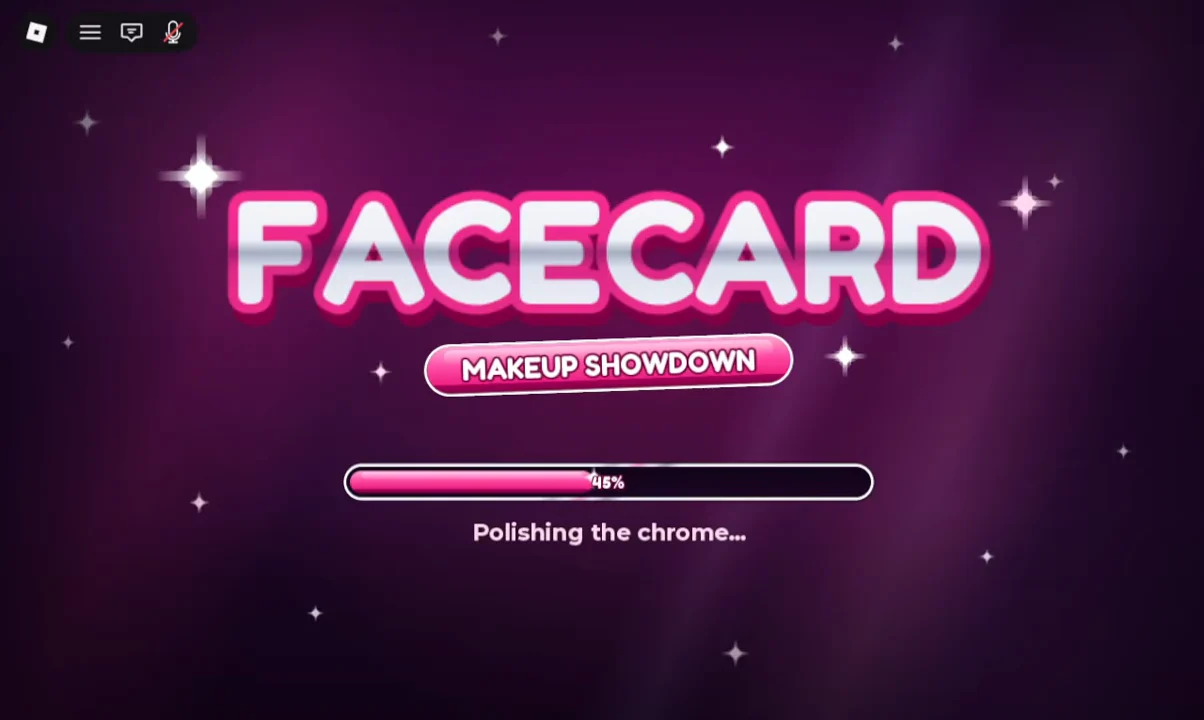
Facecard: Makeup Showdown is a free Roblox makeup competition. Every player in a server gets the same theme, paints it onto a blank 3D face, and then rates everyone else’s work before a winner is crowned. Servers hold up to 10 players, so each round is a small, fast contest.
Quick answer: Click JOIN ROUND in the salon lobby, paint the theme shown on the title card, rate every look from 1 to 5 stars, and the highest-rated face takes first place.
Facecard Makeup Showdown round structure: Paint, vote, win
Every match follows the same three-phase loop. The theme stays the same for everyone, so the scoring comes down to how well you interpret it.
| Phase | What you do | What happens |
|---|---|---|
| Paint | Apply the shared theme | Brushes, lashes, hair and more |
| Vote | Rate each look 1–5 stars | Every face gets a photoshoot |
| Win | Wait for results | Top-rated face wins; stars, cash and ranks |
Themes come with specific instructions. Highlight Heaven, for example, asks you to put glow on the cheekbones, nose, and brow bone. Reading that card closely matters, because voters are rating against the same brief you were given.
How to join your first round in Facecard Makeup Showdown
The game launches from its Roblox page. No purchase is needed to play.
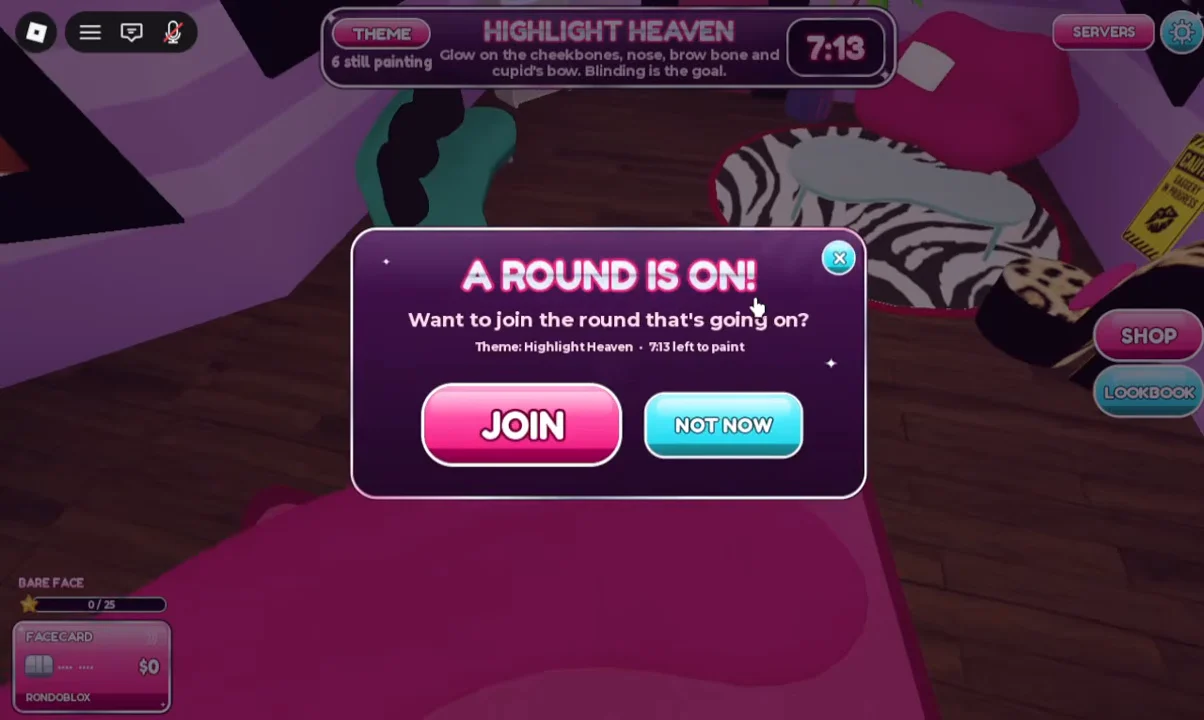
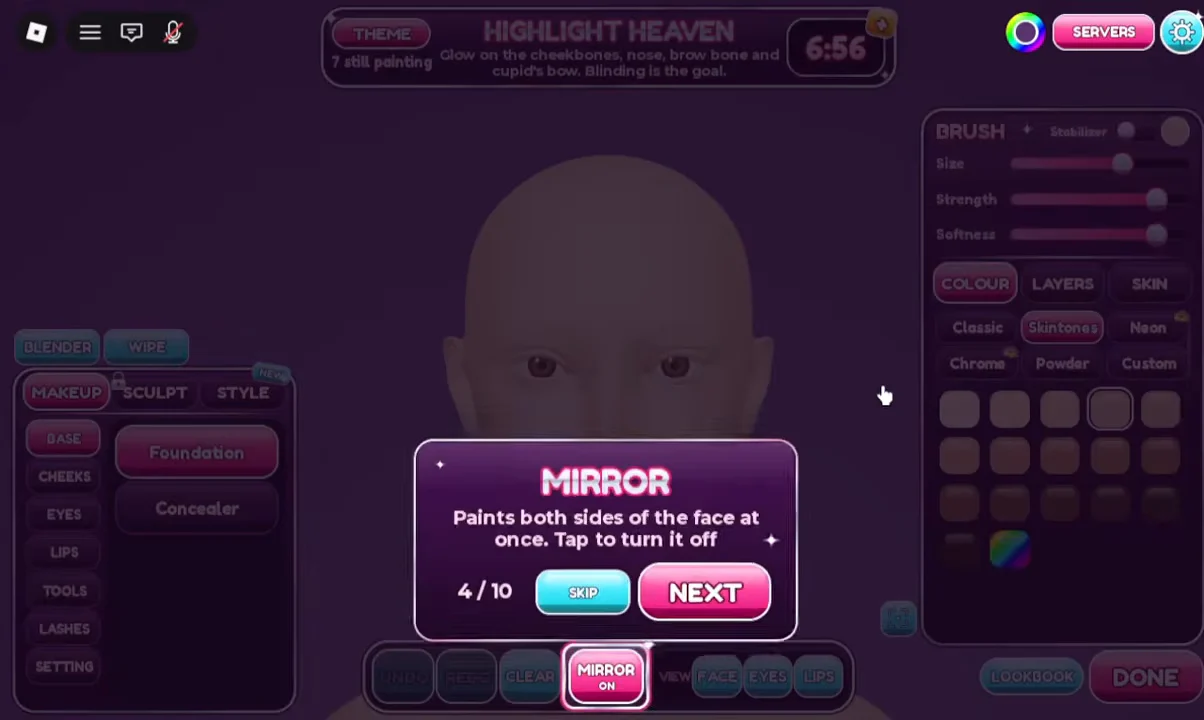
You know you’re in the round once the blank face model sits in front of you with the tool tabs available. That canvas is where your entry gets built.
Makeup station tools and tabs
The station splits products into tabs. Base holds Foundation, and Eyes, Lips, and Makeup cover the rest of the face. Selecting a product opens brush parameters you can adjust before painting directly onto the model.
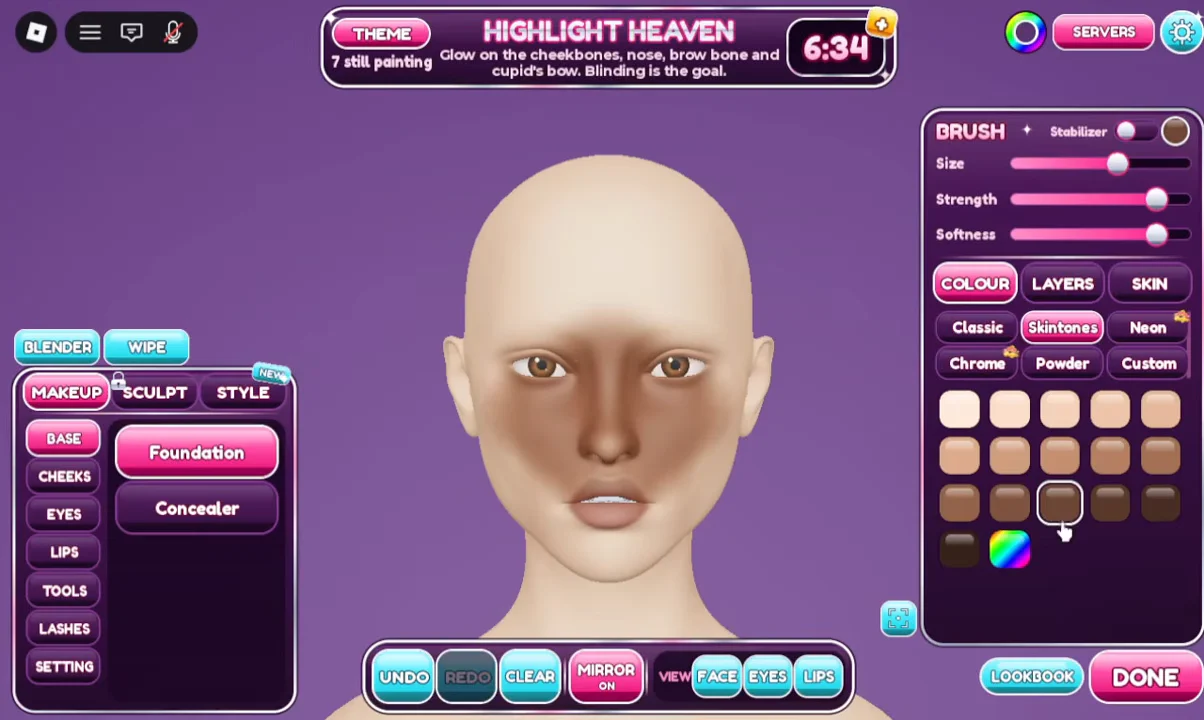
- Base → Foundation lays down skin coverage with adjustable brush settings.
- Eyes and Lips tabs hold color products for those areas.
- The Makeup menu includes lash styles such as Doll Eye.
- The Clear button on the bottom toolbar wipes the whole face.
- Layers stack your work; the default cap can be raised with a game pass.
Clear removes every applied product at once. Save to the Lookbook first if you want to keep what’s on the face.
How to save and load looks in the Lookbook
The Lookbook stores finished faces so you can reload them later instead of repainting from scratch. It also offers More Slots if you run out of space.
To confirm the save worked, press Clear to empty the face, then load the preset. The full look should reappear on the model exactly as you left it.
Facecard Makeup Showdown settings
The SETTINGS dialog is reachable from the makeup station and doesn’t pull you out of the round. It contains:
- MUSIC volume slider
- SOUND EFFECTS volume slider
- REDUCE FLASHES toggle, useful during photoshoot sequences
- NAME TAGS toggle
- BLENDER MODE toggle
Shop, rewards, and game passes
Between rounds, the SHOP button on the right side of the lobby opens the TODAY’S DEALS catalog. It rotates purchasable cosmetics, including eye options like Sanpaku Eyes and Ghost Eyes. Winning rounds earns stars, cash, and new ranks, which is what keeps the shop relevant.
Three optional game passes sit on top of the free experience:
| Game pass | Price | Effect |
|---|---|---|
| Increased Layer Limit | 129 R$ | More layers per look |
| 2x Facecard Cashback ($) | 199 R$ | Doubles credit earned |
| VIP | 349 R$ | VIP perks |
None of these are required to compete; every player paints the same theme with the same core tools. The clearest sign you’ve actually won a round is the First Lethal Facecard badge, which Roblox awards the first time you finish in 1st place.