
AION 2 keeps text language and voice audio as two separate settings, and both can be changed without a patch. English ships inside the client, so you can move the interface into a language you read whether you are on a regional Korean or Taiwanese build or the global release.
Quick answer: Open Settings, go to the Miscellaneous tab, open the Language subtab, set the Language field for text and the Voice field for audio, then confirm.
Change language from the in-game settings menu
Use this method when you are already logged in and the interface is showing a language you cannot read. The layout stays the same regardless of which language is currently active, so you can follow the button positions even if the labels are in Korean or Chinese.
Esc or F10 and the cogwheel appears at the bottom right.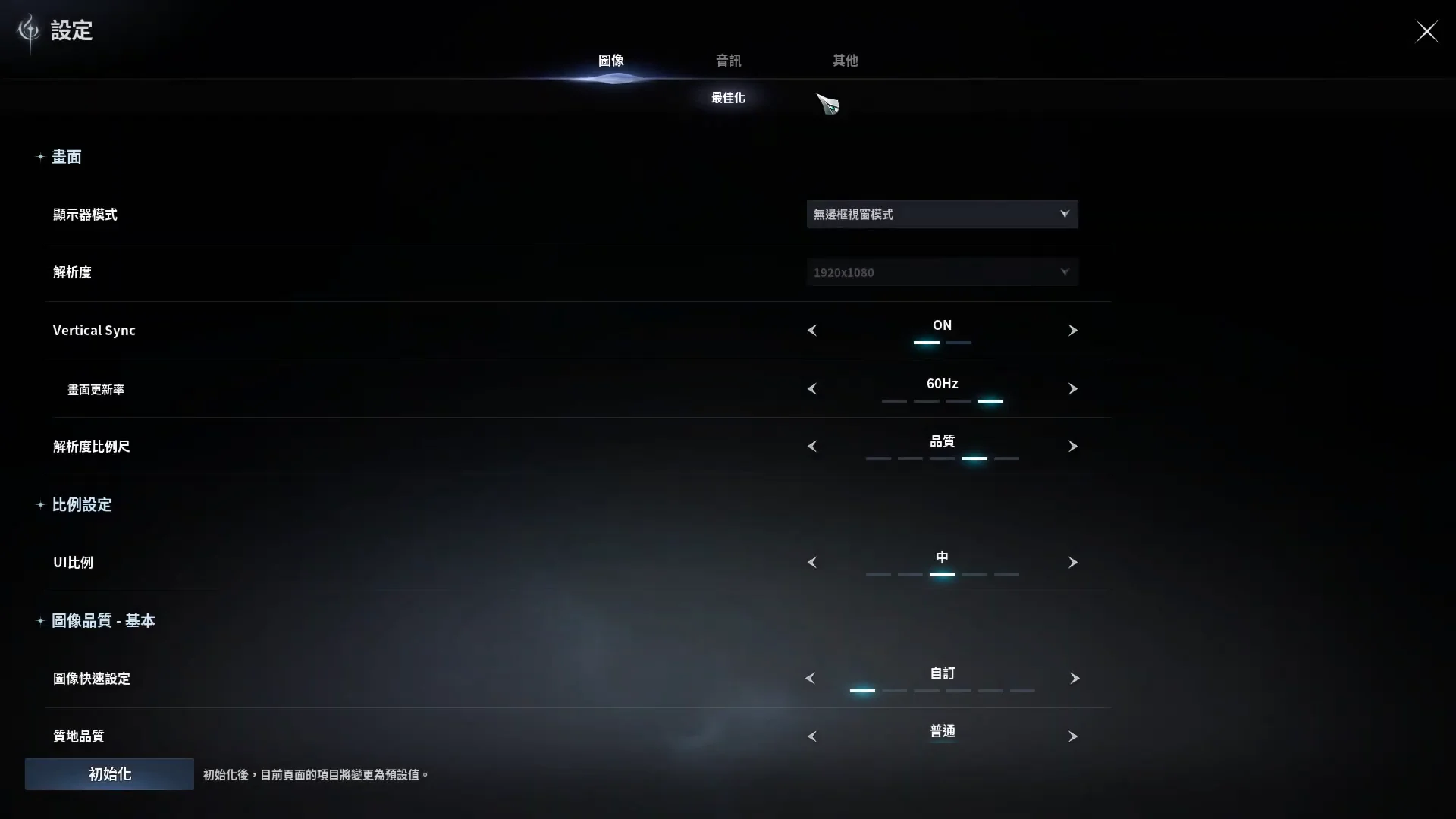
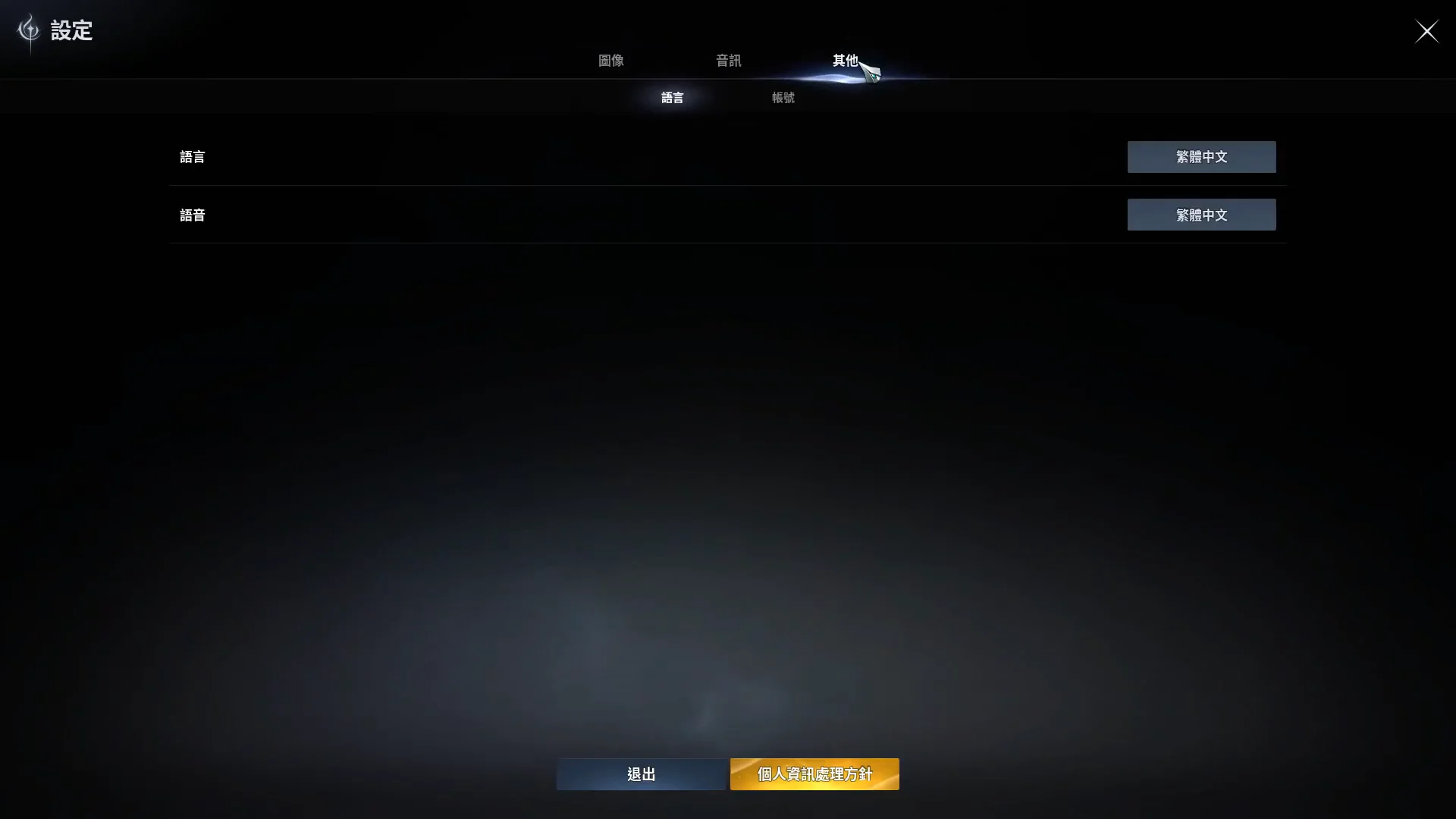
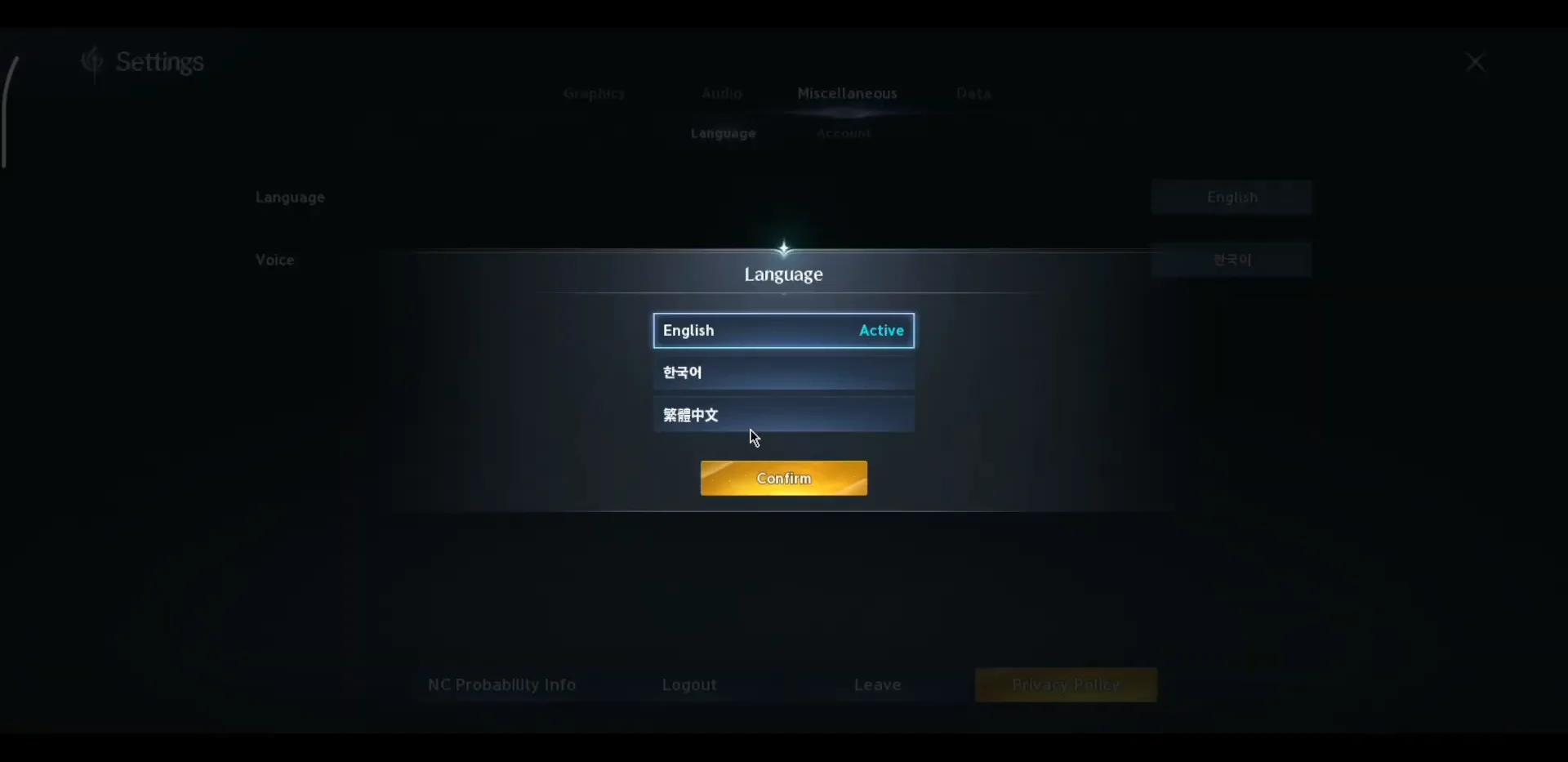
Some interface elements only refresh on a fresh launch, so fully close and reopen the client if a few labels still show the old language.
Change language from the PURPLE launcher before you play
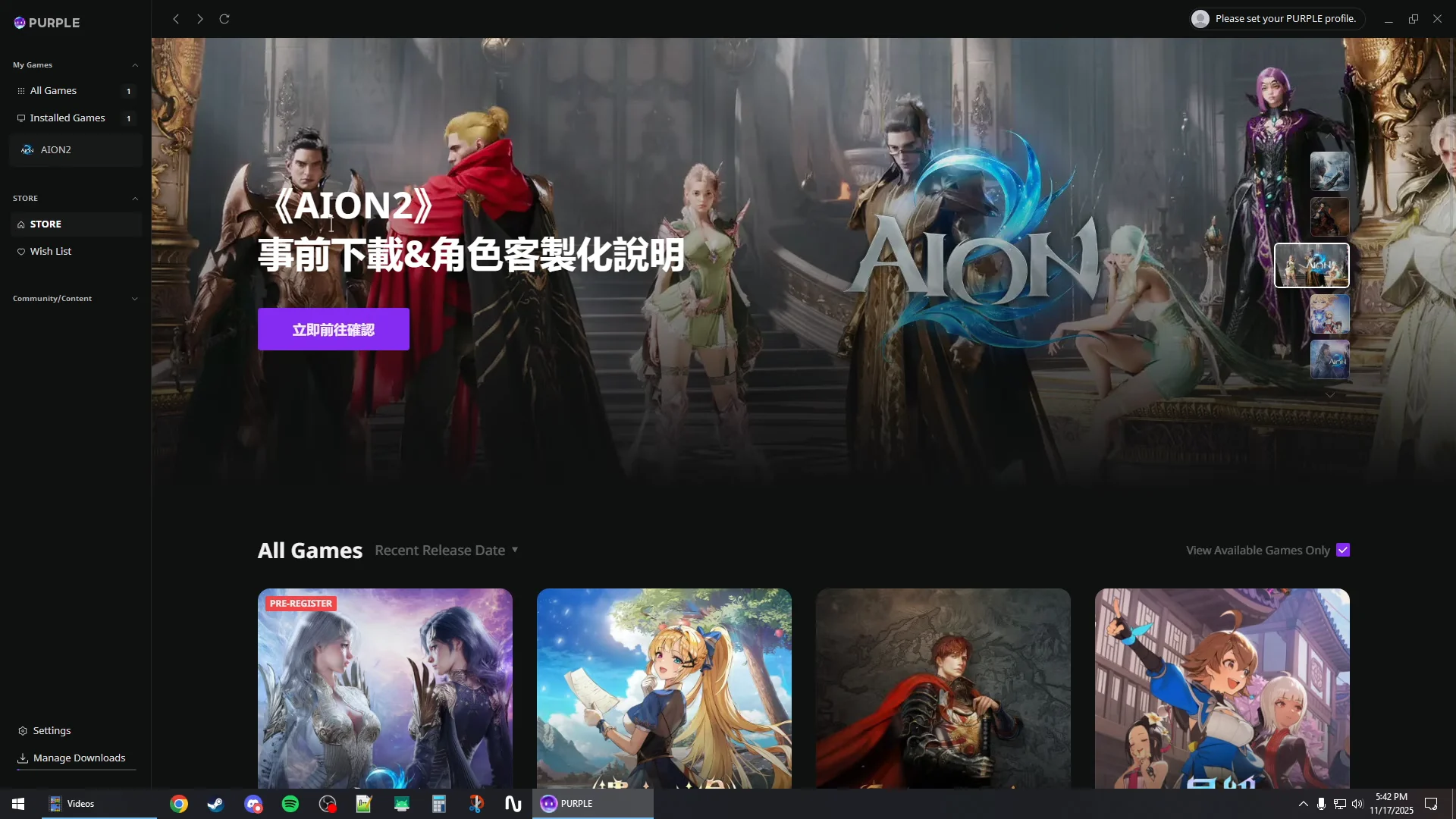
Setting the language before launch avoids reading through in-game menus in another script. This works from the PURPLE launcher and also through the Steam client, whichever you use to start the game.
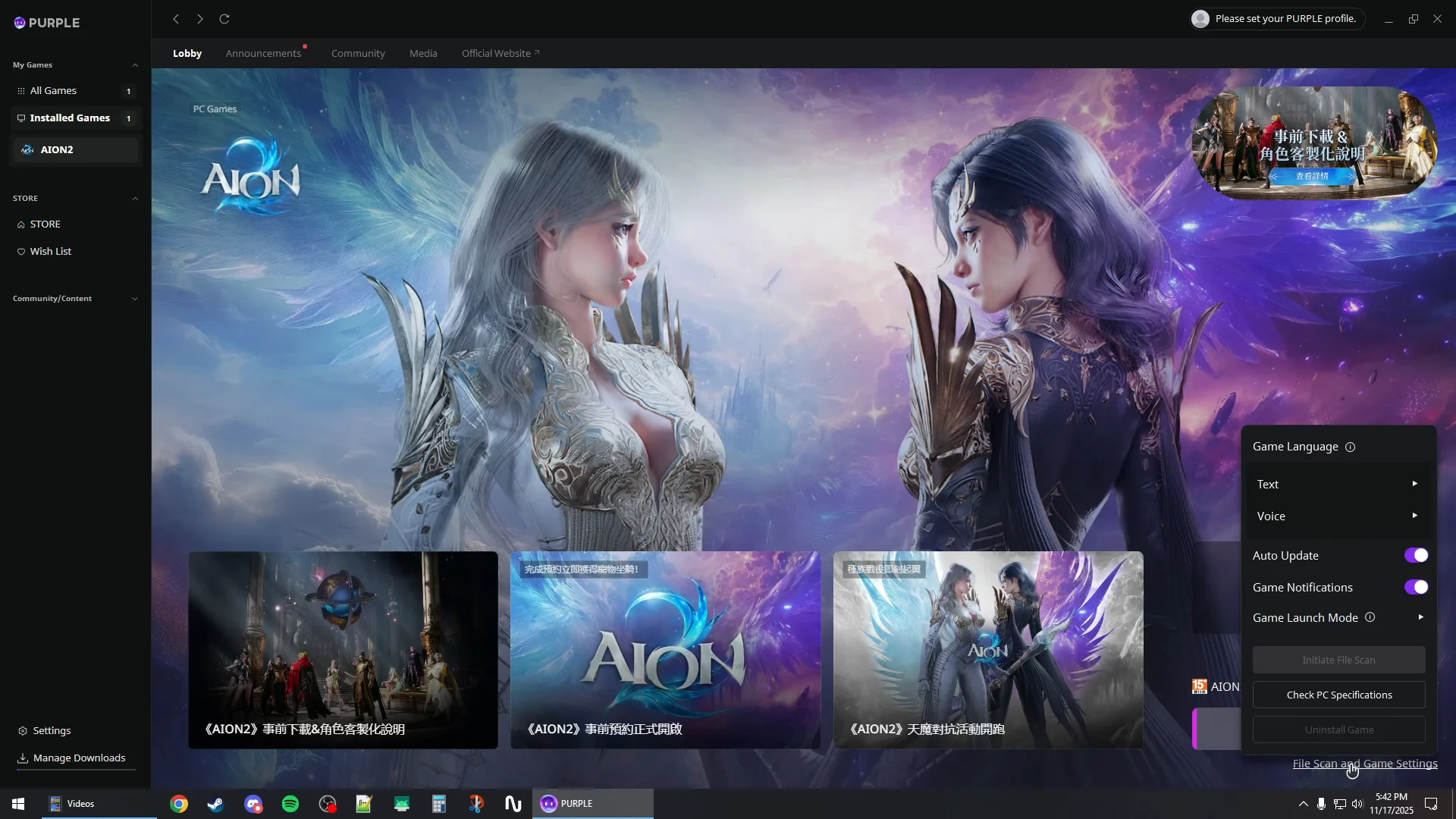
Text language versus voice audio
The two fields are not linked. Text covers the interface, quest dialogue, and cinematic subtitles, and it supports a wider set of languages. Voice audio is far more limited and is often tied to the regional server you connect to, which is why you may hear Korean or Japanese speech under English text. That combination is expected behavior, not a bug.
Inside the game, the voice list shows English, Korean (한국어), and Japanese (日本語). Full voice acting is confirmed for English, Japanese, Korean, and Traditional Chinese, while every other supported language still gets complete menu and subtitle translation.
Supported languages in AION 2
The global client ships with ten languages built in. The table below shows which have full audio versus text-only interface and subtitles.
| Language | Interface | Full audio | Subtitles |
|---|---|---|---|
| English | Yes | Yes | Yes |
| Korean | Yes | Yes | Yes |
| Japanese | Yes | Yes | Yes |
| Traditional Chinese | Yes | Yes | Yes |
| Simplified Chinese | Yes | No | Yes |
| French | Yes | No | Yes |
| German | Yes | No | Yes |
| Spanish (Spain) | Yes | No | Yes |
| Portuguese (Brazil) | Yes | No | Yes |
| Russian | Yes | No | Yes |
Confirm the change worked
After you confirm, the settings window itself redraws in the language you picked, with tabs relabeled to Graphics, Audio, and Miscellaneous when you choose English. Back out to the title screen and the prompt should read Please click on the screen, with buttons such as Security Settings and Credits now in your chosen language.
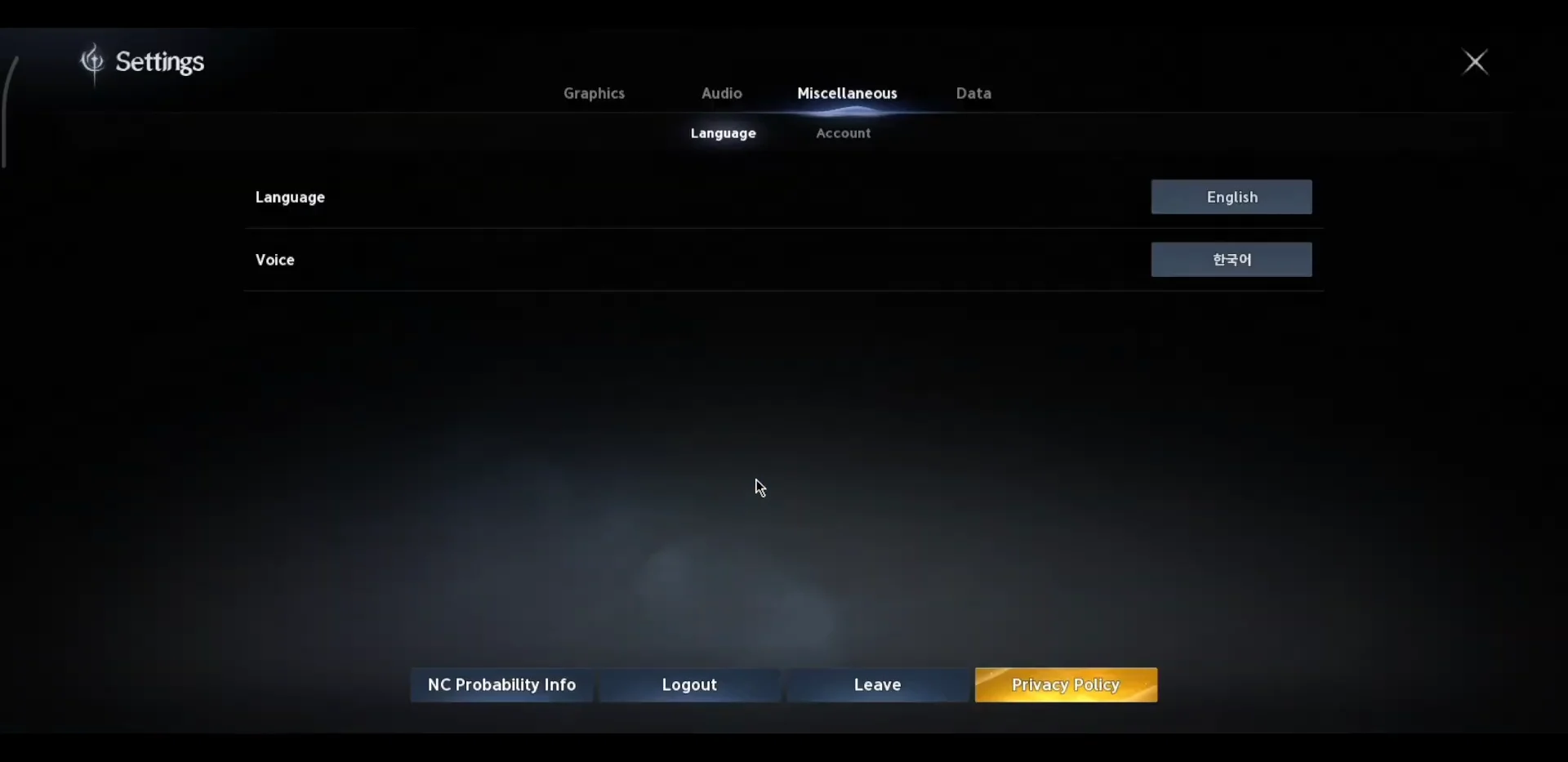
If the interface flips but you still hear another language during dialogue, that is the voice setting doing its job separately from text. Change the Voice field to one of the four fully voiced options if you want the audio to match, and remember that on regional servers the spoken track may stay locked to that region.