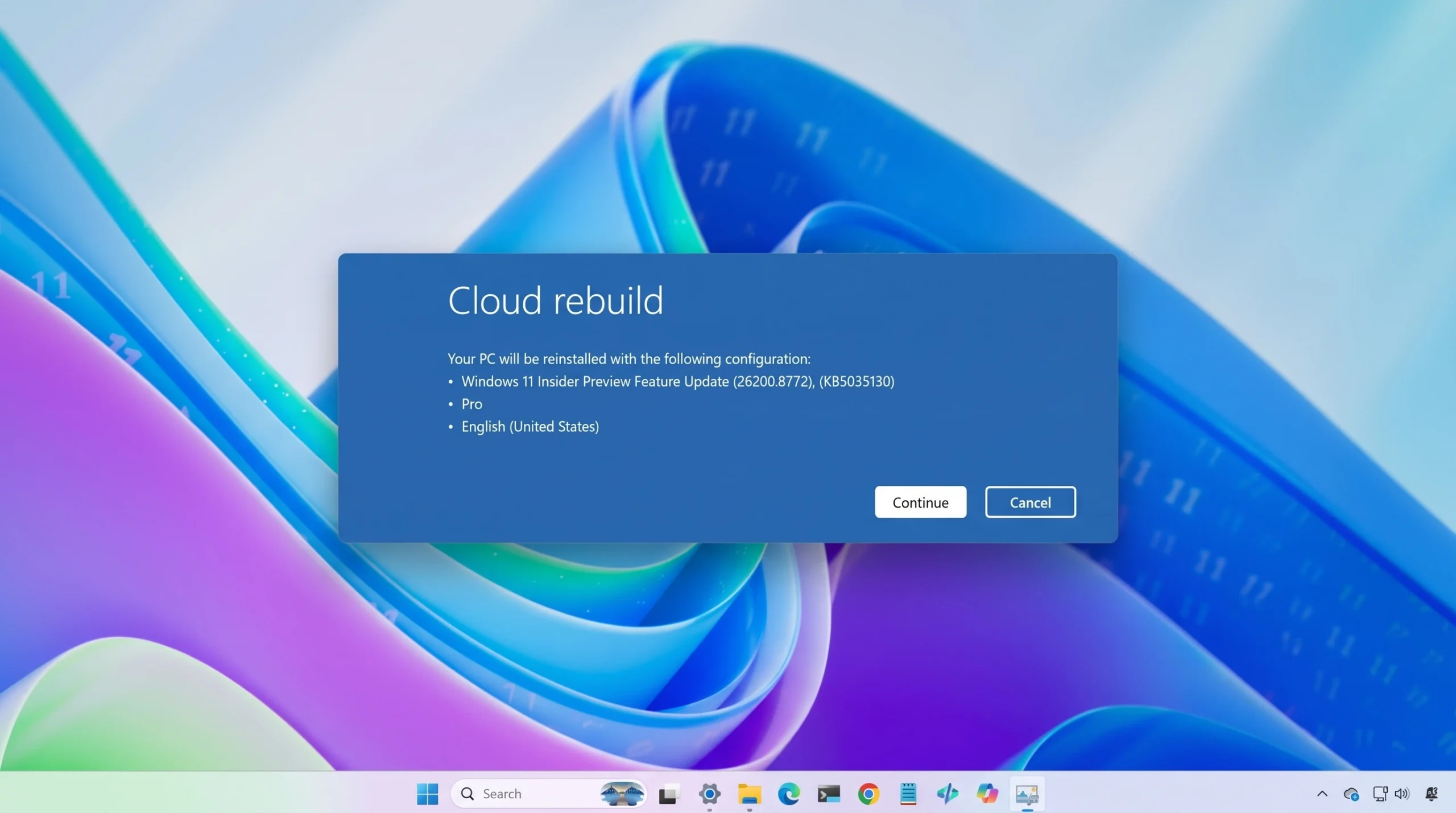
Cloud rebuild restores a Windows 11 PC to a clean state by downloading a fresh copy of Windows and the device’s drivers straight from Windows Update, then reinstalling the operating system. It works even when the installed Windows won’t boot, and it does not need a USB drive or a custom image. The feature is currently in preview for Windows Insiders and is aimed at IT administrators and users with physical access to the machine.
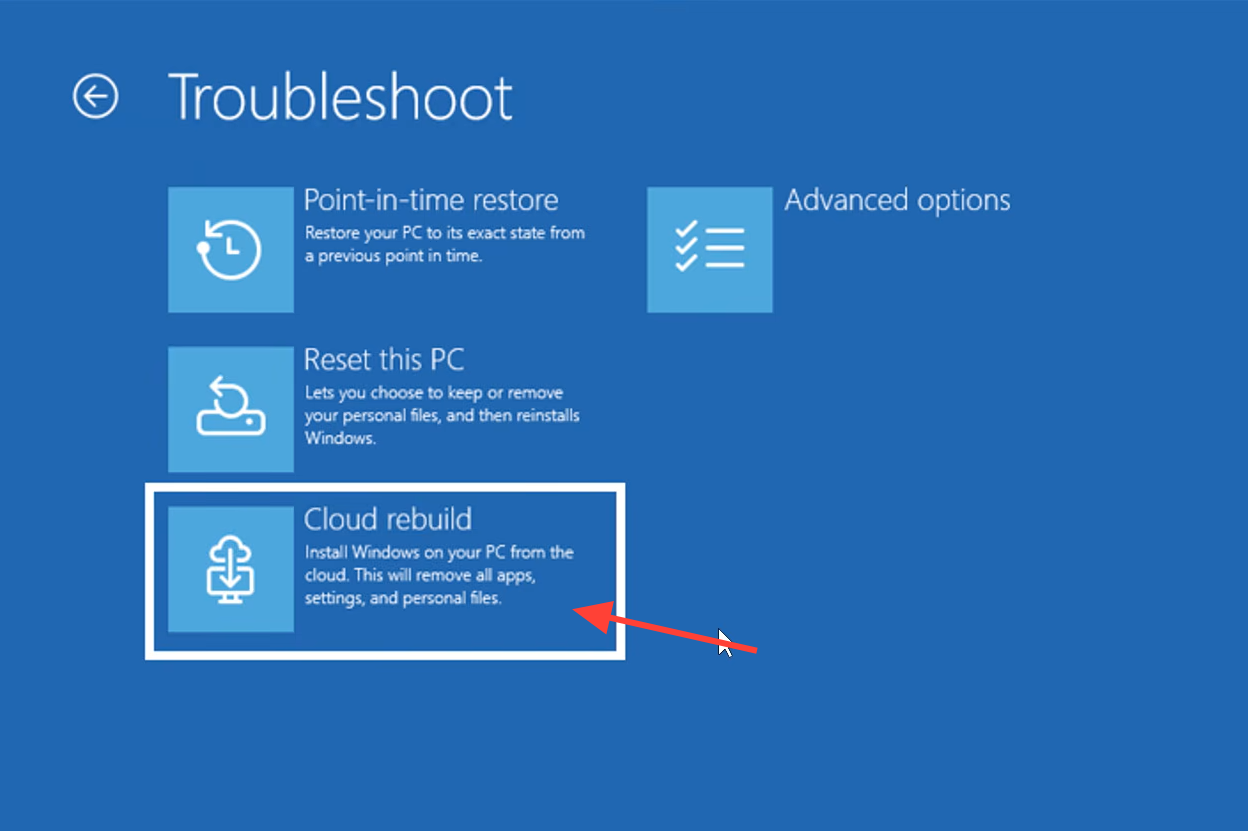
Quick answer: Boot into the Windows Recovery Environment, choose Troubleshoot > Cloud rebuild, connect to Ethernet or a WPA-Personal Wi-Fi network, confirm the target Windows build, then acknowledge the data-loss warning and start the rebuild.
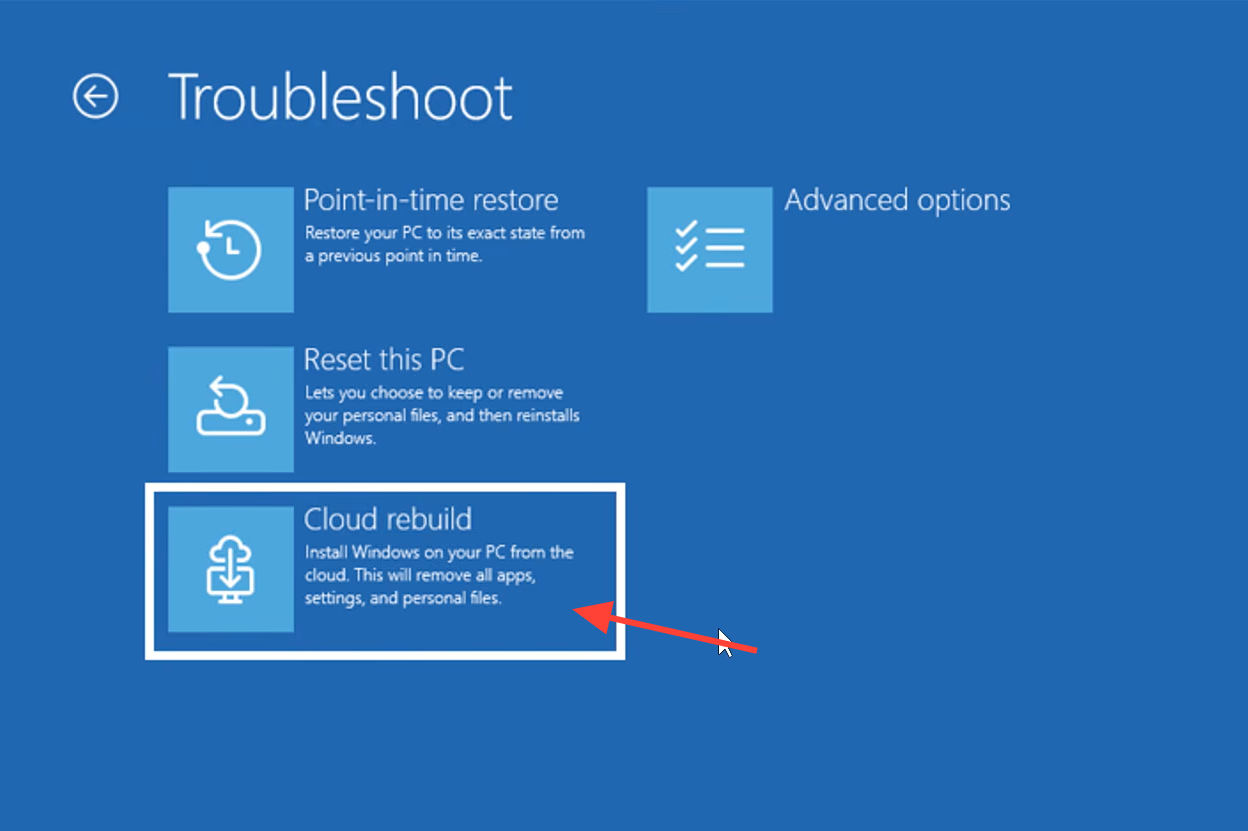
What Cloud rebuild does and how it differs from Reset this PC
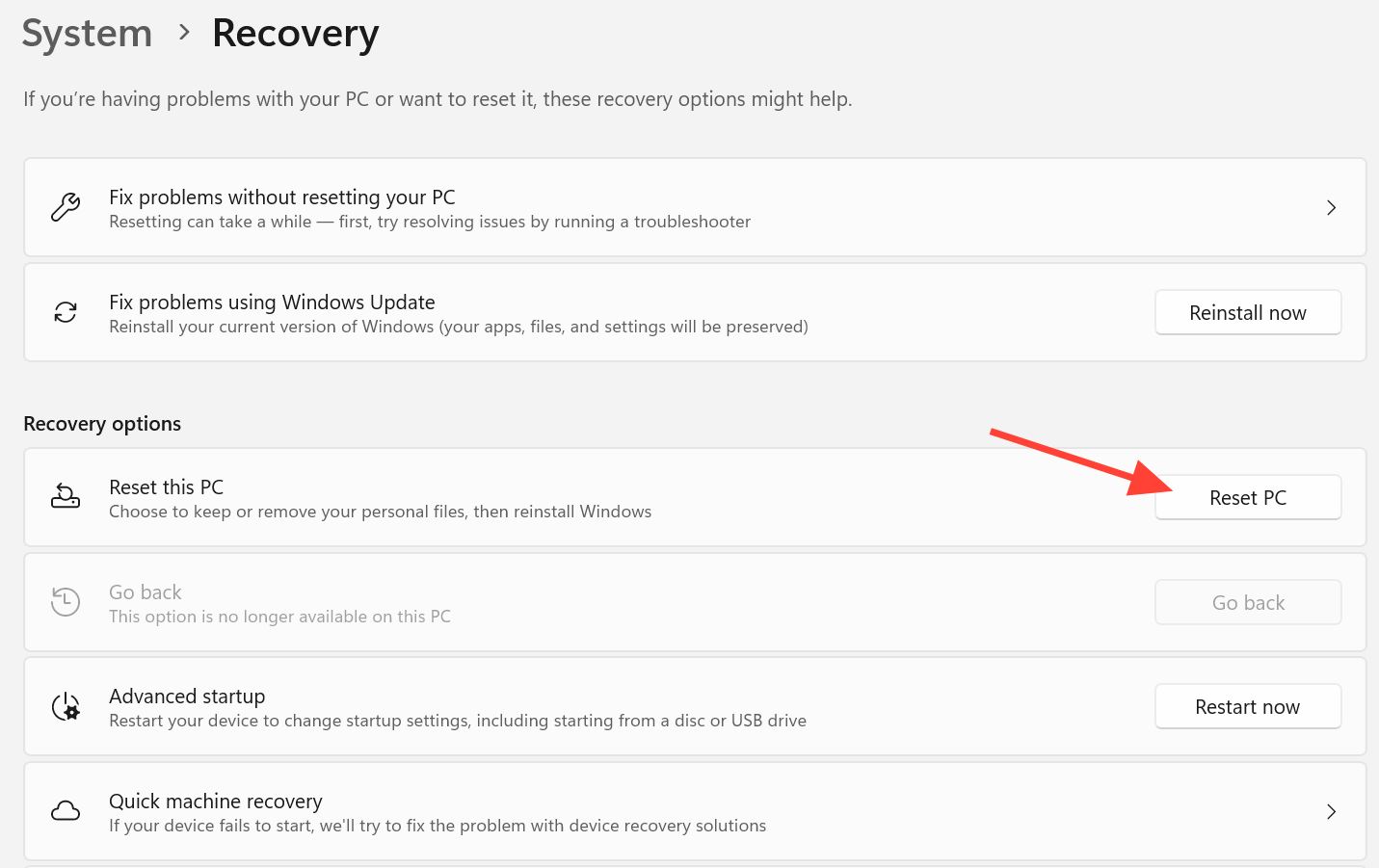
Reset this PC has offered a cloud download option since 2020, but it only works while Windows is still bootable, and it pulls drivers from the local device. Cloud rebuild is built for recovery. It reformats the system disk and performs a full reinstall while fetching both the Windows image and the drivers online, so the machine comes back fully functional without relying on the health of the current installation.
There is no option to keep your files. Cloud rebuild wipes the main drive completely. After it finishes, the PC boots into the out-of-box experience (OOBE) as if it were new.
| Behavior | Cloud rebuild | Reset this PC |
|---|---|---|
| Works when Windows won’t boot | Yes | No |
| Downloads drivers from Windows Update | Yes | No (uses local drivers) |
| Keep personal files option | No | Yes |
| Needs USB media or custom image | No | No |
| Reformats the system disk | Yes | Optional |
Requirements before you start
The rebuild will fail if the machine cannot reach the internet or does not meet Windows 11 hardware rules. Confirm the following on the target device first.
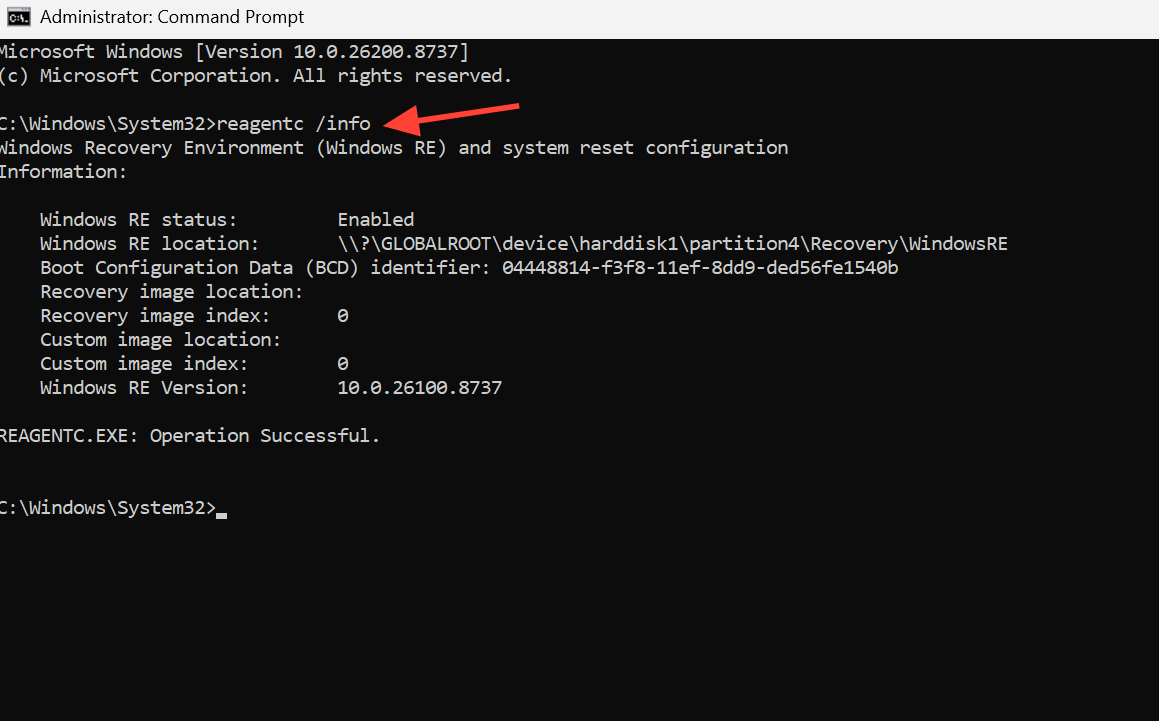
- The device runs Windows 11 and has a healthy Windows Recovery Environment. Check by running
reagentc /infofrom an elevated command prompt. - A compatible networking driver is present in WinRE, and the device can reach the internet from WinRE over wired Ethernet or a WPA-Personal (WPA-2 Personal) Wi-Fi connection.
- The device meets Windows 11 minimum hardware requirements, including an enabled TPM.
Files stored in cloud services such as OneDrive are not touched. Everything on the local system disk is removed.
Start Cloud rebuild from the Windows Recovery Environment
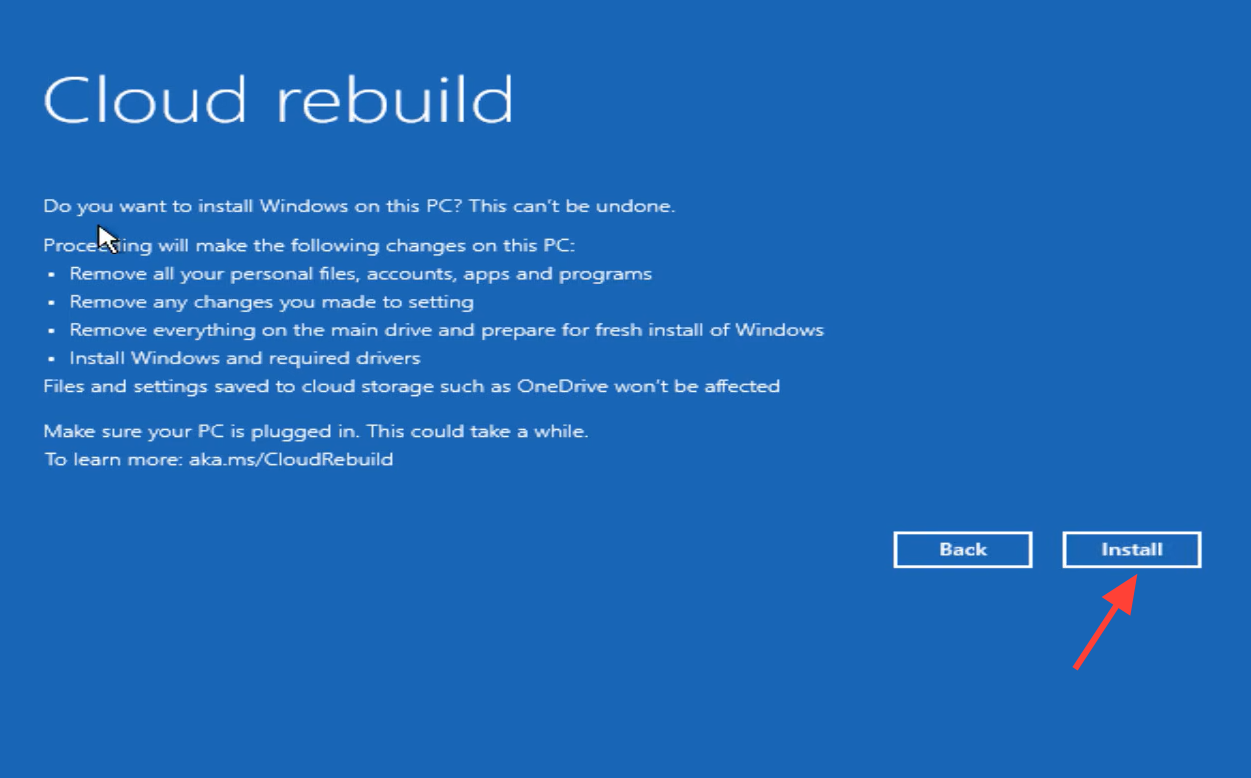
How to know the rebuild worked
When the rebuild completes, the PC boots into the Windows out-of-box experience. On an unmanaged device, you finish setup the same way you would on a brand-new machine. For Microsoft Entra–joined and Intune-managed devices registered with Windows Autopilot, the device reconnects to Microsoft Intune automatically. Intune redeploys the assigned apps and policies, Backup for Organizations restores user settings, and files return through OneDrive once you sign in.
Do not manually restart or shut down the device while Cloud rebuild is preparing, downloading, or installing. Interrupting it can leave Windows unable to boot, in which case you would need a recovery drive, installation media, or recovery media from the device manufacturer to recover.
Error codes and how to fix them
If the rebuild fails, WinRE shows an error code on the failure screen. Two codes account for the common failures.
0x800704C6 – no network connection
This code means the device has no internet access, which Cloud rebuild needs to download the image and drivers. Only WPA-2 Personal Wi-Fi is supported in WinRE at this time.
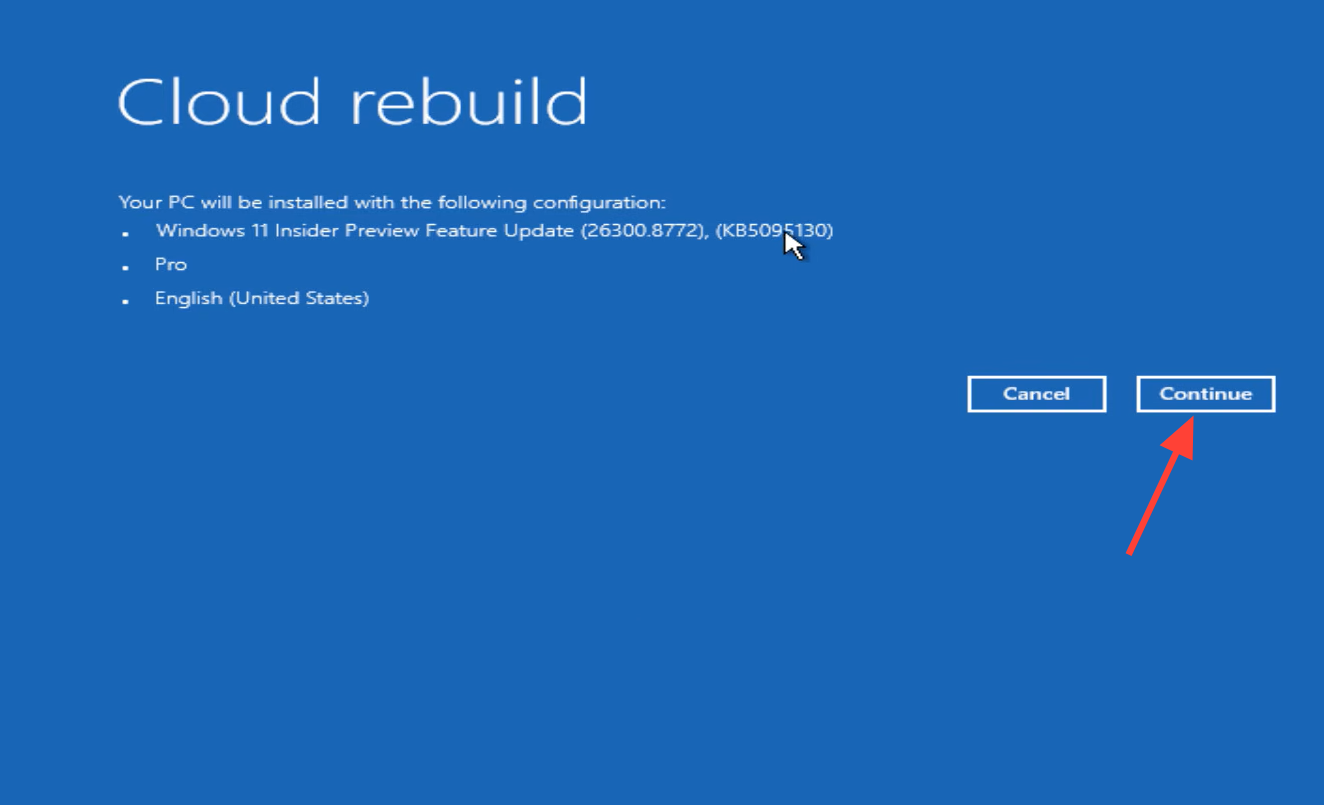
0xc1900200 – hardware requirement or missing driver
This code means the device either does not meet Windows 11 minimum hardware requirements or is missing a required driver on Windows Update. The most common cause is a disabled TPM.
tpm.msc, and confirm the status reads The TPM is ready for use.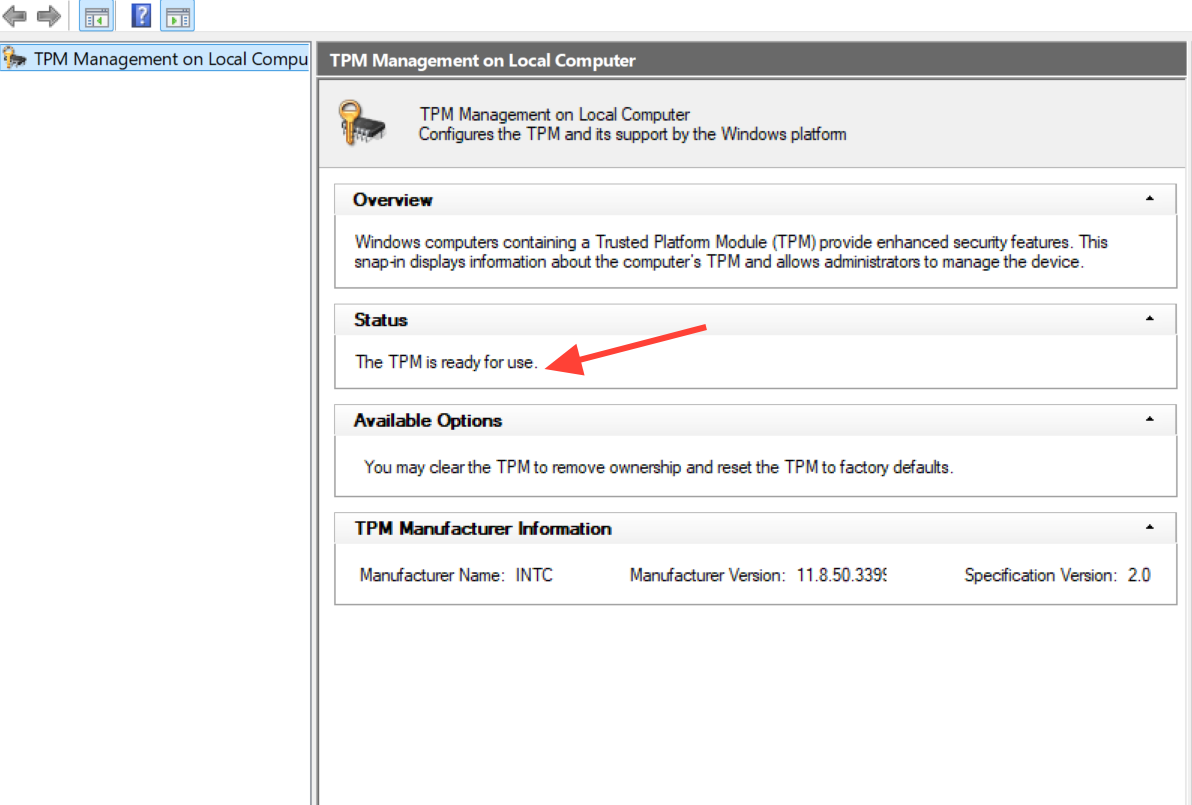
Collect logs and report a failure to Microsoft
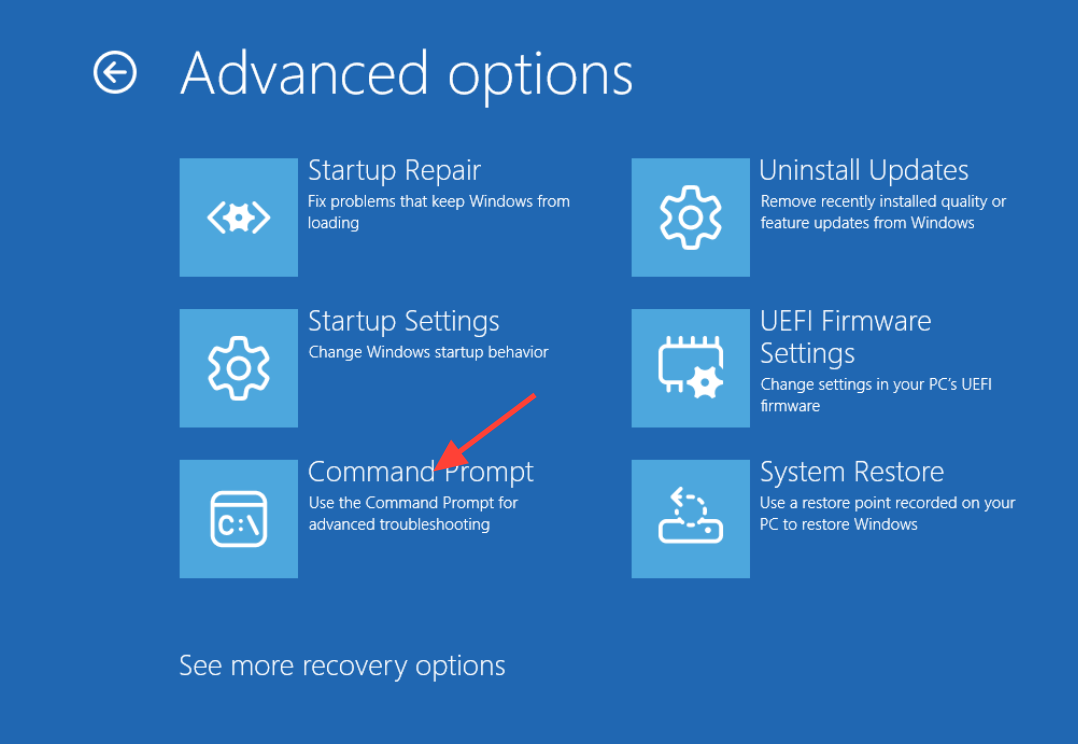
X:$Windows.~BTSourcesPanther
X:WindowsLogsMoSetup
X:WindowsLogsRebuild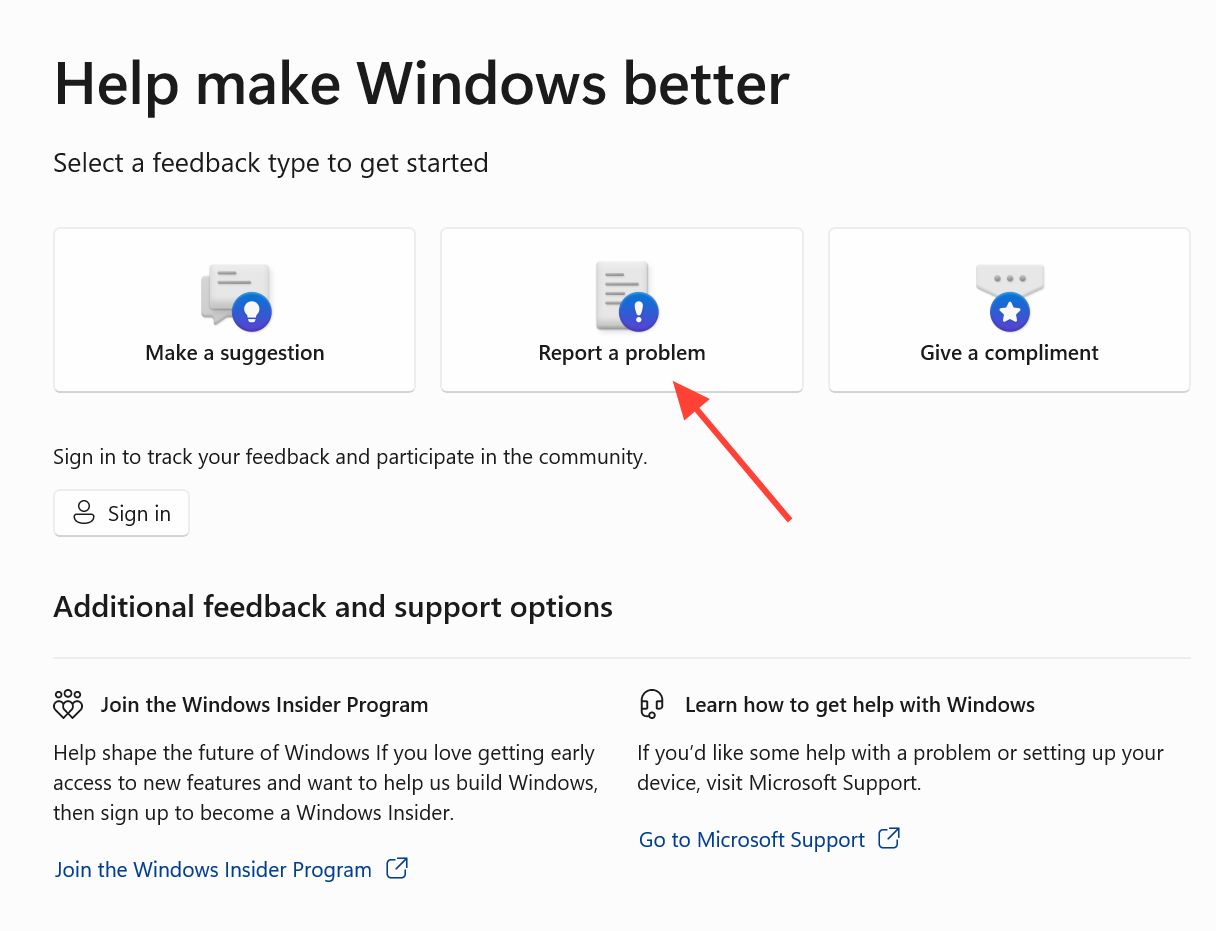
Cloud rebuild is destructive by design and is not meant for casual use yet. In the current preview it can be started by someone with physical access to the machine, either through WinRE or from an elevated command prompt in Windows. Remote initiation from a management tool such as Microsoft Intune is planned for a later release. Because the feature remains in preview, it should be used for evaluation on non-production devices only, and its interface and options may change before it becomes generally available. Microsoft describes the feature in full on its Cloud rebuild documentation.