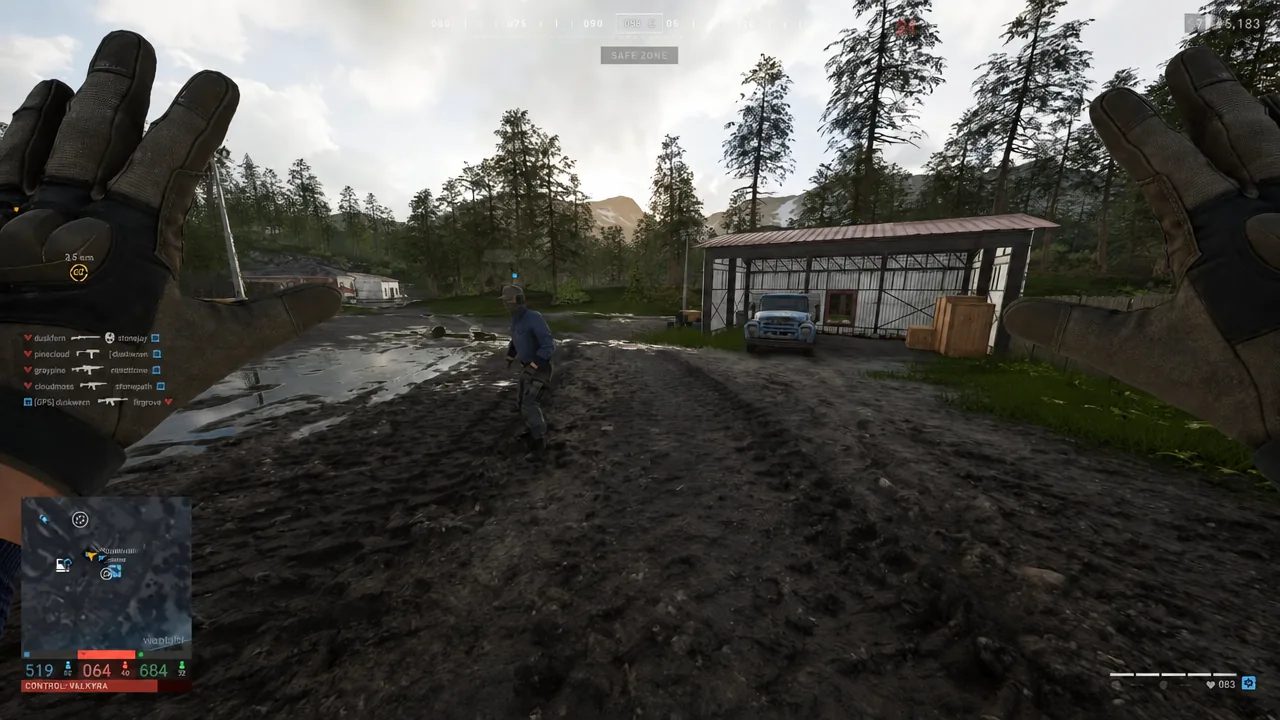
Typing in WARDOGS is simple, but sending a message to the wrong audience is not. The game splits text chat into four channels, and the box you type into always starts on whichever one was last active. Switching is a single key press, and the chat box tells you where the message is headed before you hit send.
Quick answer: Press Enter to open the text chat box, then press Tab to cycle through the ALL, TEAM, SQUAD, and LOCAL channels.
Open the chat box and cycle the channel
Enter during a match. The text chat box opens at the bottom of the screen with the currently active channel printed next to the input line.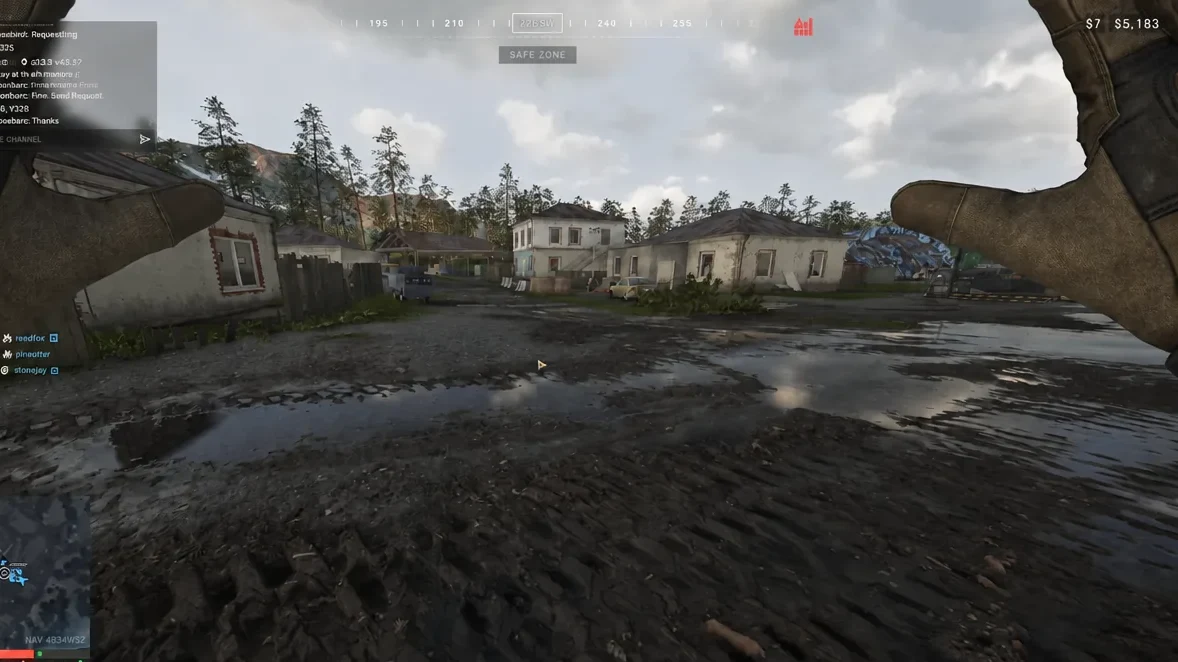
Tab. The on-screen prompt reads CYCLE CHANNEL, and each press moves you one step along the list.Tab until the label matches the audience you want, then type your message and press Enter to send it. The channel you stopped on stays selected the next time you open chat.Tab is also the default key for the inventory screen. It only cycles chat channels while the text box is open, so open chat first or you will pull up your kit instead.
The four text channels in WARDOGS
The cycle runs through four options in a fixed order, and there is no separate key for jumping straight to one of them:
- ALL — the open channel everyone in the match can read.
- TEAM — your faction.
- SQUAD — the group you created or joined.
- LOCAL — players around you.
Because ALL sits at the top of the list, it is easy to land on by accident after a quick double tap of Tab. Read the label before typing anything about routes, spawn points, or where your FOB is going up.
Give the SQUAD channel an audience first
The SQUAD channel is only useful once you actually belong to a squad. Press Esc and use the Create or Join option to form one or slot into an existing roster. Squad size is unlimited, and enemies cannot read or hear squad comms.
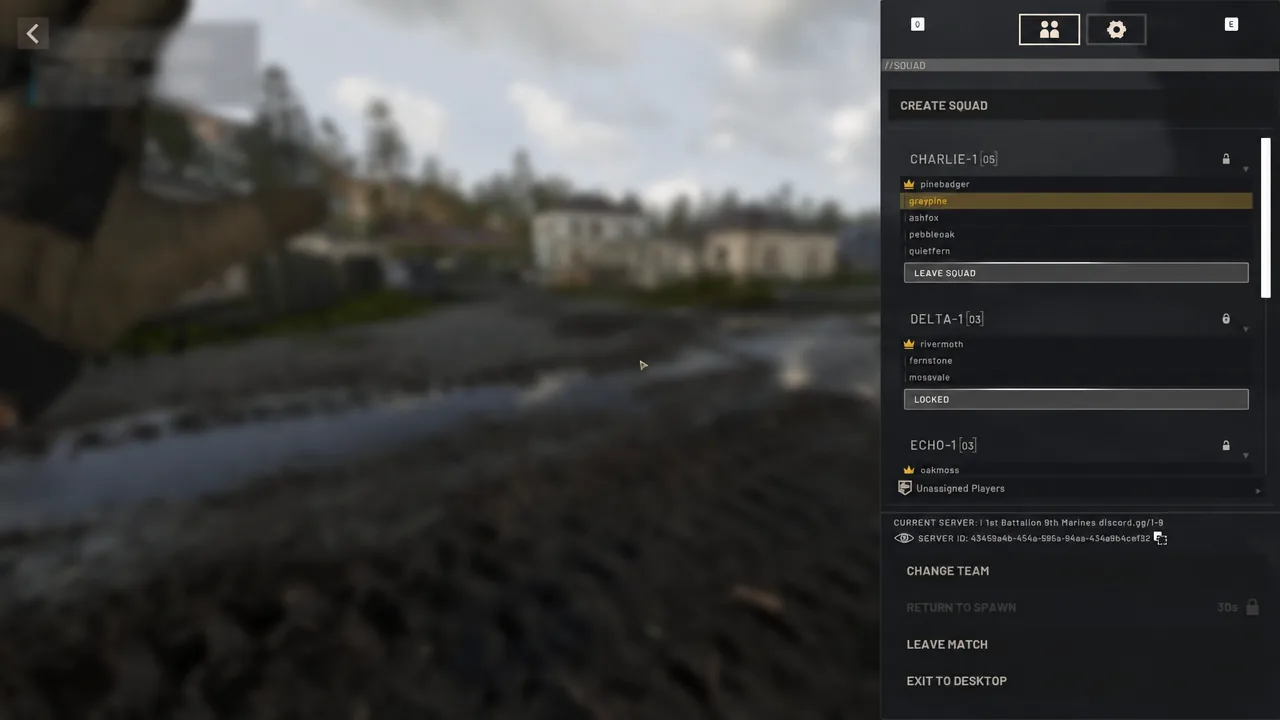
If you are running solo and nobody is answering the SQUAD channel, check the squad menu before assuming chat is broken. A message sent to a squad of one goes nowhere.
How to confirm the channel switched
There is no confirmation pop-up. The label beside the chat input is the confirmation, and it swaps between ALL, TEAM, SQUAD, and LOCAL with every press of Tab. If the label does not move, the chat box is not focused — press Enter again and watch the input line for a cursor.
After sending, your message appears in the chat log tagged with the channel it went out on. That log entry is the second check, and it is the one worth glancing at before you type anything sensitive again.
Text channels versus voice keys
Cycling text channels does not change which voice channel you are talking on. Voice runs on its own push-to-talk bindings, so a text channel set to SQUAD will not stop proximity voice from reaching an enemy standing on the other side of a wall.
| Action | Default input | When it applies |
|---|---|---|
| Open text chat | Enter | In match |
| Cycle text channel | Tab | Chat box open |
| Open inventory | Tab | Chat box closed |
| Squad push to talk | J | Voice only |
| Proximity push to talk | K | Voice only |
| Create or join squad | Esc menu | Any time |
Proximity voice carries to everyone nearby, enemies included. Squad voice does not. Both can be muted independently, individual players can be muted one at a time, and text chat can be switched off entirely if you would rather not see any of it.
Rebinding the chat and channel keys
Bindings live under Settings > Controls > Keybindings. Assigning a key manually can strip it from another infantry or vehicle action, which is exactly the kind of thing you discover mid-firefight rather than in the menu.
Change one binding at a time, then retest movement, sprint, weapon use, and the inventory screen before queuing for a match. Restart once and confirm the change stuck.
Text is not the only way to signal. WARDOGS also has a radial wheel carrying emotes and quick commands including SQUAD, LOCAL, REQUESTS, SURRENDER, and ASSAULT, which is faster than typing when a vehicle is bearing down on you. No default input for it has been published, so check the keybindings list in your installed build for its current assignment.