Gaming Guide

Enshrouded: How to Place a Second Flame Altar (Recipe and Altar Limit)

Craft another Flame Altar for Stone x5, place it on a blue preview away from your base, and check how many altars your Flame Level allows.

Craft another Flame Altar for Stone x5, place it on a blue preview away from your base, and check how many altars your Flame Level allows.

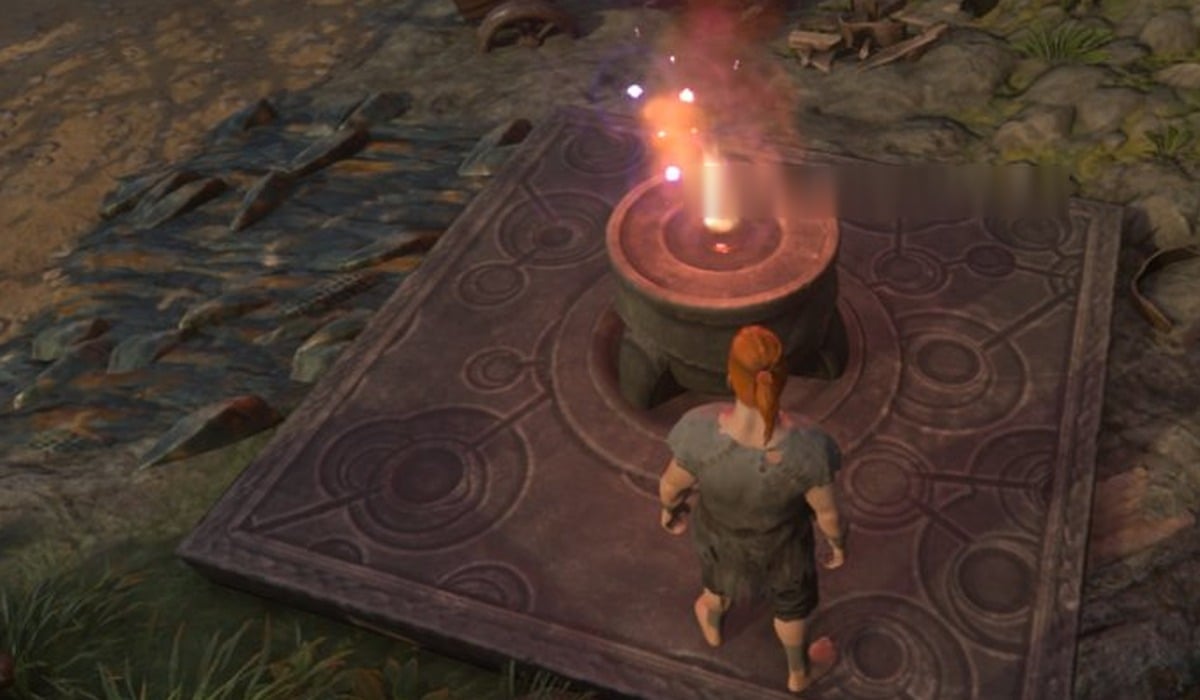
A second Flame Altar in Enshrouded uses the same recipe as your first one, and it needs no workbench. We built ours away from our first base and set it down at a mine camp in a ravine to the west, along the road out of the base. It was lit the moment it went down.

Quick answer: Craft it from Crafting (V) > Essentials > Flame Altar for Stone x5. Select it on your ALT action bar, aim at flat ground until the preview turns blue, then left-click Place.


Craft and place a second Flame Altar
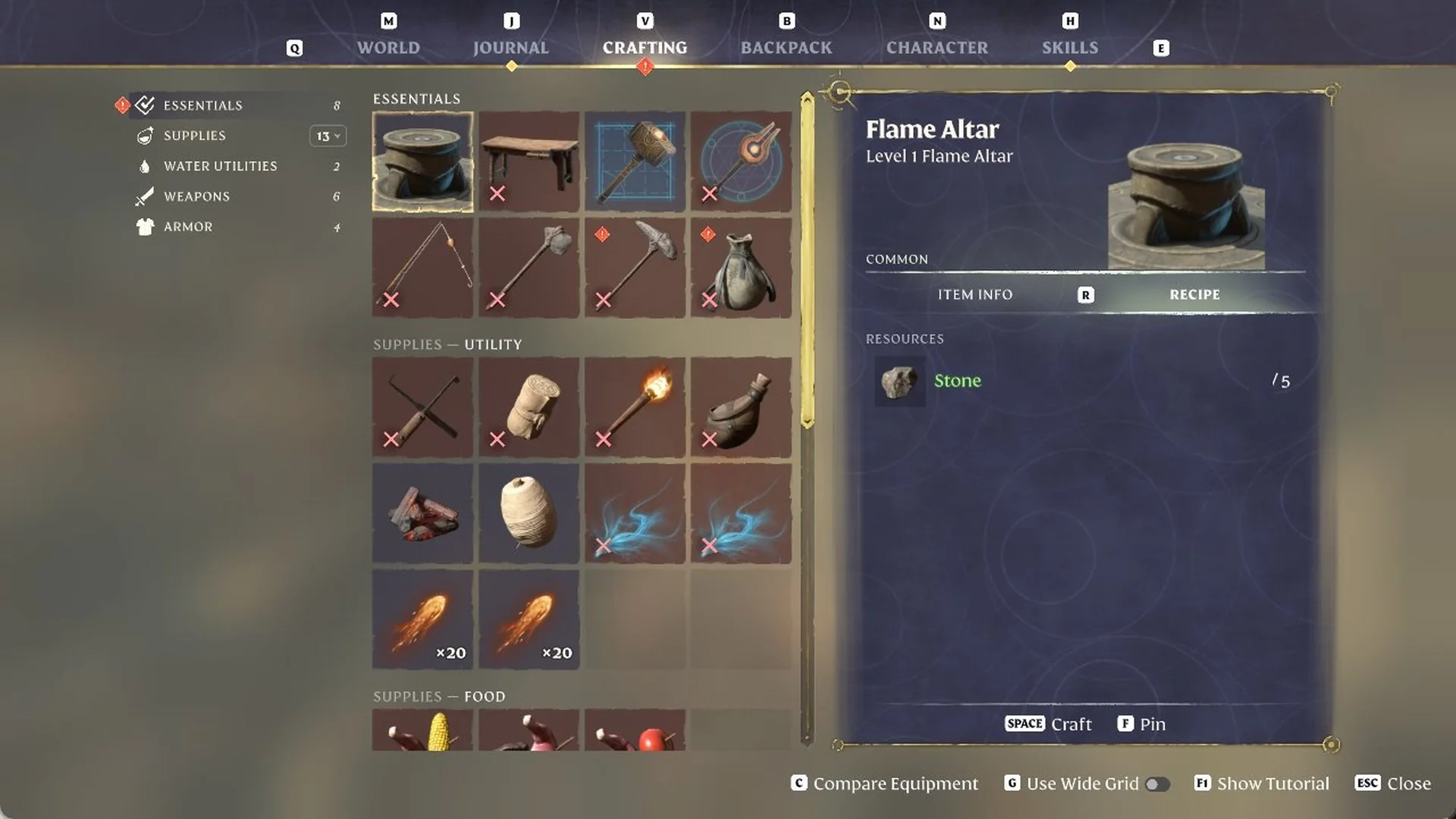
Open the main menu and switch to CRAFTING with V.
Under ESSENTIALS, select the first tile, “Flame Altar”. It’s listed as “Level 1 Flame Altar” with COMMON rarity, and its RESOURCES line asks for Stone x5.
Press SPACE to Craft. If you want to keep the recipe on screen while you gather Stone, press F to pin it first.
Flame Altar selected under Essentials in the Crafting menu with its Stone recipe and the Space Craft prompt
The Flame Altar is the first tile under Essentials: Level 1 Flame Altar, Stone x5.
Go to the desired altar site. Switch to your ALT action bar and select the slot holding the Flame Altar (slot 2 for us); its placement preview will appear ahead of you. The left mouse button is labeled “Place”, while the side panel lists R for Rotate 90° and X for Use Snapping.
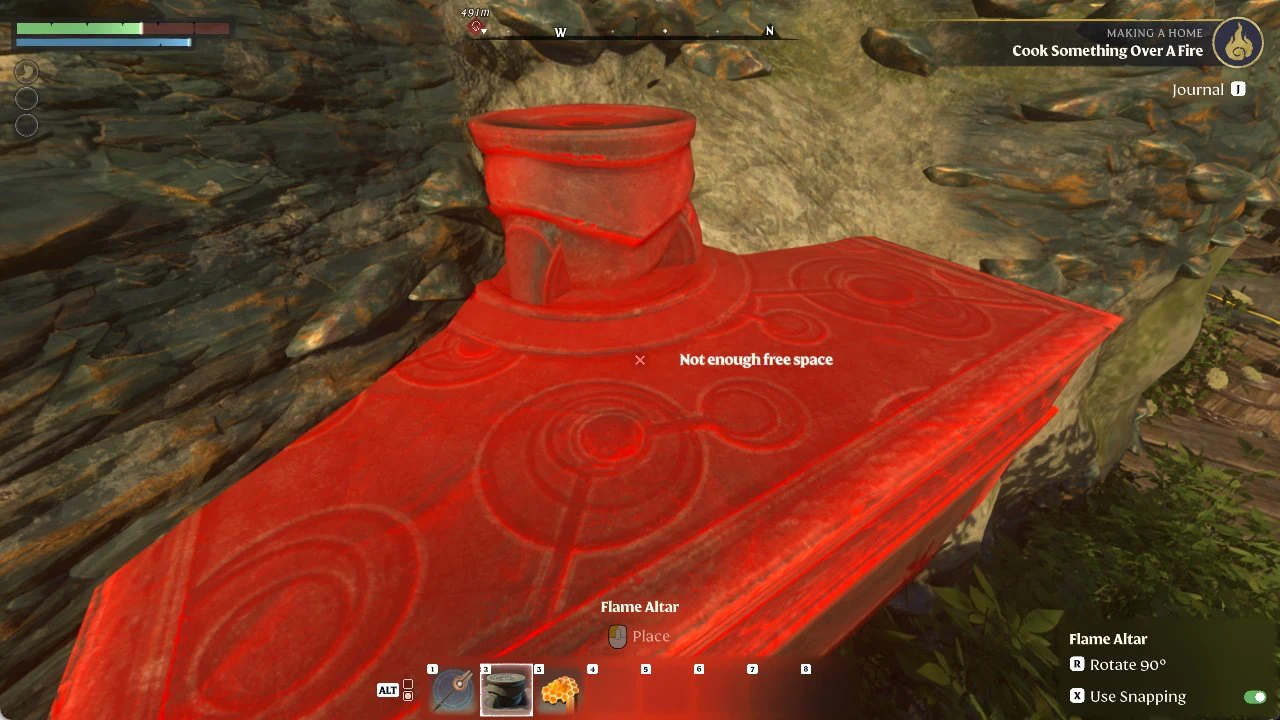
Check the preview’s color. Red with “Not enough free space” means something is in the way. Ours did this on a rocky ledge with a bush on it. Move to clear, flat ground.
Red Flame Altar placement preview showing the Not enough free space warning
A red preview with “Not enough free space” blocks placement.
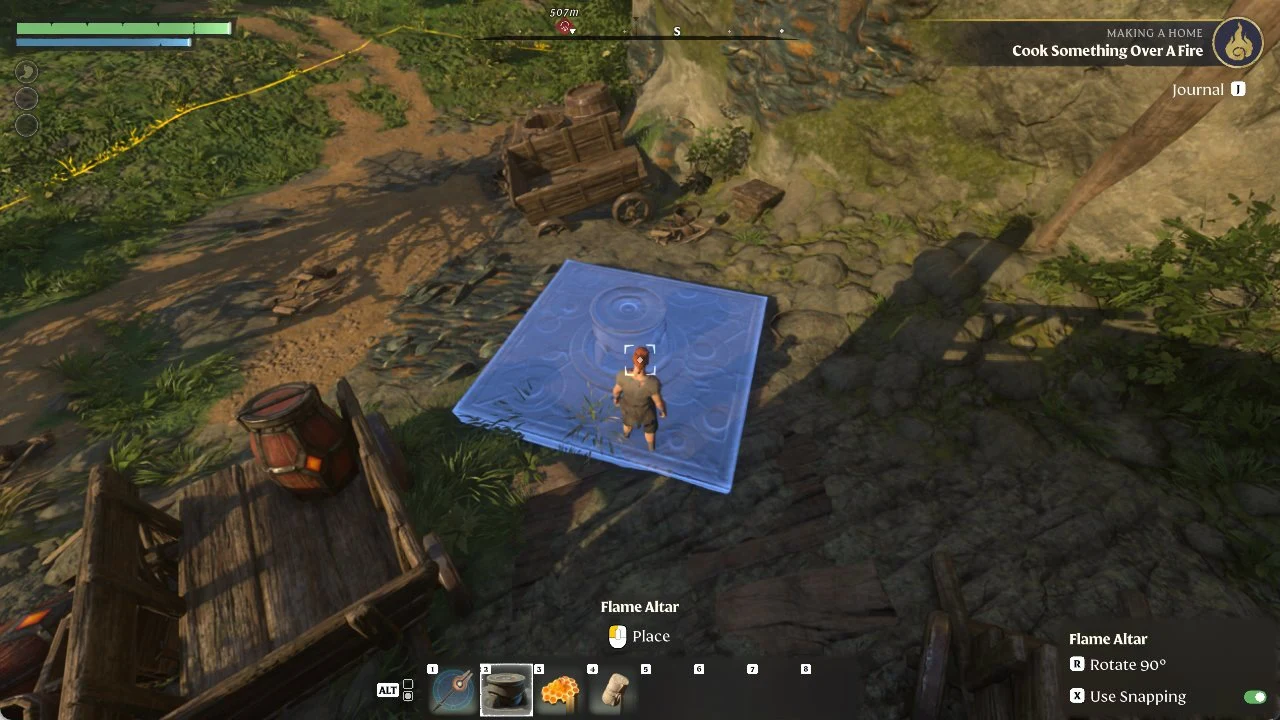
On the open floor of the mine camp the preview turned blue. Left-click Place (R rotates it 90° first if you need a different facing).
Blue Flame Altar footprint on open ground with the Place prompt available
On open, flat ground the altar preview turns blue and can be placed.
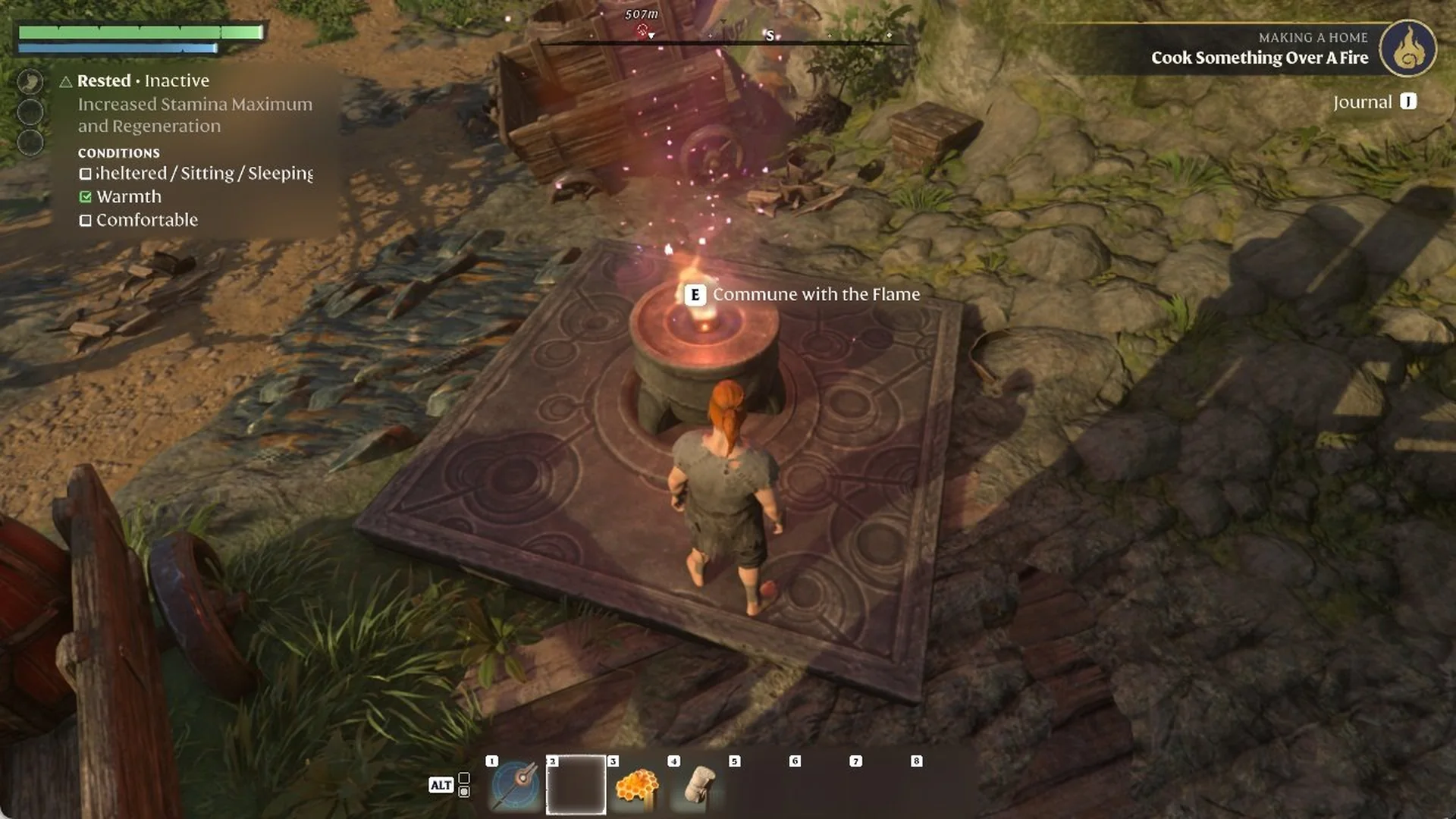
The altar is lit as soon as it lands, and walking up to it brings up “E Commune with the Flame”.
Newly placed second Flame Altar lit at a mine camp with the E Commune with the Flame prompt
The second altar lit as soon as it was placed, with E Commune with the Flame.

Open the World Map with M to check it counts: on our Flame Level 2 world the Active Altars counter went from 1/4 to 2/4. For getting back to an altar quickly, see how to fast travel to your Flame Altar.


Flame Altar limit by Flame Level

How many altars you can have active is set by your Flame Level. The Strengthen the Flame screen lists it as Altar activation capacity. The values for every later level are in the Flame Level requirements list.

Flame LevelAltar activation capacity
Flame Level 12
Flame Level 24

Flame Level 1 still allows placement of a second altar. To place the third and fourth, upgrade the Flame to Level 2.


Building around the new Flame Altar

The ground around the new altar becomes a Flame protected area, so you can build there right away. Pick a building block such as Rough Stone Block, and the side panel reads “Flame protected area”. Left mouse sets the block and right mouse removes it. The game also suggests the Construction Hammer with a hint: “You can build bigger structures effectively with the Construction Hammer.”
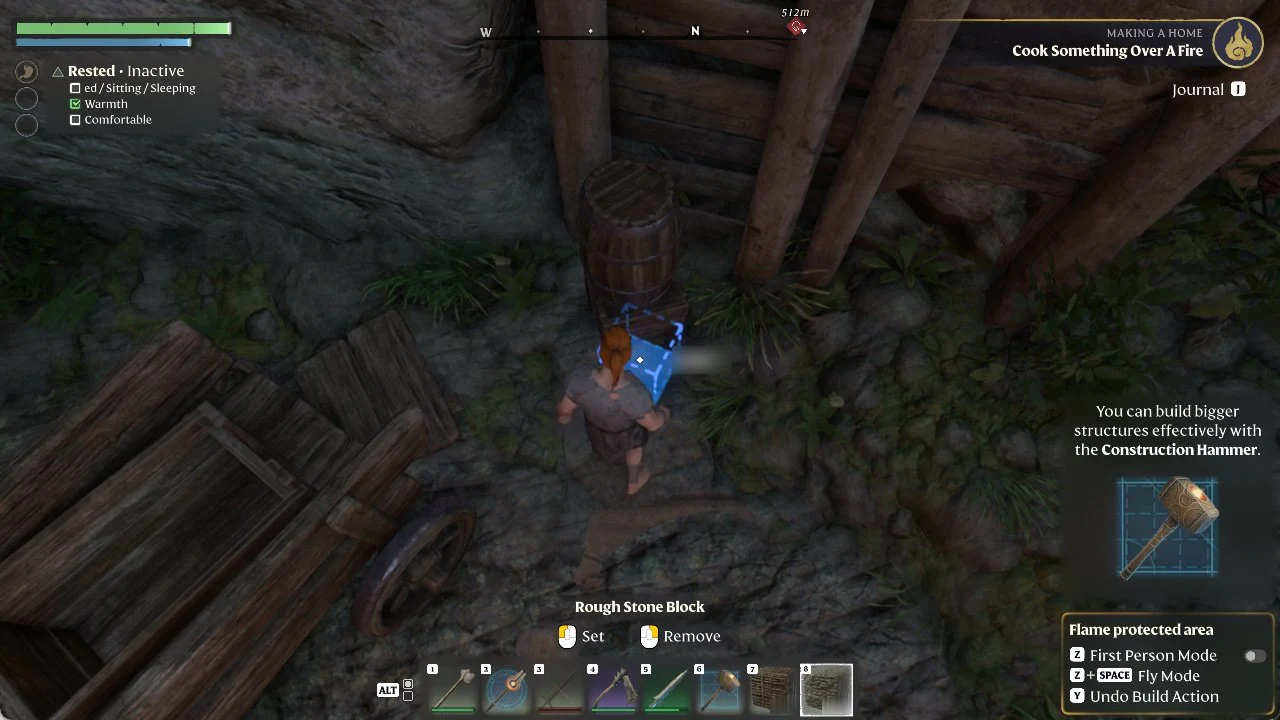
Rough Stone Block selected with a blue build preview and Set and Remove prompts near the new altar
Placing a Rough Stone Block inside the new altar’s Flame protected area.

These build controls also show up in the side panel while you work inside the area:

You can’t build on the altar’s own stone slab. Aim a block at it and the preview turns red with “Cannot build here”. The building area itself grows with the altar’s level, covered in how to upgrade the Flame Altar.