Enshrouded: How to Add Items to Your Action Bar and Switch Action Bars (ALT)
ALT switches between your two action bars, and CTRL + click in the BACKPACK tab moves an item onto the current one.
ALT switches between your two action bars, and CTRL + click in the BACKPACK tab moves an item onto the current one.
by AllThingsHow Staff
In Enshrouded, ALT switches between your two action bars. To put an item on a bar, open the BACKPACK tab and CTRL + click the item. It lands on whichever bar is current.
Enshrouded action bar controls (PC)
There are two action bars, each with 8 slots, but only one is active at any moment. Number keys correspond to the active bar’s slots, while an ALT icon sits at the left end of the HUD bar along the screen’s bottom.
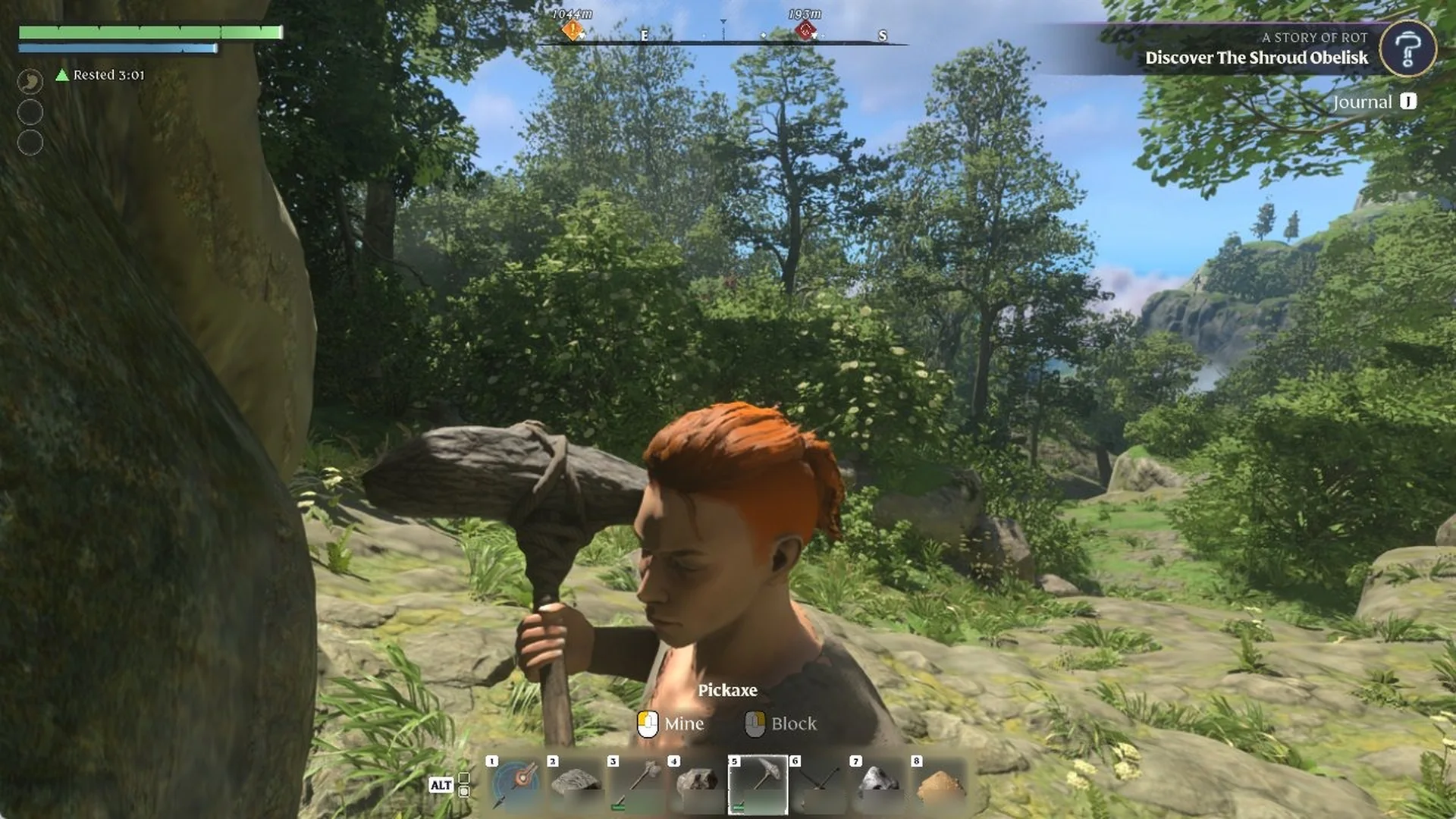
While in the world, check the HUD’s bottom action bar to see which one is active. Its eight slots are numbered 1 through 8, and an ALT icon appears on the left. Ours showed tools and blocks, with the Pickaxe selected.
The main action bar with the Pickaxe selected and the ALT icon at its left end.
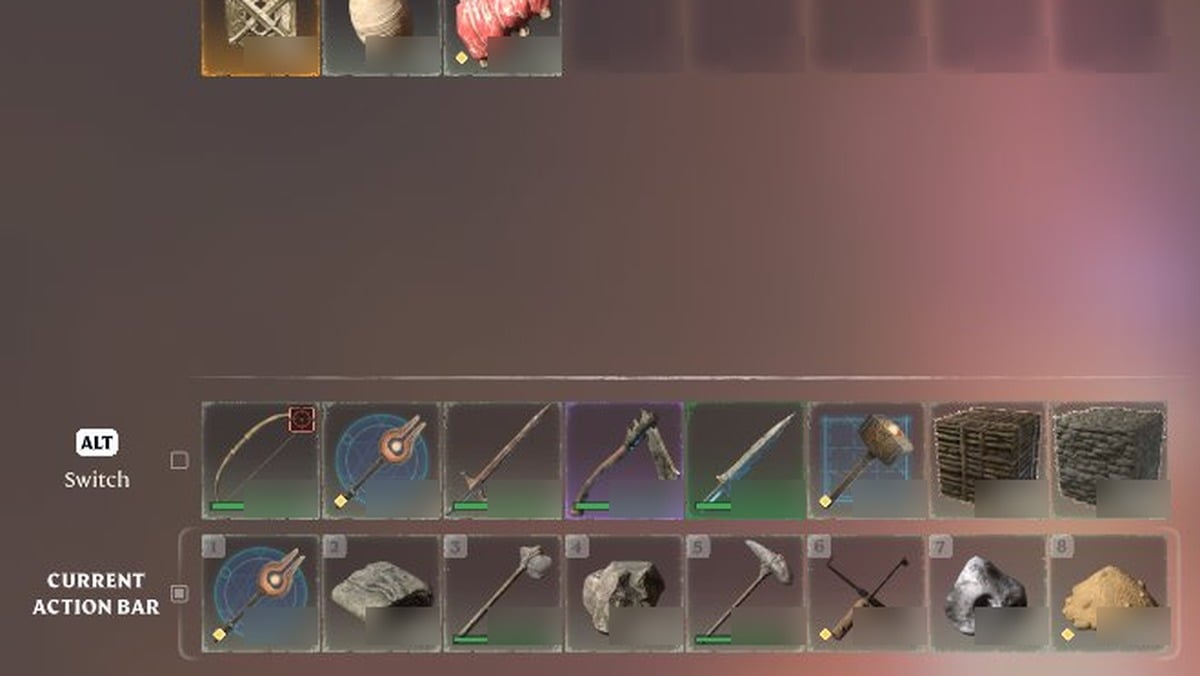
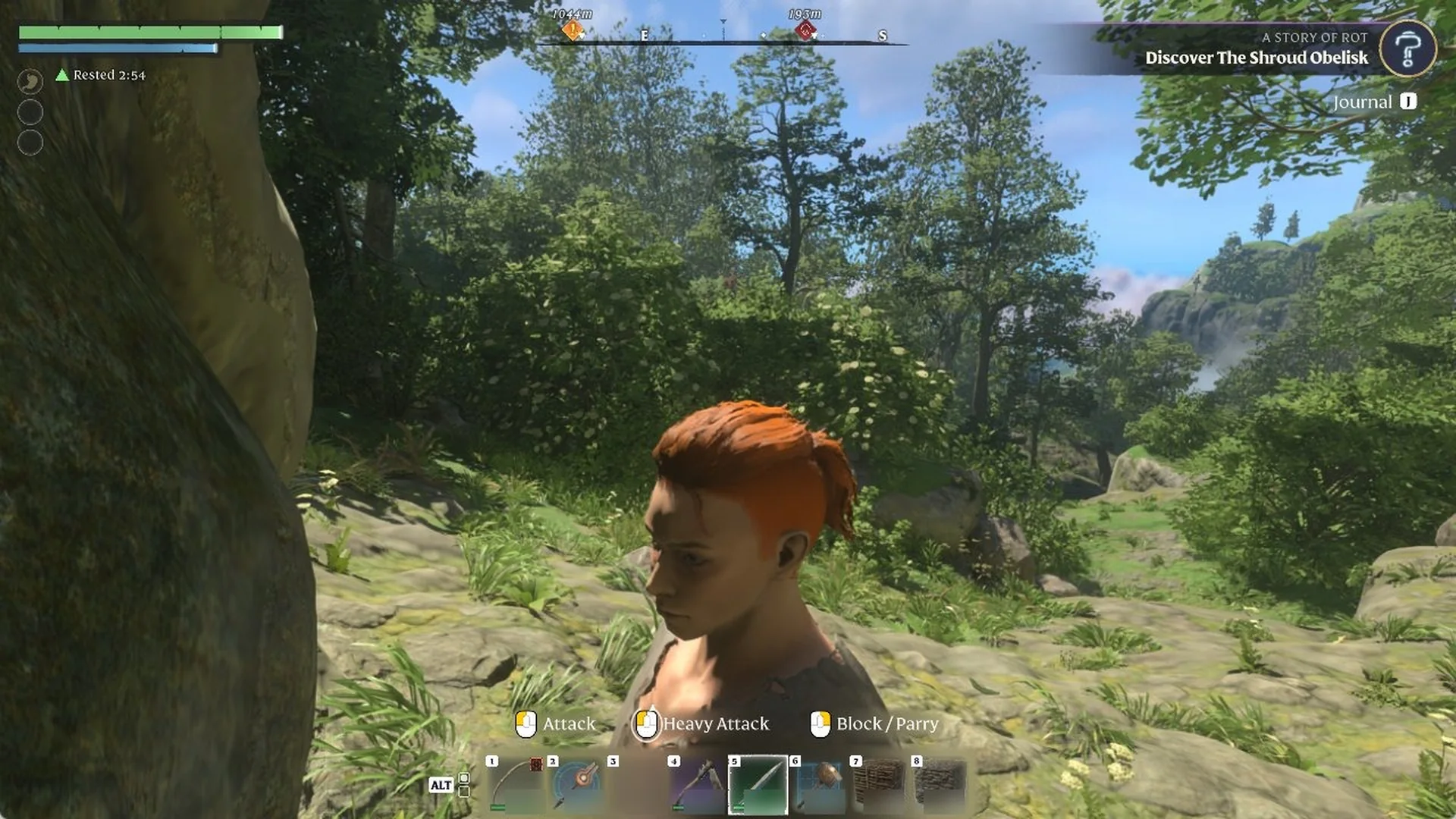
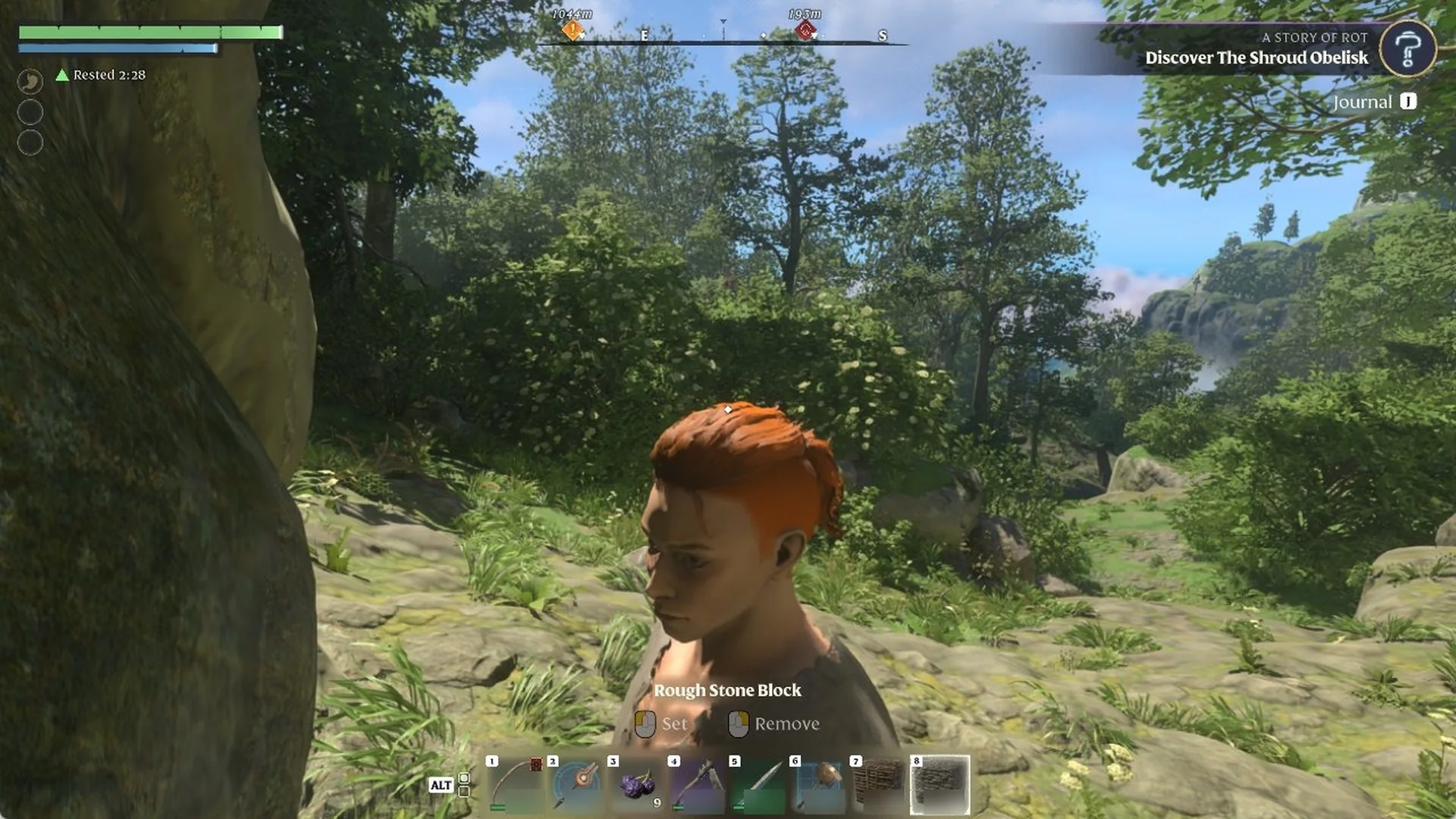
Tap ALT. The HUD bar swaps to your other set of eight slots. Ours switched to a bow, a staff, an empty slot 3, an axe, a sword, a hammer and two block stacks.
Tapping ALT swaps the HUD to the second bar, with the sword selected.
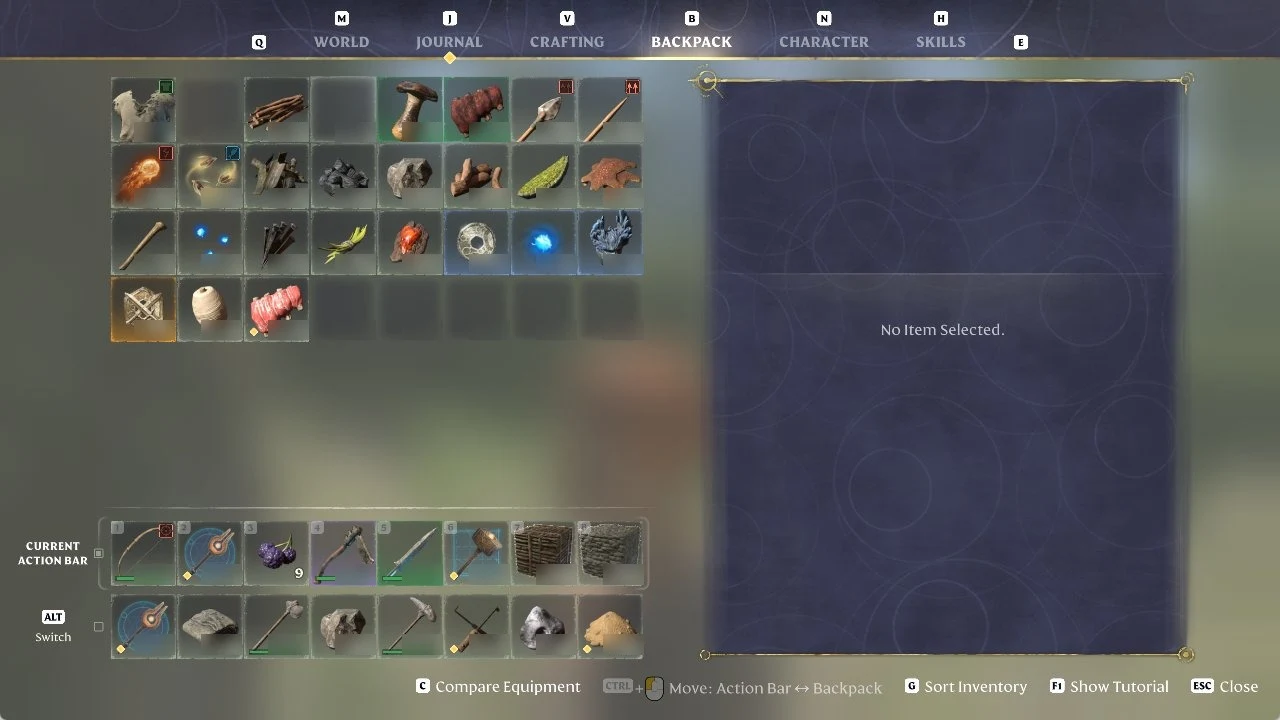
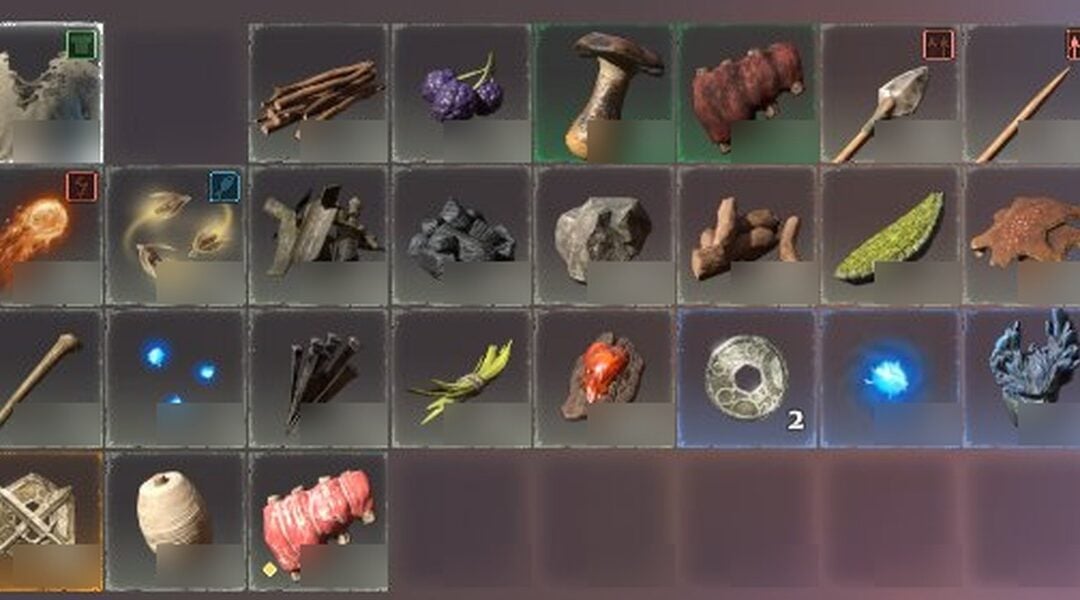
Press B to open the BACKPACK tab. The bar you switched to is labelled “CURRENT ACTION BAR”, and the other one is marked “ALT Switch”. The footer reads “CTRL + click Move: Action Bar <-> Backpack”.
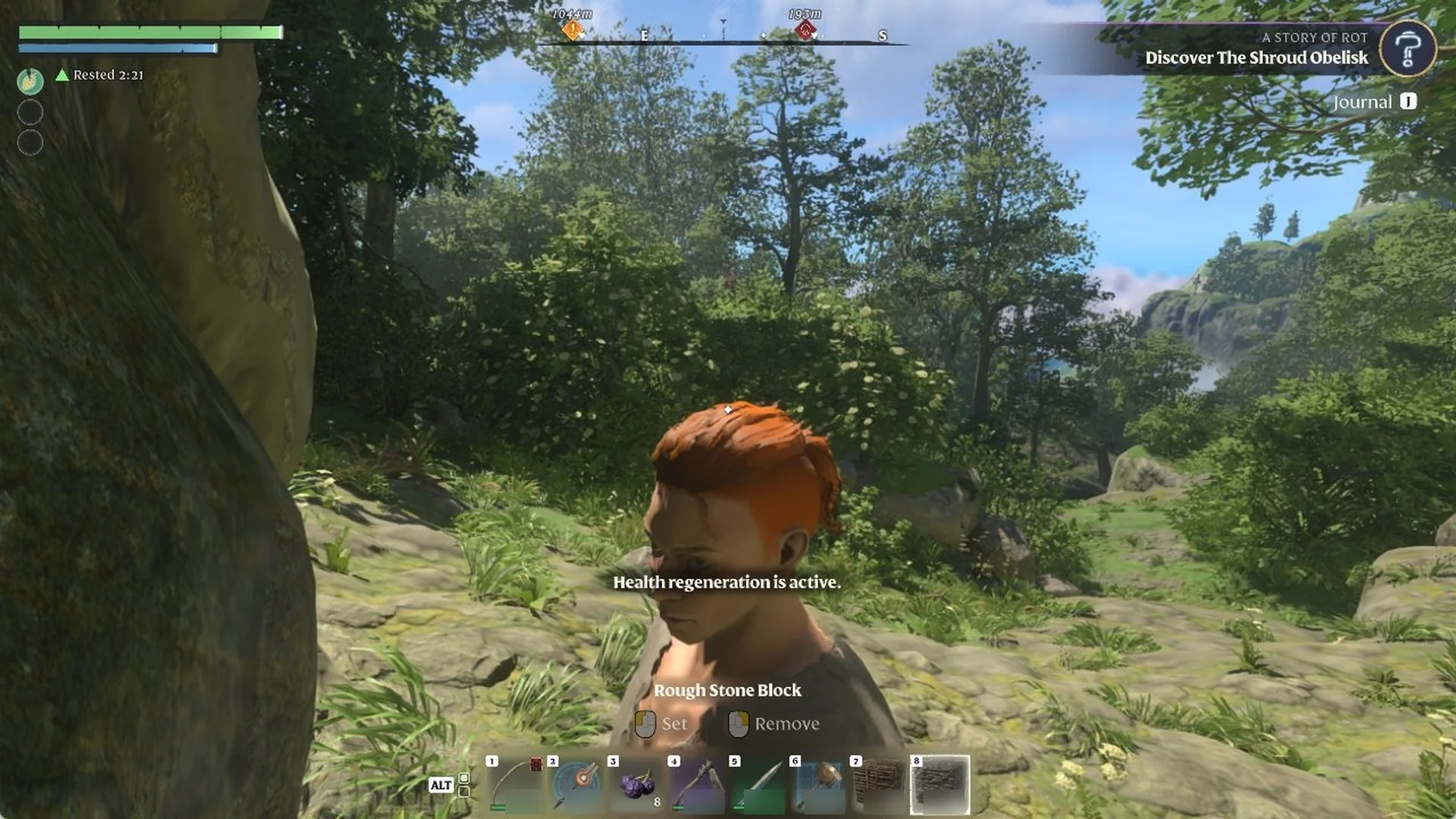
Tap the number key for that slot to use the item. We tapped 3 and one berry was eaten straight from the hotkey: the stack dropped from 9 to 8, the centre of the screen read “Health regeneration is active.”, and a buff icon appeared at the top left. Our selected slot stayed slot 8.
Pressing 3 eats a berry: “Health regeneration is active.” appears and the stack reads 8.
Tap ALT again to bring your other bar back to the HUD. Our main bar was back.
When the current action bar is full
When the active bar has no empty slots, the BACKPACK footer displays a warning before you click: “Target Full!” appears before “Move: Action Bar <-> Backpack”.