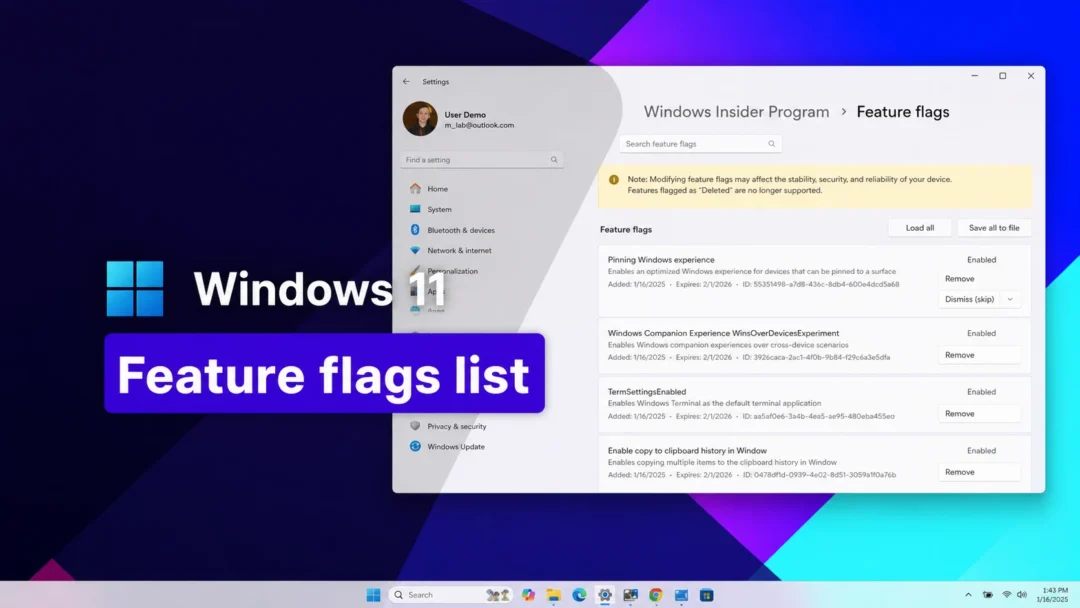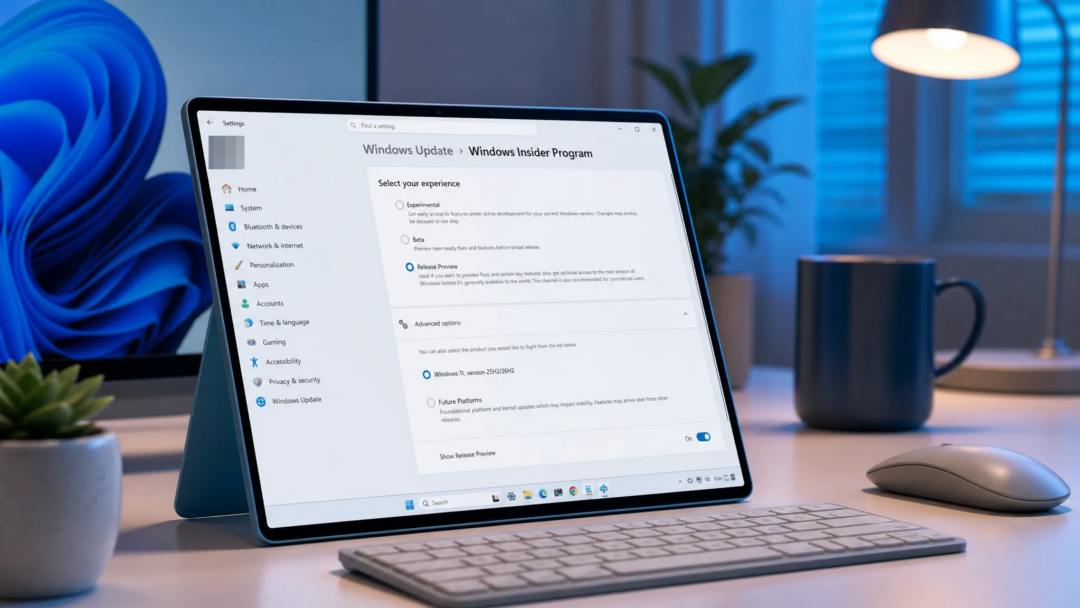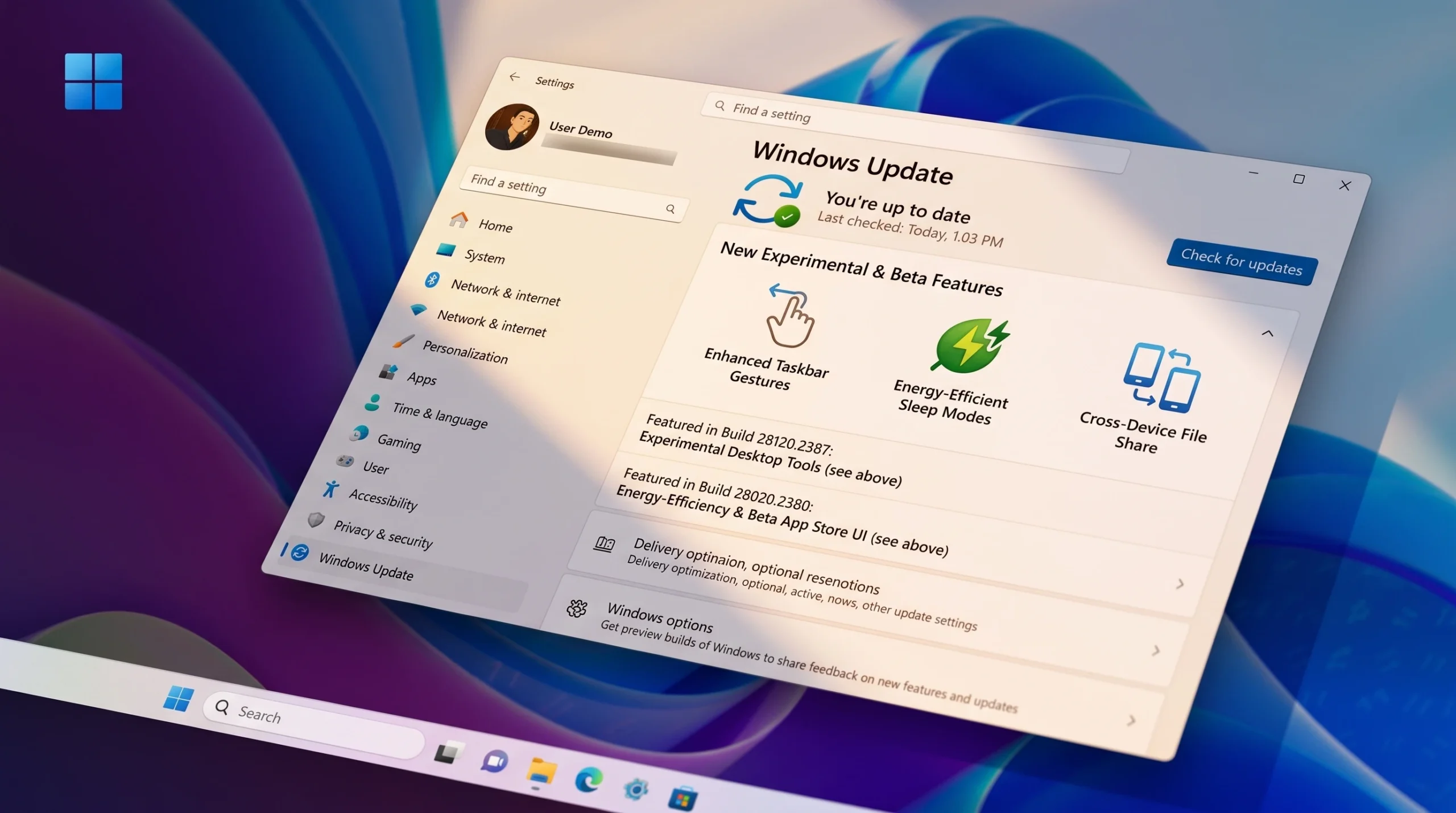
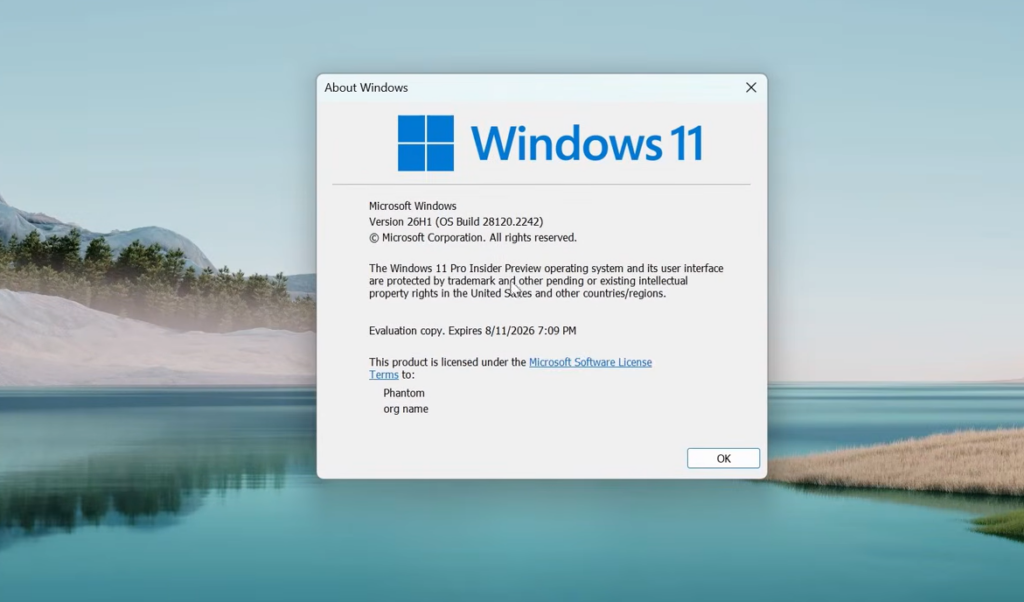
Windows 11 version 26H1 now runs on its own dedicated Insider build train, with separate number ranges for the Beta and Experimental channels. The split means testers on 26H1 no longer receive identical builds regardless of which experience they picked, and each branch can move at its own pace.
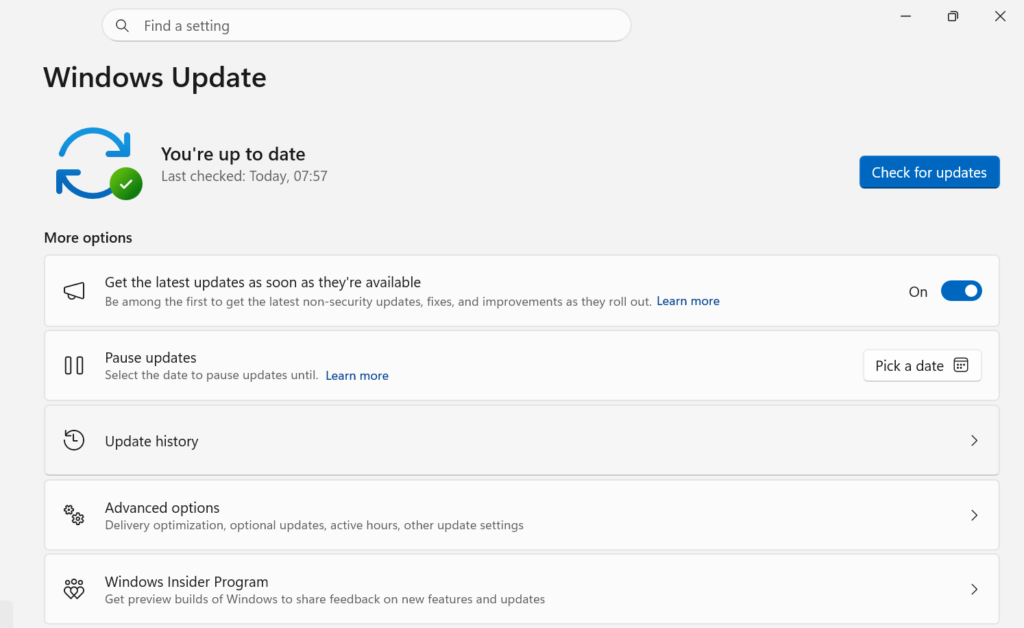
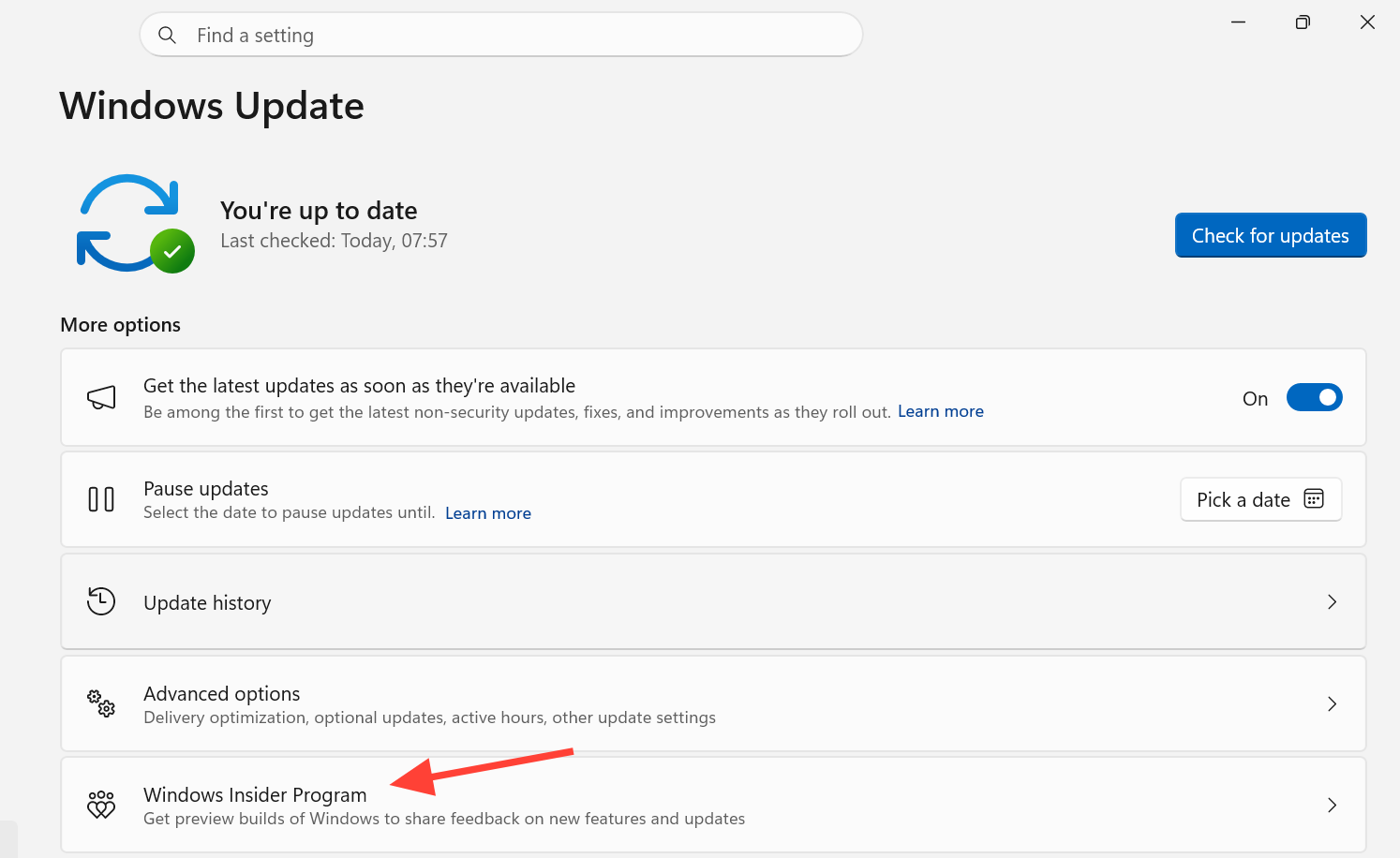
Quick answer: On 26H1, Beta builds carry the 28000 series, and Experimental builds carry the 28100 series. To move between them, open Settings > Windows Update > Windows Insider Program. The change happens as an in-place upgrade, so no clean reinstall is required.
What Windows 11 version 26H1 is for
26H1 is a specialized platform release rather than a big consumer feature update. Its focus is low-level plumbing and support for new hardware, including devices built on Qualcomm Snapdragon X2 Series processors. Because the changes sit deep in the platform, most people will not see headline features arriving through this version.
For that reason, Microsoft advises the majority of Insiders to stay on the default Windows core version unless they specifically need to test 26H1 platform work. Enthusiasts who want to try it can, but the payoff is stability and hardware enablement, not new everyday tools.
Beta and Experimental build numbers for 26H1
The clearest way to tell which branch you are on is the build number. Each channel now sits in its own range.
| Channel (26H1) | Build series | Purpose |
|---|---|---|
| Beta (26H1) | 28000 | General improvements and stability fixes |
| Experimental (26H1) | 28100 | Earlier, less stable feature and platform testing |
Experimental builds can be unstable and may ship with limited documentation. Many changes there roll out through Controlled Feature Rollout, starting with a subset of devices before reaching everyone in the channel, so two machines on the same build can behave differently for a while.
What the recent 26H1 builds changed
The two branches have delivered different kinds of work. Beta has leaned on bug fixes and reliability, while Experimental has carried the newer, more visible additions.
| Area | Change | Branch |
|---|---|---|
| Administrator Protection | Expanded rollout, plus a new option to turn it on directly in Windows Security. A restart is required after enabling it. | Experimental (26H1) |
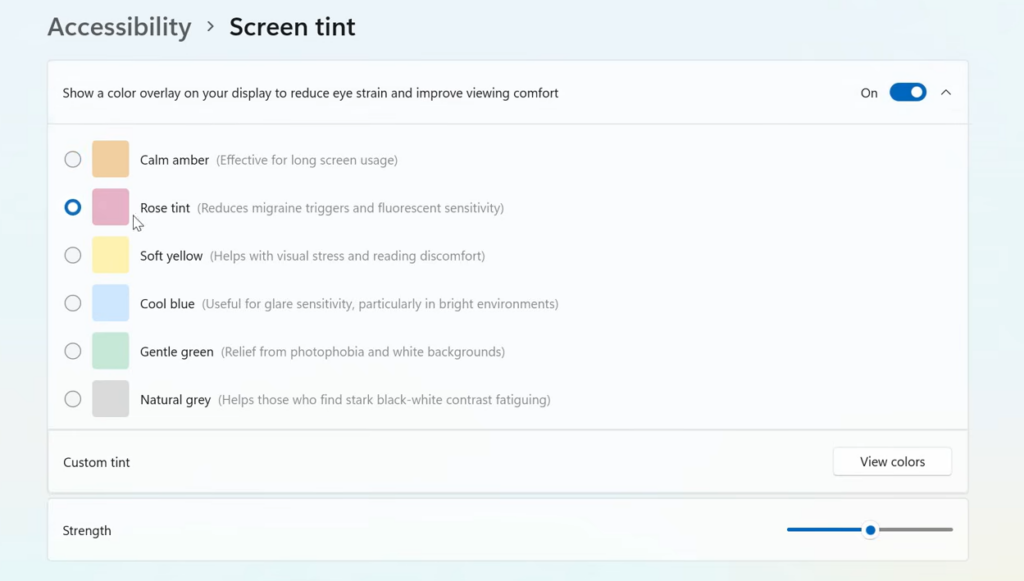
| Screen tint | New accessibility setting under Settings > Accessibility > Vision that applies a color overlay to soften display intensity. Six presets or a custom color, with a strength slider. | Experimental (26H1) |
| General performance | Faster app launch and quicker Start menu, Search, and Action Center. | Experimental (26H1) |
| Task Scheduler | Column width in task list view now persists across sessions. | Experimental (26H1) |
| Stability | A small set of general improvements and bug fixes aimed at overall system reliability. | Beta (26H1) |
screen tint and color filters cannot run at the same time. Turning on screen tint disables color filters, so if you rely on color filters, leave screen tint off. Screen tint also works alongside Night light, since one adjusts warmth and the other adjusts overall intensity.
How to switch between Beta and Experimental on 26H1
Why 26H1 devices cannot move to 26H2
Devices on Windows 11 version 26H1 will not update to version 26H2. The two are built on different Windows cores, so 26H1 machines are set to follow a separate path to a future Windows release instead. This matters if you are deciding whether to enroll a daily driver, since 26H1 is not the route to the standard annual update.
By contrast, 26H2 shares the same servicing branch as 25H2 and installs through an enablement package, updating with a single restart. That difference is exactly why the 26H1 train sits apart from the mainstream Beta and Experimental builds and why Microsoft keeps them on separate numbers.
The practical takeaway is simple. If you want to test Snapdragon X2 platform work and don’t mind the tradeoffs, pick a 26H1 branch and use the build number to confirm which one you’re on. If you want the next mainstream feature update instead, stay on the default core version, where 26H2 arrives through the standard channels.