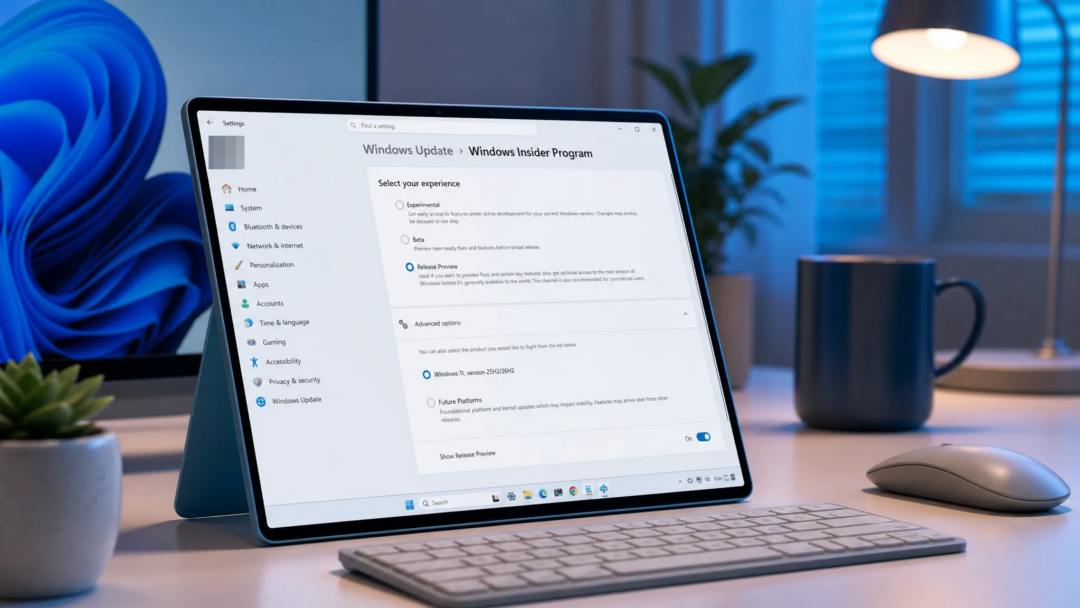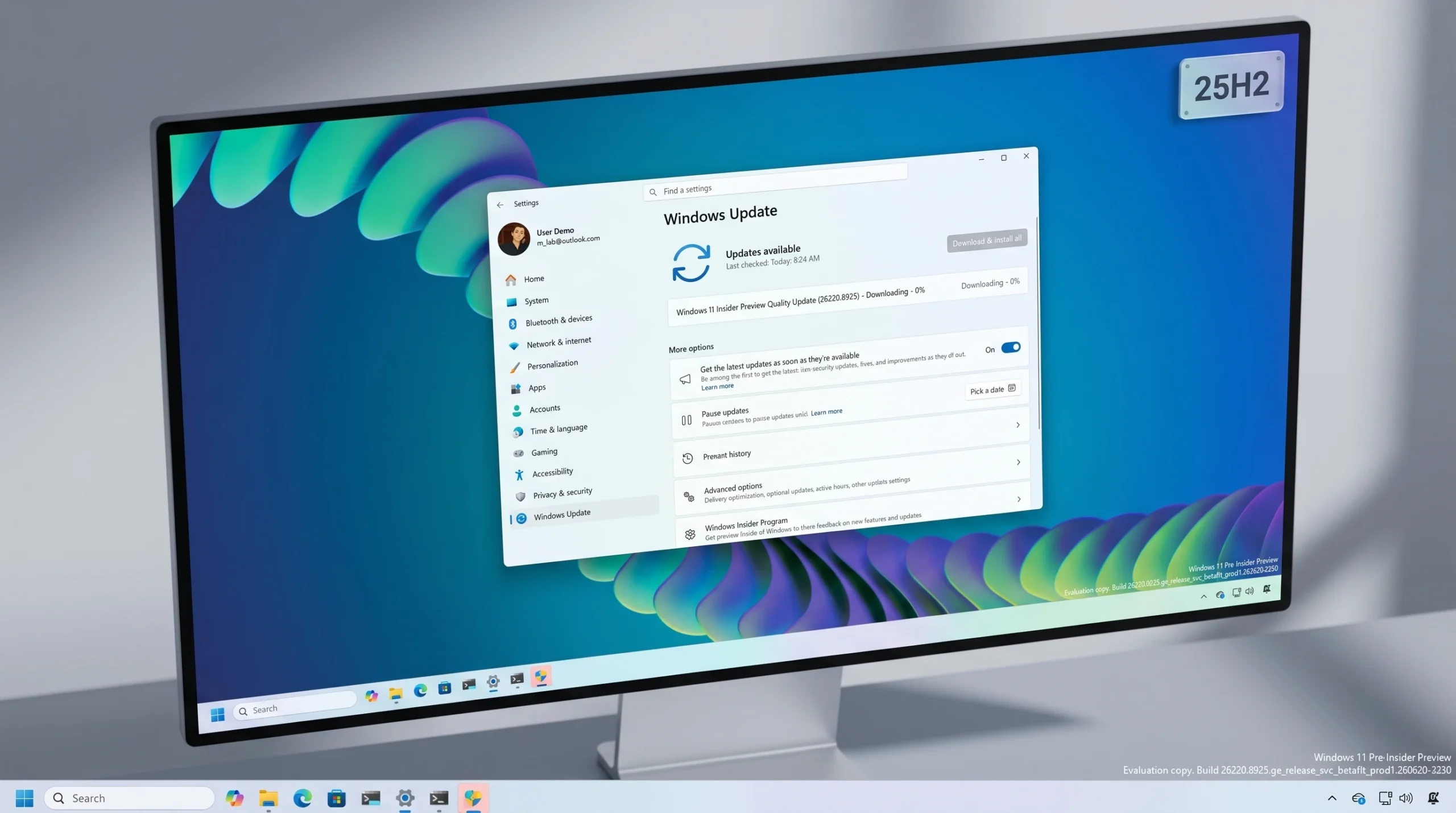
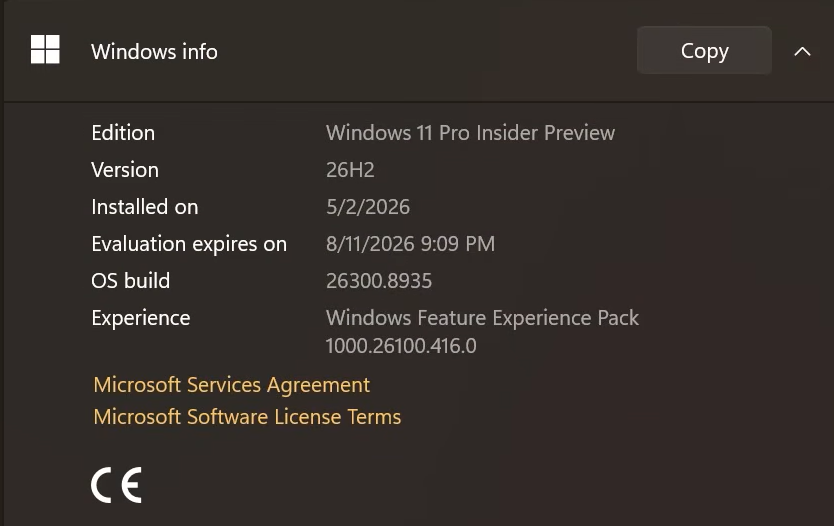
Windows 11 Beta build 26220.8925 hands the Start menu the kind of controls it has been missing since 2021. You can now pick how big Start gets, switch off whole sections you never use, and strip your name and photo out of the menu entirely. The build runs on top of Windows 11, version 25H2, through an enablement package and reached the Beta Channel on 20 July 2026.
Quick answer: Install build 26220.8925 in the Beta Channel, then open Settings > Personalization > Start to set the menu to Small, Large, or Automatic, toggle the Pinned, Recent, and All sections on or off, and hide your account name and profile picture.
Start menu changes in build 26220.8925
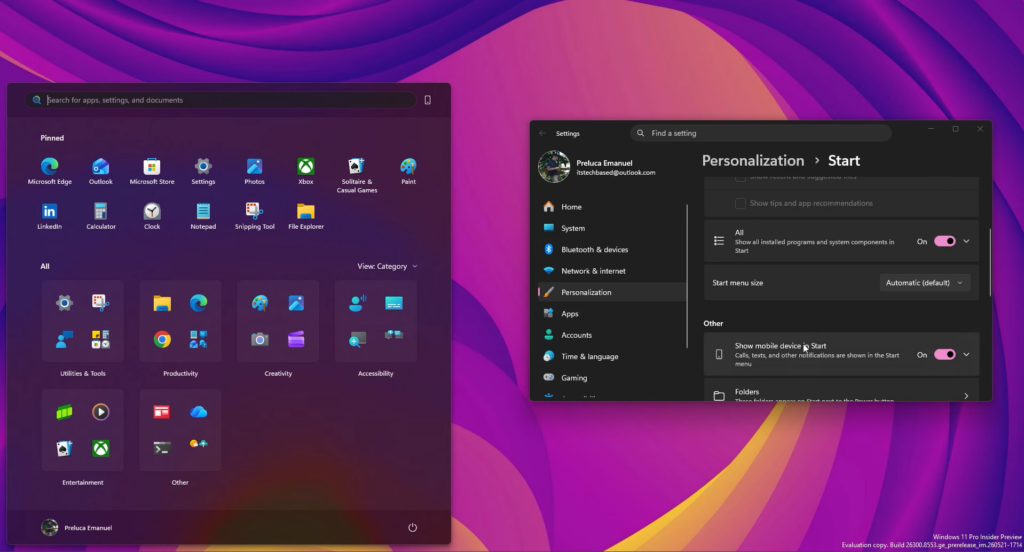
These Start additions were previously tested in the Experimental Channel and follow the plan Microsoft laid out in its Making Taskbar and Start more personal post. The build brings five concrete controls, along with a rebuilt settings page that groups them together.
| Change | What it does |
|---|---|
| Recent label | The former Recommended section is renamed Recent in both Start and Settings. |
| Section toggles | Pinned, Recent, and All each get an independent switch to show or hide them. |
| Size choice | Start can be set to Small or Large, alongside the existing Automatic (default) option. |
| Identity hiding | You can hide your name and profile picture from the menu. |
| Redesigned page | The Start settings page is rebuilt to hold the new controls in one place. |
Hiding your name and picture is useful during presentations, screen recordings, livestreams, and on shared machines where you do not want account details on screen. To leave feedback on these changes, press WIN + F to open Feedback Hub and file under Settings > Start Menu.
How the Small, Large, and Automatic sizes work
Automatic stays the default and lets Windows pick a layout based on display size, resolution, and scaling. Small shrinks Start into a compact launcher, while Large shows more pins and installed apps without extra scrolling. Because the choice is explicit, Start can hold a consistent size when you dock, undock, or move between monitors instead of recalculating its layout each time.
These are fixed presets, not the free drag-to-resize behavior from Windows 10. You choose one of the three modes rather than pulling the menu edges to any dimension.
Set up the new Start controls
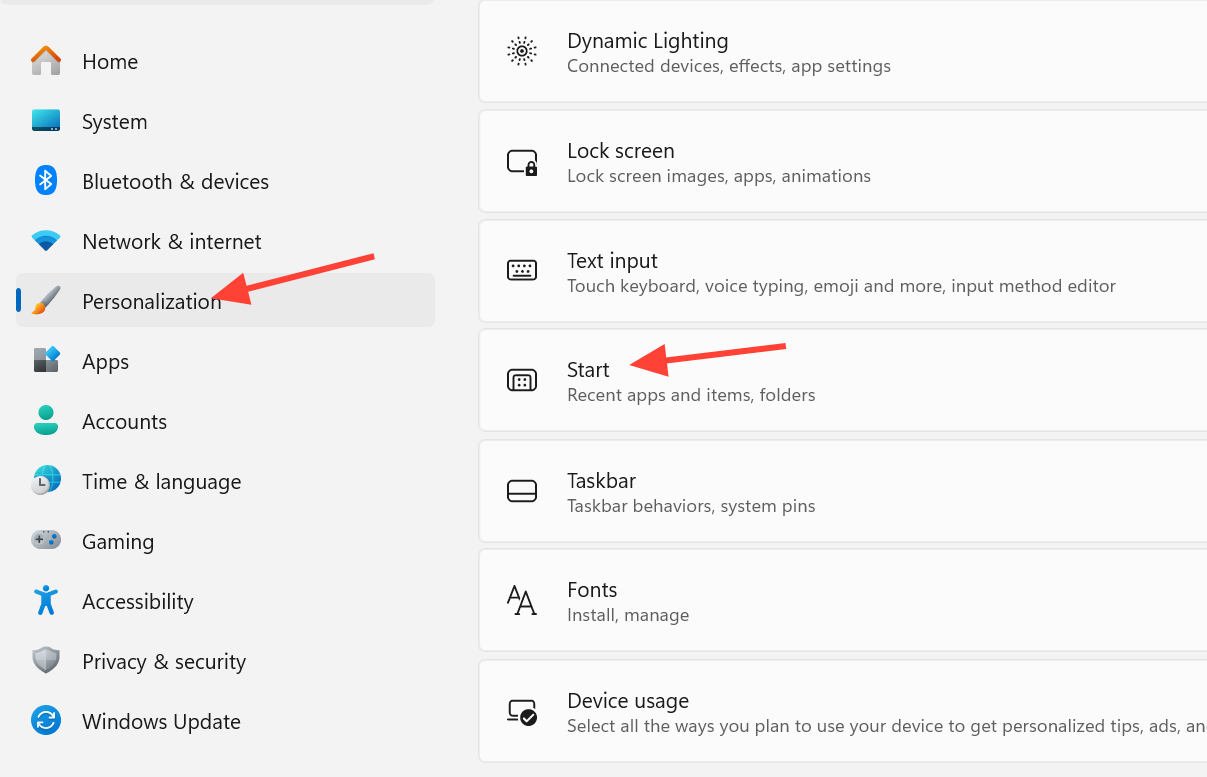
You know it worked when Start reflects your choices immediately. A section you switch off disappears from the menu, the chosen size takes effect on the next open, and your name and photo no longer appear at the bottom.
Not every tester will see all of this at once. The features roll out gradually, so two PCs on the same build can temporarily show different options. Turning on the setting to get the latest updates as soon as they are available improves your chances of receiving the controls early.
Other fixes and improvements in the build
The Start menu is the headline, but the build touches several other parts of Windows. File Explorer stops reporting everything in kilobytes, and Narrator gains instant braille display support.
| Area | Change |
|---|---|
| File Explorer | Details view shows file sizes in KB, MB, and GB instead of KB only. Middle-click opens a folder in a new tab from the address bar and Home page. Screen reader announcements improve during move and copy conflicts. |
| Touchpad | New precision touchpad gestures add scroll and zoom speed controls, accelerated scrolling, and optional single-finger scrolling. |
| Narrator | Refreshable HID braille displays connect instantly over USB with no extra setup, and pair over Bluetooth in Settings > Bluetooth & devices. Supported models include Orbit Reader 20, Orbit Slate 340, Freedom Scientific Focus 40, and APH Mantis Q40. HID displays now work over USB during initial setup (OOBE). |
| Account Control | The flyout gets a refreshed design with a subscription badge showing plan, benefits, and storage details. |
| Windows Update | Fixes recent Insider flights failing to install with error 0xc0000409. |
| Input | Improves persistence of the mouse cursor size. |
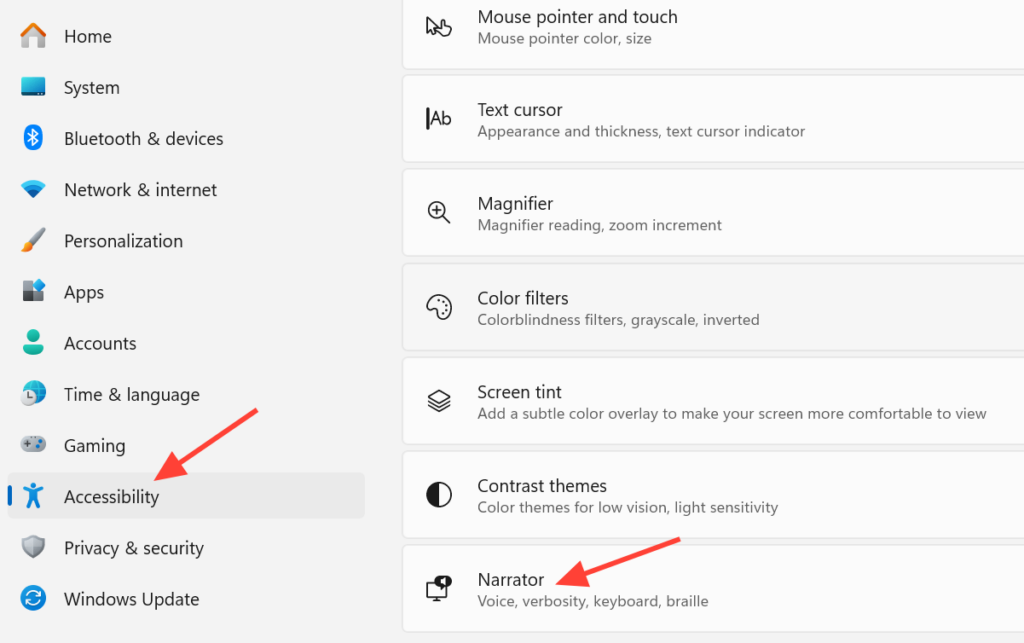
Braille input and output settings live under Settings > Accessibility > Narrator > Braille. HID support during OOBE means users who are deaf-blind can set up a PC on their own from the very first screen.
As with any Insider preview, some of these features may change, move, or never ship beyond the Beta Channel. For now, the Start menu controls are the clearest sign that Windows 11 is winding back the fixed, one-layout approach and letting people shape the menu around how they work.