Juggling between Apple and Windows ecosystems? Make password management hassle-free with the iCloud Passwords app on Windows 11.
Juggling between Apple and Windows ecosystems? Make password management hassle-free with the iCloud Passwords app on Windows 11.
by Parth Sawhney
Managing passwords across different platforms can be a challenging task, especially if you use both Apple and Windows devices. If you rely on iCloud Keychain to store your passwords on Apple devices but also frequently use a Windows 11 PC, accessing those passwords might seem complicated. Fortunately, iCloud Passwords for Windows offers a seamless solution, allowing you to access and manage your iCloud Keychain passwords directly from your Windows machine without compromising security.
What is iCloud Passwords for Windows?
iCloud Passwords is an extension of iCloud Keychain designed specifically for Windows users. While iCloud Keychain securely stores your passwords across all your Apple devices, iCloud Passwords brings this functionality to your Windows PC. It’s an essential tool for those who navigate between Apple and Windows environments, ensuring that your passwords are always accessible and up-to-date.
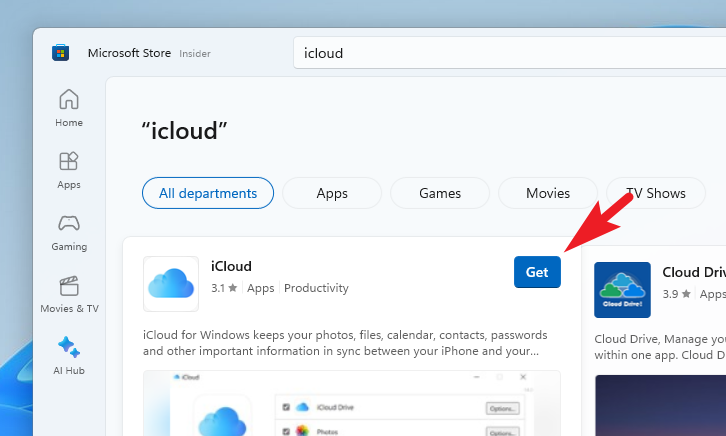
With iCloud Passwords, you can not only access your saved passwords but also edit, remove, or add new credentials directly from your Windows device. These changes sync across all your Apple devices, keeping your password management consistent and convenient. To use iCloud Passwords, you’ll need to install the iCloud app on your Windows PC, which includes the iCloud Passwords feature.
Installing and Setting Up the iCloud App from the Microsoft Store
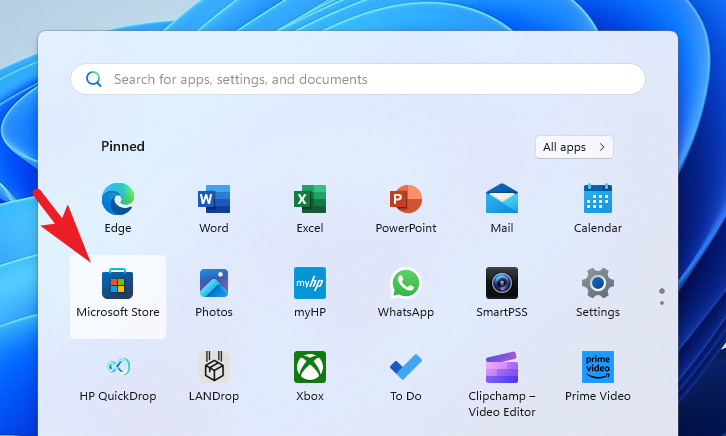
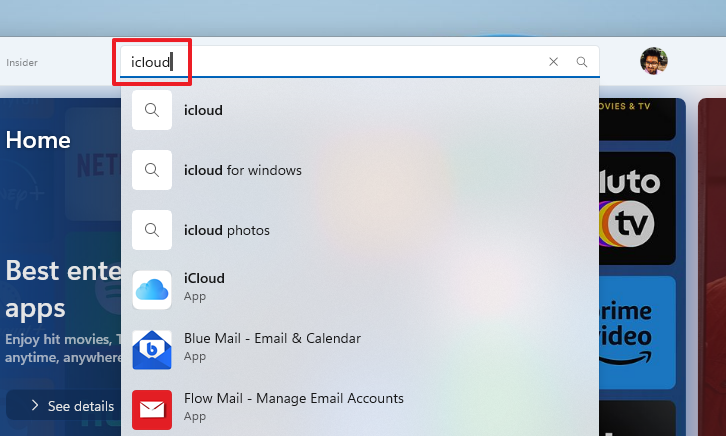
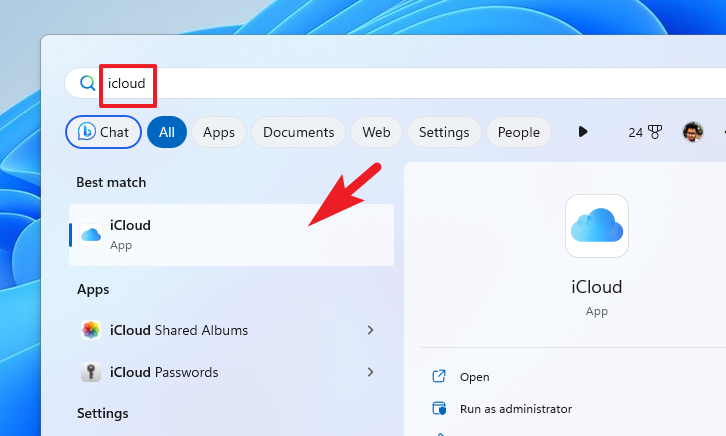
Open the Start Menu on your Windows 11 PC and click on the ‘Microsoft Store’ icon. If it’s not visible, type Store in the search bar and select ‘Microsoft Store’ from the results.
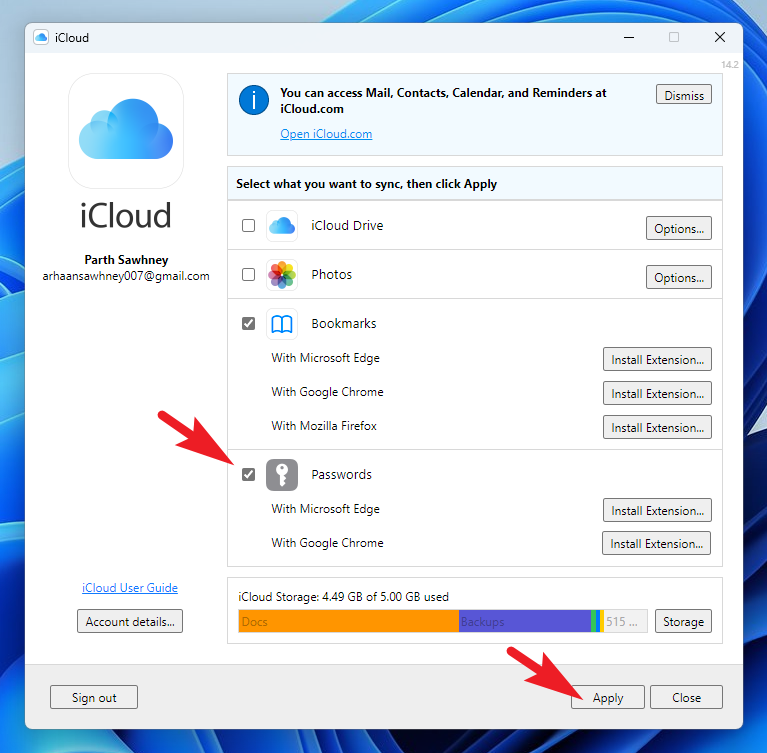
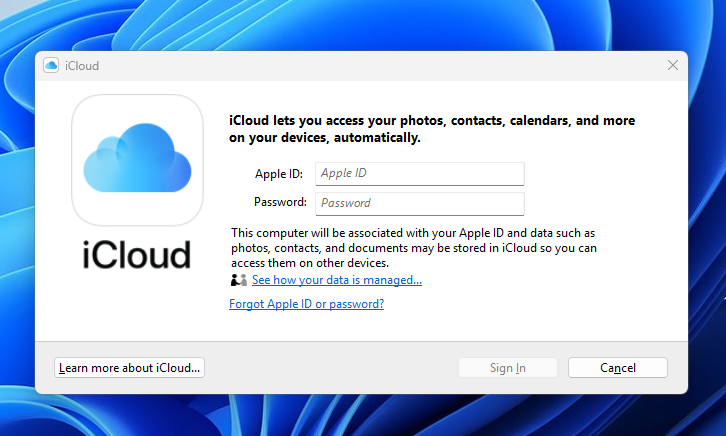
After signing in, you’ll see the iCloud settings screen. Ensure that the ‘Passwords’ option is checked to enable iCloud Passwords. You can also enable other features like iCloud Drive, Photos, and Bookmarks if you wish. For more details on these features, refer to the guide below.
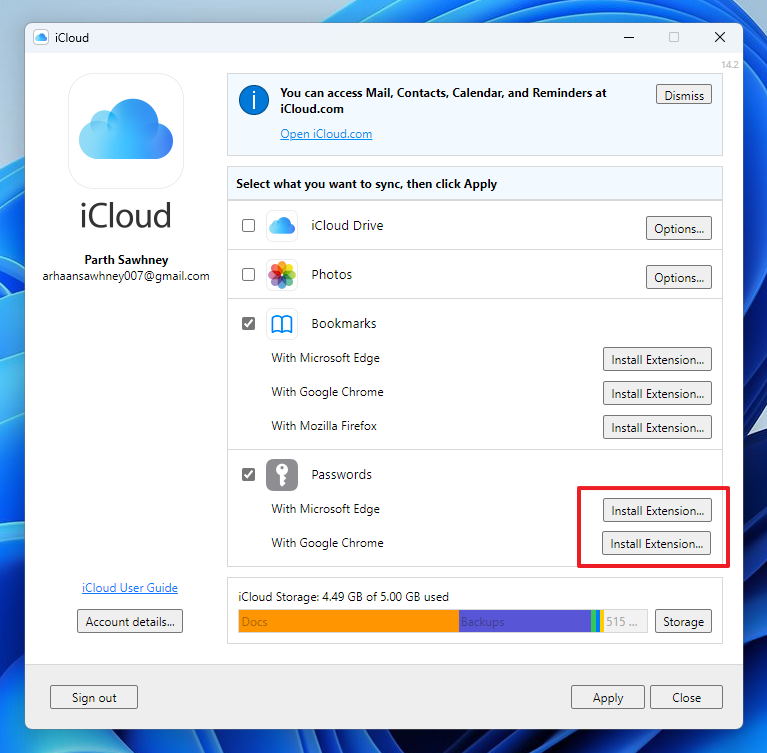
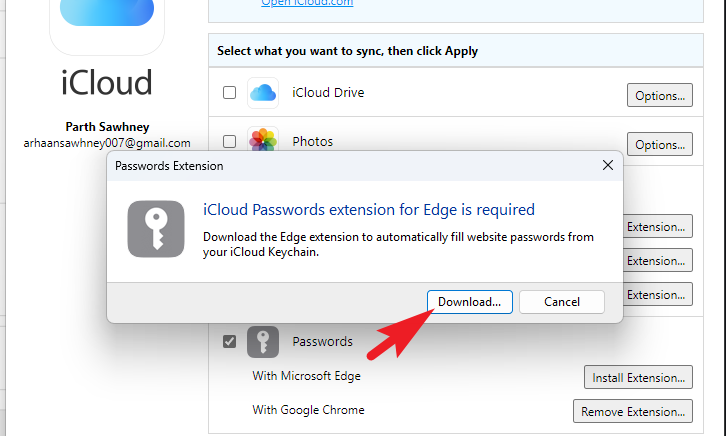
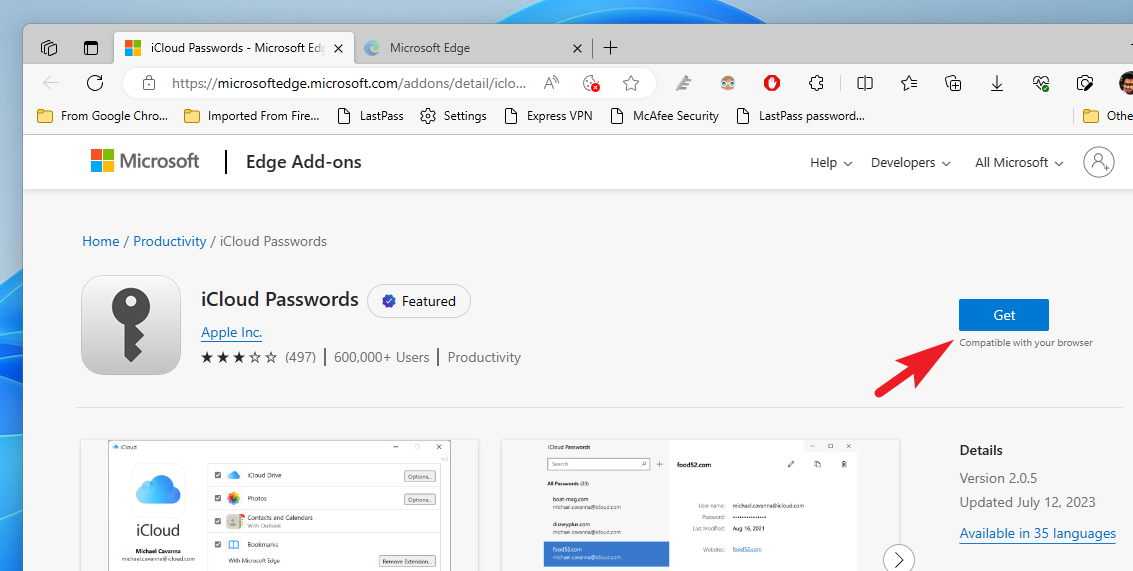
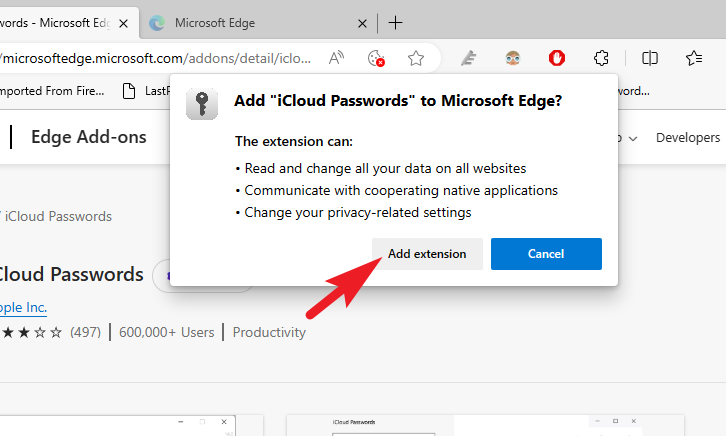
In the iCloud settings window, click on the ‘Install Extension’ button next to your preferred browser. Currently, iCloud Passwords supports Microsoft Edge and Google Chrome browsers.
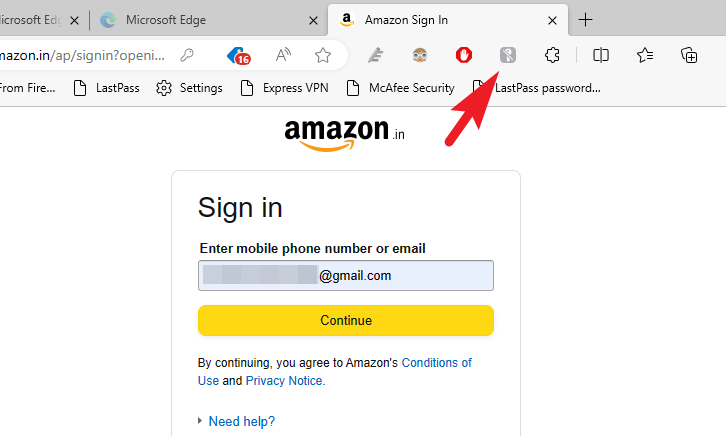
Navigate to the website where you want to log in. On the sign-in page, click the ‘iCloud Passwords’ extension icon in your browser’s toolbar. If the icon isn’t visible, click the extensions menu and pin the ‘iCloud Passwords’ extension for easy access.
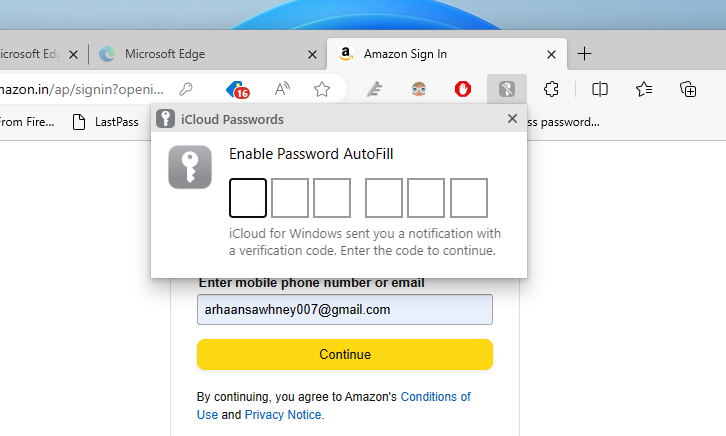
You’ll be prompted to enter a verification code to activate the extension for the current browsing session. The code will appear in a notification at the bottom right corner of your screen.
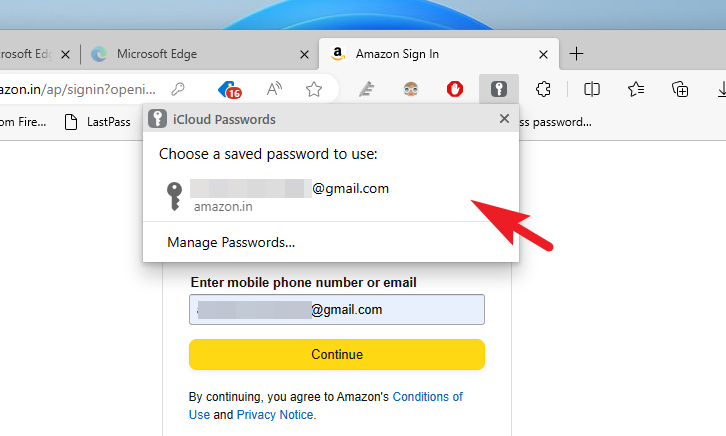
After entering the code, a list of saved credentials for that website will appear. Click on the appropriate credential to autofill your login information.
The extension also allows you to save new passwords. When you log into a new website or create a new account, the extension will prompt you to save the password to iCloud Passwords, ensuring it’s available across all your devices.
Viewing, Editing, Removing, or Adding Credentials in iCloud Passwords
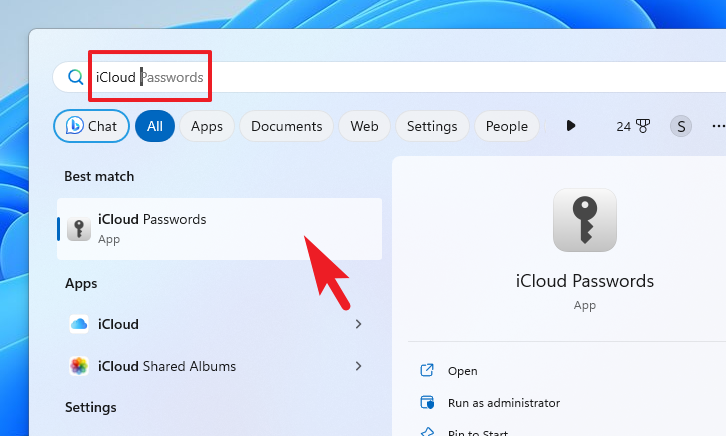
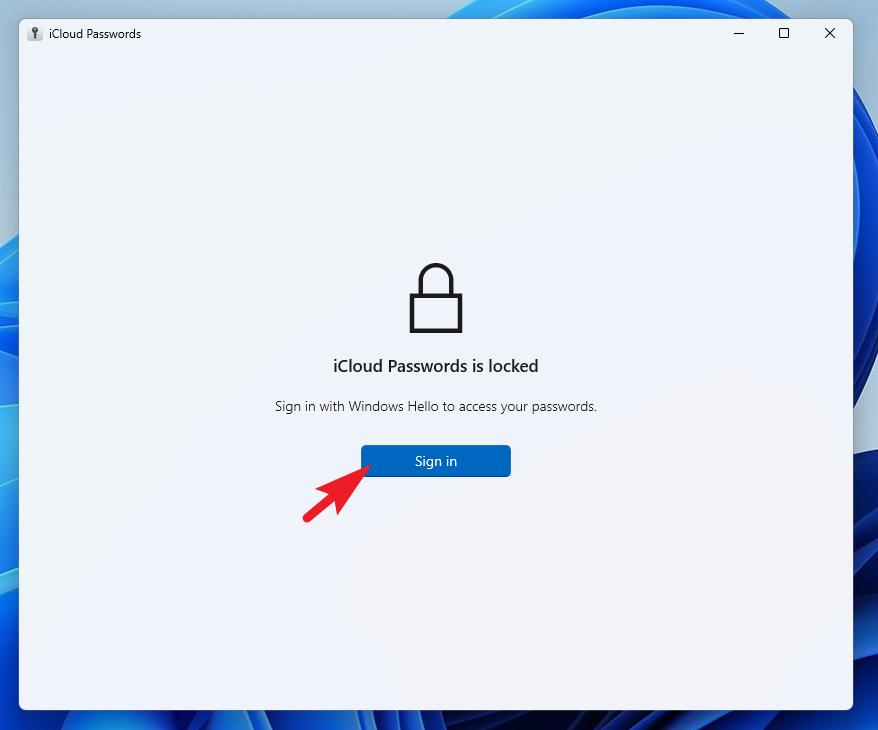
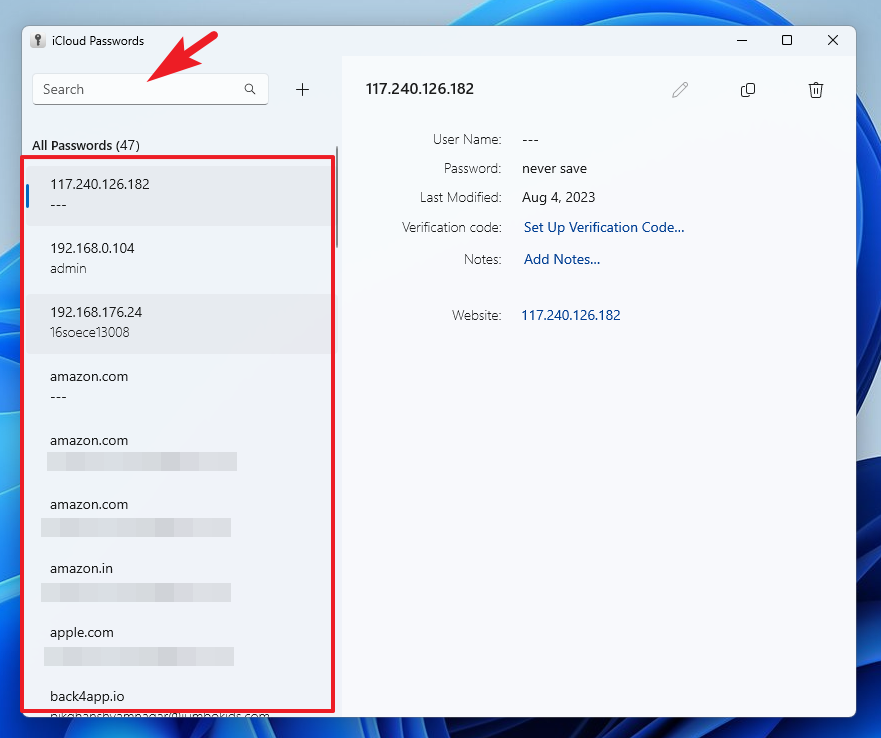
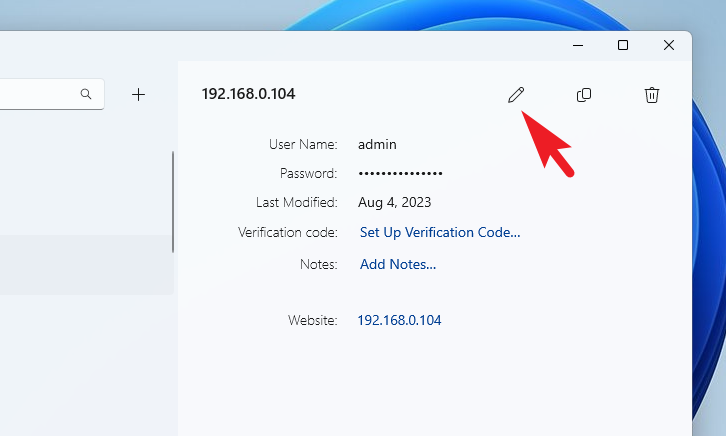
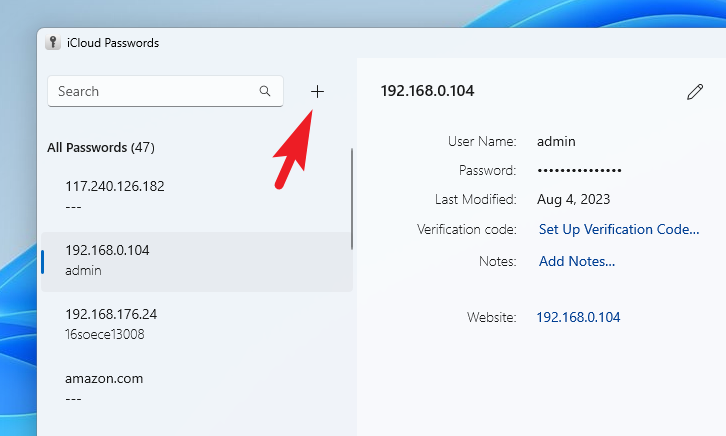
To manage your passwords directly through the iCloud Passwords app on Windows:
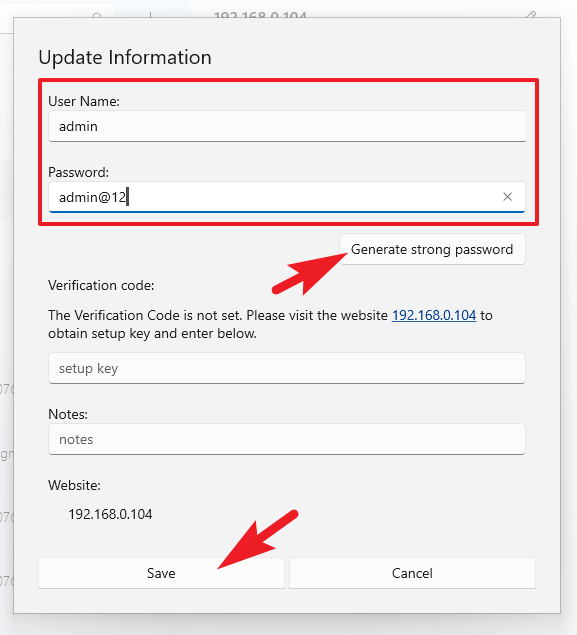
Update the username or password as needed. You can generate a strong password by clicking ‘Generate strong password’. Click ‘Save’ to apply the changes. These changes will sync across all devices connected to your iCloud Keychain.
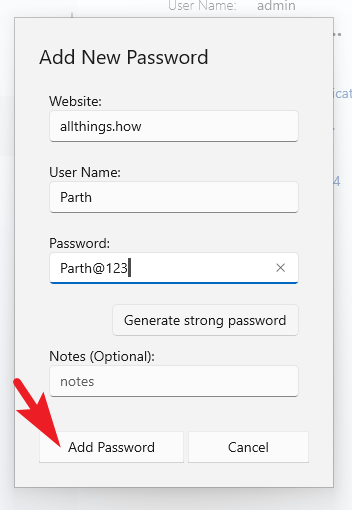
Enter the website address, username, and password. Use ‘Generate strong password’ if you need to create a secure password. Click ‘Add Password’ to save the new credential.
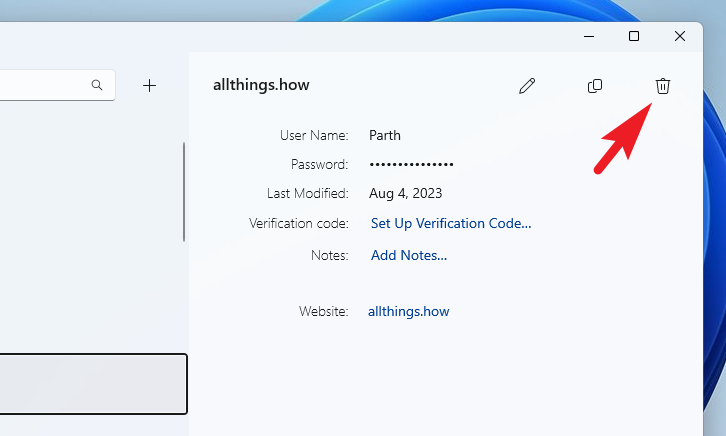
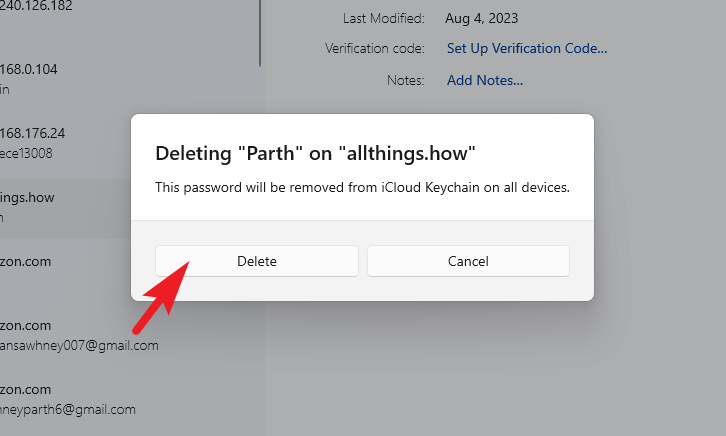
Confirm the deletion by clicking ‘Delete’ in the prompt that appears. The credential will be permanently removed from your iCloud Keychain.
Accessing and managing your iCloud Keychain passwords on Windows through iCloud Passwords simplifies the process of maintaining secure credentials across different platforms. Whether you’re an Apple enthusiast who also uses Windows or just in need of a reliable password manager, iCloud Passwords offers a seamless and secure solution to keep your passwords at your fingertips.


 All Things How