Gaming How-To

Enshrouded: How to Undo Digging and Fill a Hole Back In (Y Key)

Inside your Flame Altar's area, the Y key reverses Pickaxe digs one swing at a time and takes the dirt back.

Inside your Flame Altar’s area, the Y key reverses Pickaxe digs one swing at a time and takes the dirt back.

In Enshrouded, you can restore an excavated spot without carrying dirt back manually. While within the zone protected by your Flame Altar, use Y (“Undo Build Action”) once you’ve dug. Each use reverses one Pickaxe swing and removes that dig’s dirt from your action bar, so three swings require three presses.

Quick answer: Stand inside your Flame Altar’s area, dig with the Pickaxe, then press Y once for every swing you made. The grass returns and the Springlands Dirt you picked up disappears.


Where Undo Build Action works

The undo option appears only in the “Flame protected area” box in the bottom-right corner of the screen. That box shows up while you stand within your Flame Altar’s area, so do your digging there if you want to be able to take it back.

  • “Z First Person Mode”
  • “Z + SPACE Fly Mode”
  • “Undo Build Action”, which stays grey until you dig

The same “Y Undo Build Action” also takes back building pieces you have placed, along with the other Enshrouded building mode controls. Your Flame Altar’s area is the building area around it (see how to move a Flame Altar), and every default key is in the full Enshrouded controls list.


How to undo a Pickaxe dig in Enshrouded

Before you start, you need the Pickaxe, which you craft by hand under ESSENTIALS in CRAFTING, so follow our steps for making a Pickaxe first.
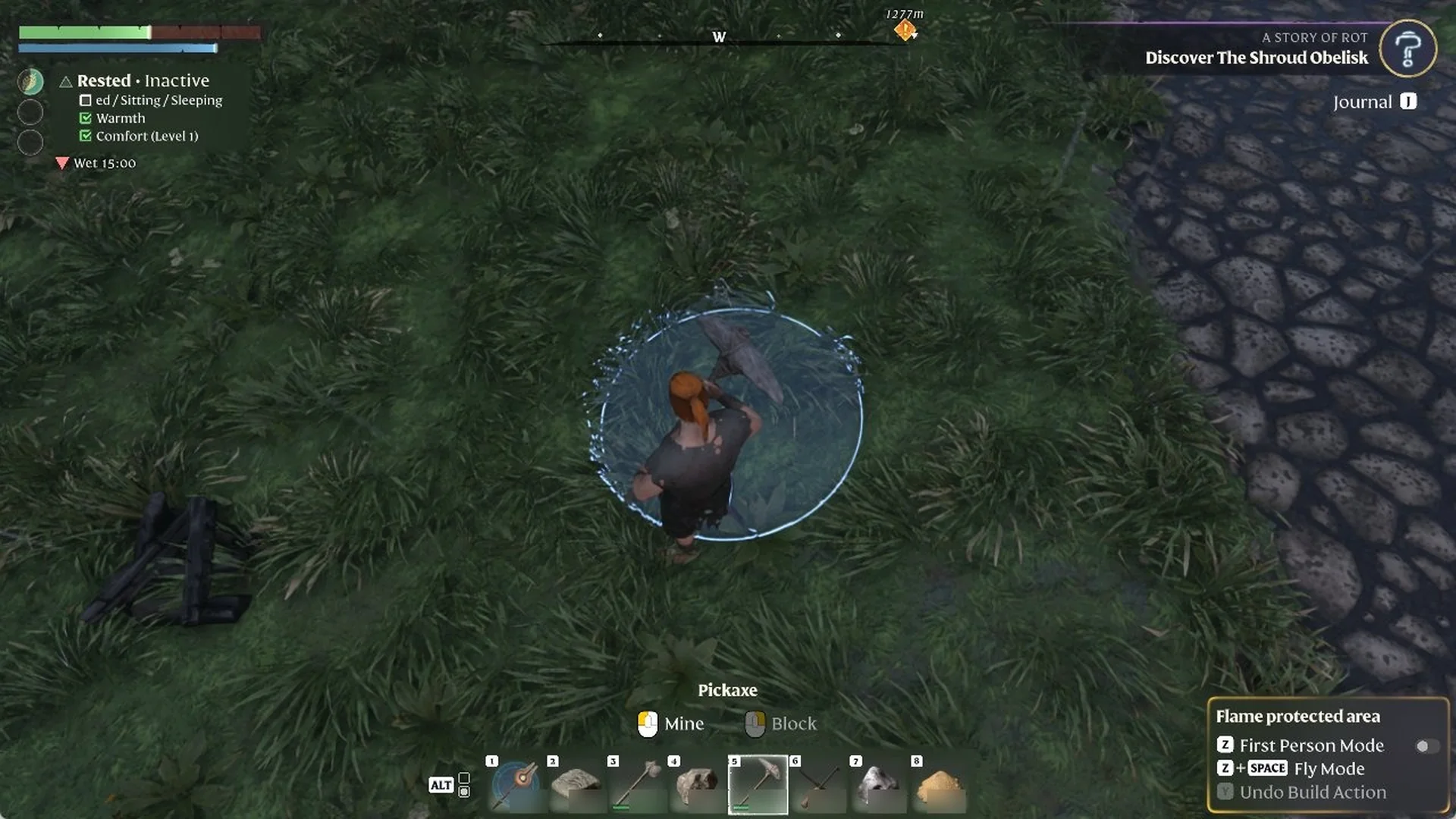
Walk into your Flame Altar’s area and equip the Pickaxe. The hint at the bottom of the screen reads “Pickaxe”, “Mine” and “Block”. In the bottom-right box, “Undo Build Action” is still greyed out.
Character holding the Pickaxe on rainy grass by a cobbled road, with 'Flame protected area' shown and 'Undo Build Action' greyed out.
“Flame protected area” appears while “Undo Build Action” is greyed out.
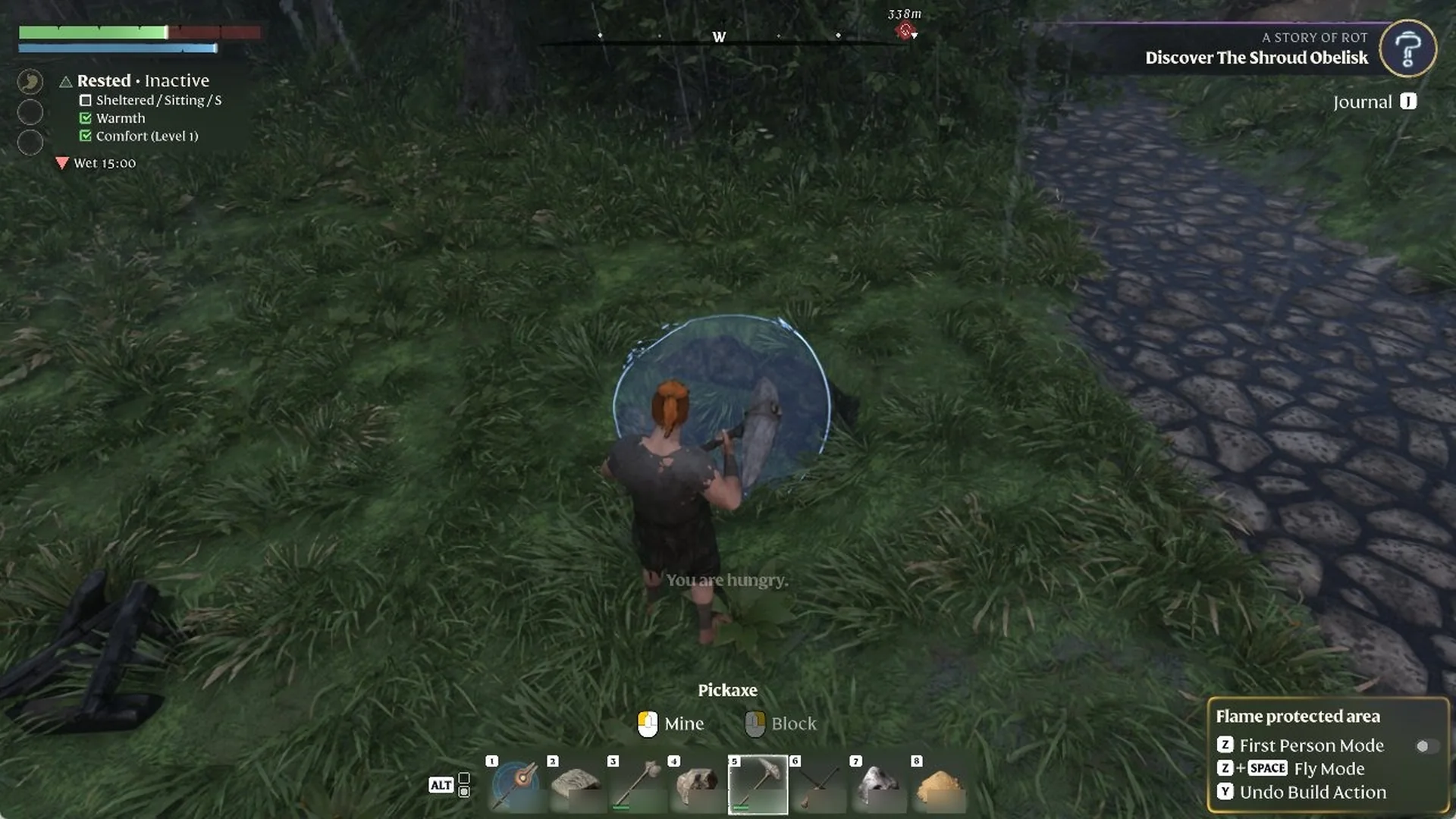
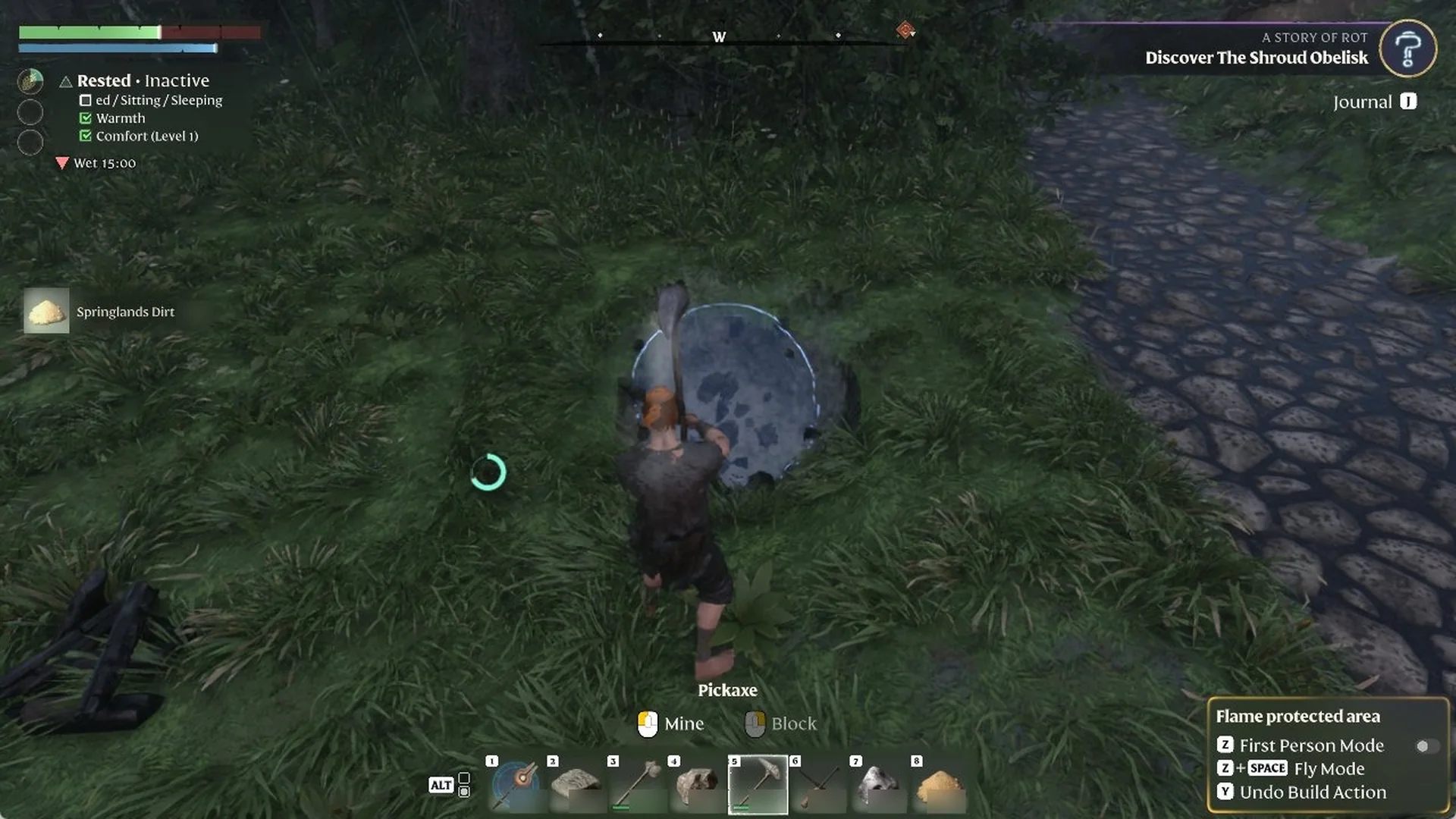
Dig into the ground. Three swings on open grass open a hole, and a “Springlands Dirt” pickup line appears on the left side of the screen. At the same time, “Y Undo Build Action” lights up in the bottom-right box.
Character holding a Pickaxe beside a hole in the grass, with 'Springlands Dirt' picked up and 'Y Undo Build Action' lit
Digging grass with the Pickaxe yields Springlands Dirt, with “Y Undo Build Action” shown.
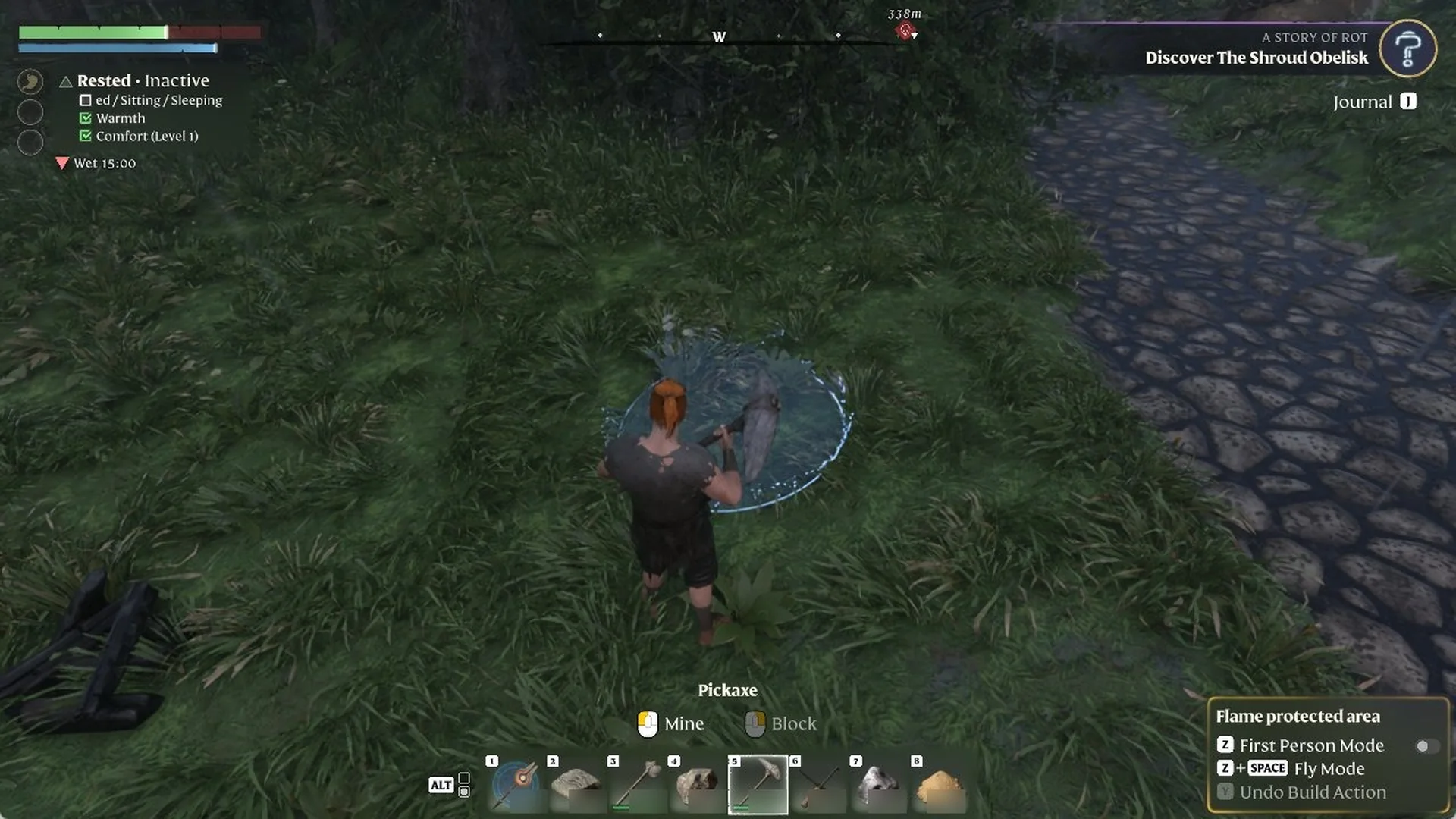
Tap Y one time. The hole is partly restored, and Springlands Dirt on your action bar decreases by the amount used for one dig.
Enshrouded terrain at the same spot after pressing Y a single time, with the hole partly filled back in.
Pressing Y once partly fills the hole back in at the same spot.
Keep pressing Y until every swing is reversed. After a three-swing dig, two more presses finish the job, for three presses in total.
Enshrouded ground after the last Y press, the hole gone, grass back, and 'Undo Build Action' shown grey again.
After the last Y press, the hole is gone and “Undo Build Action” is grey again.

How to tell the dig is fully undone

Once the last swing is reversed, the hole is gone and the grass is back. Your Springlands Dirt count returns to what it was before you started digging, so the undo costs you exactly the dirt the dig gave you. “Undo Build Action” also turns grey again in the Flame protected area box, which means there’s nothing left to reverse.