Enshrouded: How to Craft the Crude Mattress and Give It to Oswald
Build the first bed at the Workbench, place it inside your base, and assign it to Oswald Anders with the Summoning Staff.
Build the first bed at the Workbench, place it inside your base, and assign it to Oswald Anders with the Summoning Staff.
by AllThingsHow Staff
The Crude Mattress is the first bed you can make in Enshrouded, and it is the bed Oswald Anders the Blacksmith asks for in his dialogue. You craft it at the Workbench, drop it inside your base, and then point Oswald at it with the Summoning Staff.
Quick answer: Craft the Crude Mattress at the Workbench under Comfort Furniture > Basic Comfort using String 3, Torn Cloth 4 and Plant Fiber 4, place it inside your base when the preview turns blue, press E to sleep, then use the Summoning Staff to set Oswald beside it.
Materials needed for the Crude Mattress
The recipe sits in the Workbench menu and requires the Workbench itself. You need three materials, and the String has to be made by hand first.
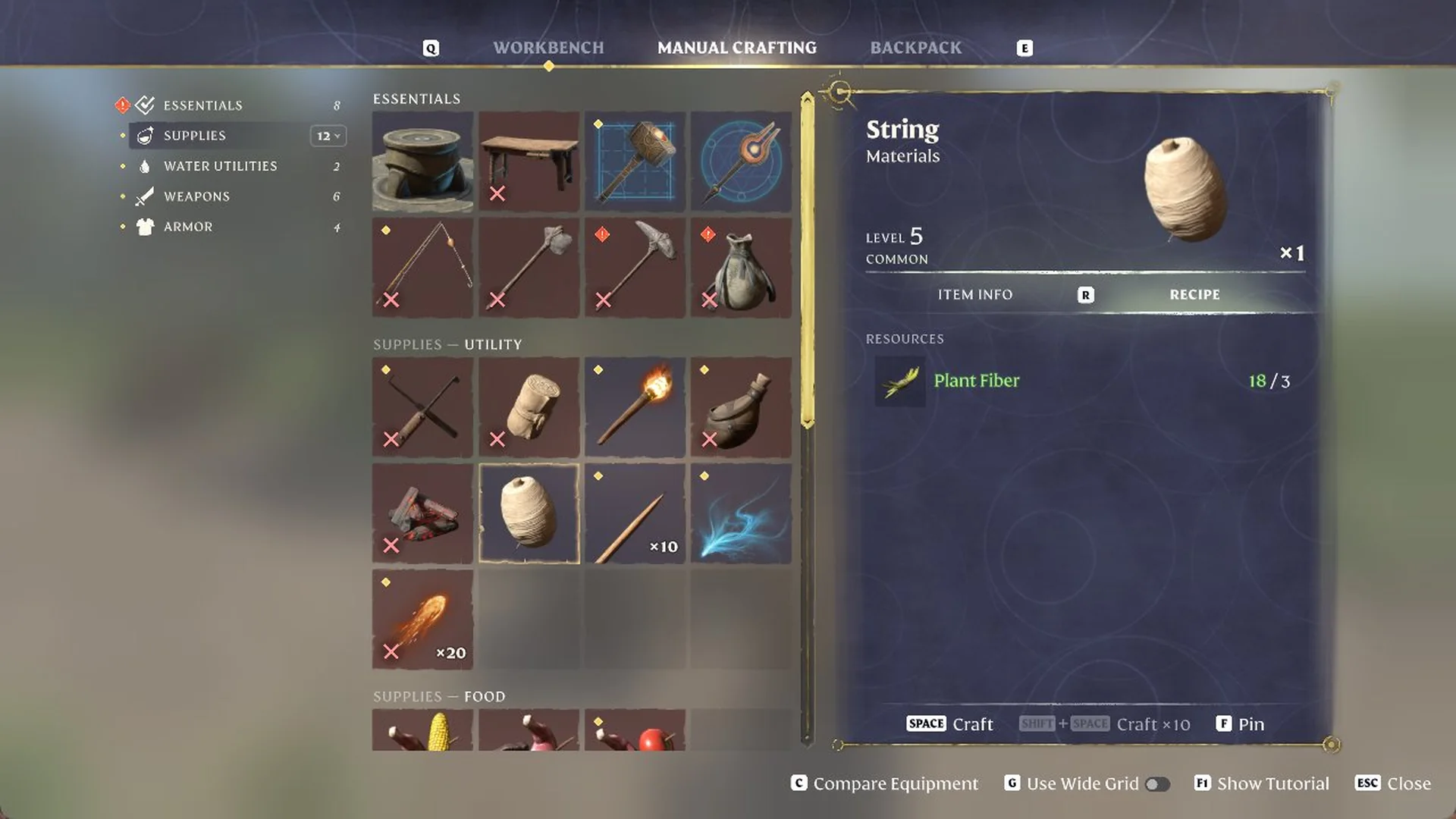
Make enough String to reach a total of three before continuing. In MANUAL CRAFTING, navigate to Supplies – Utility and select “String” (Materials, Common). Each one uses 3 Plant Fiber. Press SPACE to craft one, then repeat until you have three.
String in the Manual Crafting tab: each one takes 3 Plant Fiber.
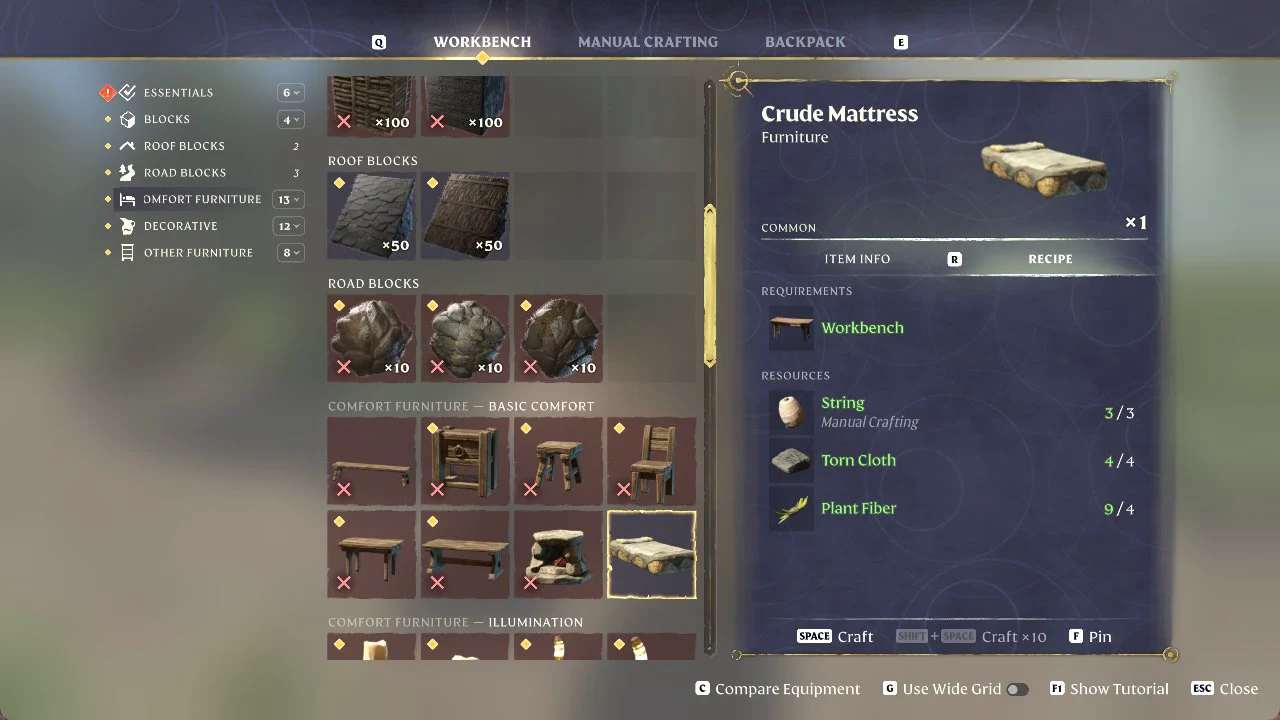
Choose WORKBENCH, then open Comfort Furniture (the category showed 13 items). Find the row marked “Comfort Furniture – Basic Comfort”—the mattress occupies the last tile. Its details identify it as Crude Mattress, Furniture, Common, x1. Under REQUIREMENTS, the panel names Workbench; the RESOURCES are 3 String (Manual Crafting), 4 Torn Cloth and 4 Plant Fiber. Press SPACE to craft once all three resource counts are green.
The Crude Mattress selected under Comfort Furniture, with its recipe panel showing String, Torn Cloth and Plant Fiber.
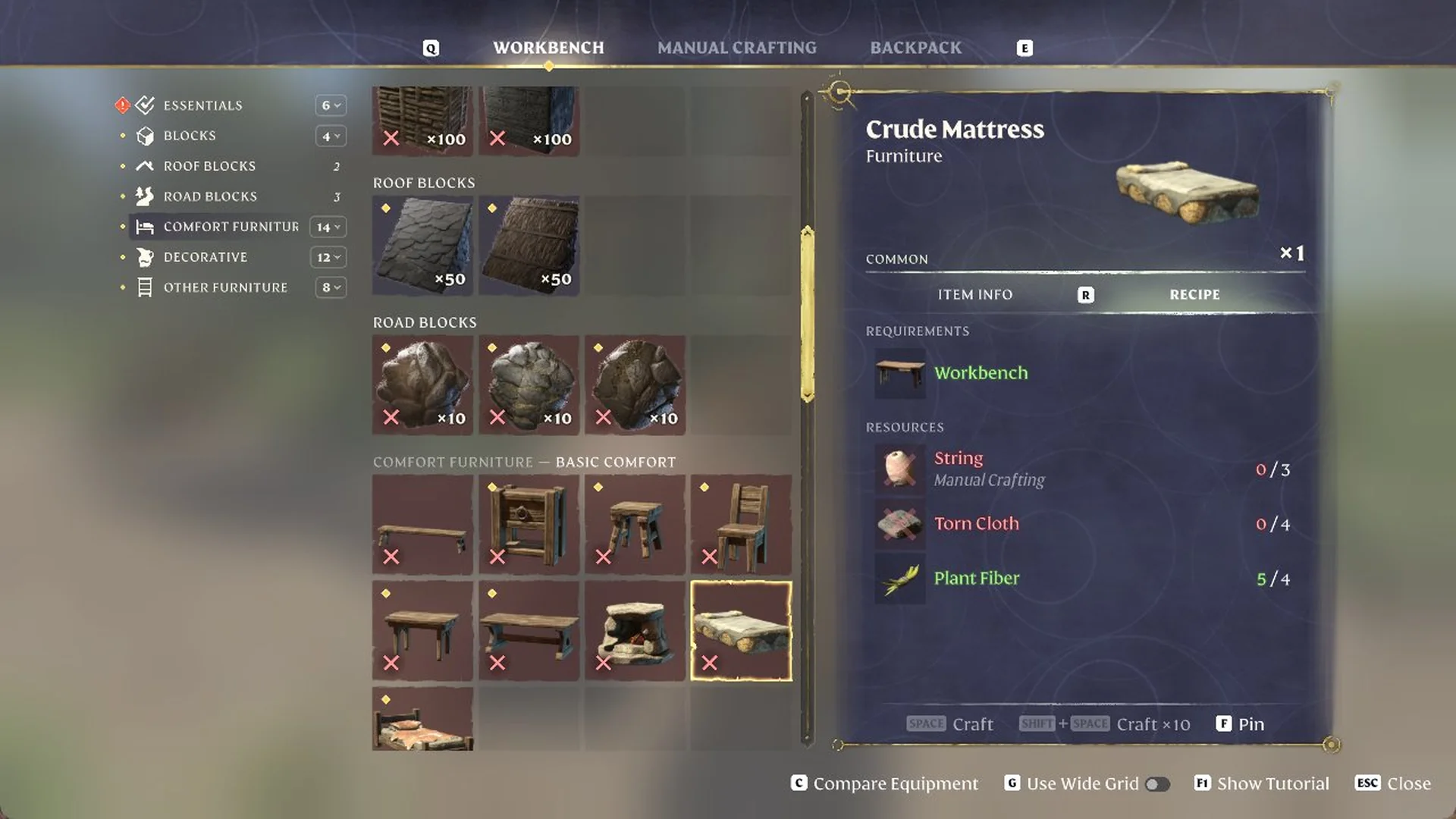
Once crafting is complete, the panel shows String and Torn Cloth at 0 because they were consumed. A new tile for the Crude Wooden Bed is added beneath the row, bringing the Comfort Furniture total up from 13 to 14. That bed also calls for Animal Fur.
After the craft, String and Torn Cloth read 0 and a new bed tile appears below the row.
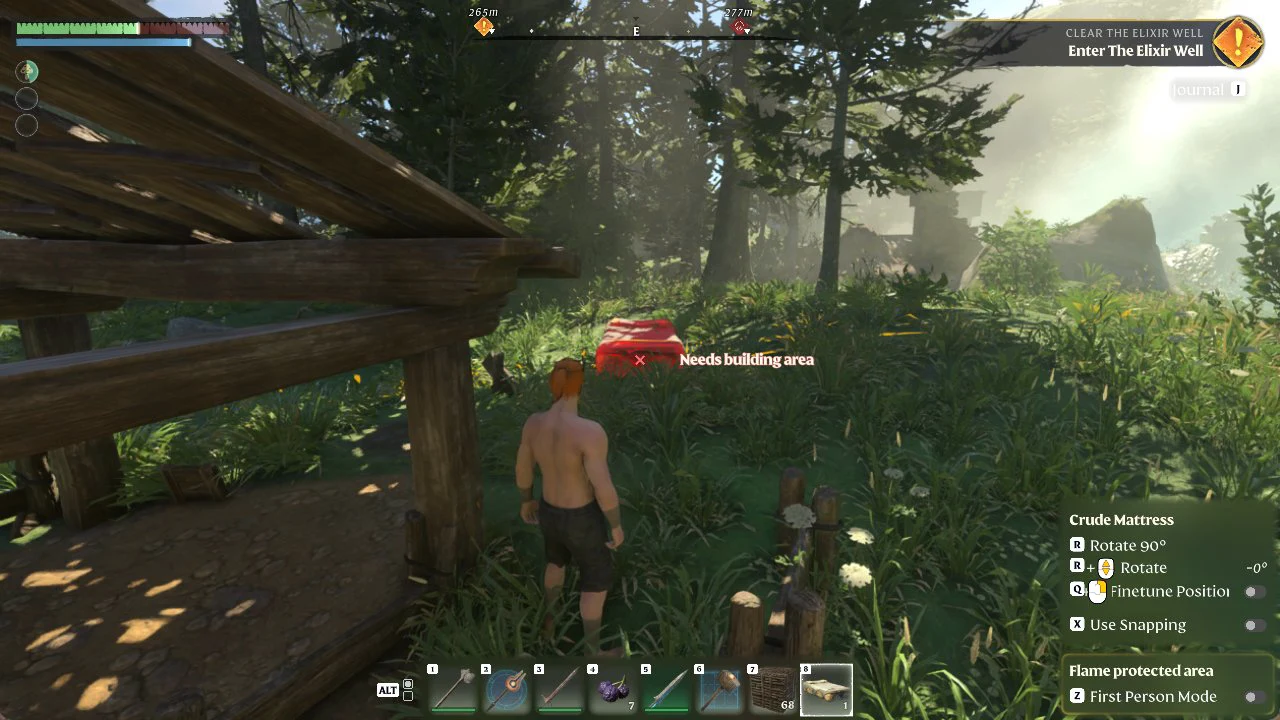
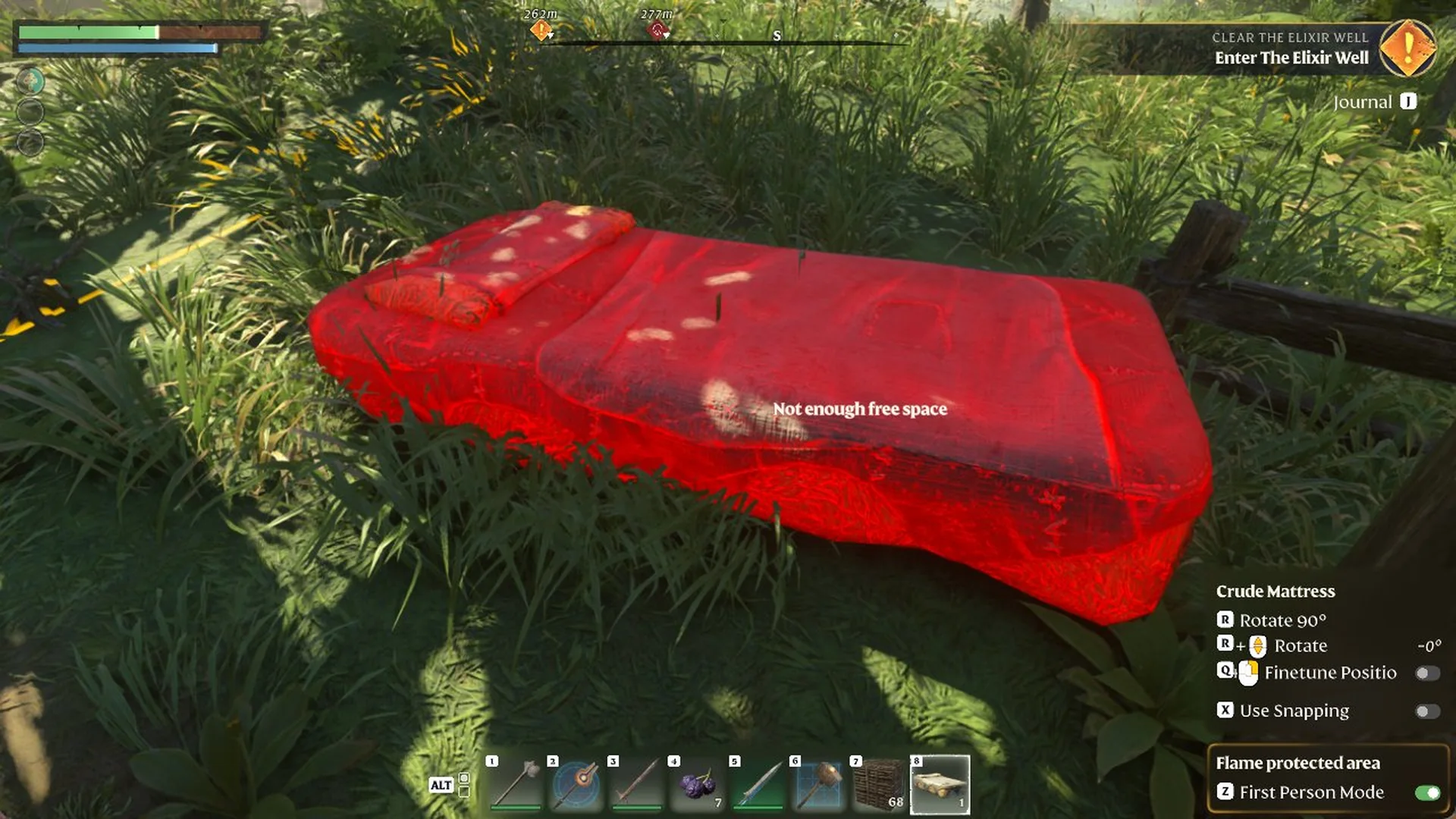
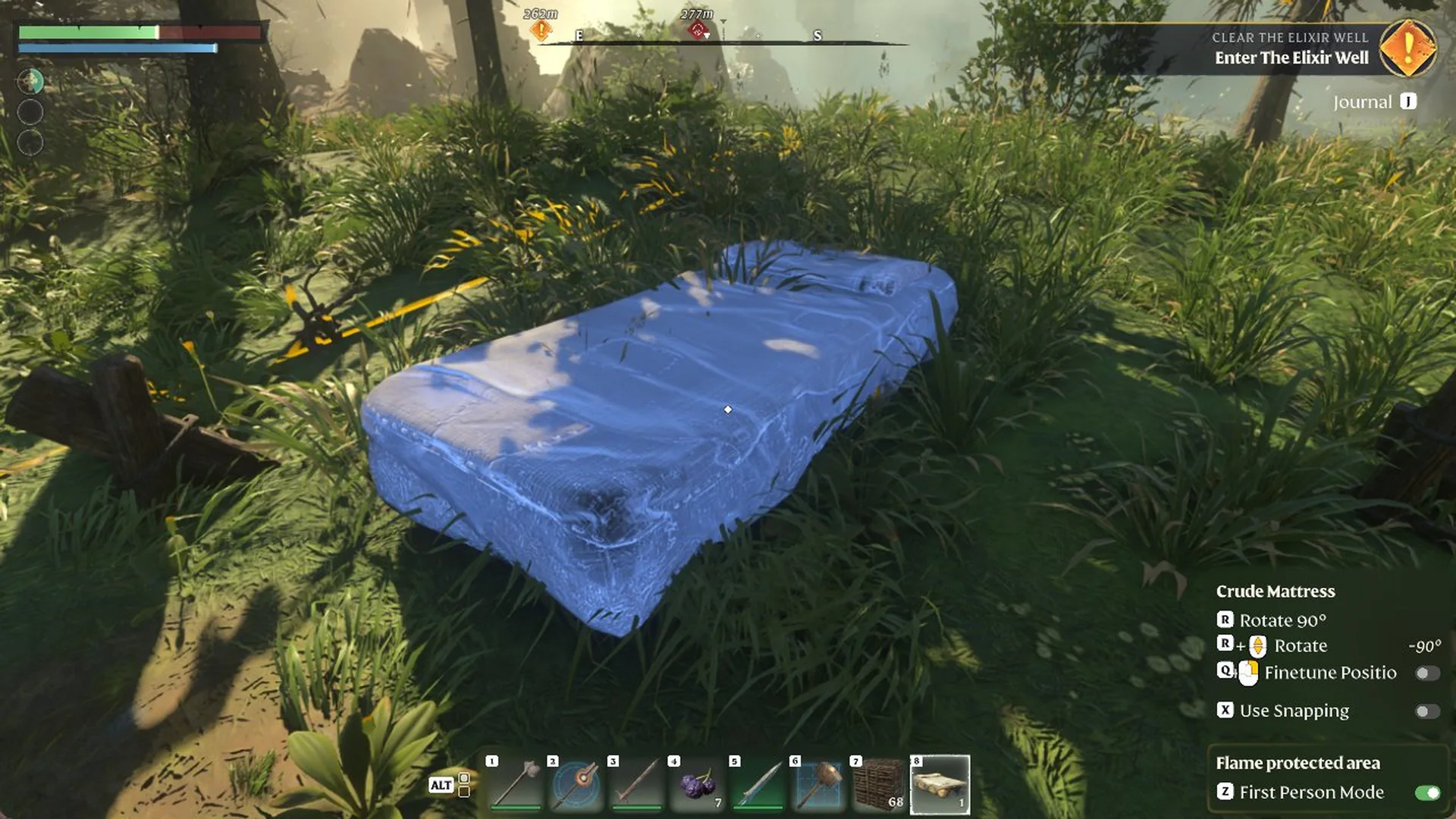
Close the menu and select the action bar slot holding the mattress. A placement preview appears with a side panel showing “Crude Mattress”, R Rotate 90 degrees, R + mouse wheel Rotate, Q + mouse Finetune Position, X Use Snapping, “Flame protected area” and Z First Person Mode.
Blue indicates a valid placement point. Click the left mouse button to set the mattress down; press R to turn it 90 degrees if the space calls for a different orientation.
A blue preview means the spot is valid; left click to place.
Sleep on the mattress
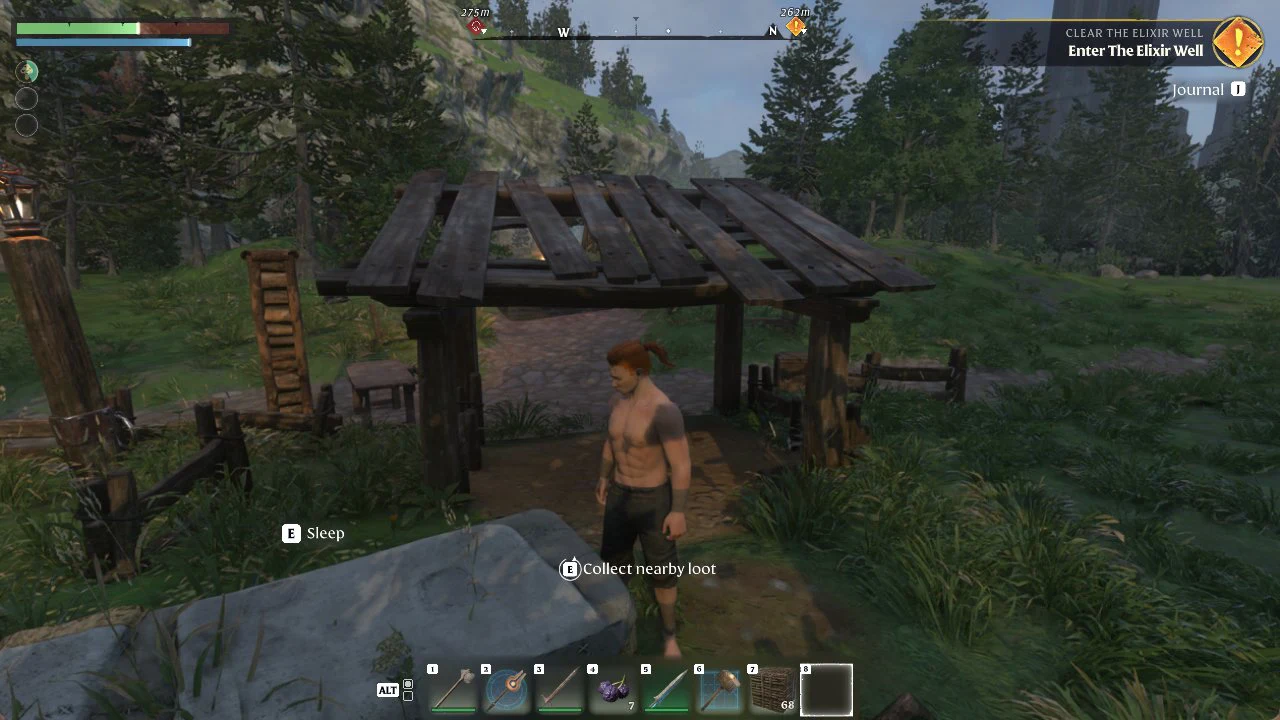
Walk up to the placed mattress and it shows “E Sleep”.
The placed bed with the “E Sleep” prompt available.
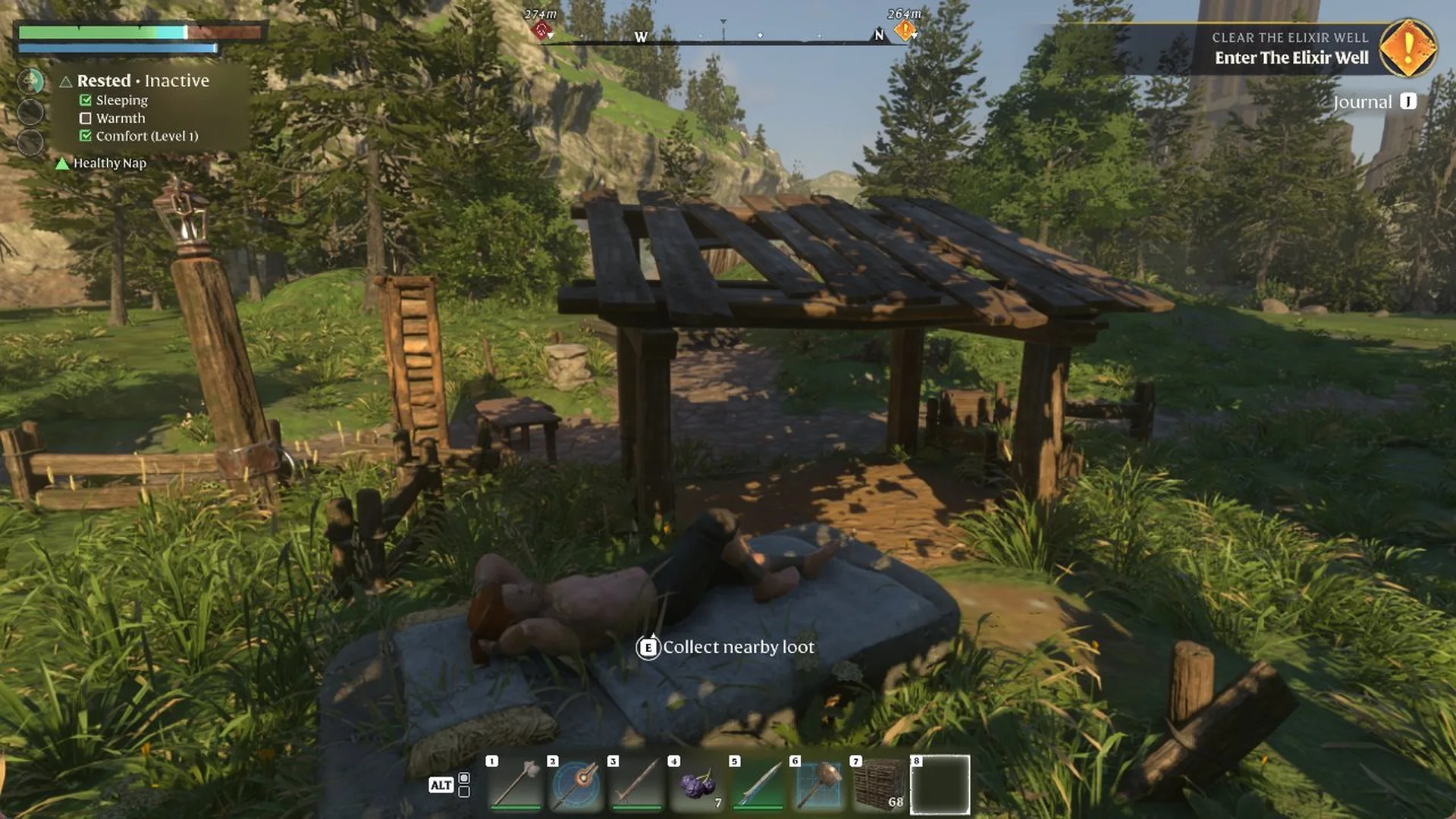
Press E to lie down. In the Rested list on the HUD, “Sleeping” and “Comfort (Level 1)” were ticked, and a new buff line, “Healthy Nap”, appeared beneath it. Warmth was not ticked at that moment and Rested still read Inactive.
Lying on the mattress: Sleeping ticked and a Healthy Nap line under the Rested list.
Assign the bed to Oswald Anders with the Summoning Staff
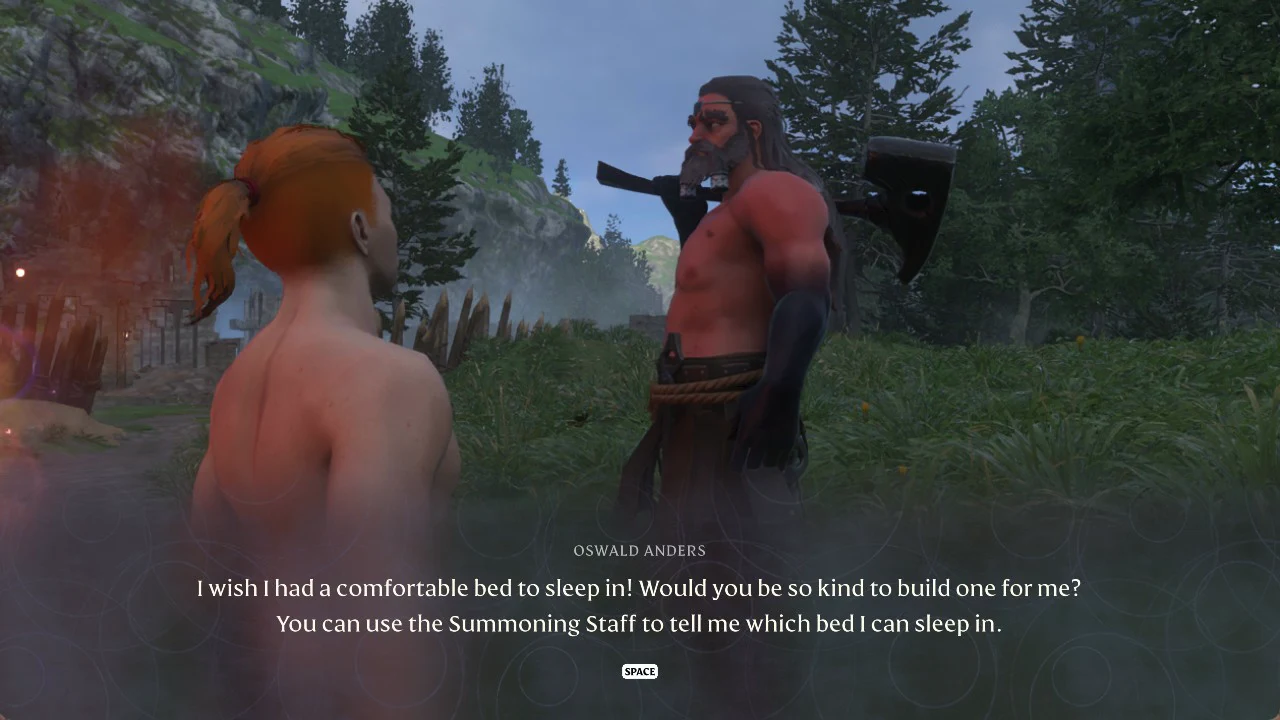
Oswald Anders, the Blacksmith, asks for a bed in his “Missing Bed” dialogue: “I wish I had a comfortable bed to sleep in! Would you be so kind to build one for me? You can use the Summoning Staff to tell me which bed I can sleep in.”
Oswald Anders in his “Missing Bed” dialogue, explaining the Summoning Staff can assign him a bed.
Equip the Summoning Staff. If you need another one, it is crafted in the Crafting menu under Essentials from Twigs (Twigs 1); crafting it showed “SPECIAL ITEM ACQUIRED! SUMMONING STAFF”.
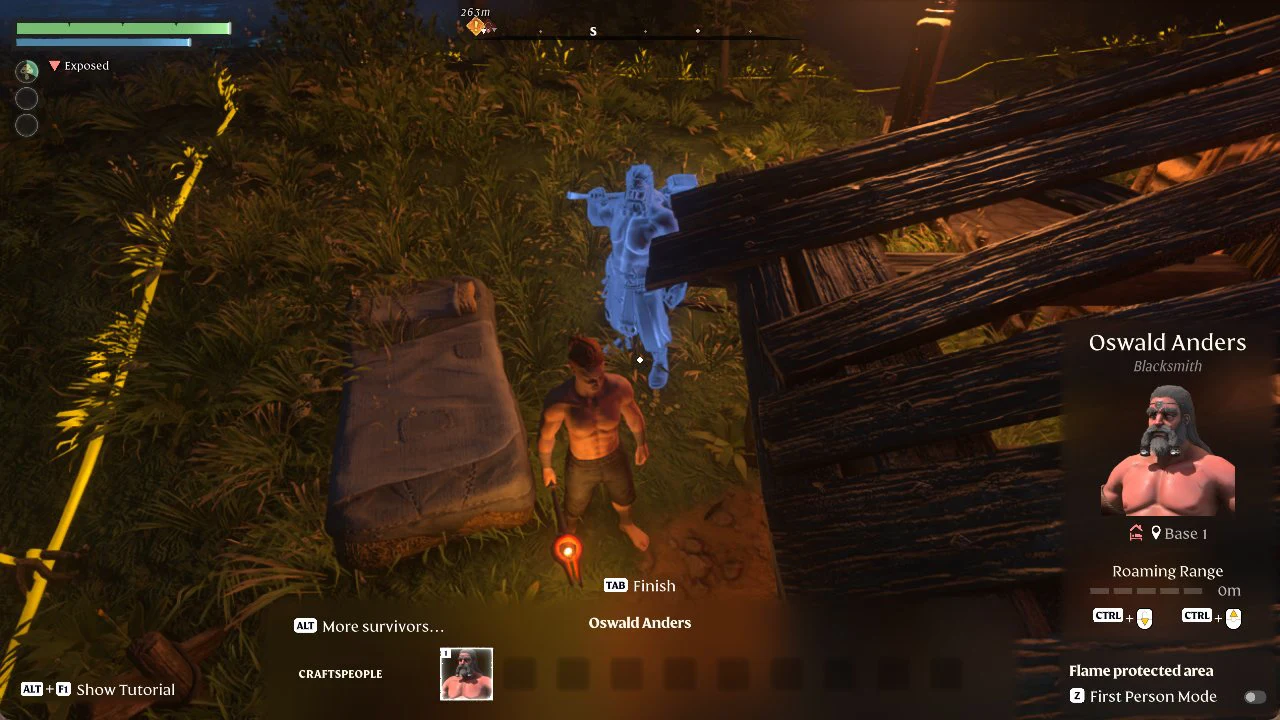
Press TAB to open the CRAFTSPEOPLE panel and pick Oswald Anders. His card shows “Blacksmith”, Base 1, a small house icon and “Roaming Range”, which was 0m at first and changes with CTRL + mouse wheel (more on that in our Roaming Range guide). A blue ghost of Oswald shows where he will go, and “TAB Finish” closes the panel. With the range at 0m, the whole house icon was red for us.
The CRAFTSPEOPLE panel with Oswald Anders selected and the “TAB Finish” prompt.
Use CTRL + mouse wheel to set Roaming Range to 10m, then aim the ghost at the grass beside the mattress. If you point it into the adjacent wooden pergola, it turns red and displays “Cannot build here”; keep the placement on open ground. Left click to place him.
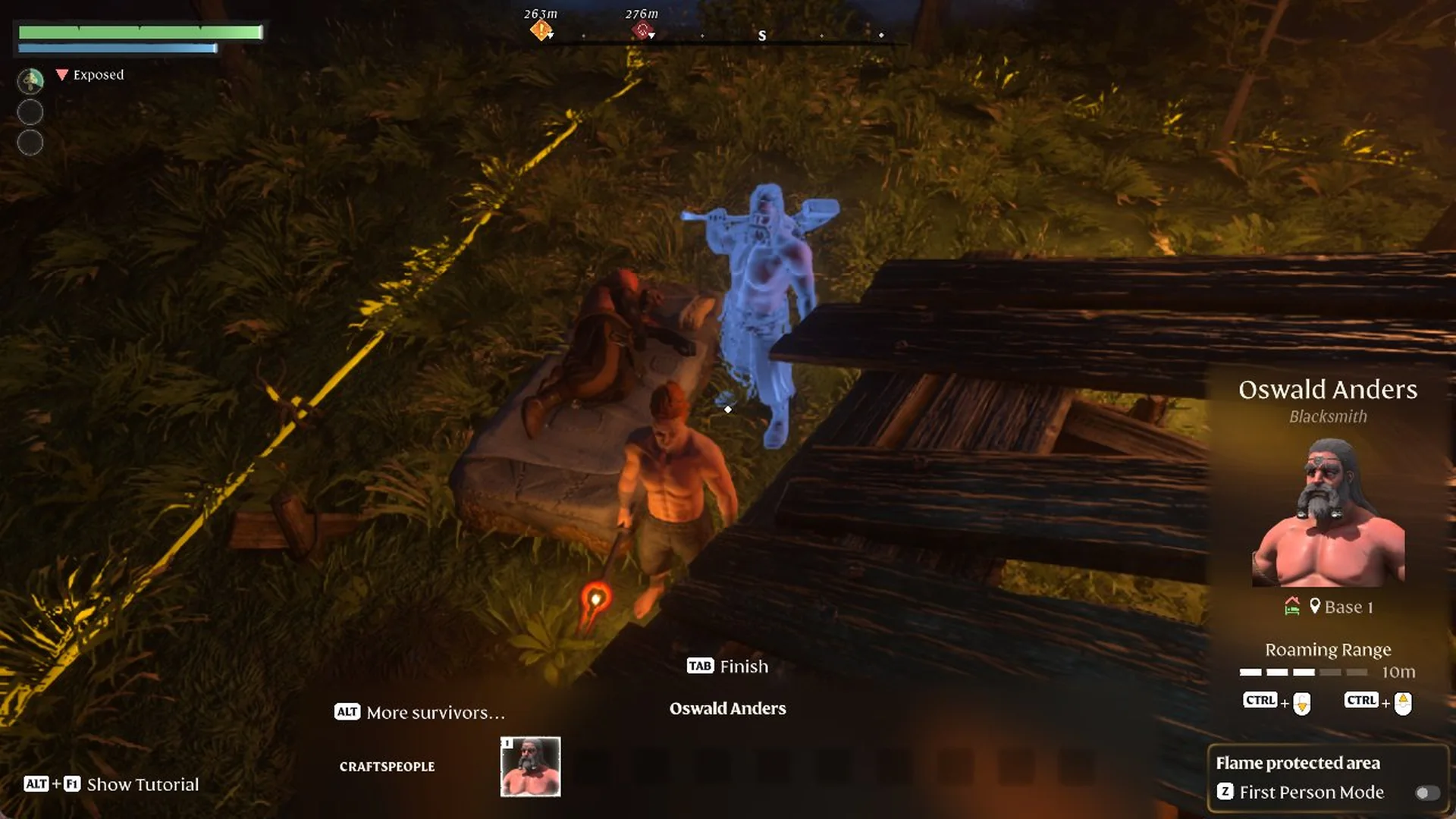
Oswald then lay down on the mattress. On his card, the BED part of the house icon turned green, but the ROOF part stayed red.
Oswald on his new mattress; on his card the bed part of the house icon is green and the roof part is red.
Why Blacksmith recipes still show a red Sheltered Bed
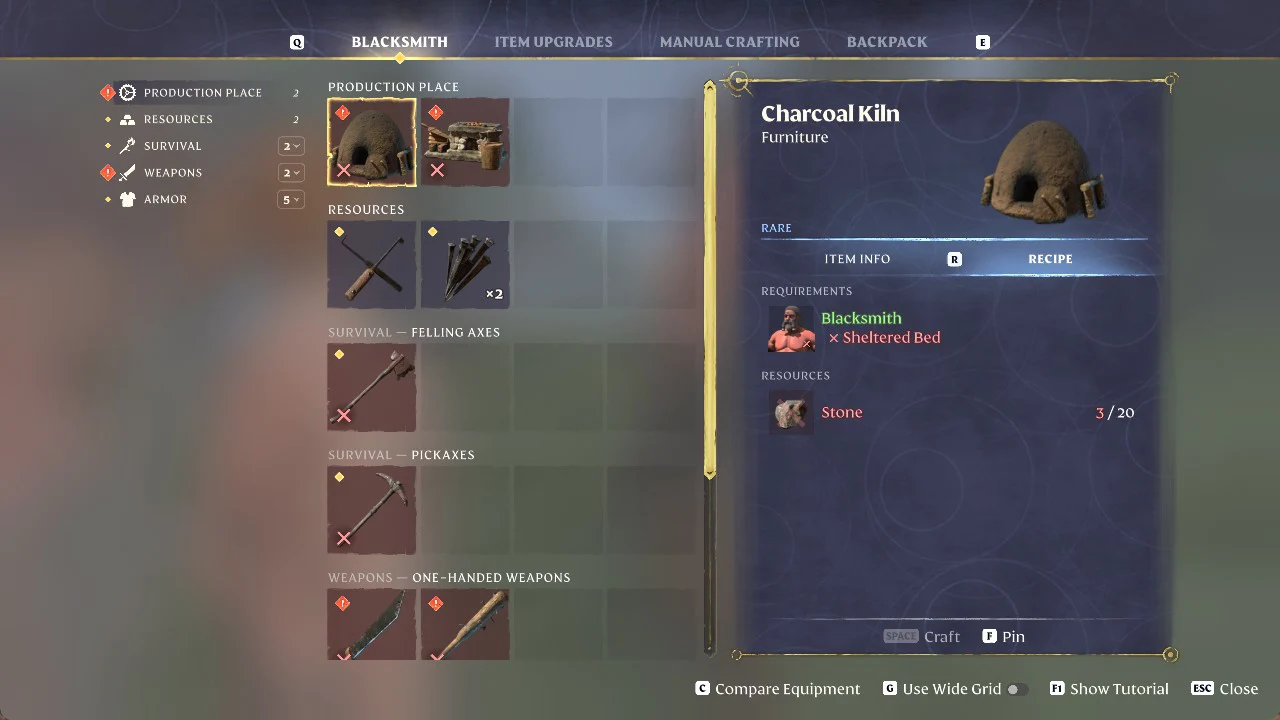
A red roof on Oswald’s card means his bed is not Sheltered yet. Several Blacksmith recipes list “Sheltered Bed” as a requirement next to “Blacksmith”. The Charcoal Kiln (Furniture, Rare; Stone 20) and the Forge both show a red “x Sheltered Bed” until his bed sits under a roof.
The Blacksmith Charcoal Kiln recipe, showing the red “x Sheltered Bed” requirement.
So the next job is walls and a roof around the mattress. We have not built ours yet, so we have not seen the roof part of the icon turn green or those recipes unlock.