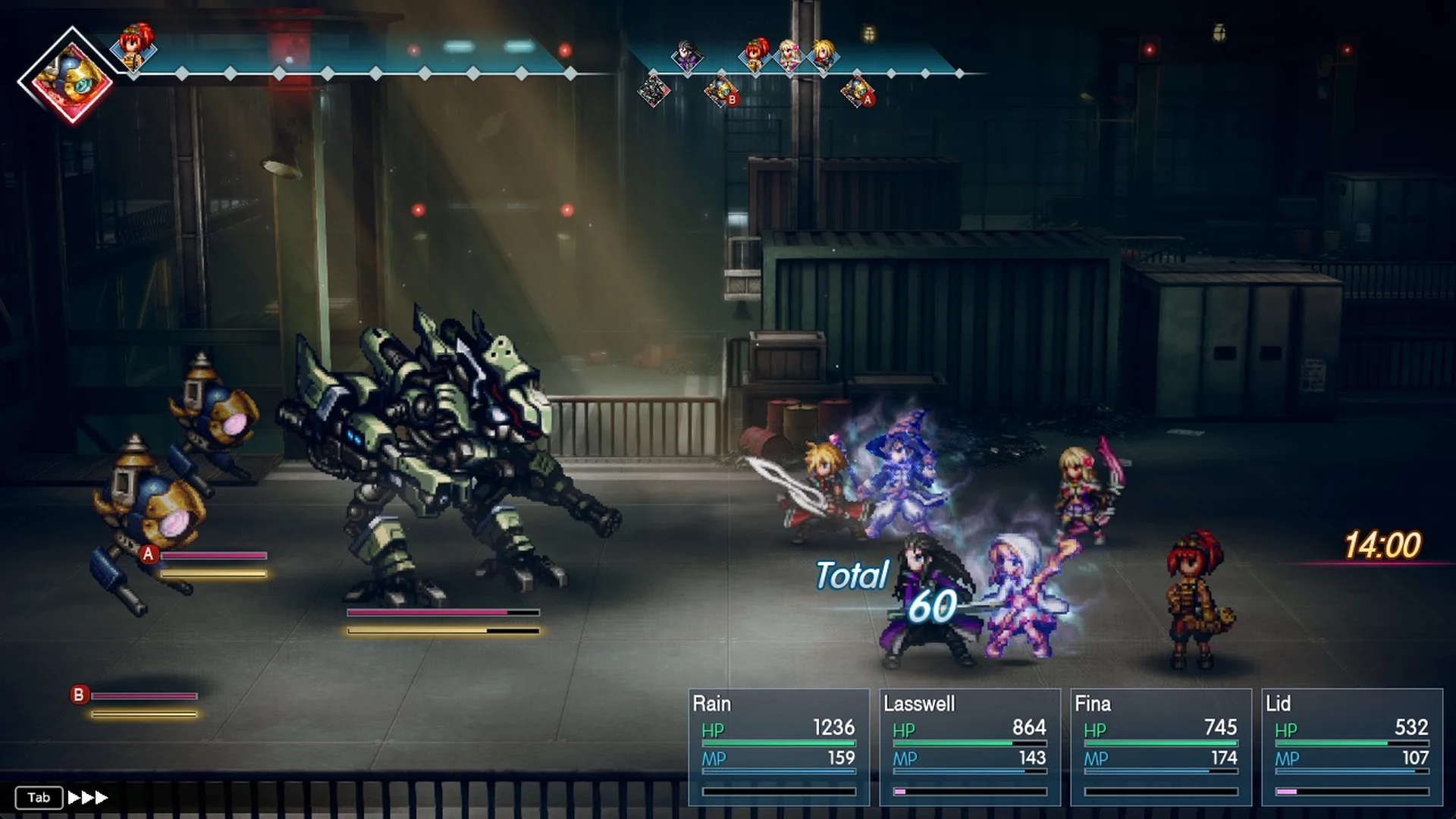
Turn-based fights in Final Fantasy Resonance play at a fairly slow pace by default. There is no menu setting to speed them up. Instead, a single key in battle switches between three speeds, and the game keeps your choice for every fight after that. A few other settings cut the wait outside of combat too, including dialogue, cutscenes and walking around the field. If you are working through the story, the Final Fantasy Resonance walkthrough covers the rest of the campaign.
Quick answer: Press Tab during a battle (Y on a controller) to cycle Battle Speed from one to three filled arrows. Three arrows is the fastest, and the setting carries over to later battles.
How to change battle speed
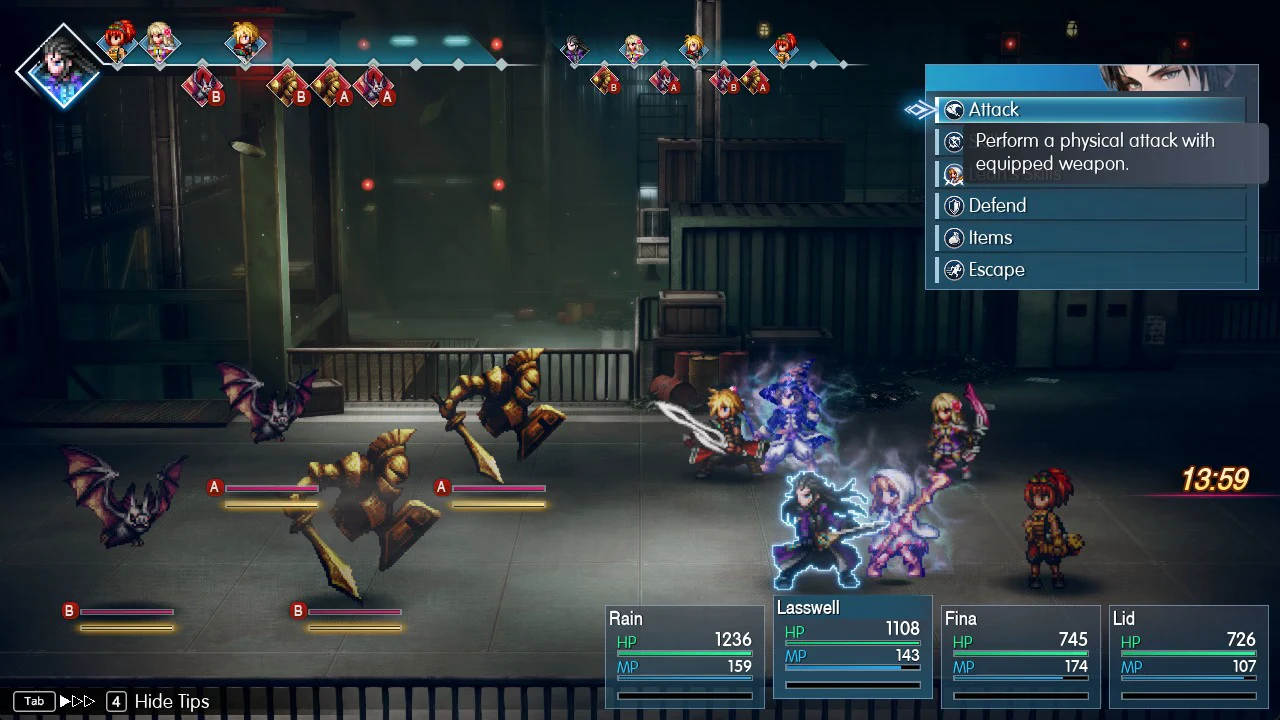
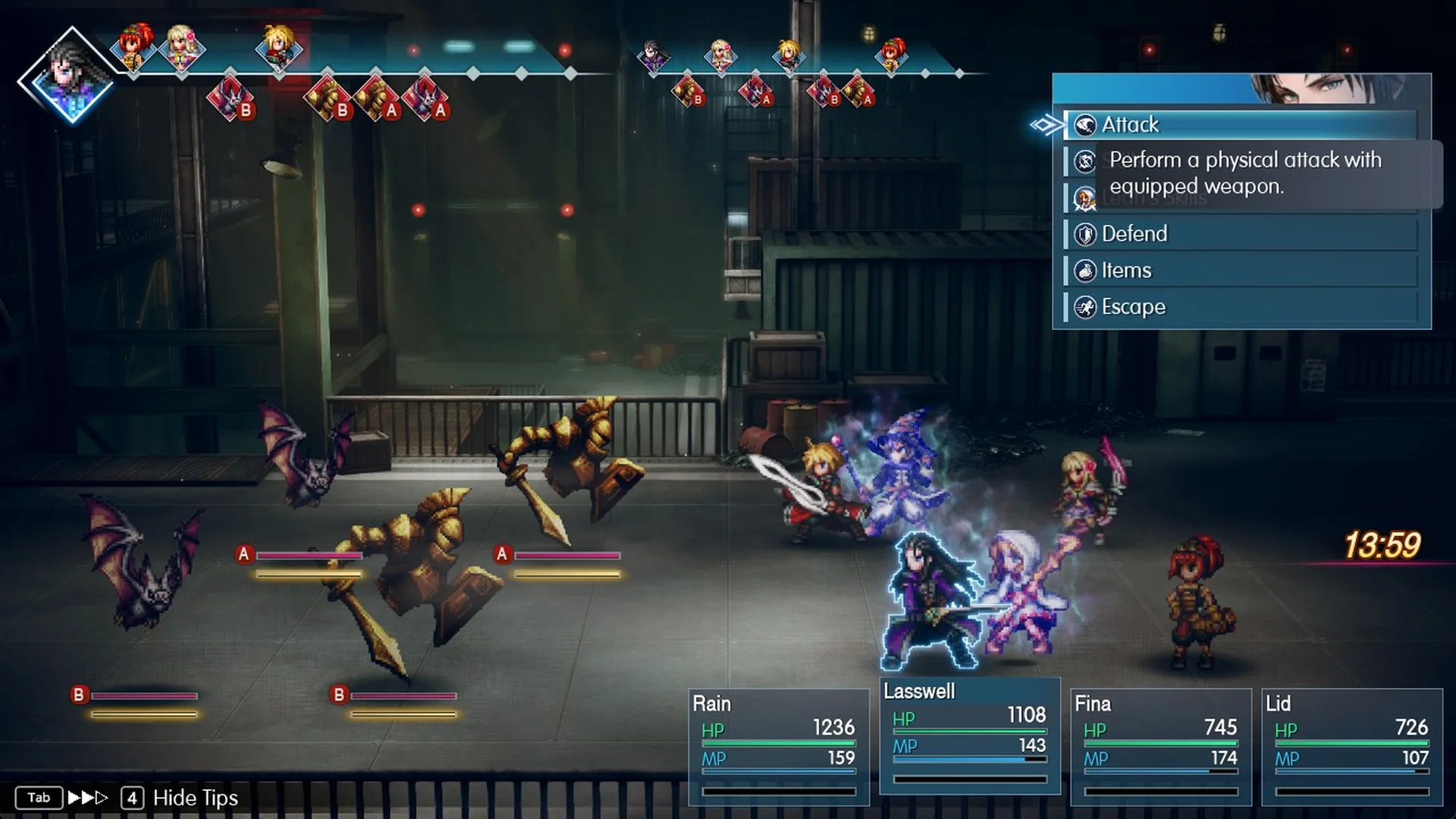
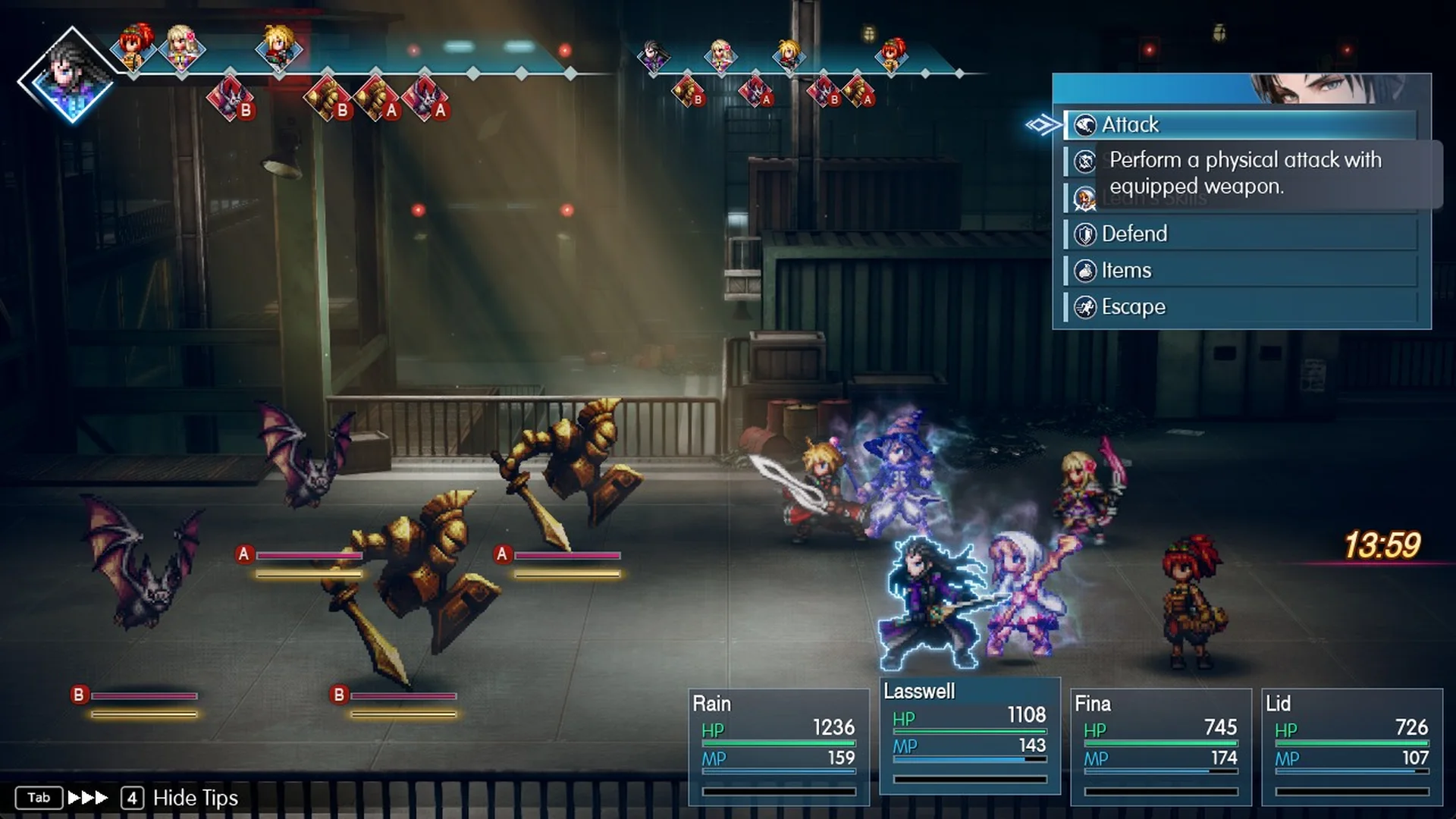
You can press Tab on a character’s turn while the command menu is open. On a gamepad, press Y to toggle it instead. In the field, Tab has a different function: it opens the Main Menu.
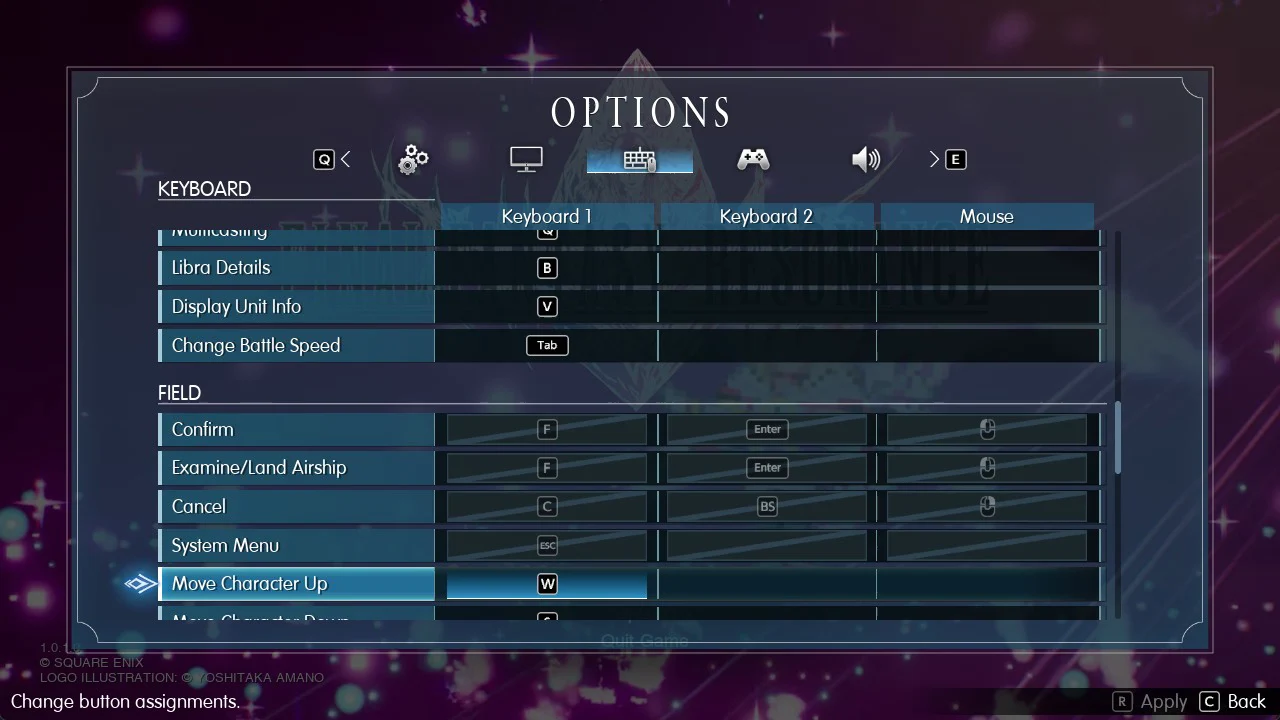
The binding appears as “Change Battle Speed: Tab” in the Battle section of Options > Keyboard, where you can move it to another key. The full list of bindings is in the Final Fantasy Resonance controls and keybinds post.
Is there a battle speed option in the settings?
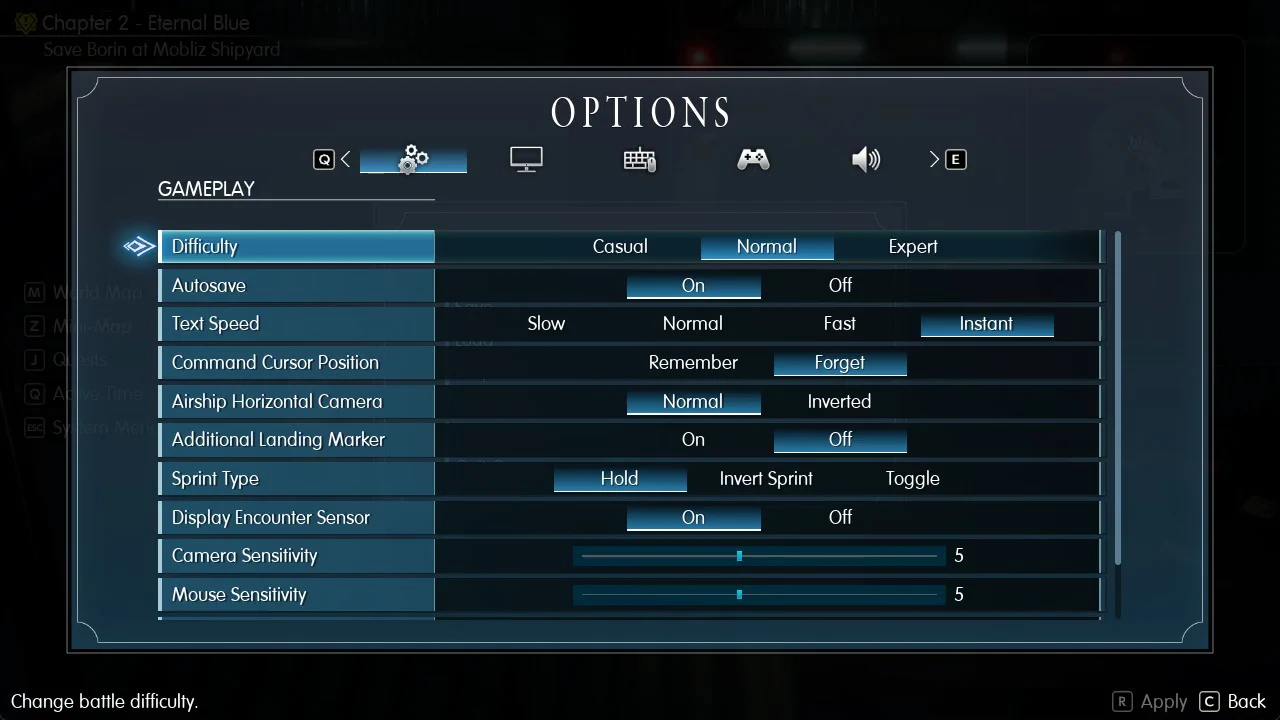
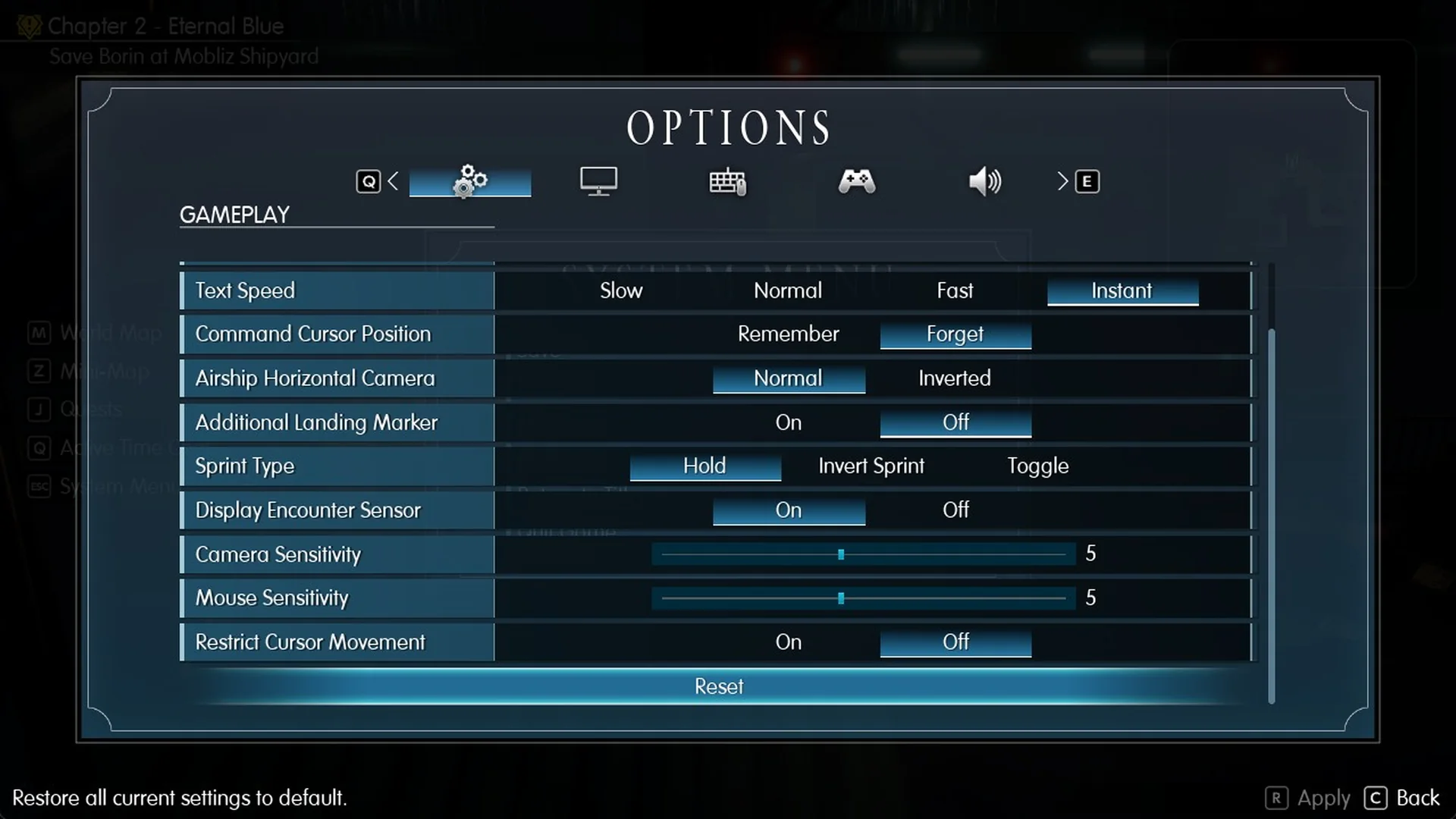
No. Battle speed is not an option in Gameplay. The Gameplay tab in Options has Difficulty, Autosave, Text Speed, Command Cursor Position, Airship Horizontal Camera, Additional Landing Marker, Sprint Type, Display Encounter Sensor, Camera Sensitivity, Mouse Sensitivity, Restrict Cursor Movement and Reset, and none of them is battle speed. During a fight, use the Tab toggle to change battle speed.
If you want fights to end sooner as well as run faster, drop Difficulty to Casual. The game notes that “Content is the same for all difficulties.” The trade-offs between each mode are covered in the Casual vs Normal vs Expert difficulty breakdown.
Set Text Speed to Instant
Set Text Speed to Instant by going to Options > Gameplay > Text Speed. The four choices are Slow, Normal, Fast and Instant, with Normal selected initially. Instant displays each line in full immediately rather than revealing it character by character. Open Options from the title screen or the System Menu (Esc) while in the field. For other PC settings worth adjusting, see the best Final Fantasy Resonance PC settings rundown.
Skip cutscenes and auto-advance dialogue
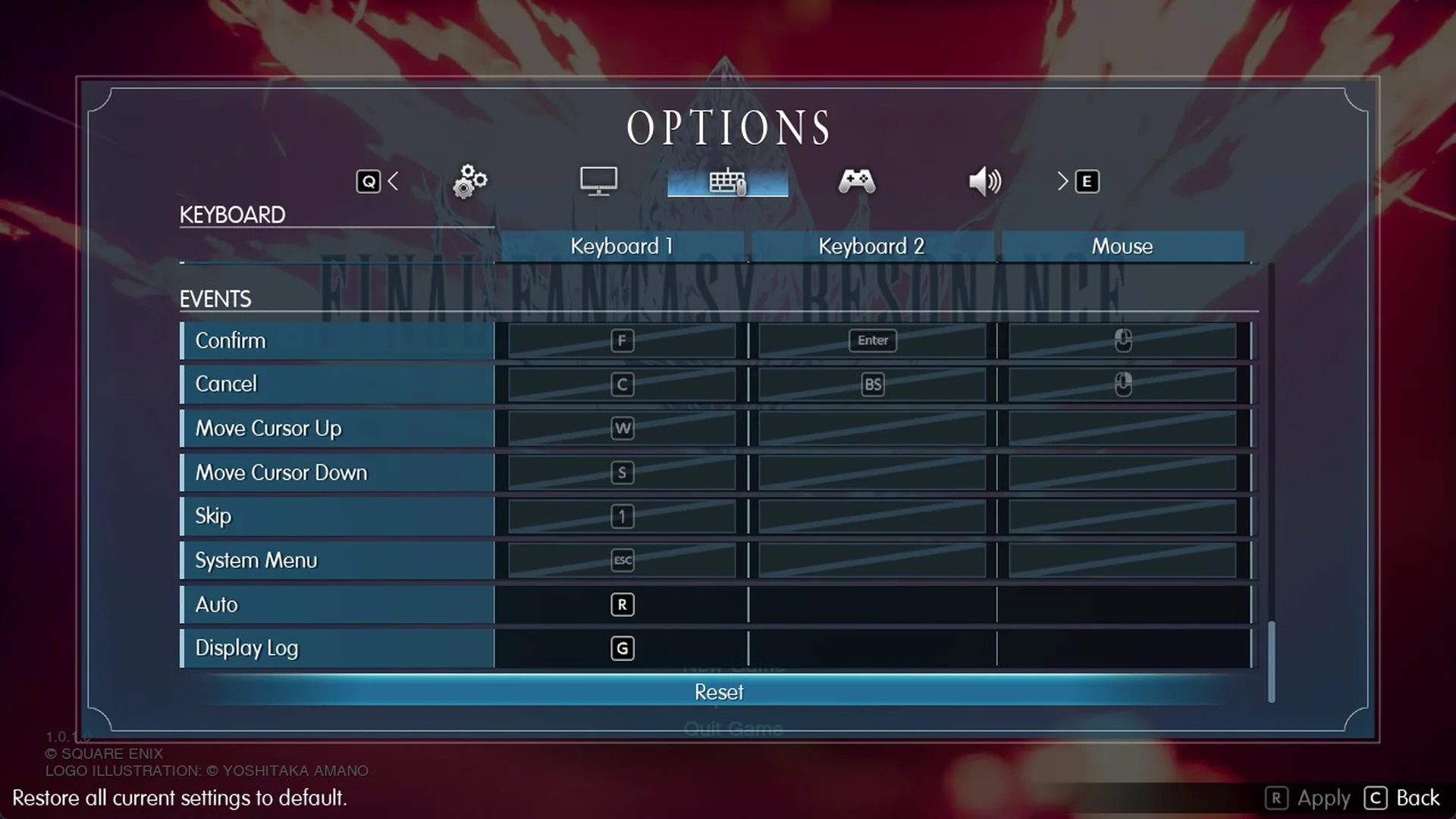
Story scenes use their own set of keys, listed under the Events controls:
- 1 skips the scene.
- R turns on Auto, so lines advance by themselves.
- G opens Display Log, where you can read back anything you skipped.
Sprint to move faster in the field
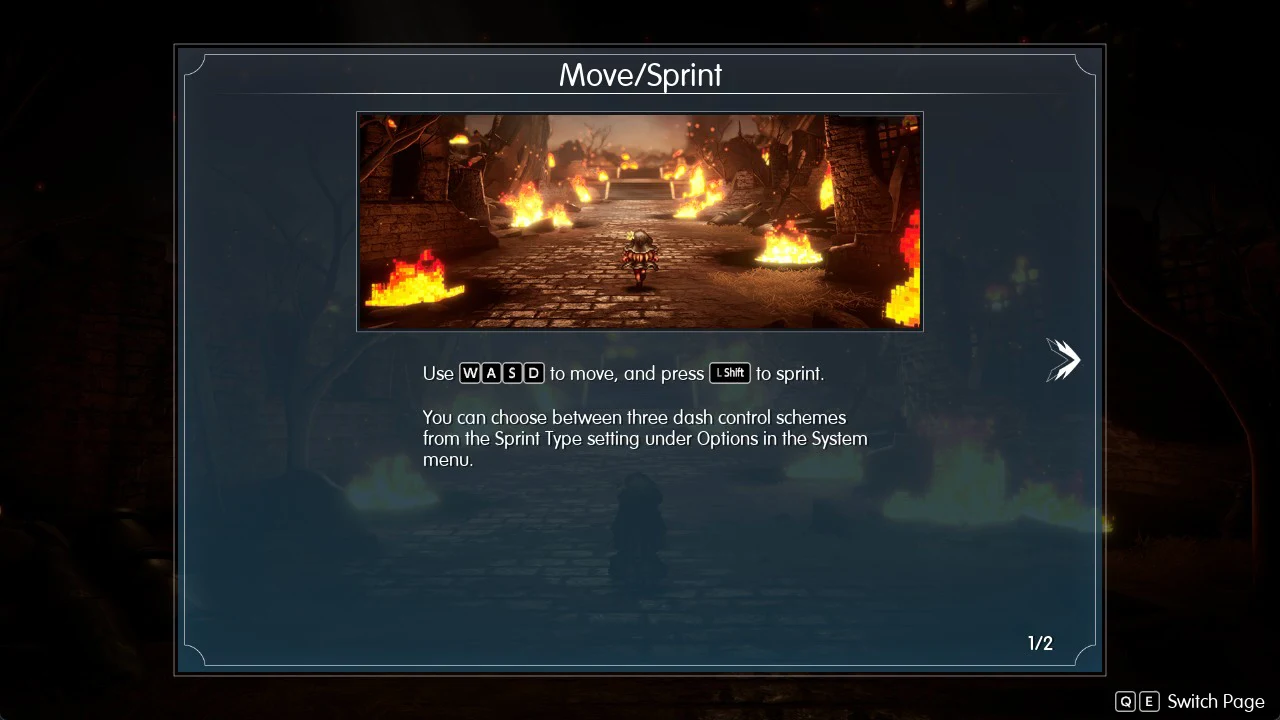
Hold Left Shift to sprint. The Move/Sprint tutorial puts it simply: “Use W A S D to move, and press Left Shift to sprint.” On a controller, Sprint is B.
Sprinting covers about 10.2 m in one second, compared with 7.8 m walking normally. That makes it roughly 1.3 times as fast. If holding the key gets tiring, Options > Gameplay > Sprint Type changes how it works:
| Sprint Type | How Left Shift works |
|---|---|
| Hold (default) | Sprint only while held |
| Invert Sprint | Sprint by default, hold to walk |
| Toggle | Press to start, press again to stop |
Invert Sprint and Toggle both mean you no longer have to keep a finger on Left Shift the whole time.
More ways to save time
- Ride a chocobo on the World Map. Here’s how to get a chocobo.
- Use Teleport at save points inside dungeons. More on that in how to save in Final Fantasy Resonance.
- Keep Options > Gameplay > Display Encounter Sensor on so you can see when a fight is about to start. More early pointers are in the Final Fantasy Resonance beginner tips.