Building in Enshrouded 1.0 starts with the Construction Hammer. Hold it, press TAB, choose a shape with the number keys, and aim until the ghost preview turns blue. A left-click places the piece and takes its cost from your blocks.
Quick answer: Hold the Construction Hammer, press TAB, pick a shape on 1–0, aim at the ground until the preview is blue, and left-click. R rotates 90°, Y undoes, TAB finishes.
The Enshrouded building mode screen
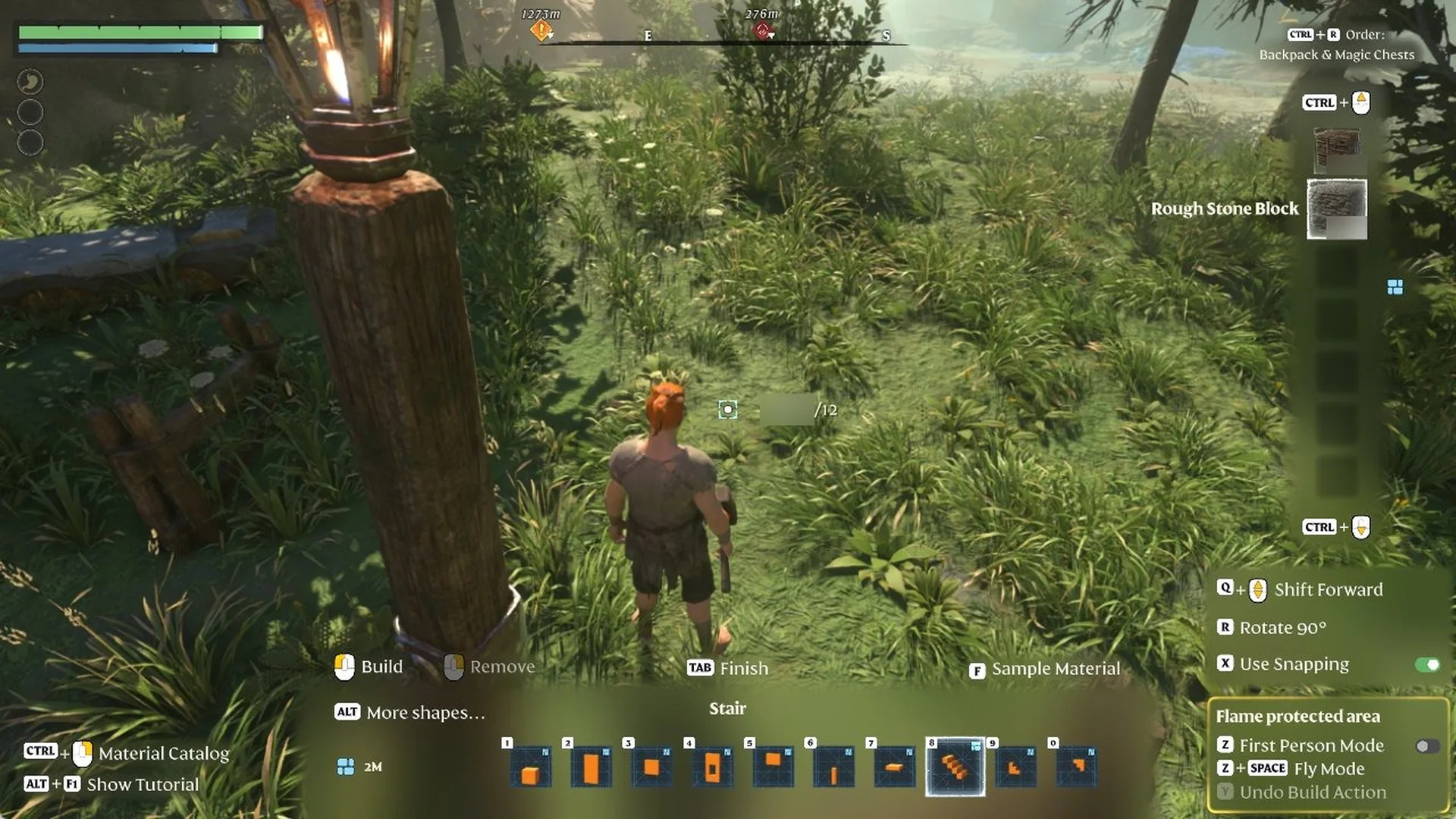
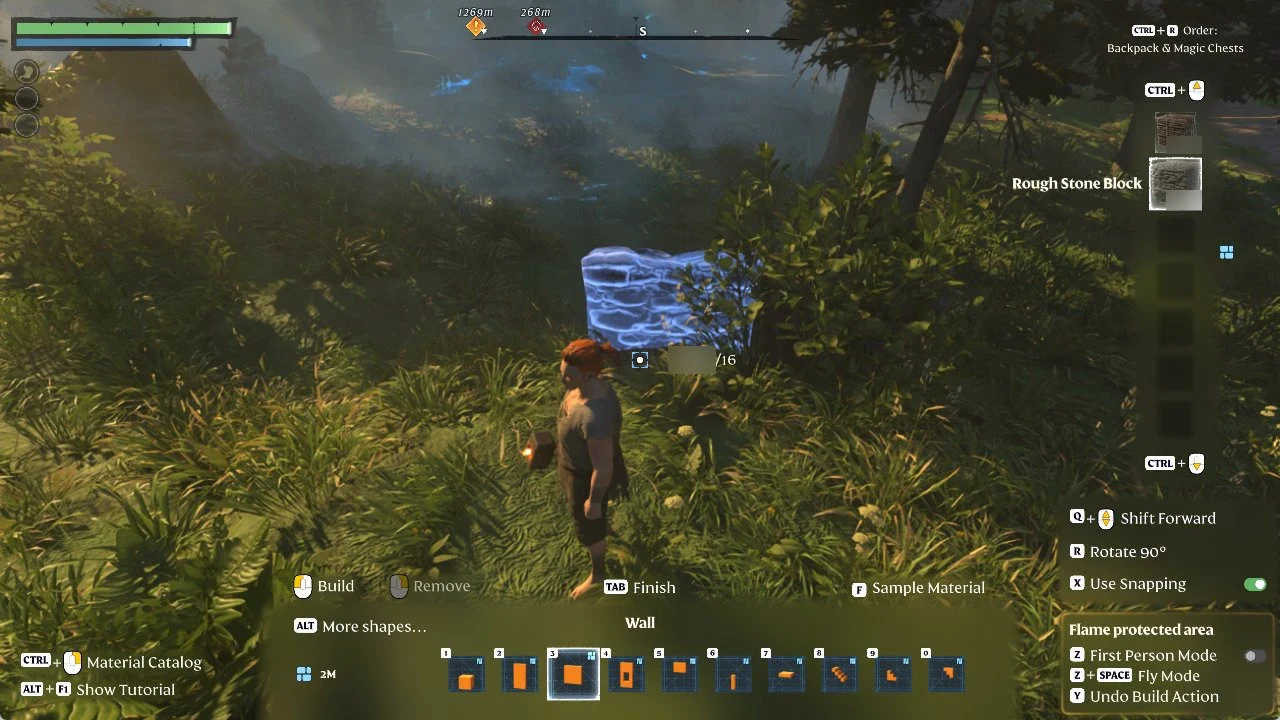
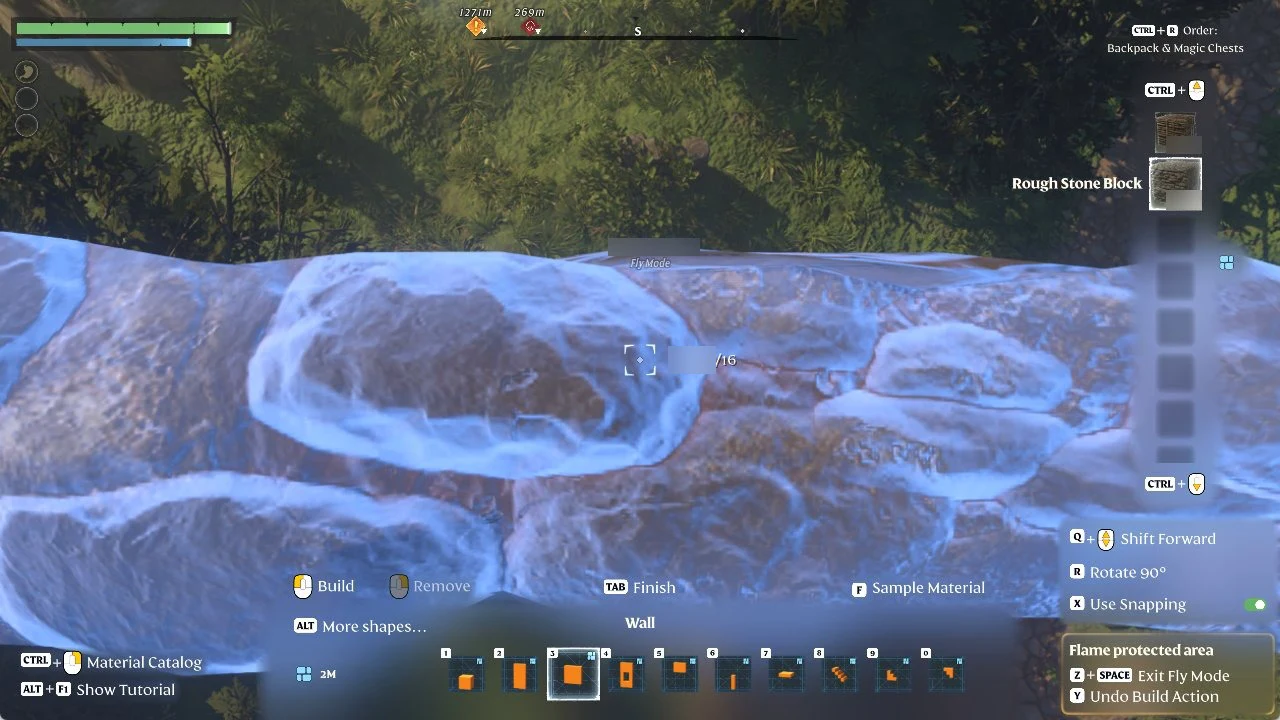
With the hammer in hand, the prompt reads “TAB Enter Building Mode”. Pressing it opens a shape bar along the bottom of the screen with ten 2M shapes on keys 1 through 0. The name of the selected shape sits above the bar. Your current material appears in a column on the right, for example Rough Stone Block. A small counter next to the crosshair shows what the selected shape costs, written after a slash. A Wall reads “/16.”
These are the prompts you’ll use most:
- Left mouse places a piece (“Build”). Right mouse removes one (“Remove”).
- “TAB Finish” closes building mode. “F Sample Material” copies a material.
- CTRL + mouse wheel scrolls the material column. “CTRL+R Order: Backpack & Magic Chests” sorts it.
- “R Rotate 90°” turns the piece. “X Use Snapping” is a toggle and starts switched on.
- The “Flame protected area” box holds “Z First Person Mode”, “Z+SPACE Fly Mode”, and “Y Undo Build Action”.
The bottom left of the screen also lists “CTRL + mouse Material Catalog” and “ALT+F1 Show Tutorial”. “ALT More shapes…” sits beside the “2M” size icon. Every key on the Building Mode tab is listed in our Enshrouded controls and keybinds guide.
2M shapes and their block costs
Each shape draws a fixed number of blocks from the selected material. These are the counter values with Rough Stone Block selected:
| Key | Shape | Cost (blocks) |
|---|---|---|
| 1 | Foundation | 64 |
| 2 | Narrow Wall | 32 |
| 3 | Wall | 16 |
| 4 | Window Frame | 26 |
| 5 | Door Frame | 12 |
| 6 | Column | 4 |
| 7 | Ceiling | 16 |
| 8 | Stair | 12 |
| 9 | Stepped Wall | 6 |
| 0 | Inverted Stepped Wall | 6 |
A single Wall piece measures 2 x 2 m, and two side by side make one 4 m side. We built three sides of a 4 x 4 m box from six Walls this way; the side next to Oswald’s mattress had to stay open (see “Cannot build here” below). Other materials are covered in all new building blocks and how to get them, and base building tips that save materials helps with planning a bigger house.
How to place a piece in building mode
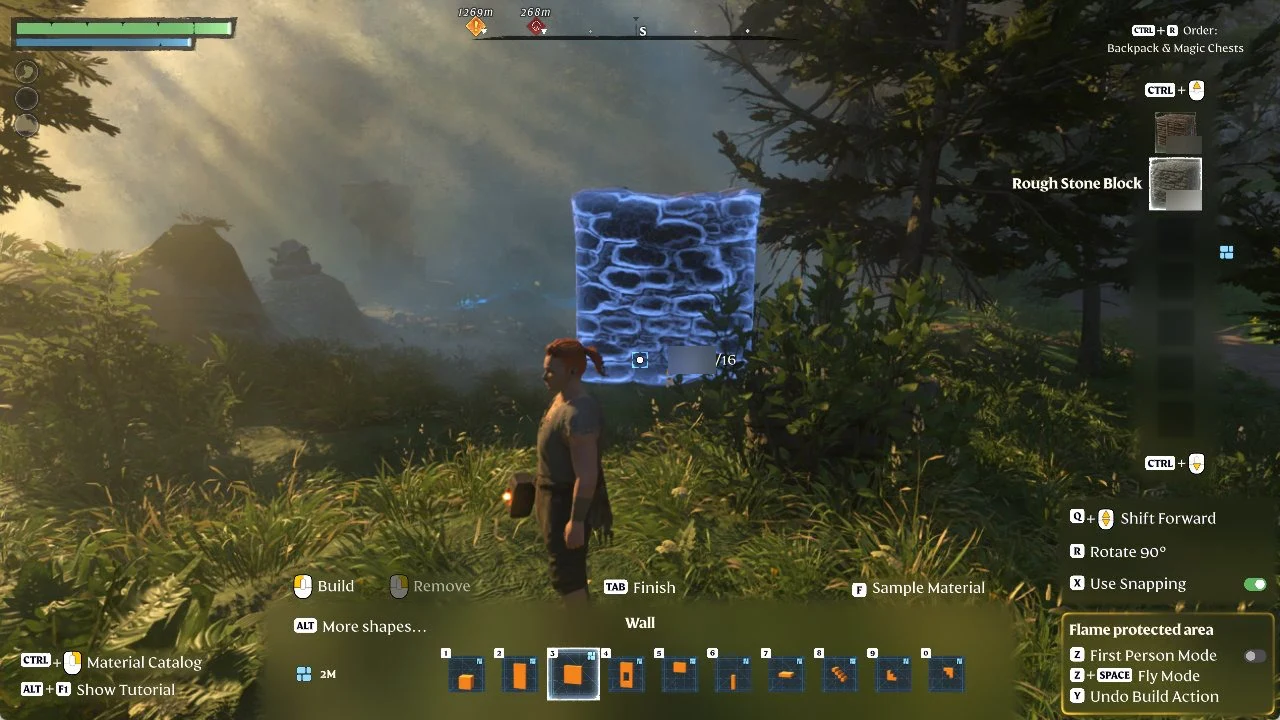
Pieces don’t need support underneath them. In an earlier session one of our stairs ended up sitting on top of a cart and another sank partly into the ground.
Rotating pieces with R
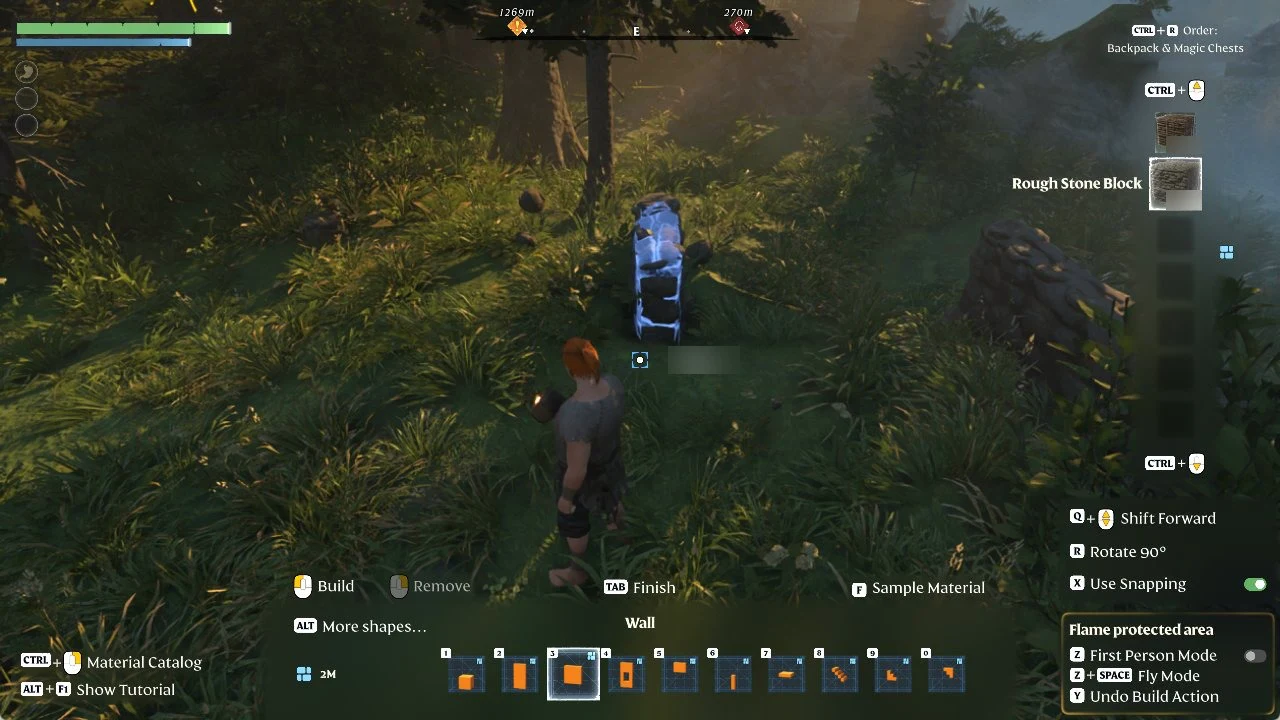
Press R once to rotate the preview by 90°. Its orientation is independent of camera direction: the next piece uses that setting, and it remains in effect after building mode ends. So when you pivot to put a wall at a right angle to the previous one, its preview may appear as a narrow edge-on line. We tapped R once for the east and west sides of our box to square it up.
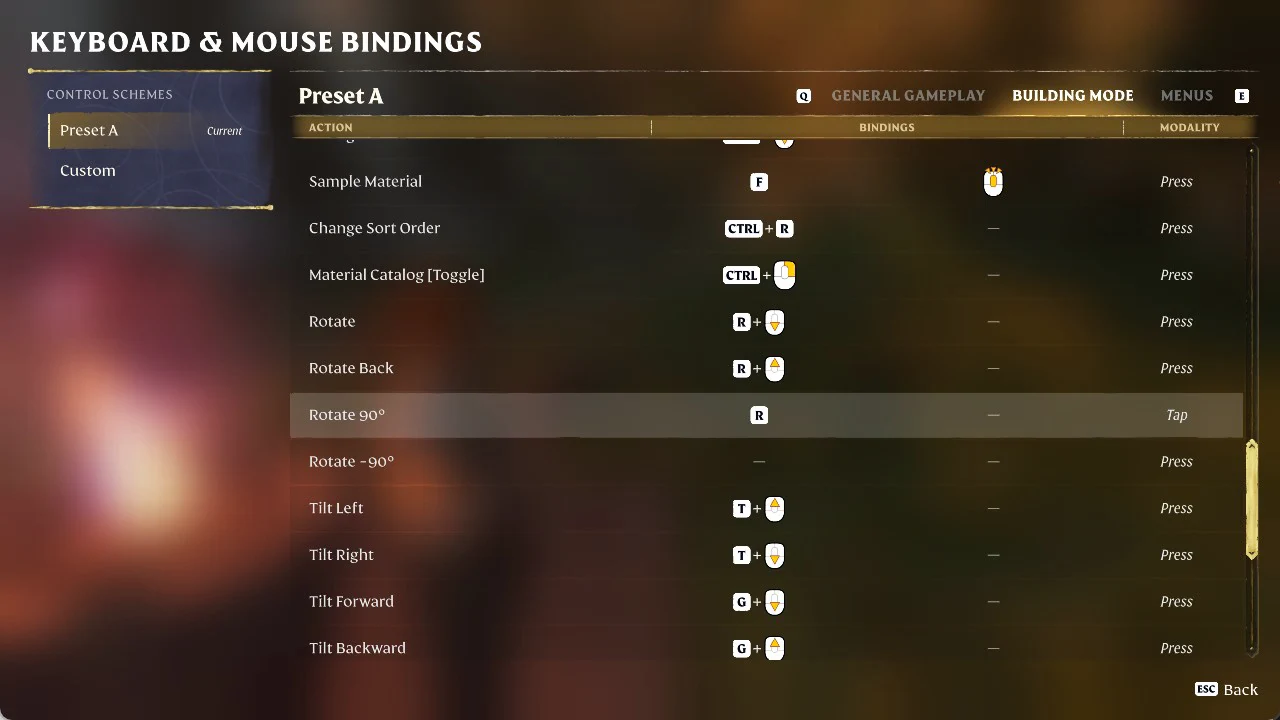
For more precise angles, open the Building Mode tab in Keyboard & Mouse Bindings: R with the mouse wheel provides free rotation (Rotate / Rotate Back). Use T plus the wheel to tip a piece side to side, or G plus the wheel to tip it forward or backward. By default, Rotate -90° is unbound.
Undoing a piece and getting the blocks back
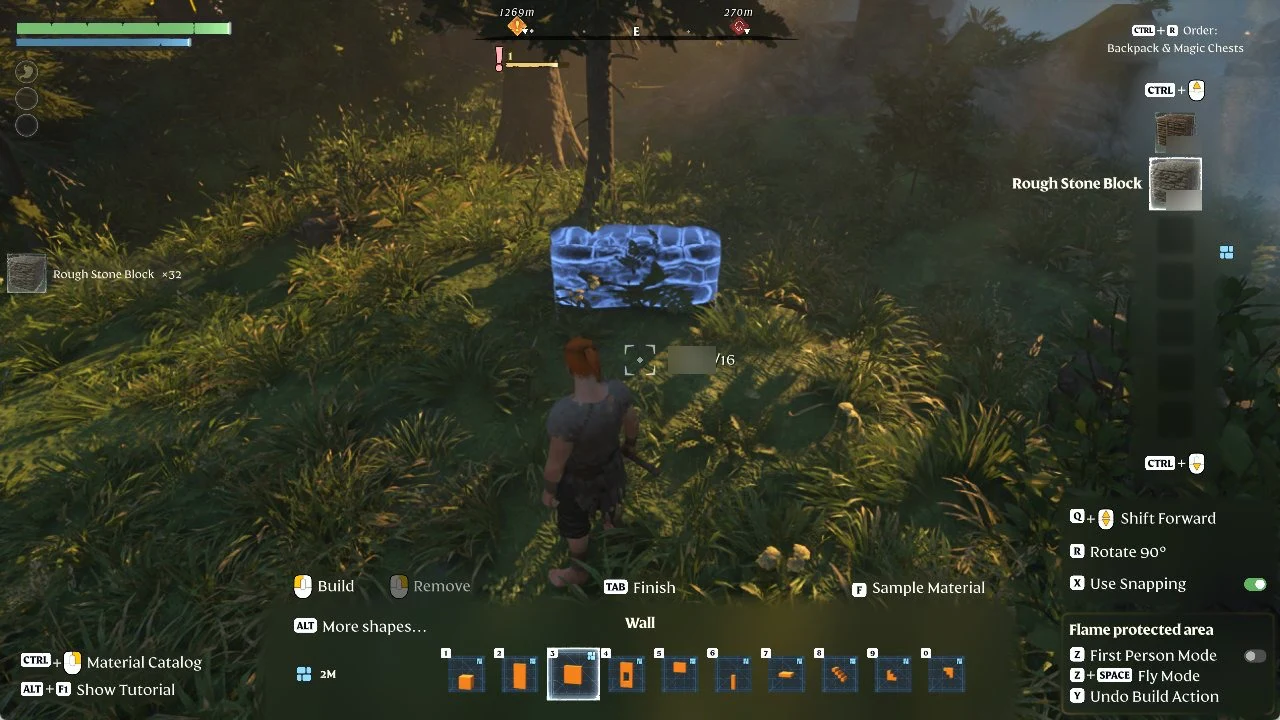
“Y Undo Build Action” backs out your most recent placement and restores its blocks. The prompt stays greyed out until you build something. Undo two Walls consecutively, and the pickup notice shows “Rough Stone Block x32”, returning 16 blocks for each piece.
Why the building preview turns red
A red preview with a message means that spot is refused, and the Build prompt is greyed out. These are the three messages we got.
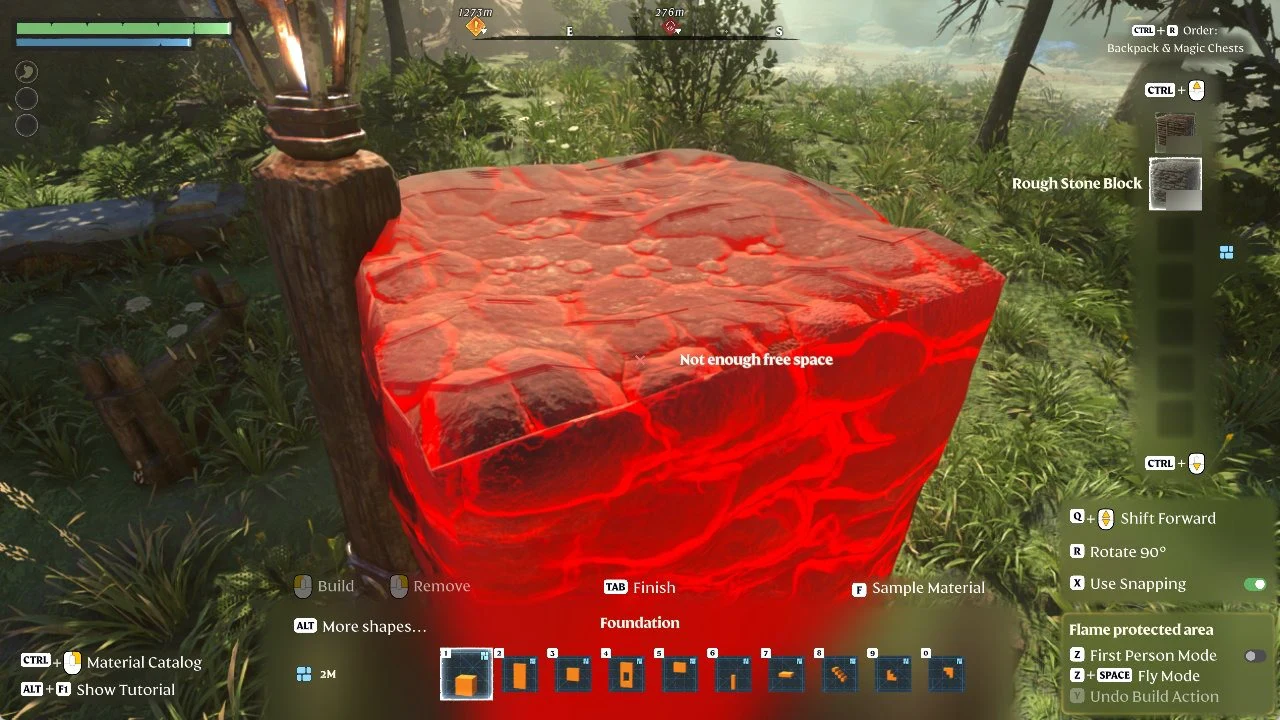
“Not enough free space”
The preview overlaps something already there. A Foundation aimed right where your character stands, next to a lantern post, fills red with this message.
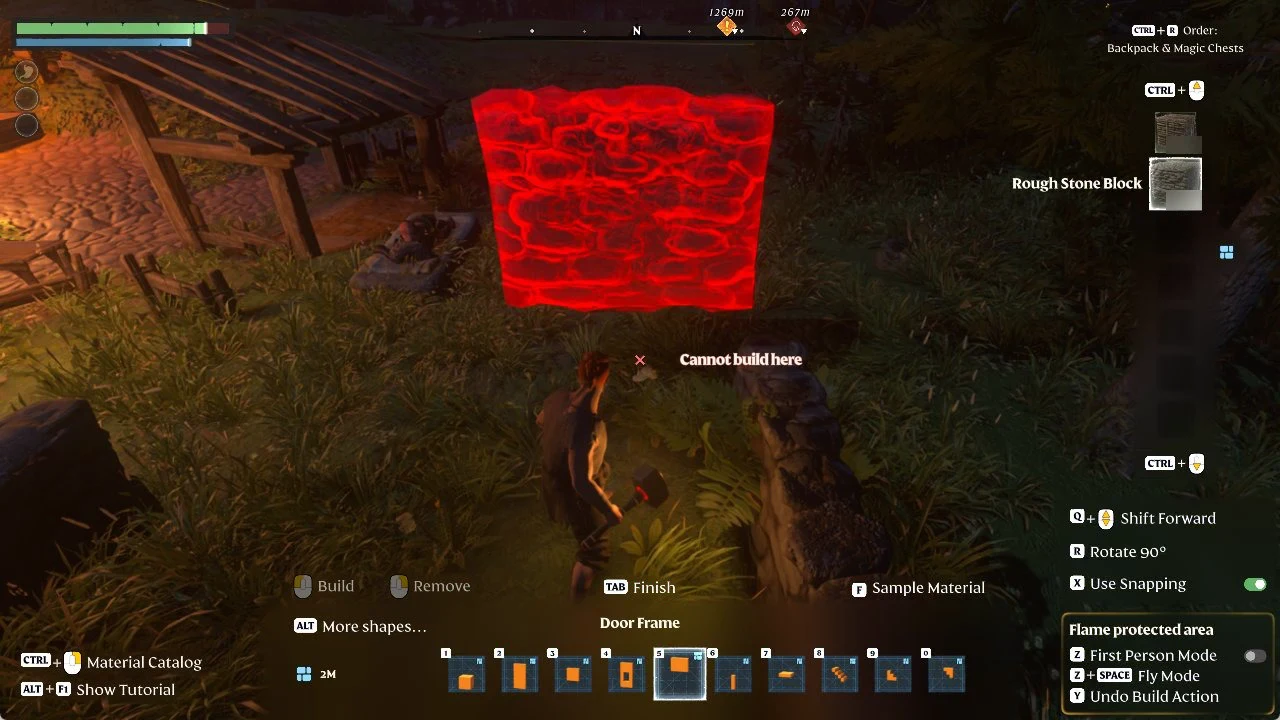
“Cannot build here”
Near Oswald’s Crude Mattress and the pergola next to it, every Wall or Door Frame preview showed this message in red. Standing on the mattress and aiming still left them red, and the mattress offers only “E Sleep”, with no pick-up prompt. That is why we left the side of our box next to the mattress open. In an earlier session, a block aimed at the Flame Altar’s own stone slab gave the same message.
“Needs building area”
This one appears when you aim beyond the reach of a Flame Altar’s building area. We got it on a rock just past the edge of our second altar’s area.
First Person Mode and Fly Mode for building
Use Z to switch on First Person Mode. The toggle beside “Z First Person Mode” lights green as the camera shifts to eye level near the ground. The preview and Build prompts remain visible. Press Z again to restore the normal camera.
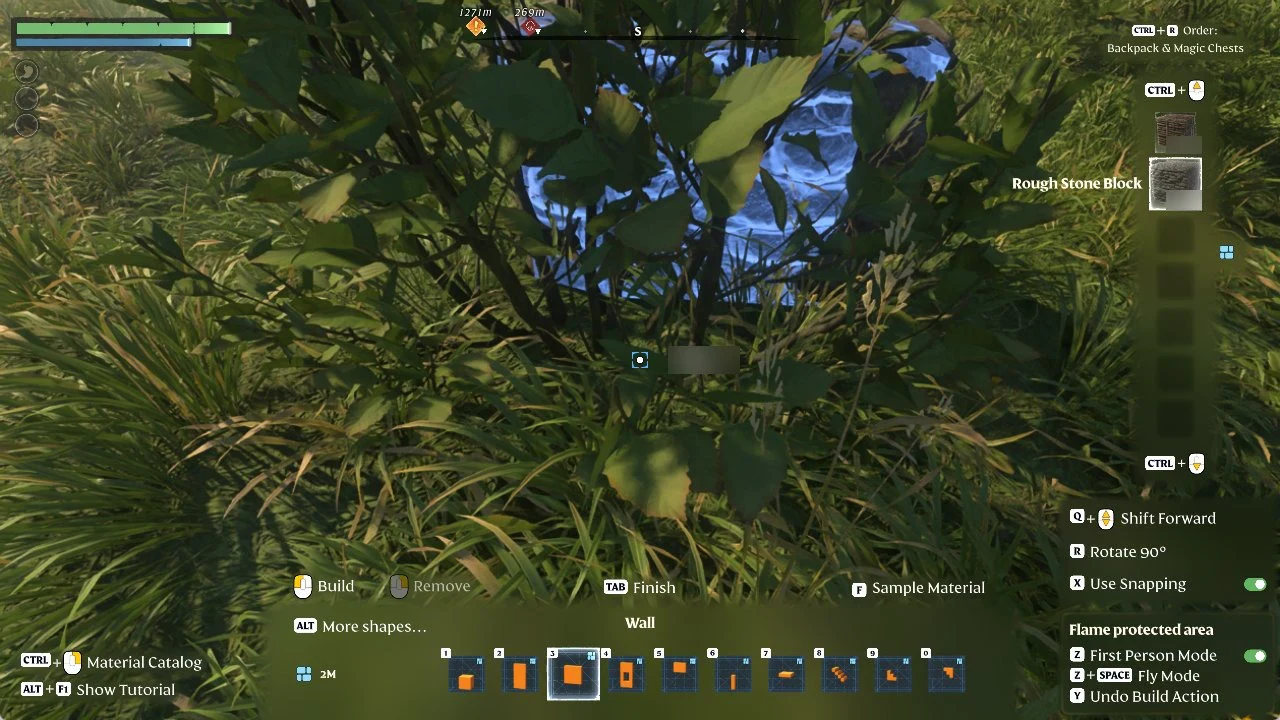
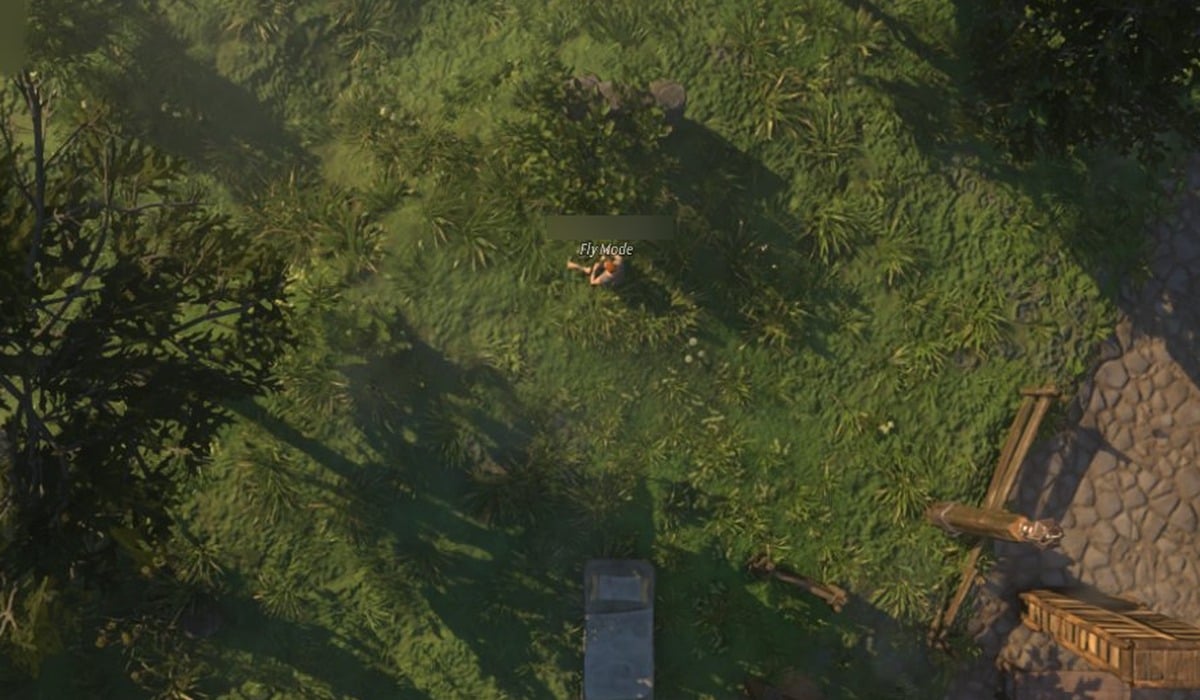
Fly Mode comes from the Airborne Architect skill and lets the camera leave your character entirely.
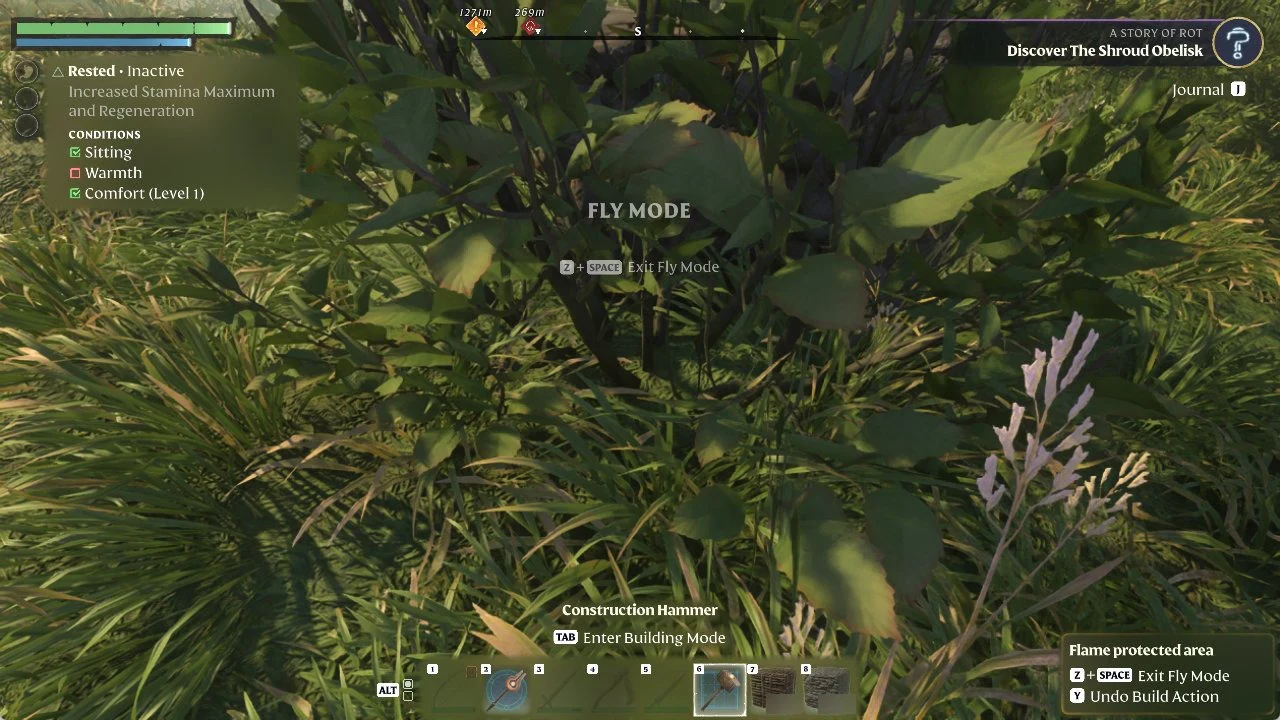
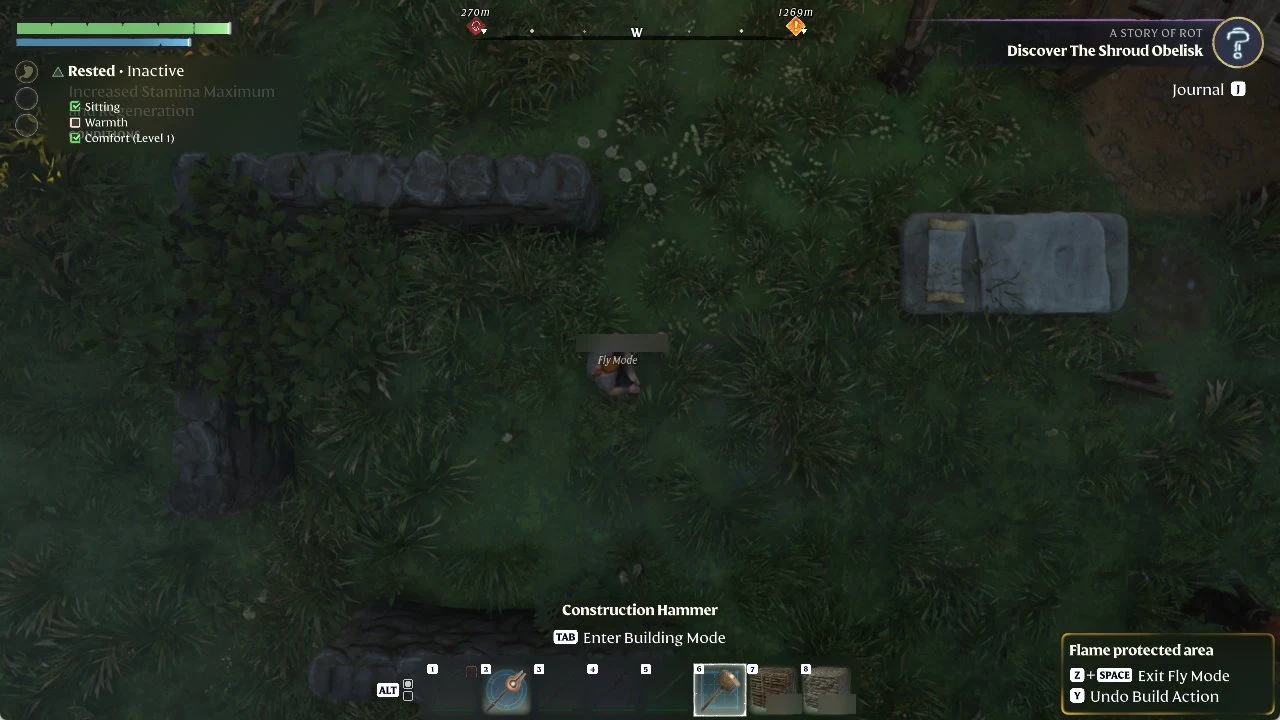
When the layout is done, hold Z + Space again. The camera snaps back to your character.