
Instructional, step-by-step articles.
Content Type: How-To
-

Evomon: How to Get Cyanie in Cyanrock Valley
Where Cyanie spawns, the level gate that blocks it, and the counters and skills that make it hit hardest.
-

GTA Online: How to Get the Pacific Standard Sweater for Free
Log in before August 5, 2026 to claim the sweater plus two bonus cosmetics at no cost.
-

GTA Online: How to Get $100K and the Free Manor Tie-Dye Tee This Week
Win two Adversary Modes before August 5 to claim the cash bonus and a shirt returning after more than five years.
-

Anime Astral Simulator: How to Get and Level the Elixir of Life
Collect four fragments, craft at Solo City, and grind kills to scale the Damage multiplier from 1.5x to 6x.
-
Anime Expeditions: How to Get Hair Bells for 8th Sword (Berserk)
The drop location, evolution cost, and both exclusive passives that turn 8th Sword (Berserk) into a stun-proof damage dealer.
-

Jotunnslayer: Hordes of Hel Giveaway – How to Win a Switch 2 or Steam Code
Two free codes are up for grabs to mark the roguelike’s Nintendo Switch 2 launch, with entry open through August 7.
-

How to Unlock All Three Moonlight Peaks Forms
The exact quests that grant the Hellkitten, Mermaid, and Bat transformations, plus how to switch between them.
-
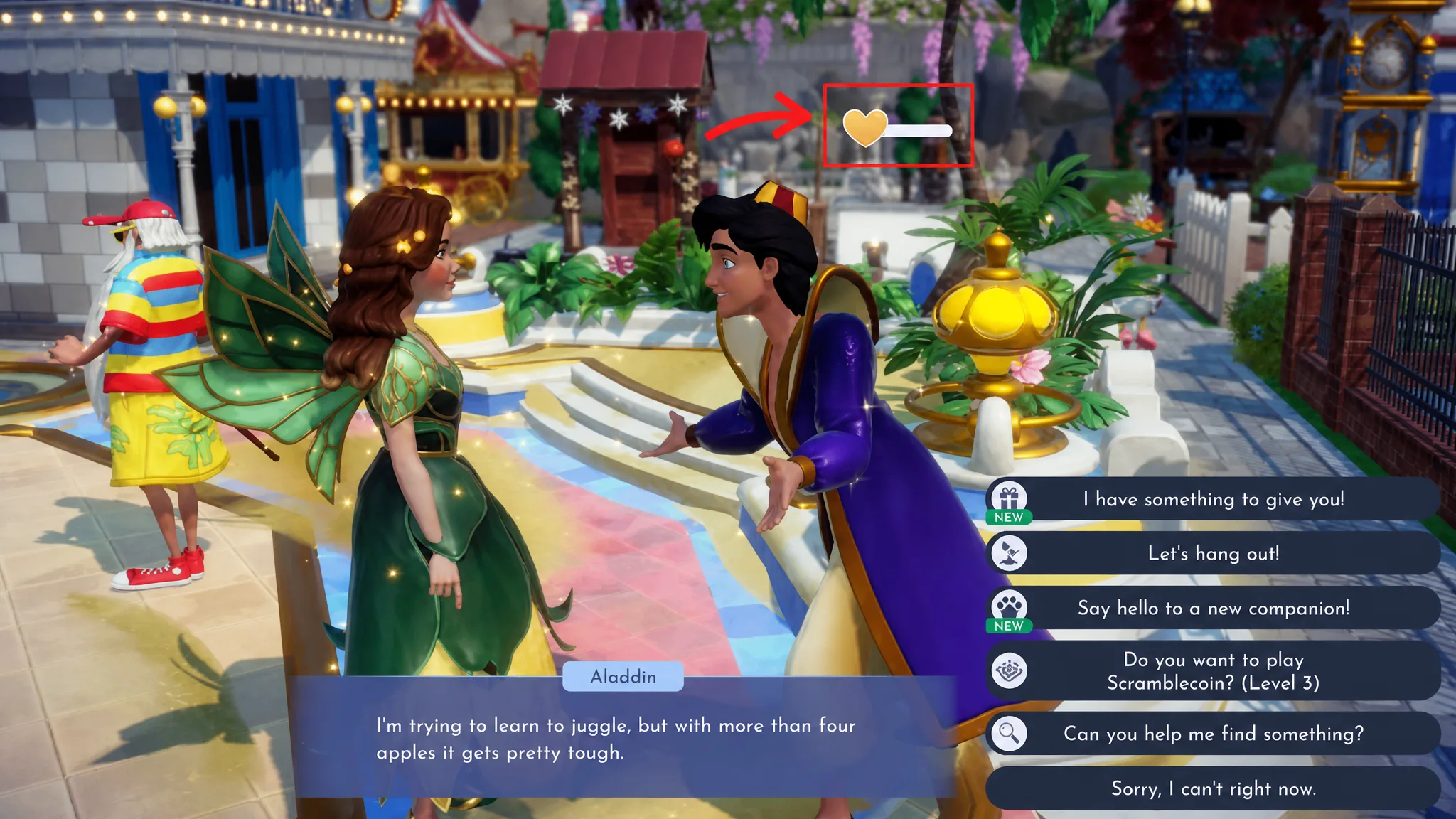
Disney Dreamlight Valley: How to Activate the Best Friend Glow
Fill a level 10 villager’s daily bar to unlock endless sprint and every profession bonus at once.
-

Mistfall Hunter: How to Get More Character Slots (Gyldenblod Pool)
Raise your roster from three to as many as ten by leveling the Gyldenblod Pool at your camp.
-
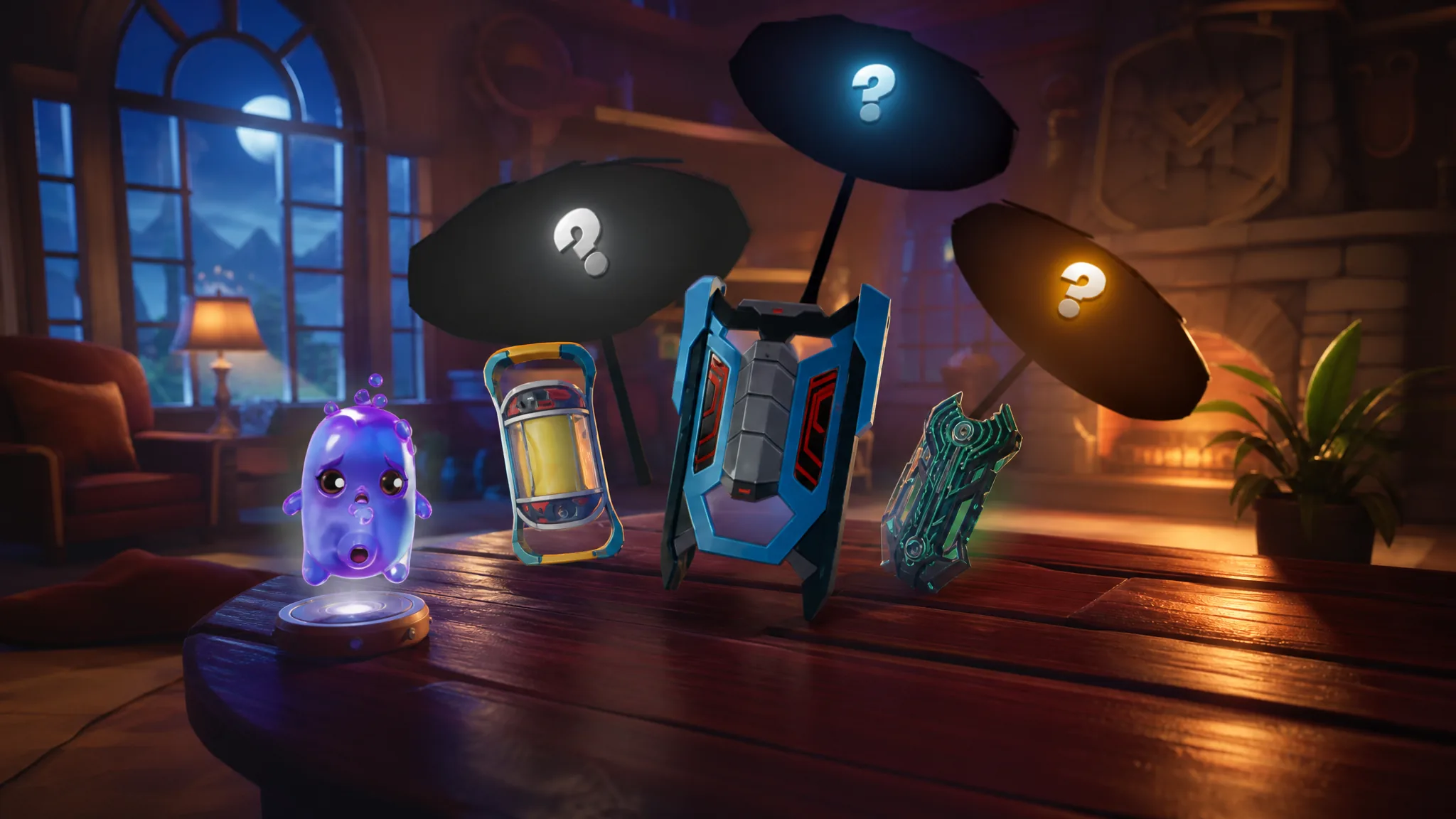
Fortnite: How to Get Quack Sprites (All Four Variants)
Quack Sprites skip chests entirely and only unlock through Sprite Mastery, so here is what each one needs.