Sport (searched most as “sport dti”) is one of the round themes in Dress To Impress on Roblox: dress as an athlete, in a kit or in sporty everyday clothes. We built three looks in Freeplay Mode, tennis whites with a pleated mini skirt, a red and black football kit, and an athleisure look with grey track pants, and took our own pictures of each step. Every piece and color used is free, so all three work without VIP. For the other themes, see every Dress To Impress theme we have built.
Quick answer: For tennis, wear the white pleated mini skirt from the spawn-hall skirts wall with the white cap-sleeve top. For football, wear a red tee with the black side-stripe shorts from the Dressing Room accessories wall.
Sport outfit ideas in Dress To Impress
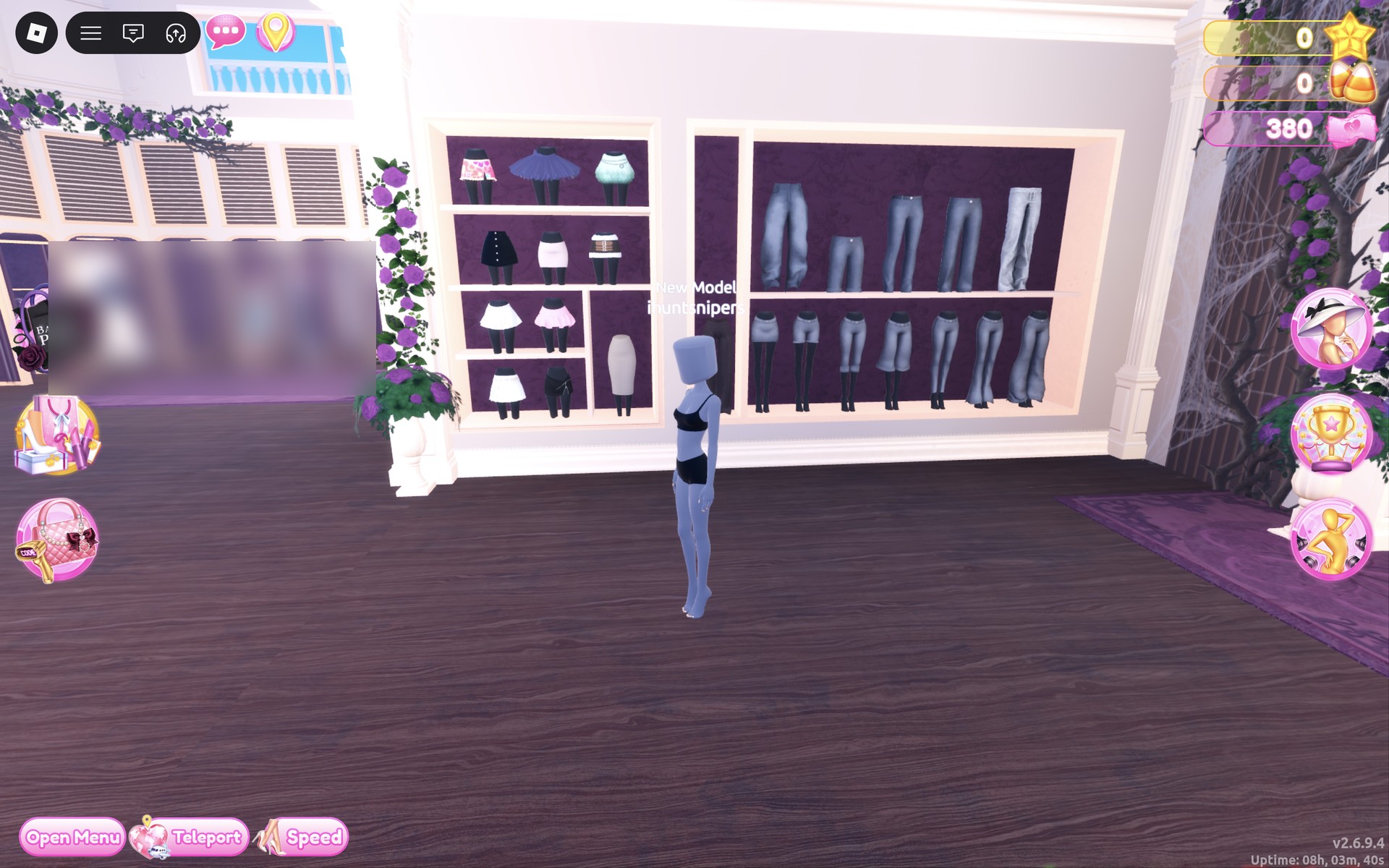
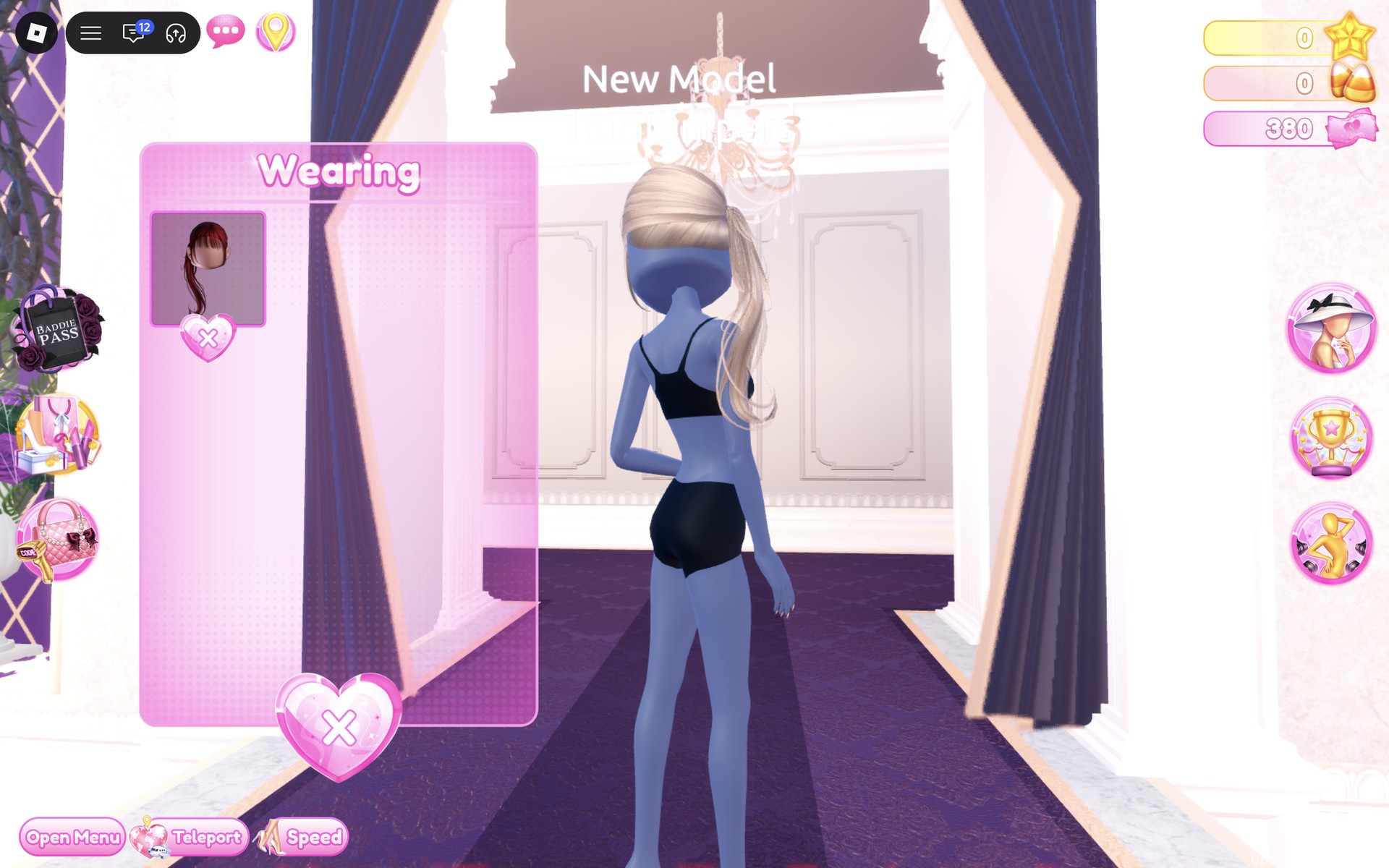
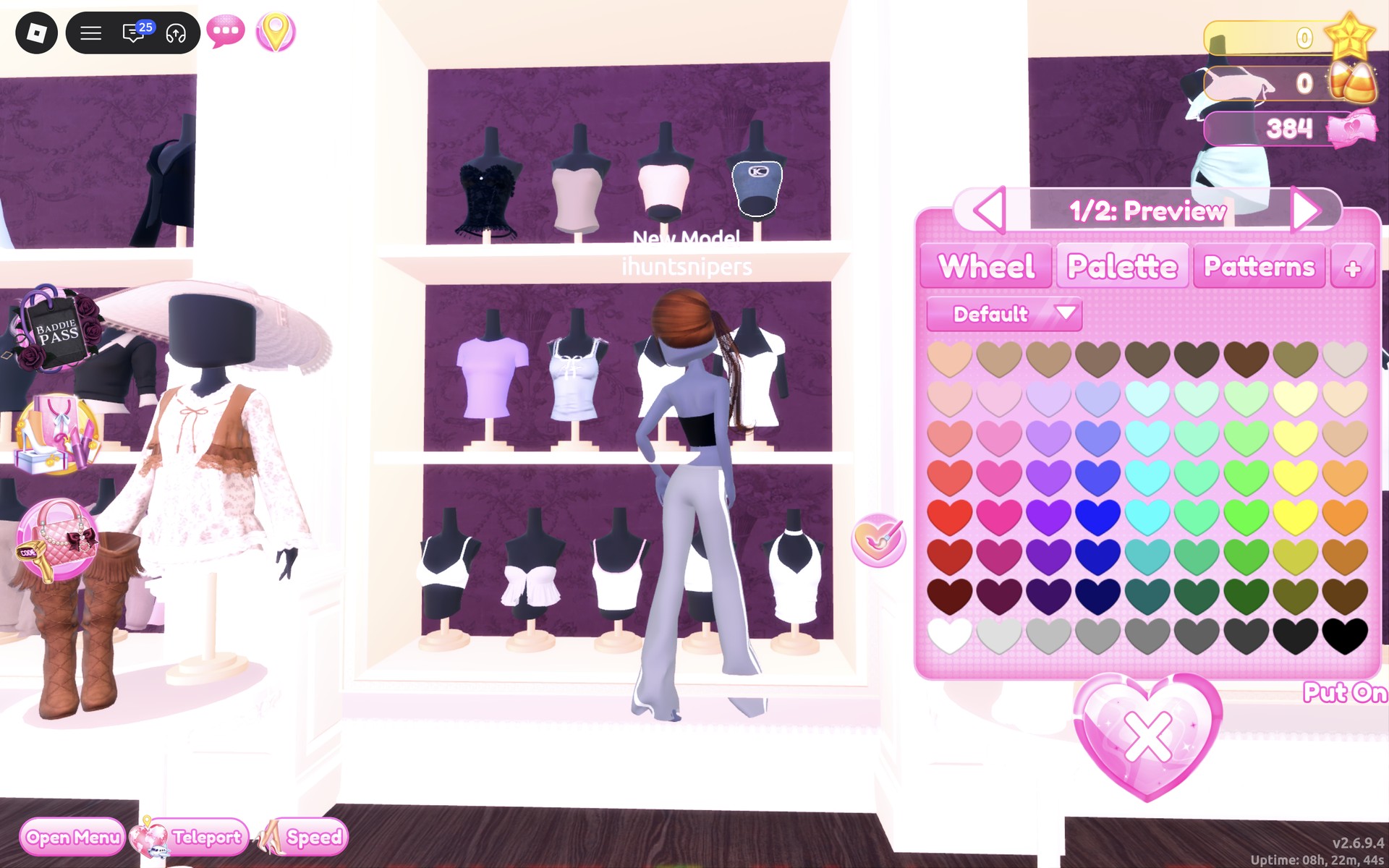
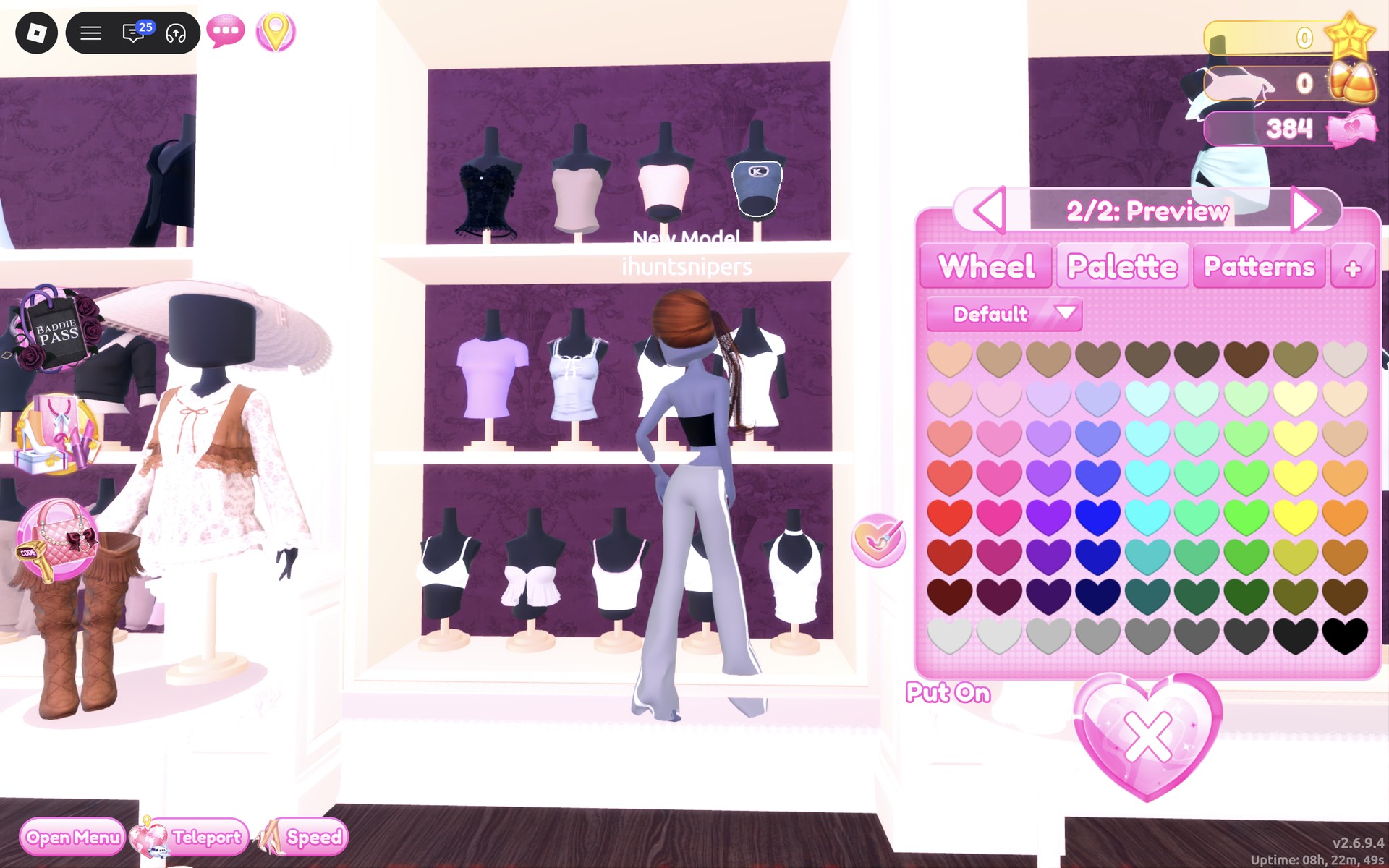
Dress To Impress shows no item names, so every piece here is described by where it sits, what it looks like and the spot we used on the Default palette (columns from the left, rows from the top). A fresh Freeplay character starts in the base body: a blank head with no hair, a black top, black shorts and bare feet. In all three looks our pieces cover the black base top and shorts; on Look 3 the tube top is cropped, so the midriff shows.
We did not find sneakers, trainers or any sports shoes, and no racket, ball to hold, headband, wristband or jersey number. All three looks are barefoot. This guide is about tennis, football and athleisure; for leotard looks, see our Gymnastics outfit ideas.
Look 1: Tennis whites
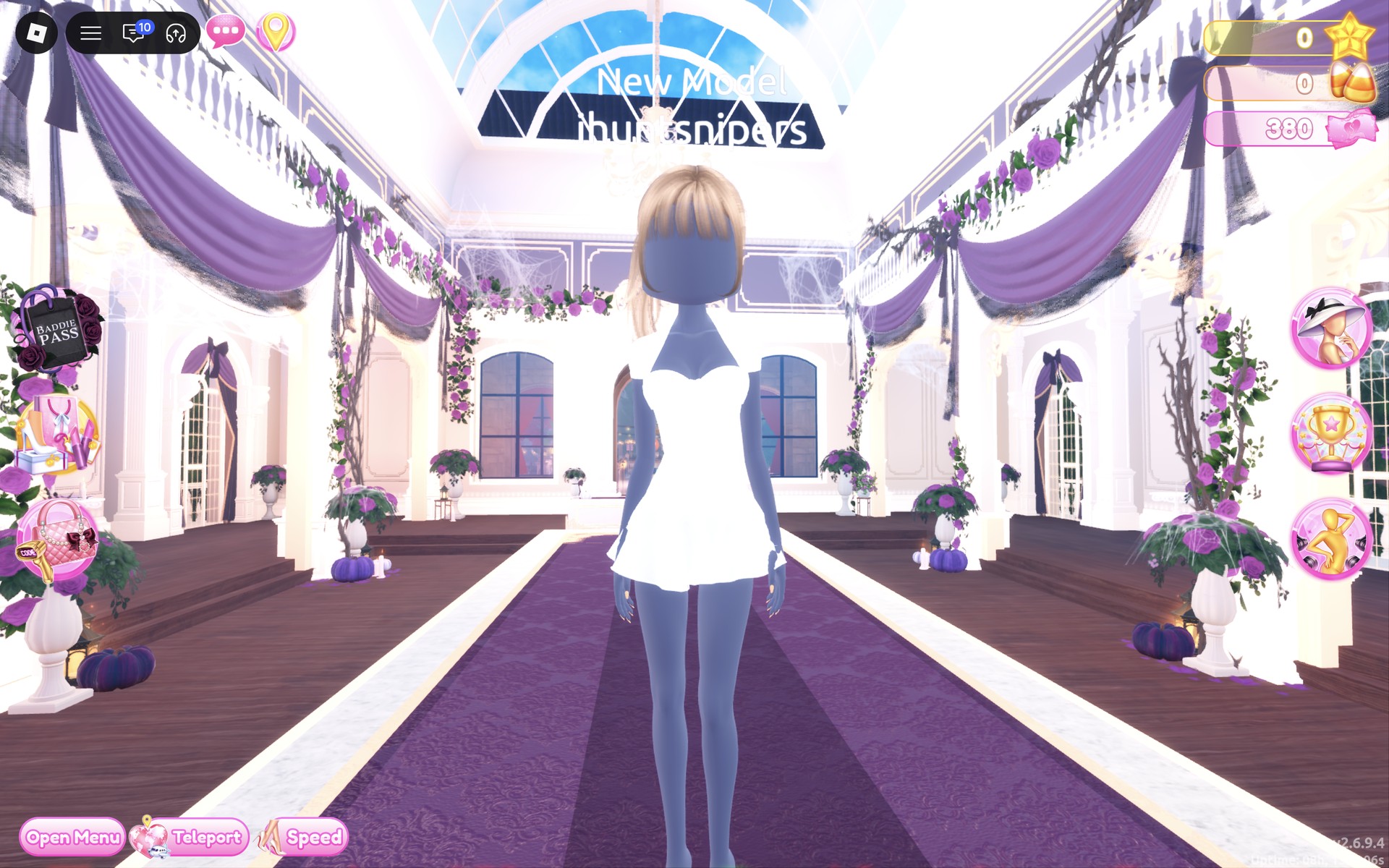
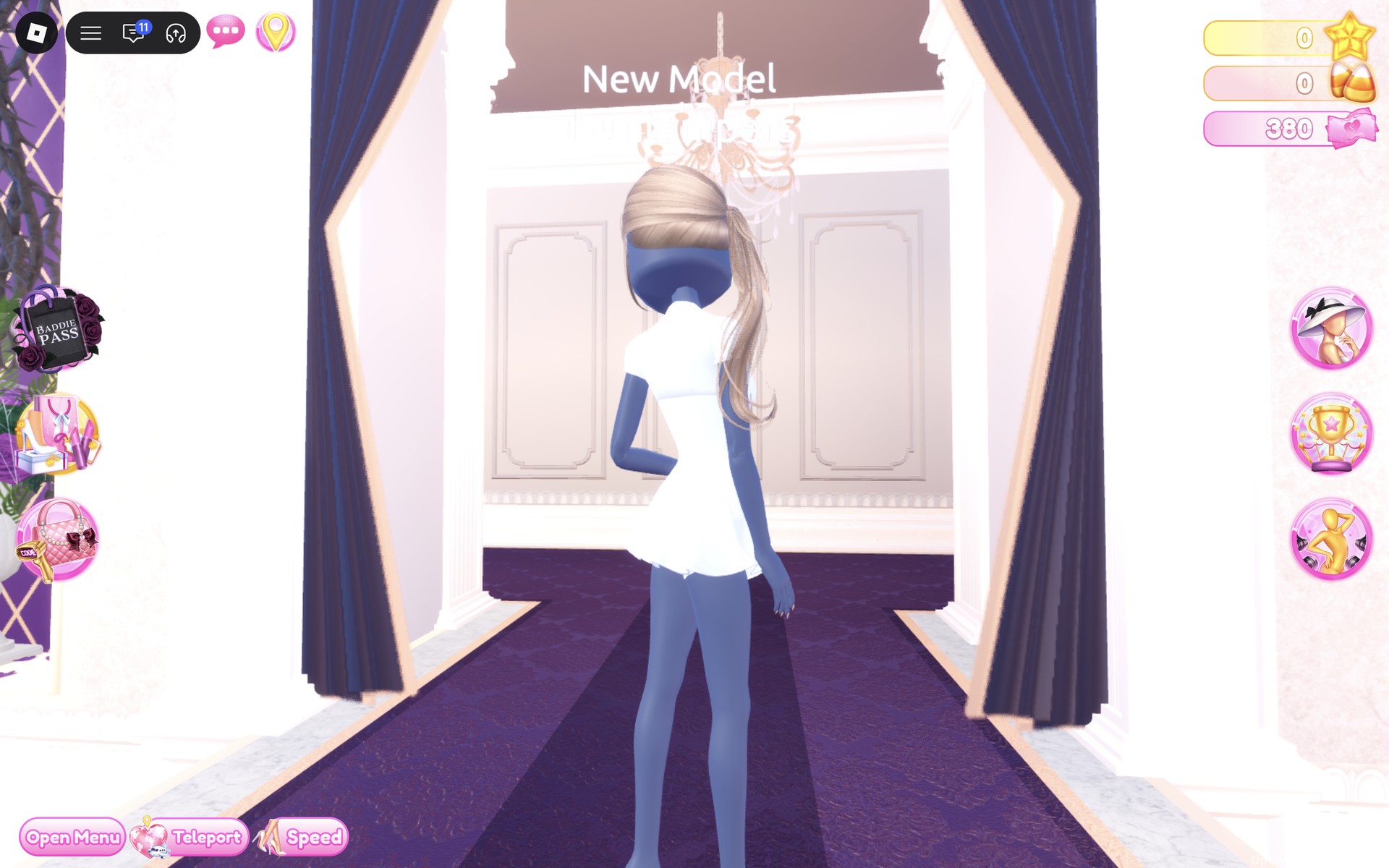
Our idea: an all-white tennis outfit, with a short pleated skirt, a fitted white top with cap sleeves and a blonde ponytail.
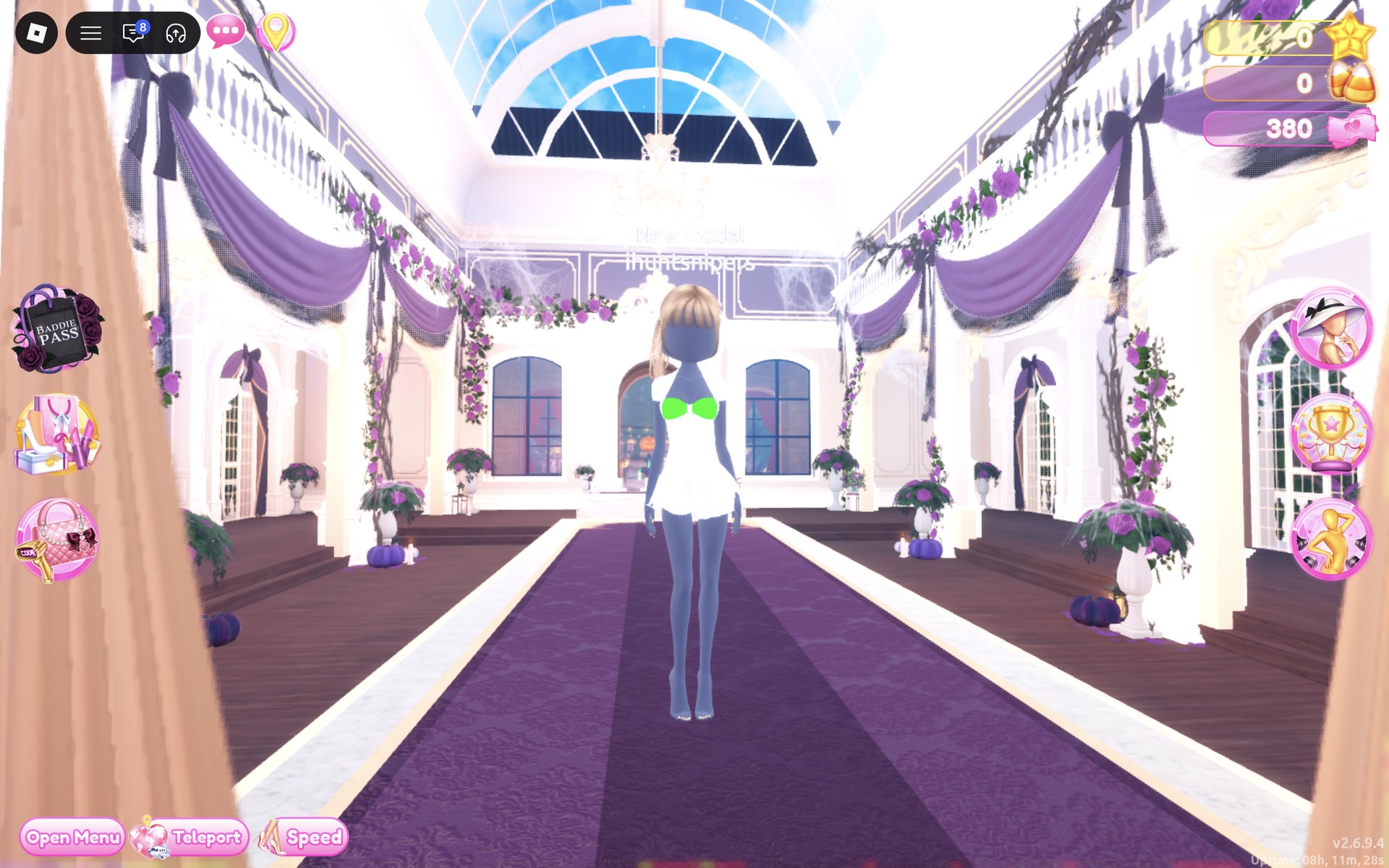
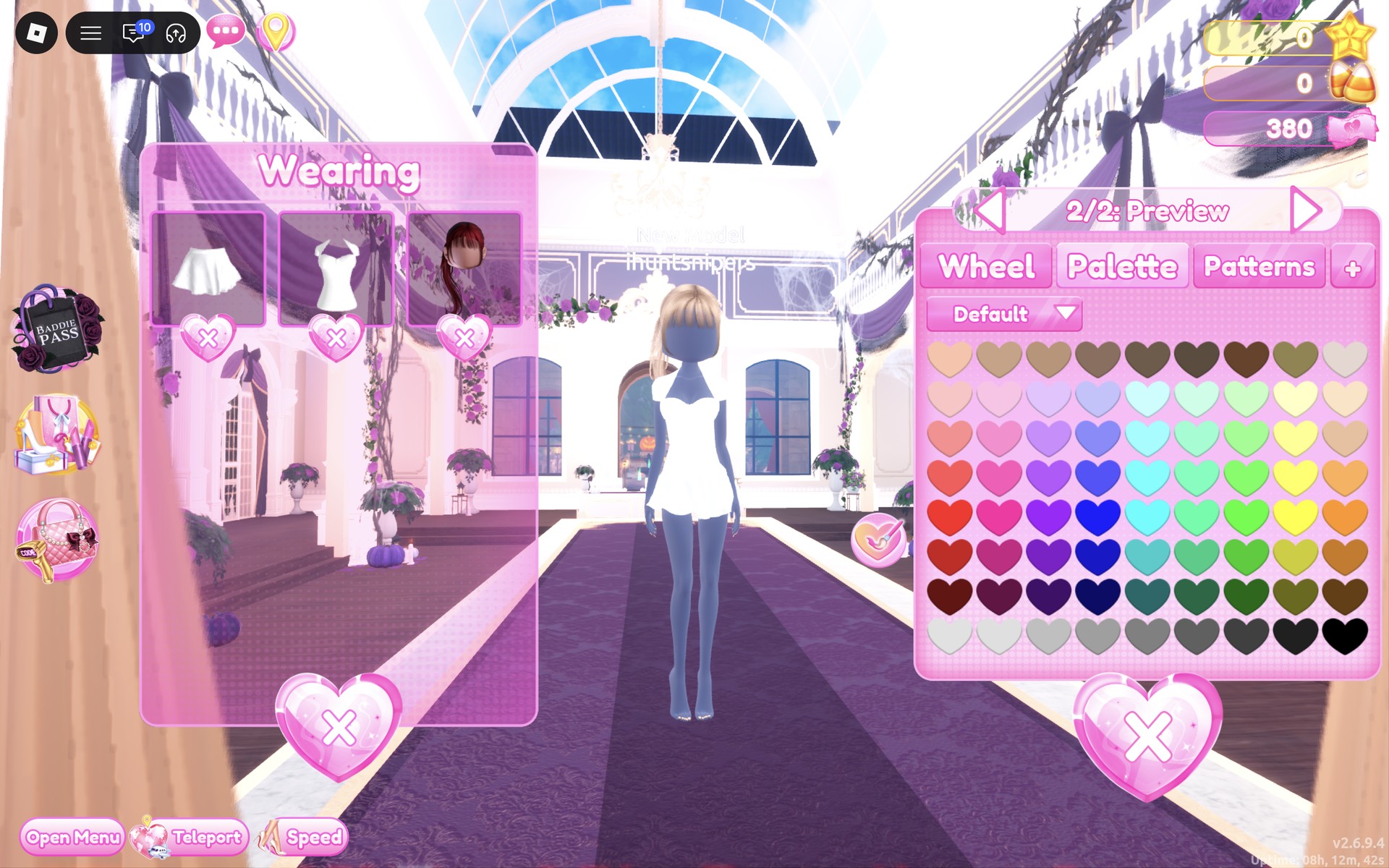
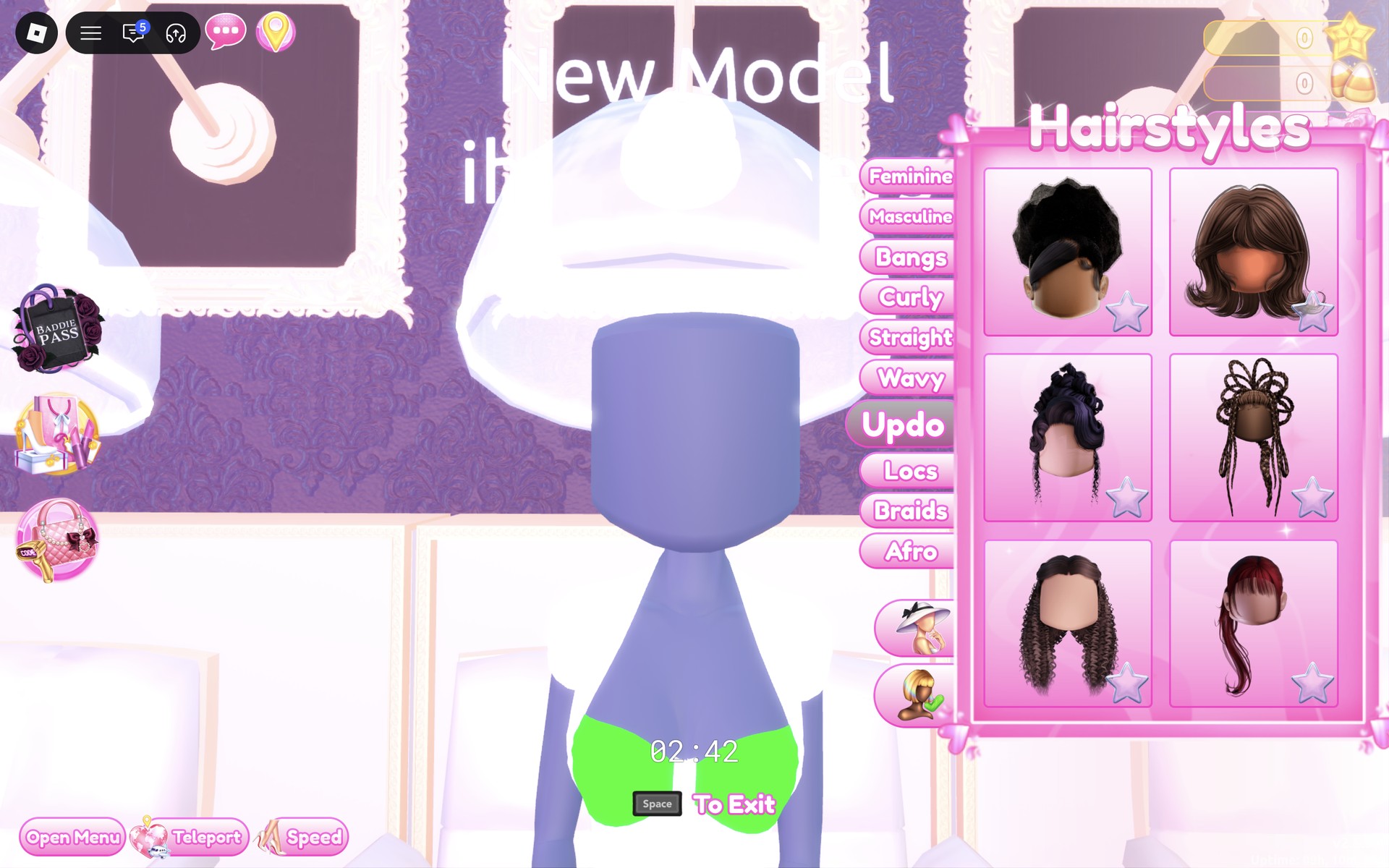
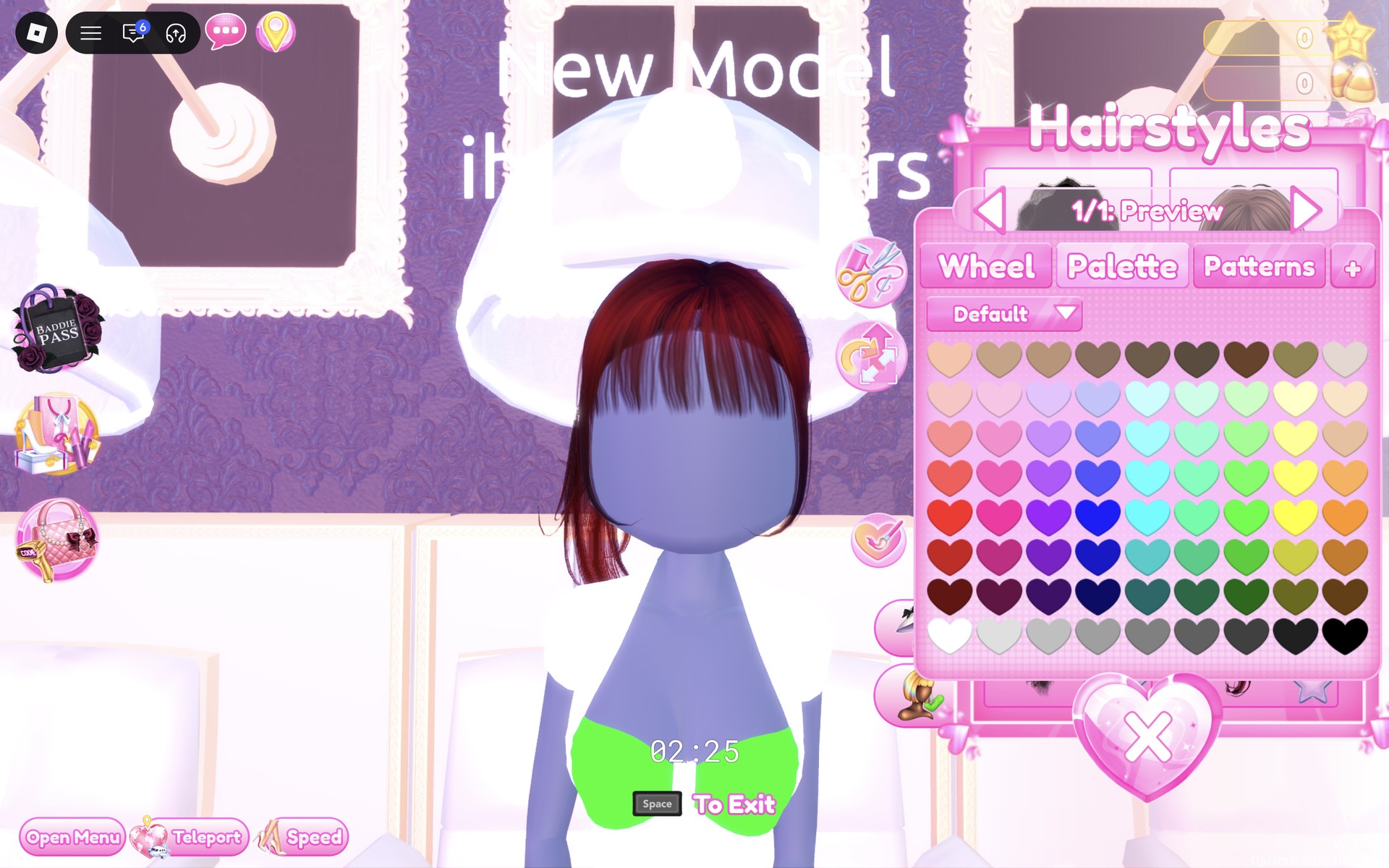
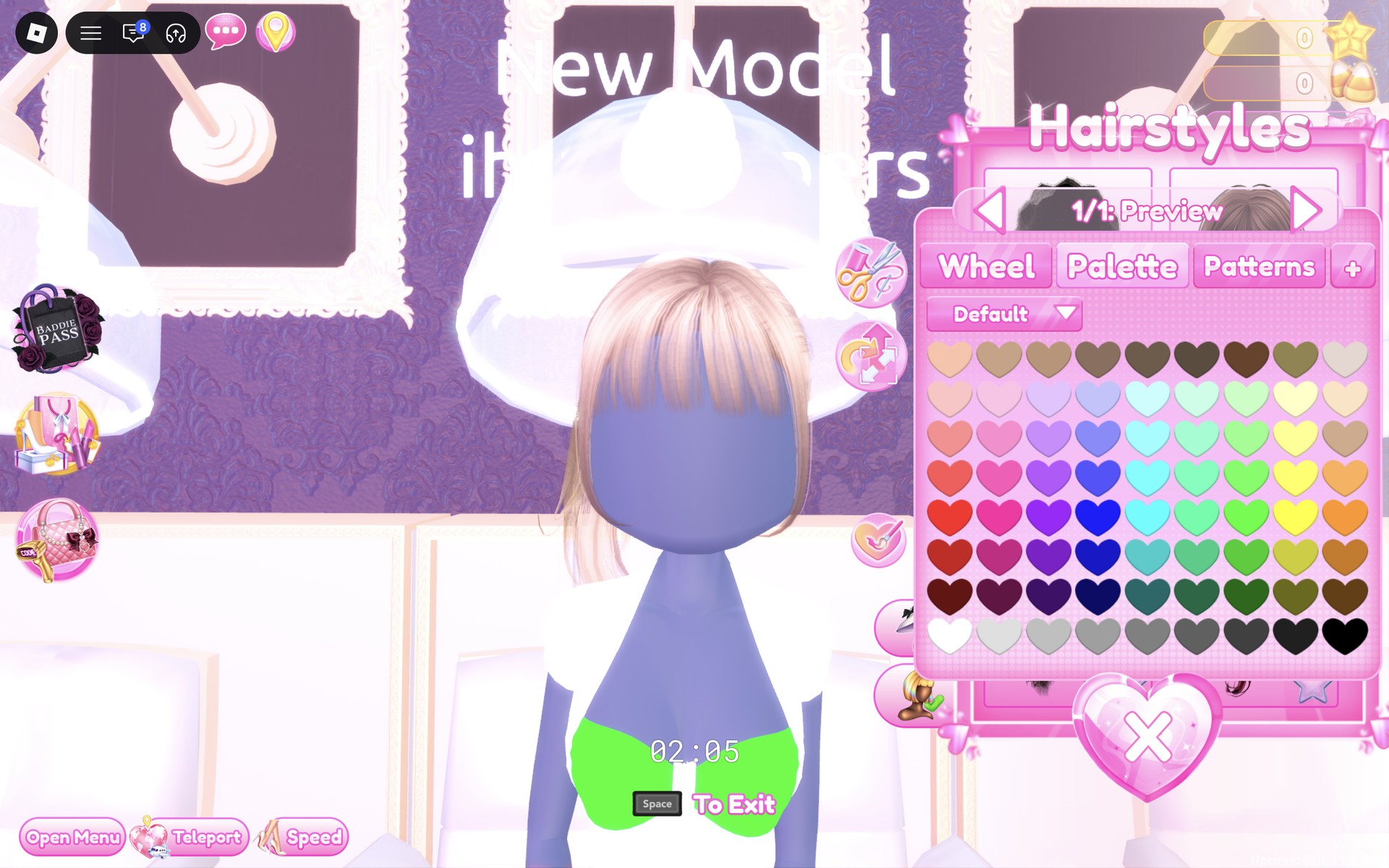
The finished look from the front: blonde bangs, the white cap-sleeve top and the white pleated mini skirt, with bare feet.
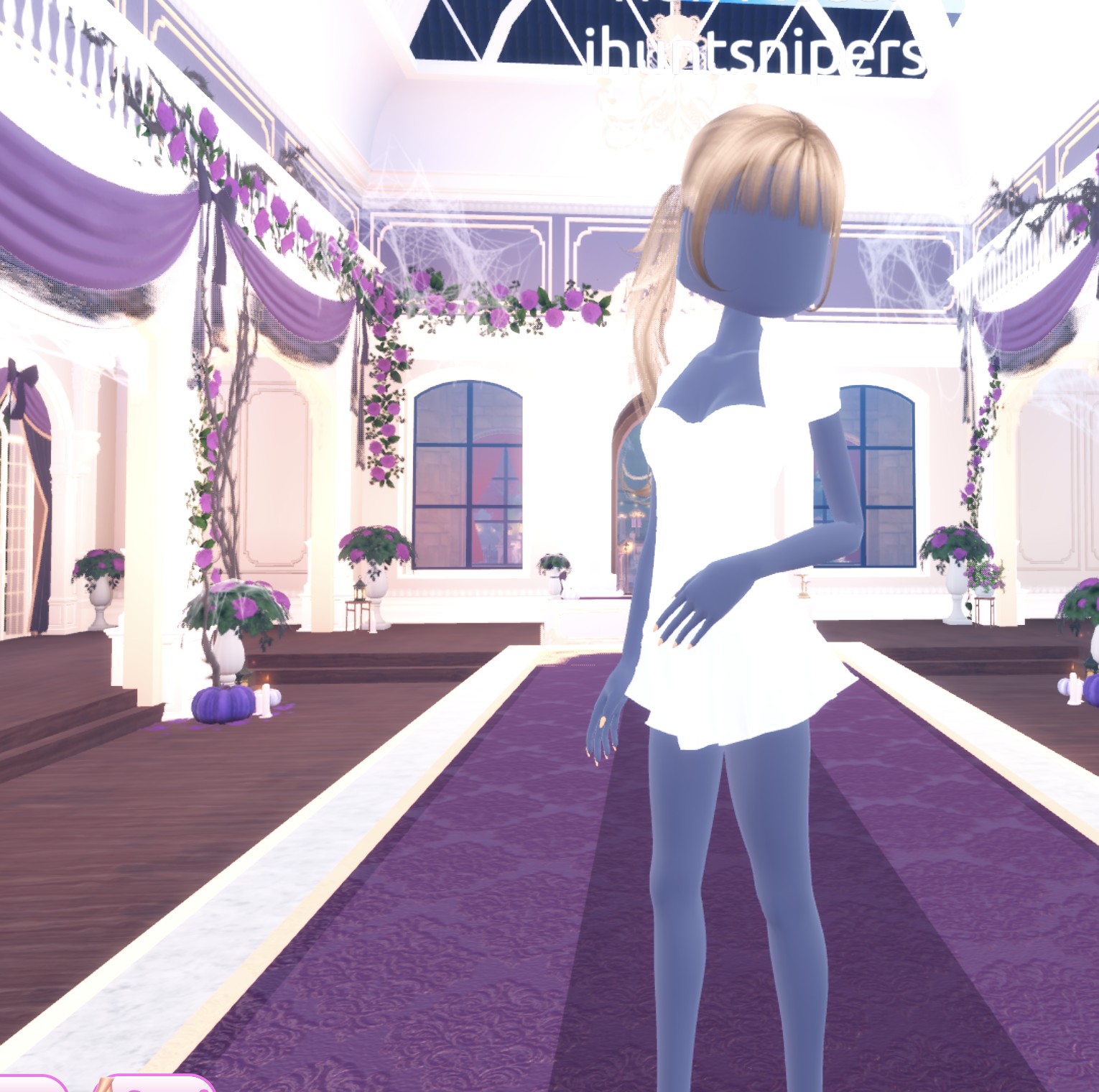
From behind, the ponytail falls over one shoulder, and the skirt’s flare shows at the hem.
Look 2: Red and black football kit
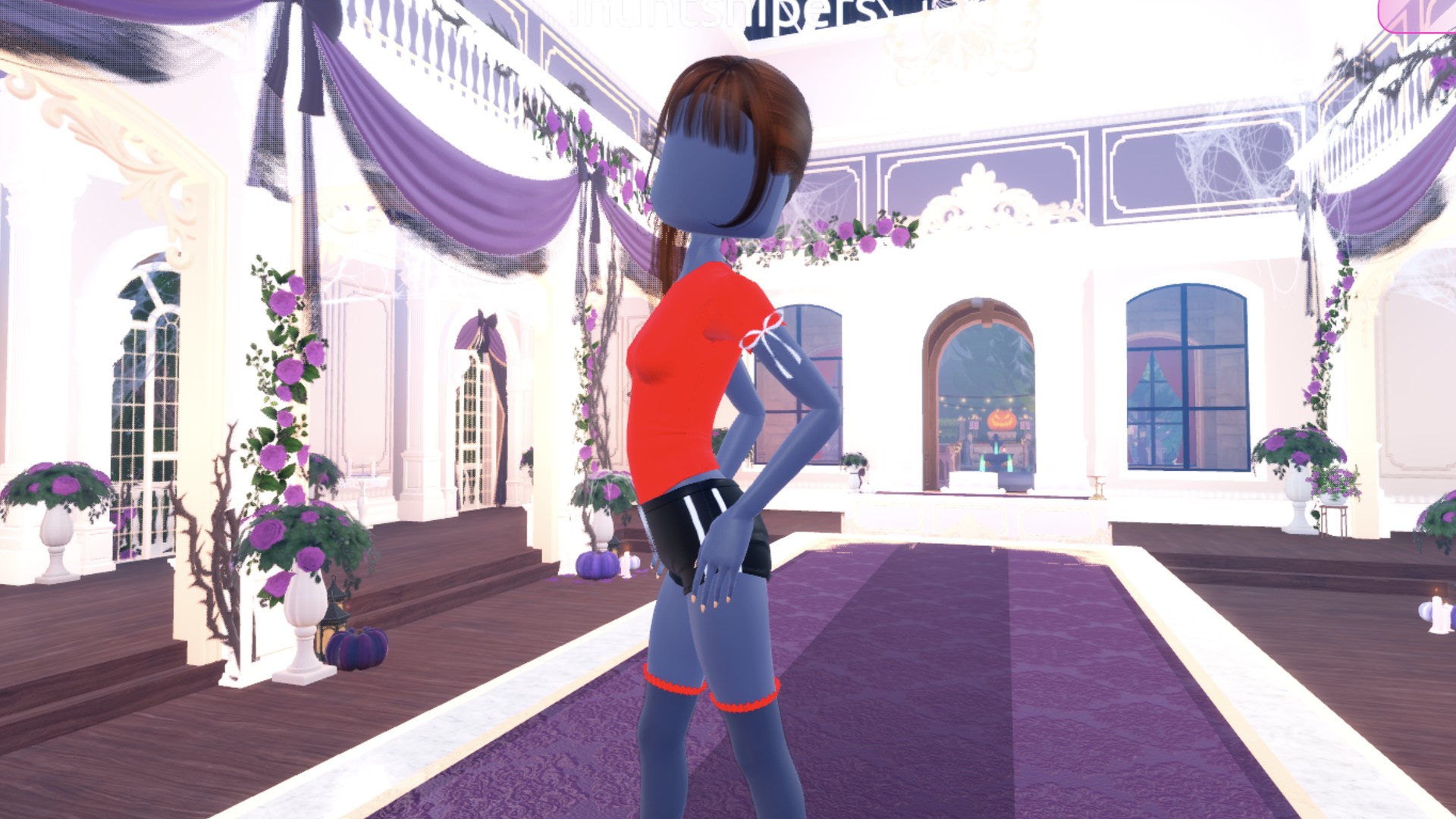
Our idea: a football (soccer) kit with a red shirt, black athletic shorts with side stripes and socks pulled up to the thigh. Start from Look 1 or from the base body; the tee and shorts replace the top and skirt.
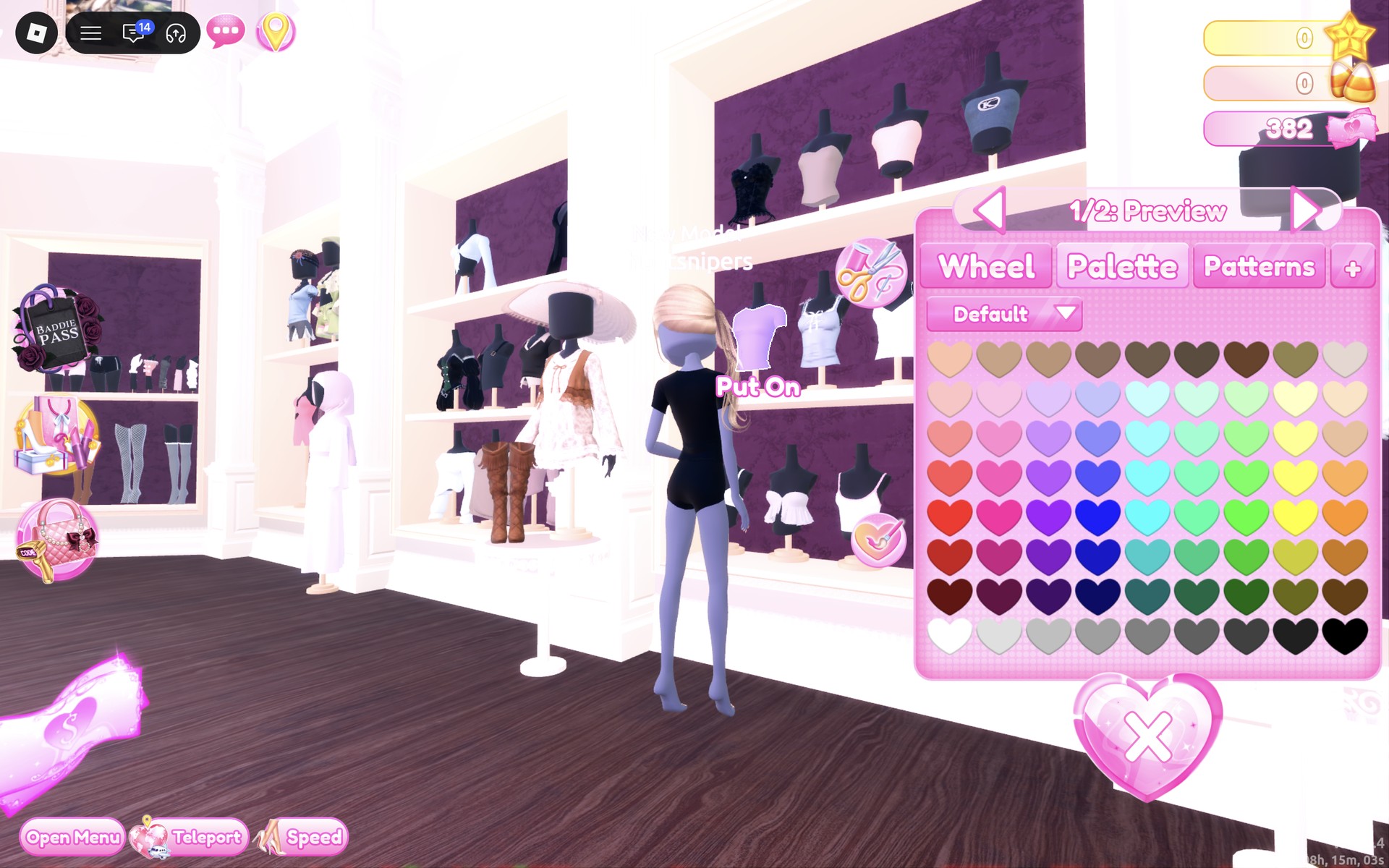
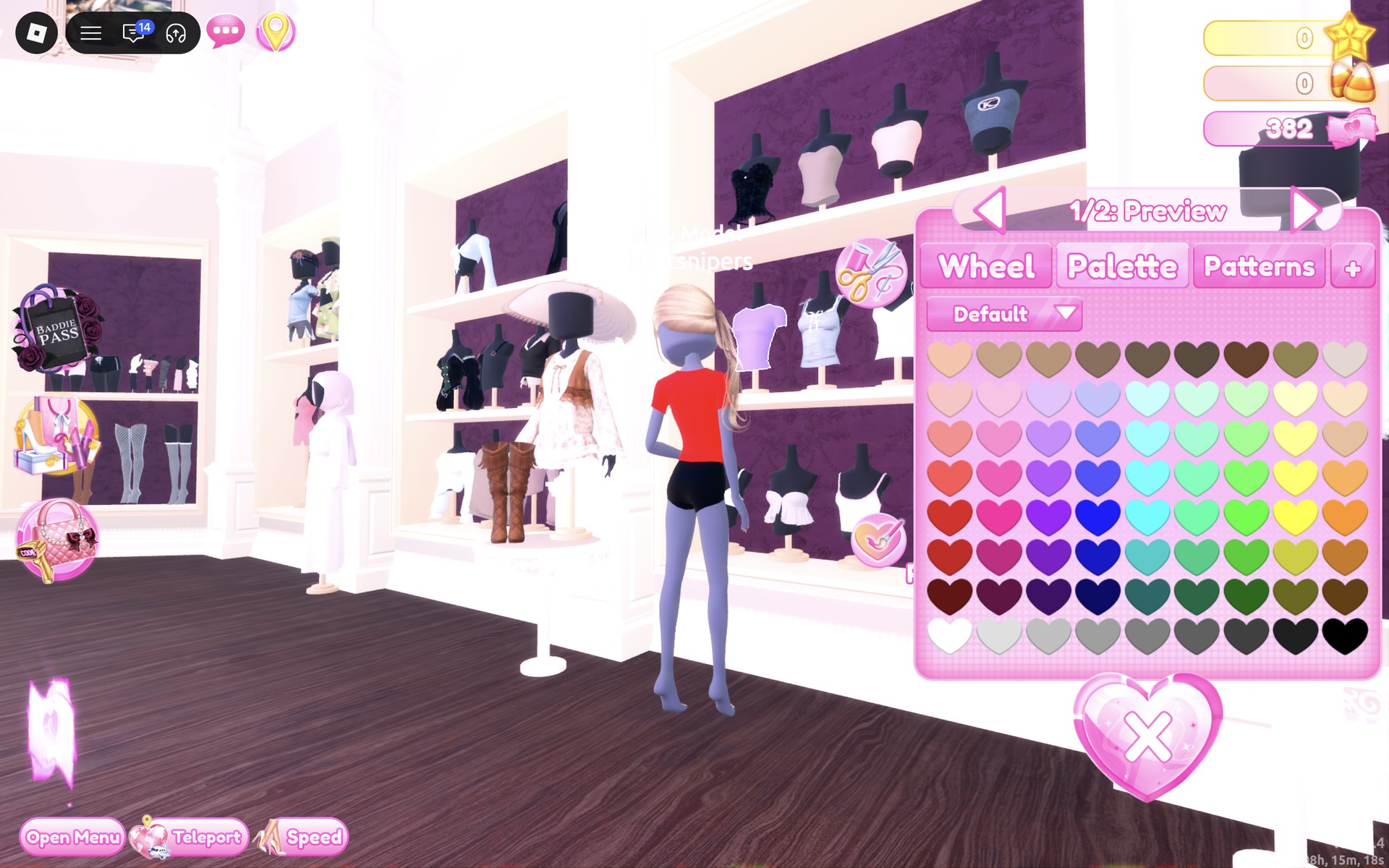
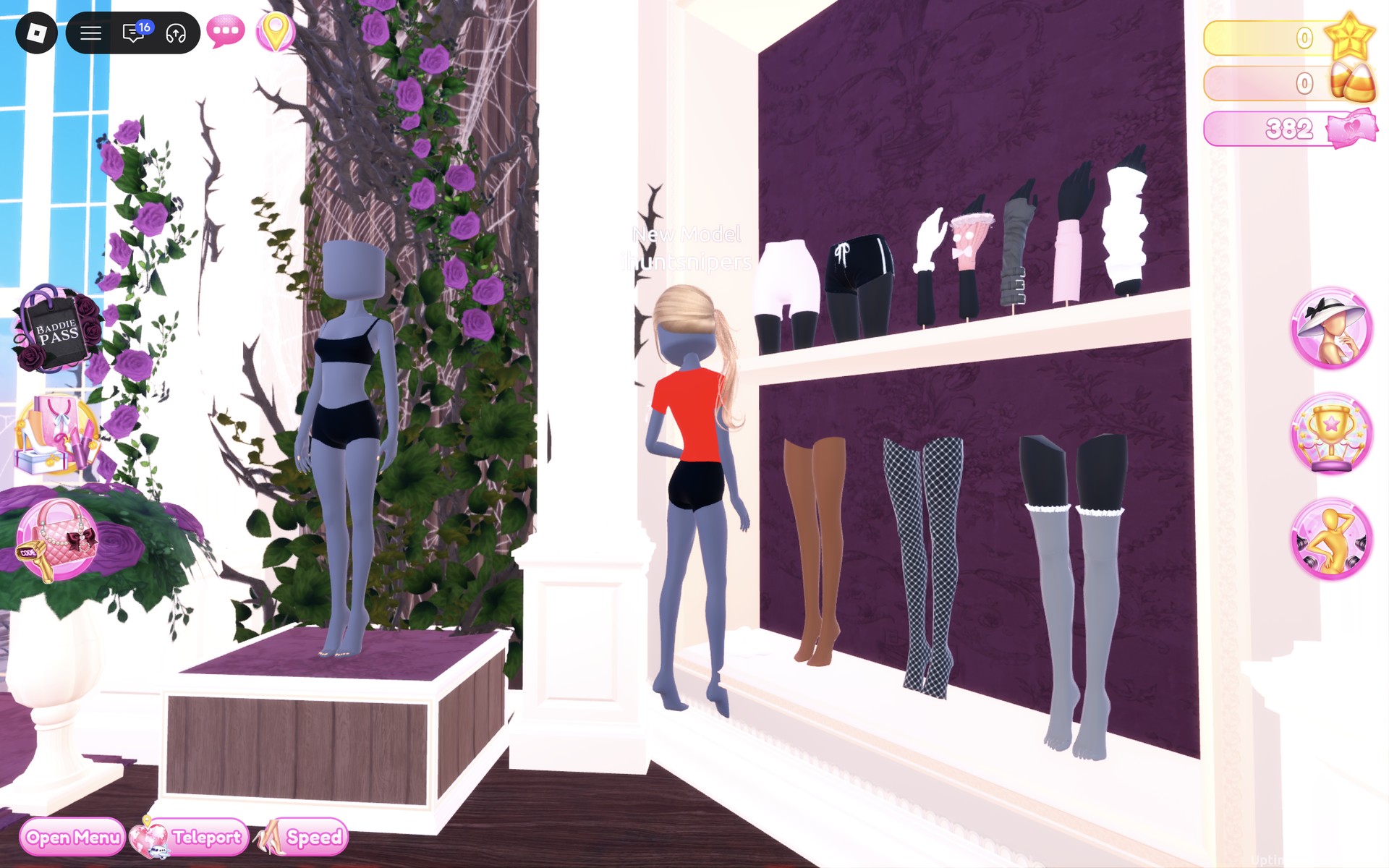
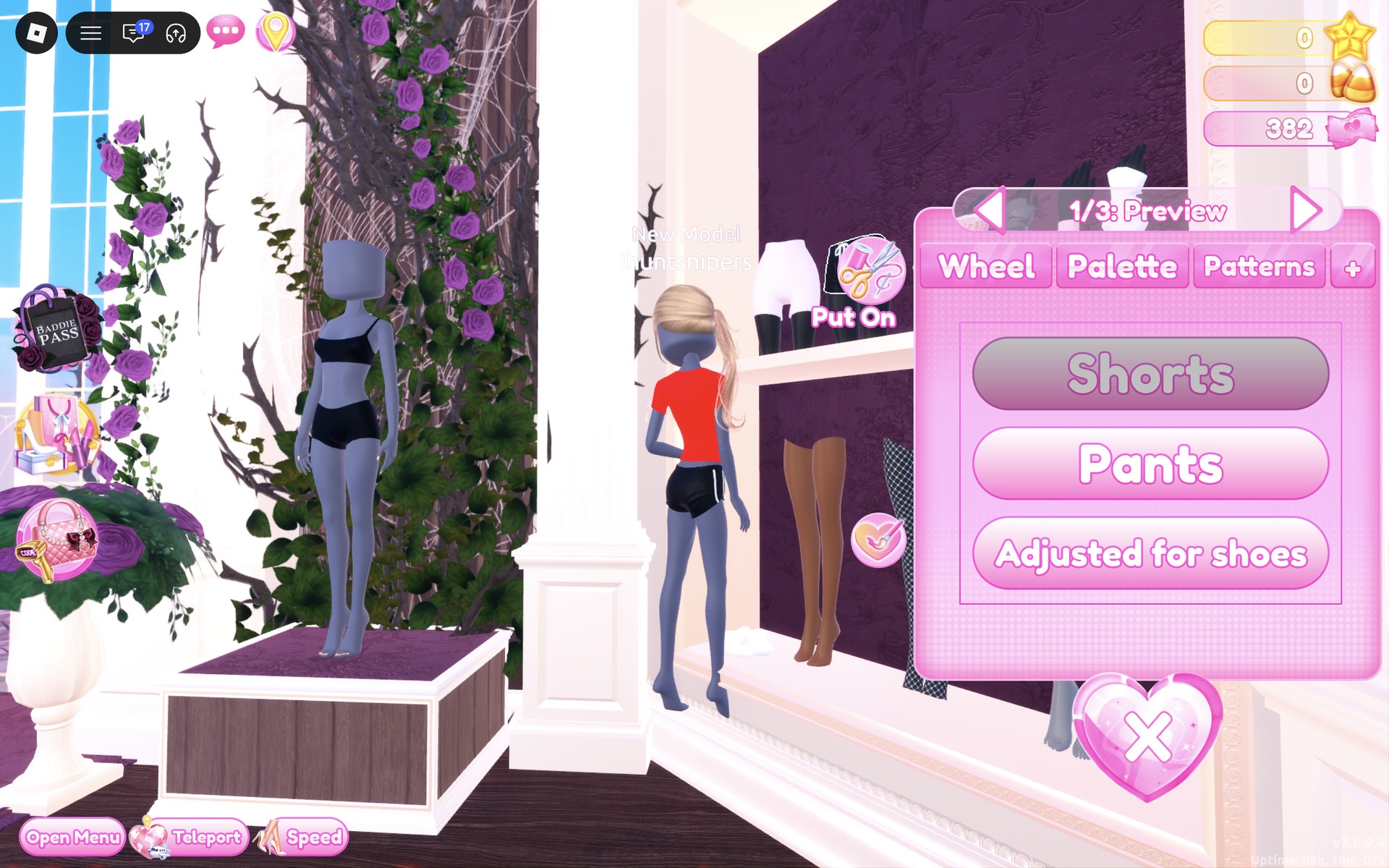
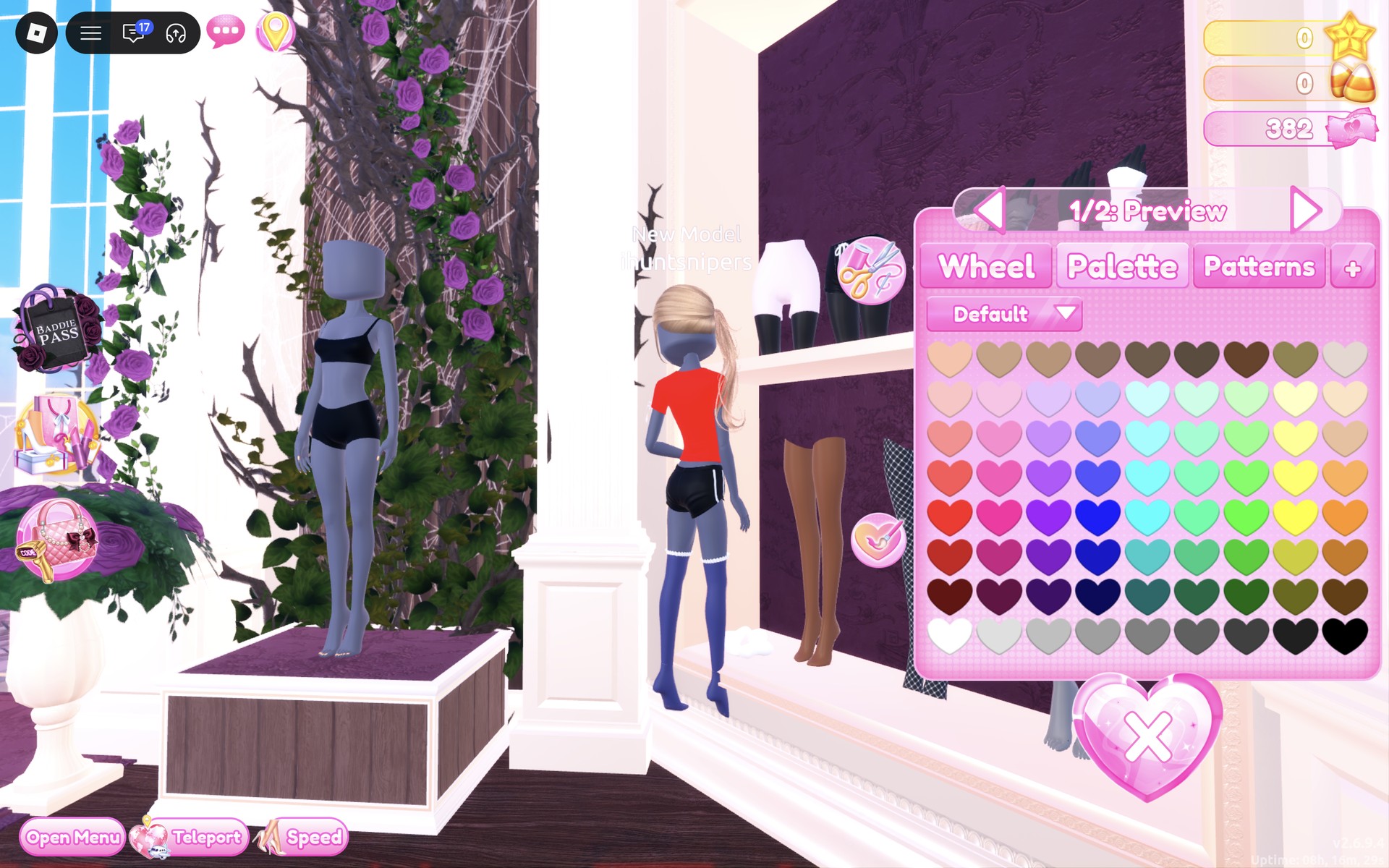
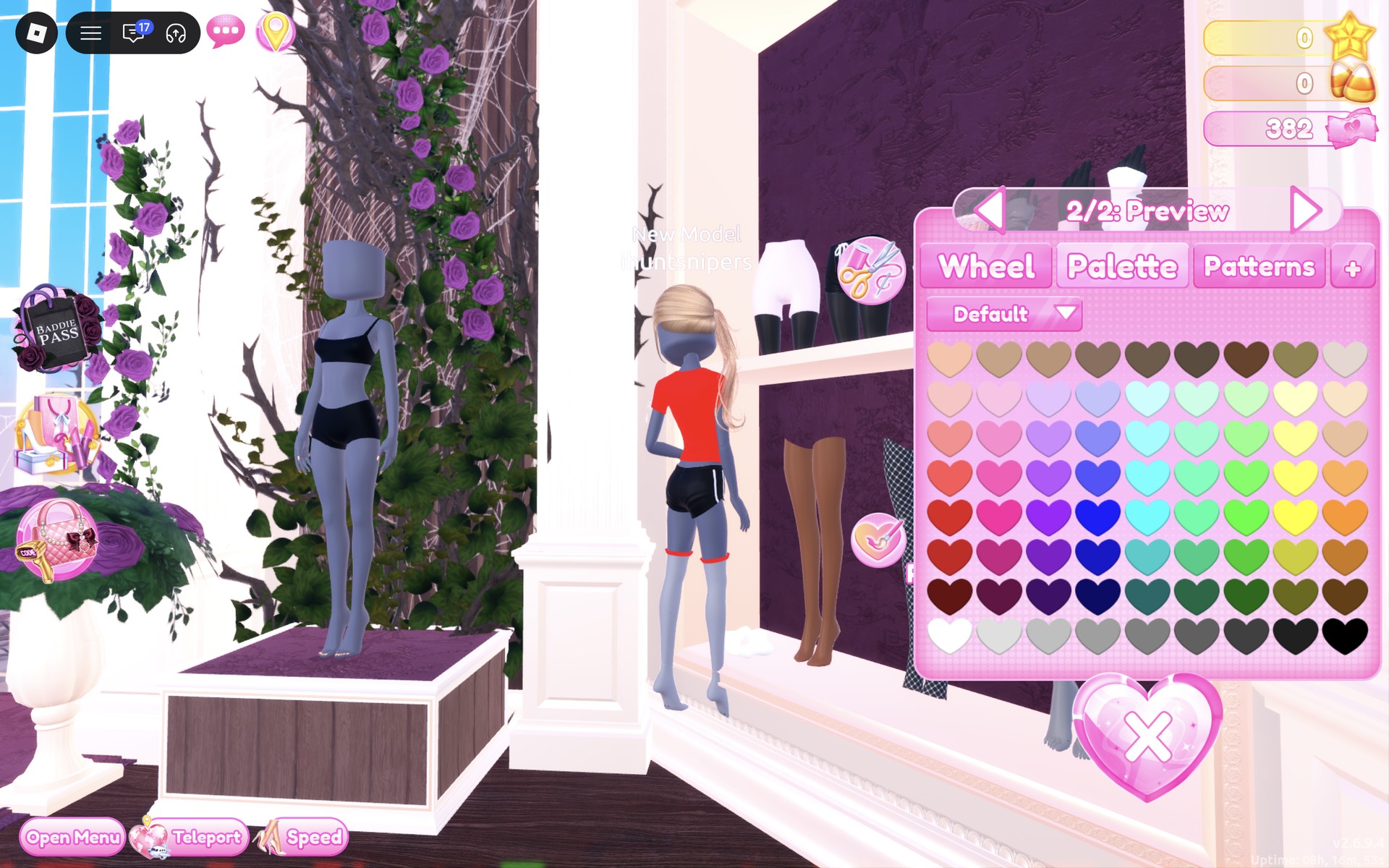
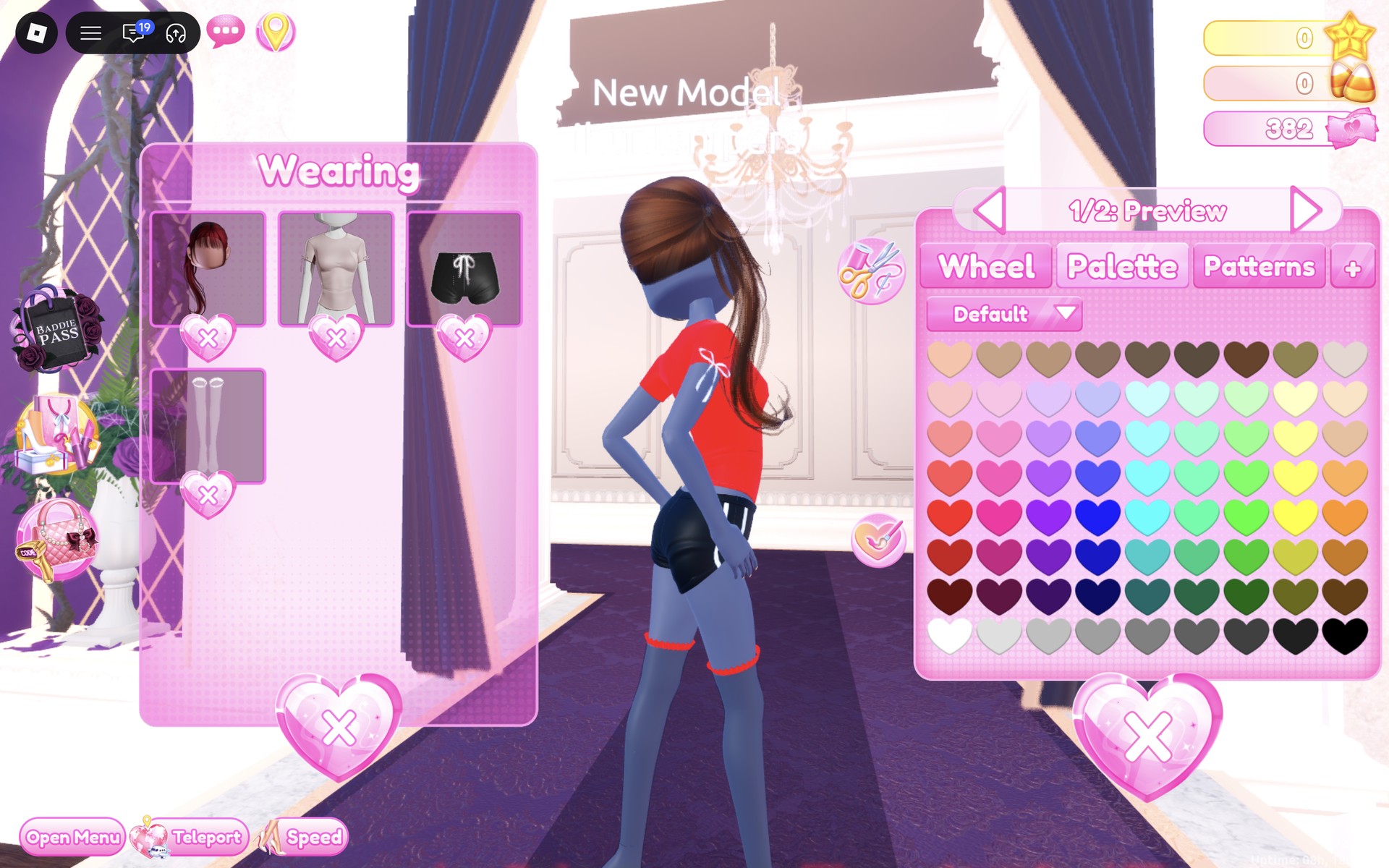
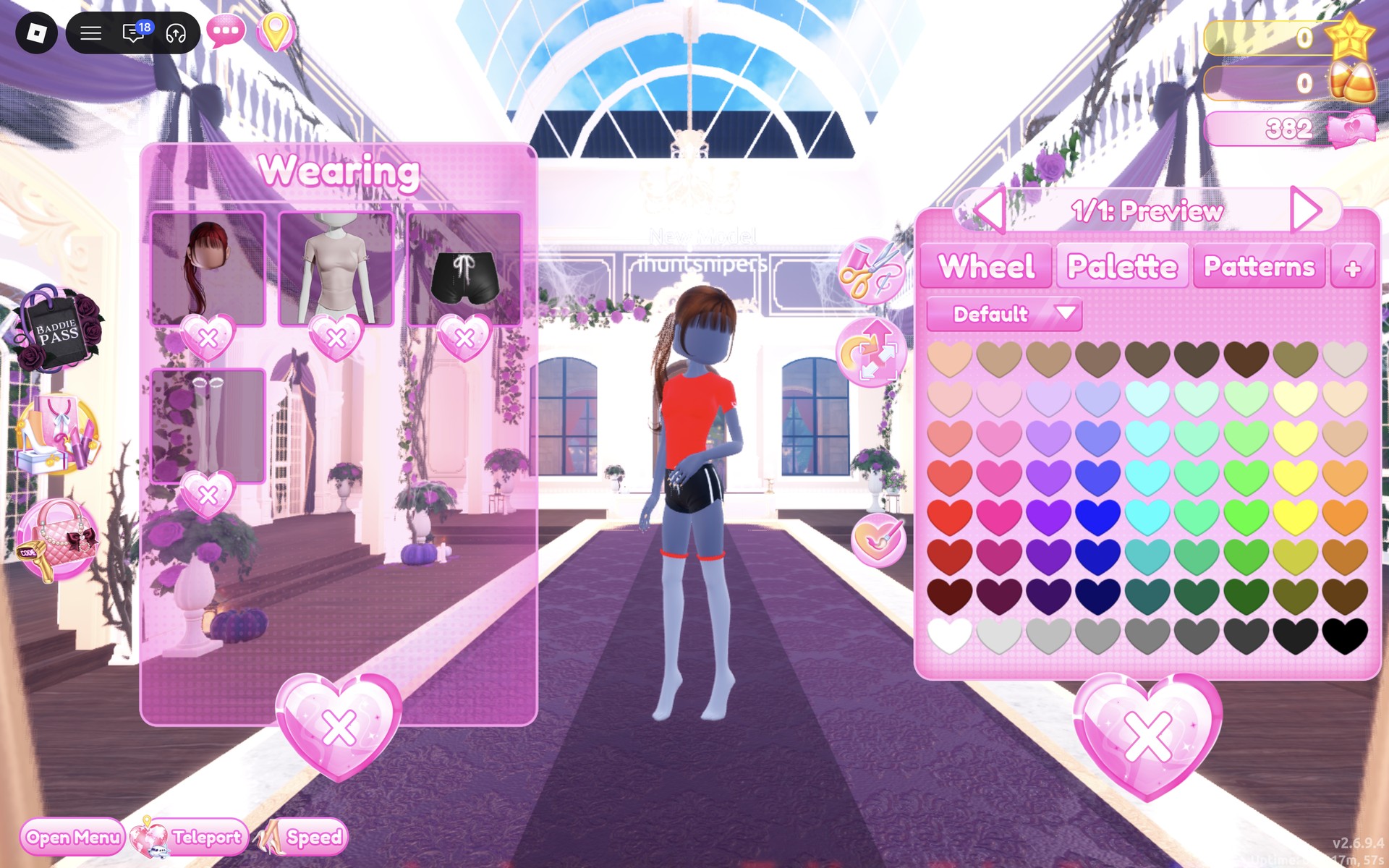
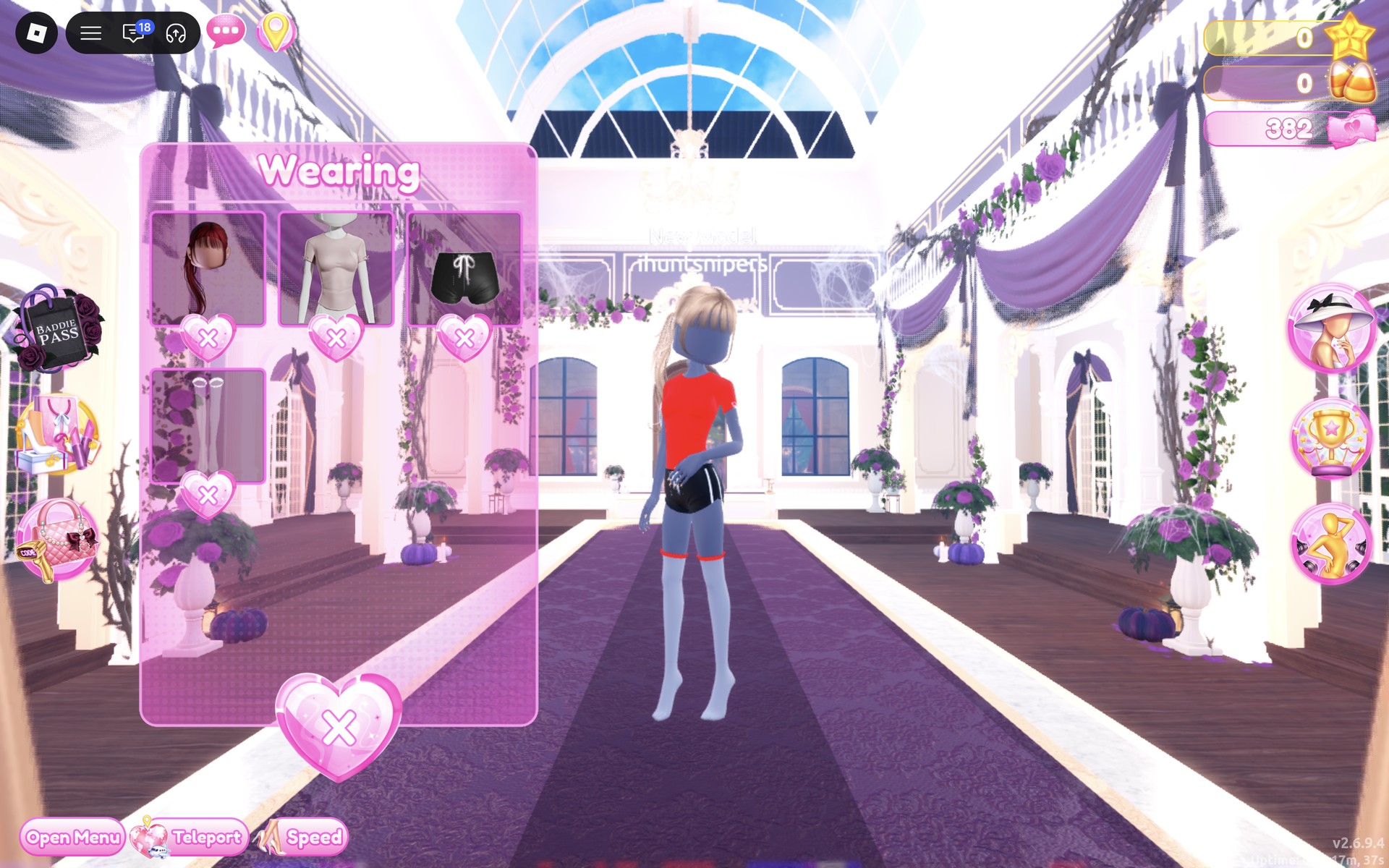
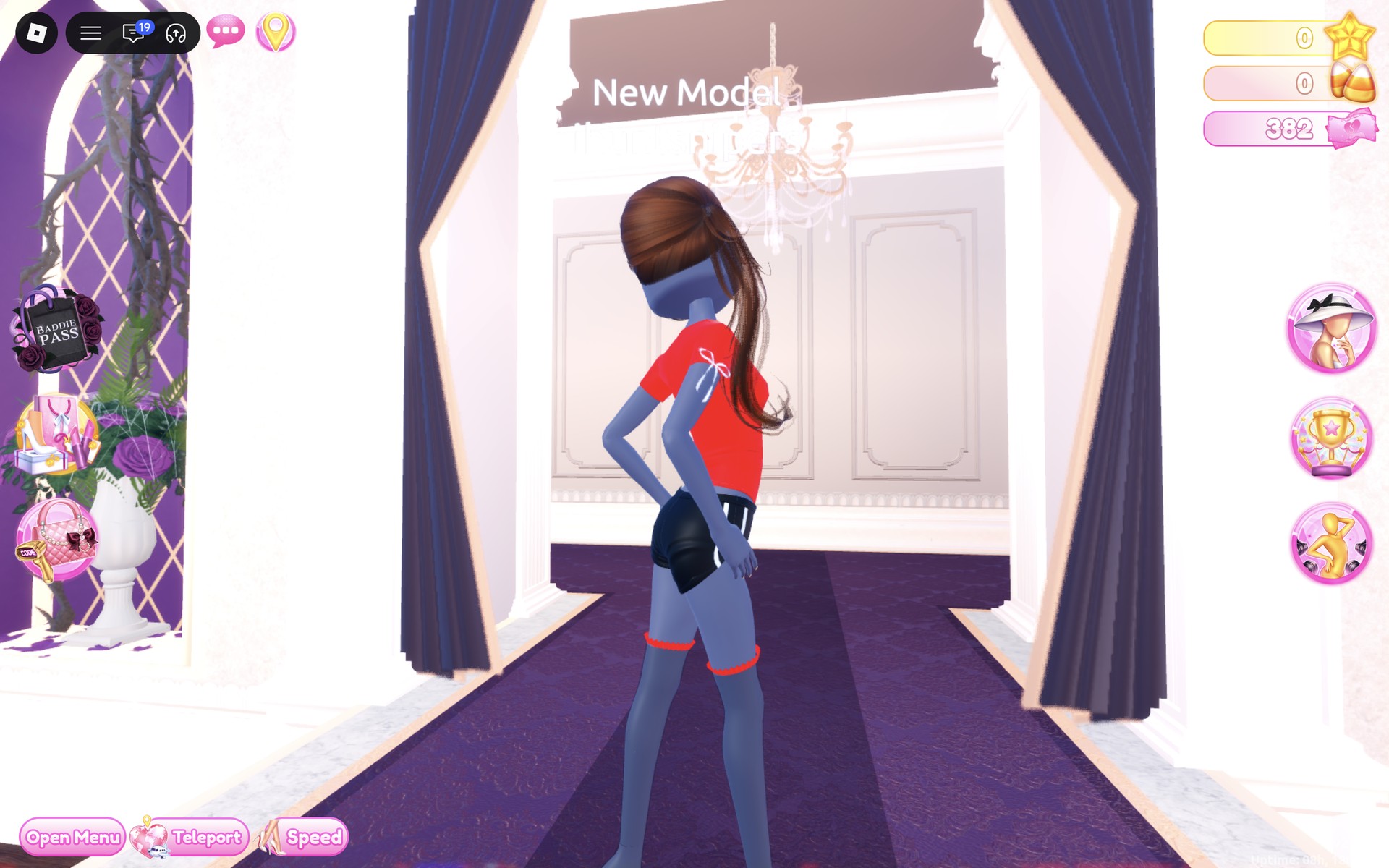
The finished kit from the front: brown bangs and ponytail, the fitted red tee, the black shorts with their white side stripes, and the red bands at the thighs.
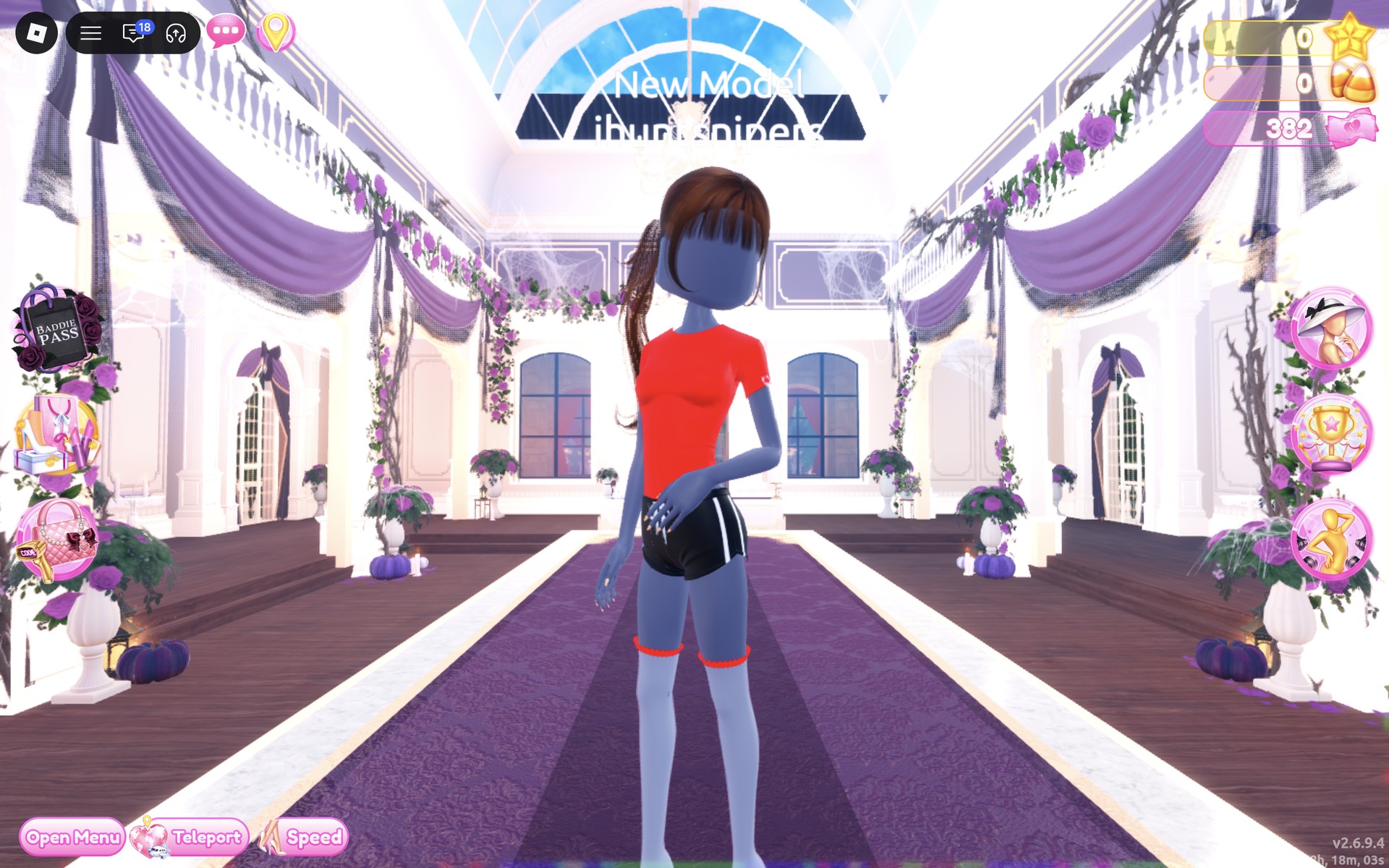
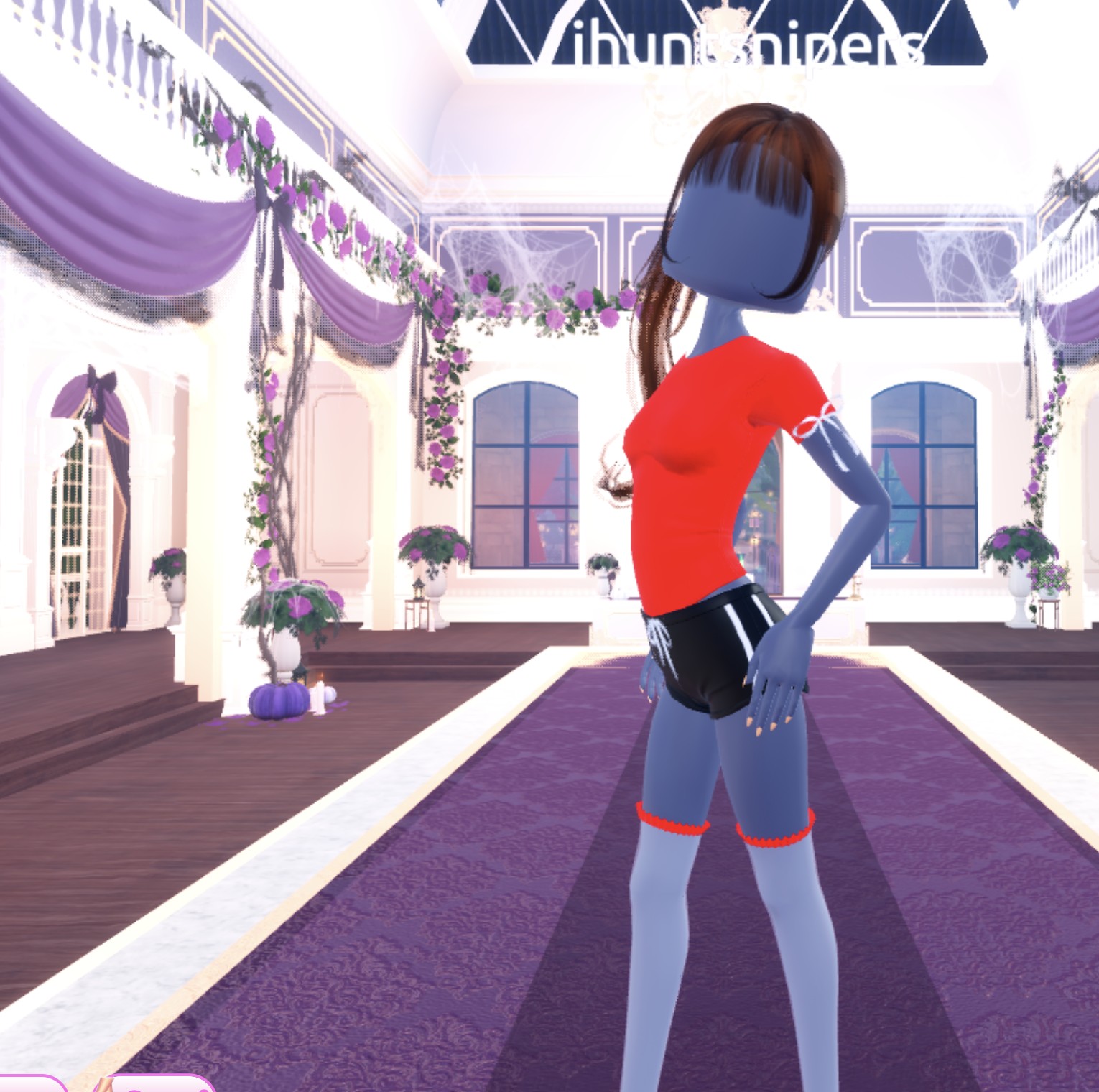
From behind and to the side, the white bows show on the sleeves, the brown ponytail hangs down the back, and the red sock bands sit just under the shorts.
Look 3: Athleisure with grey track pants
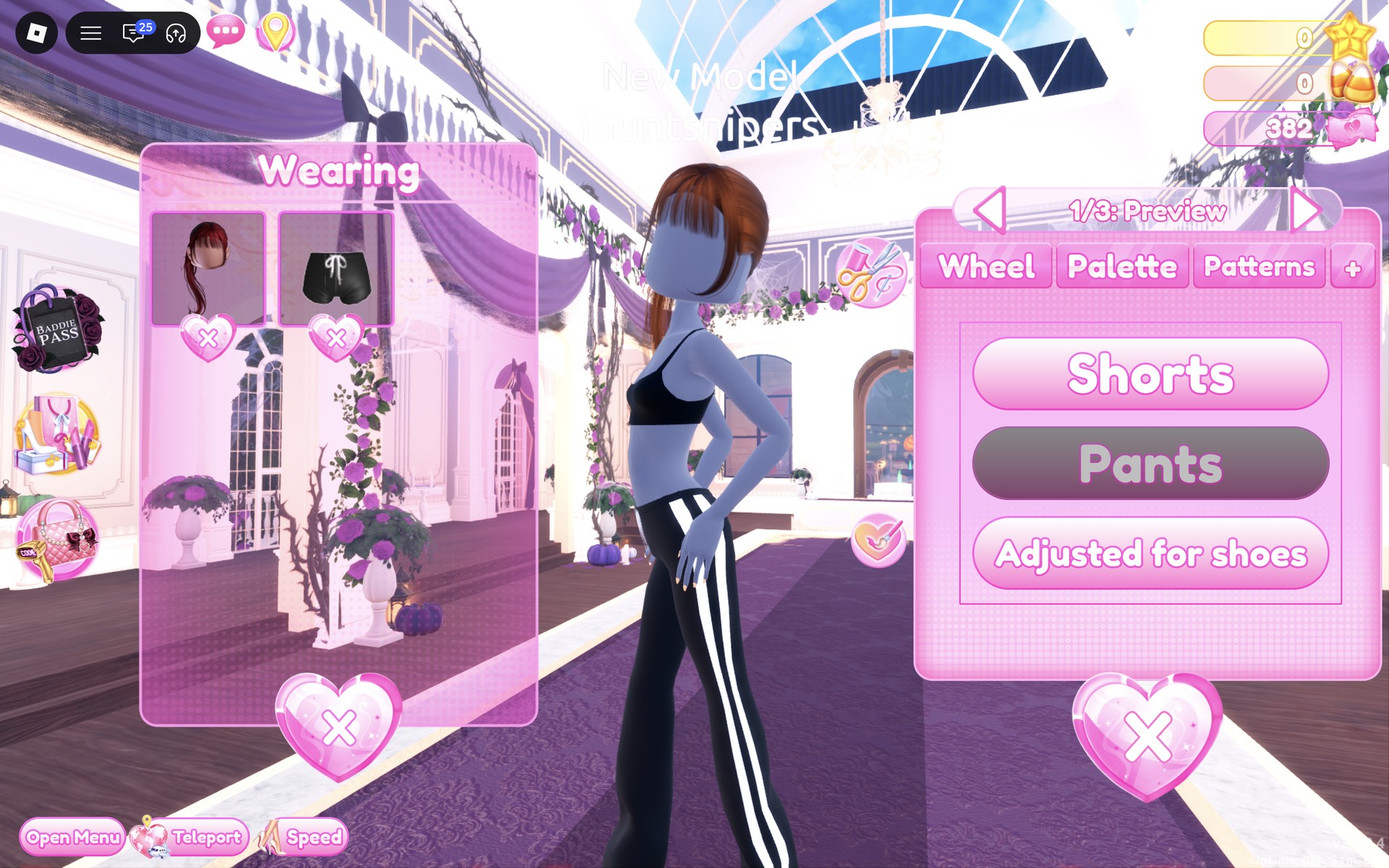
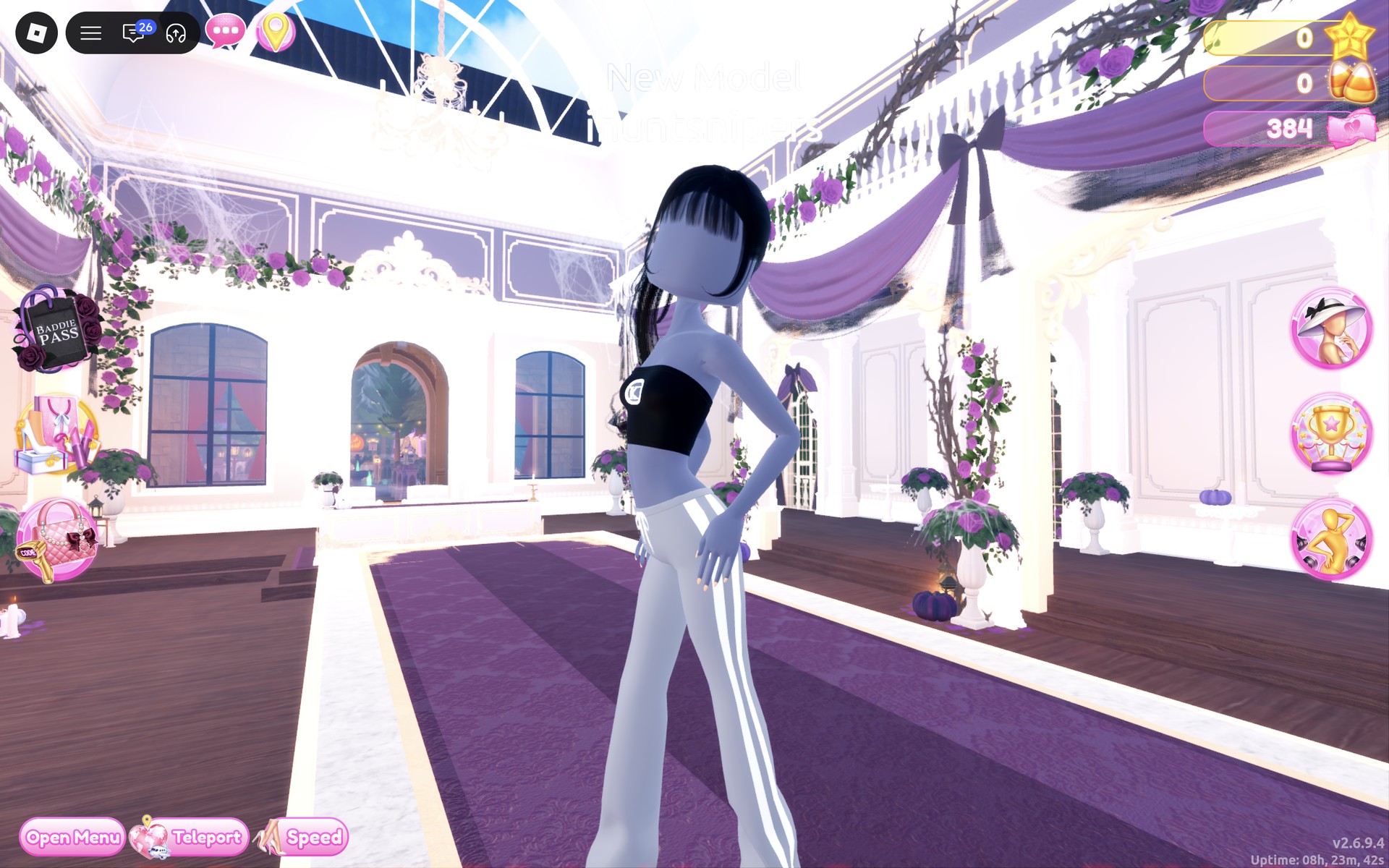
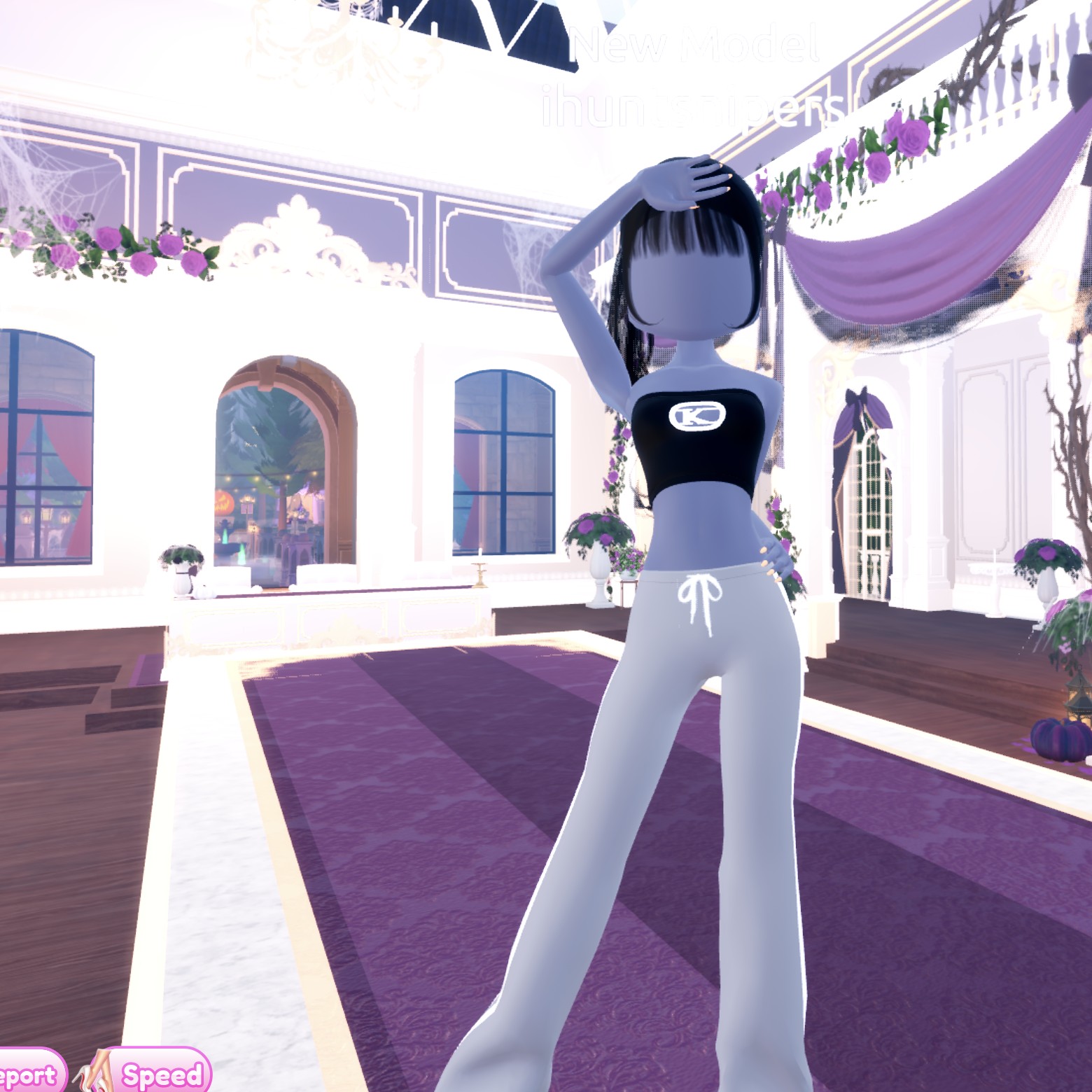
Our idea: sporty everyday wear, with wide track pants, a cropped tube top with a logo badge and a black ponytail. The track pants are Look 2’s shorts, switched to their long version.
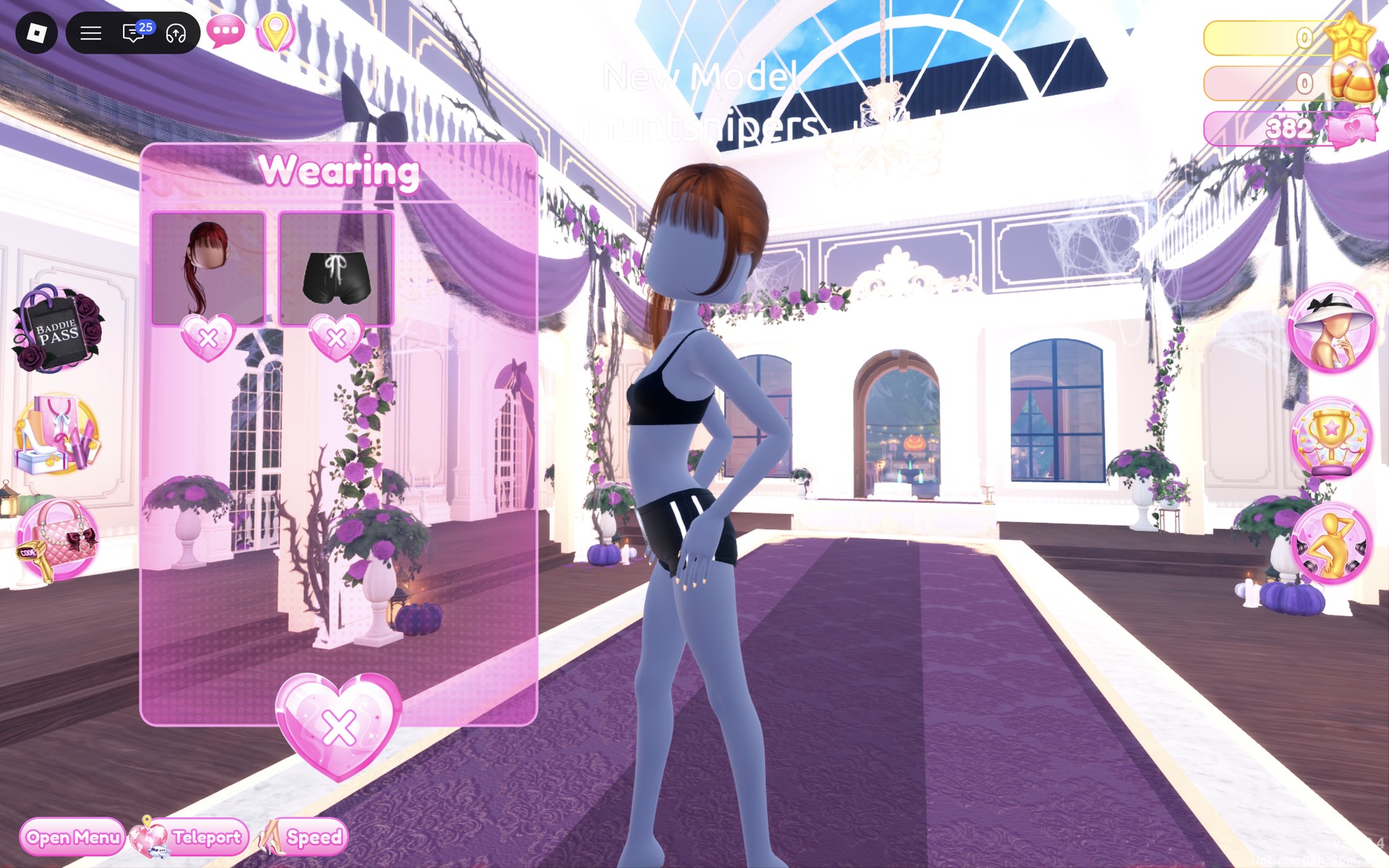
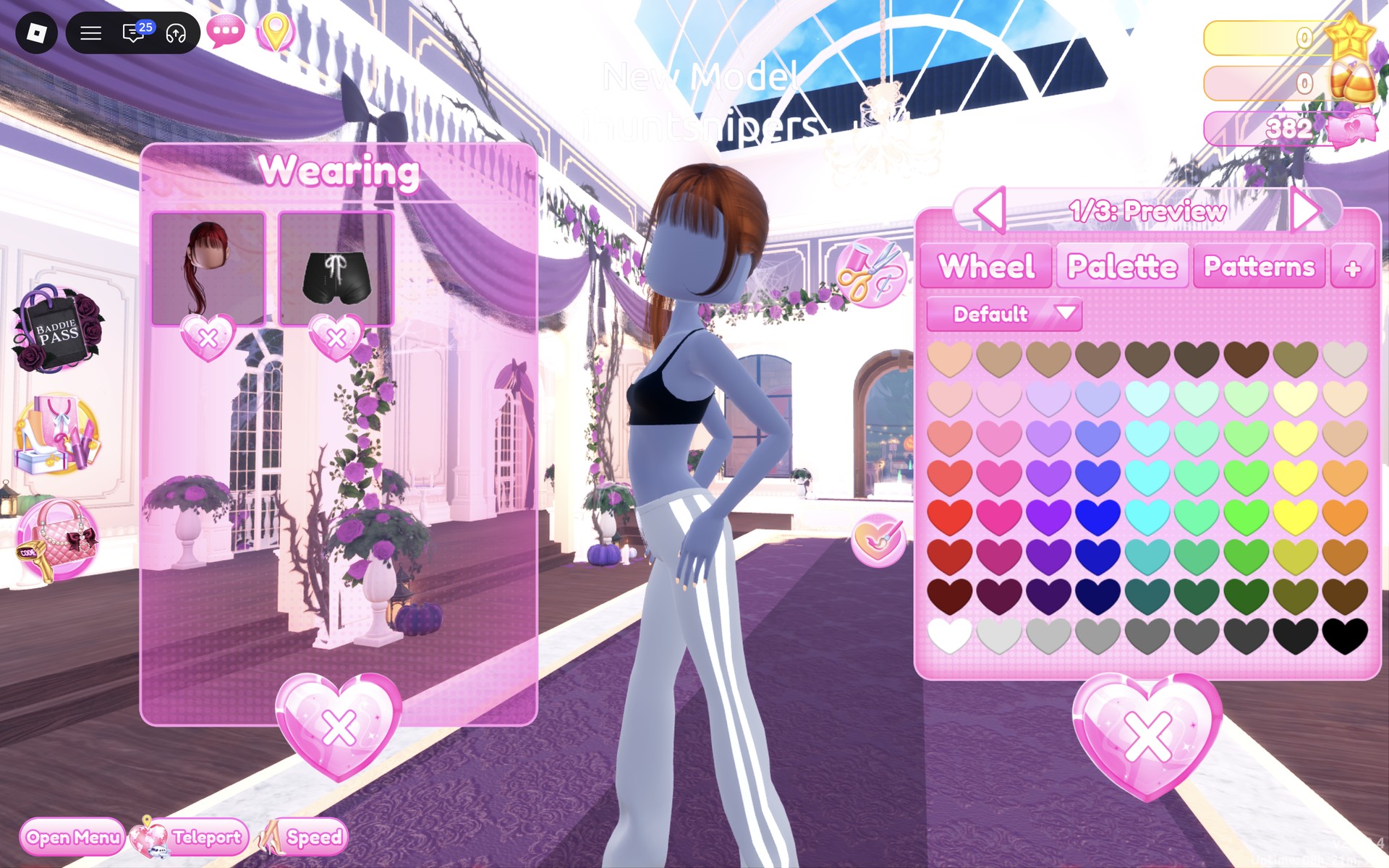
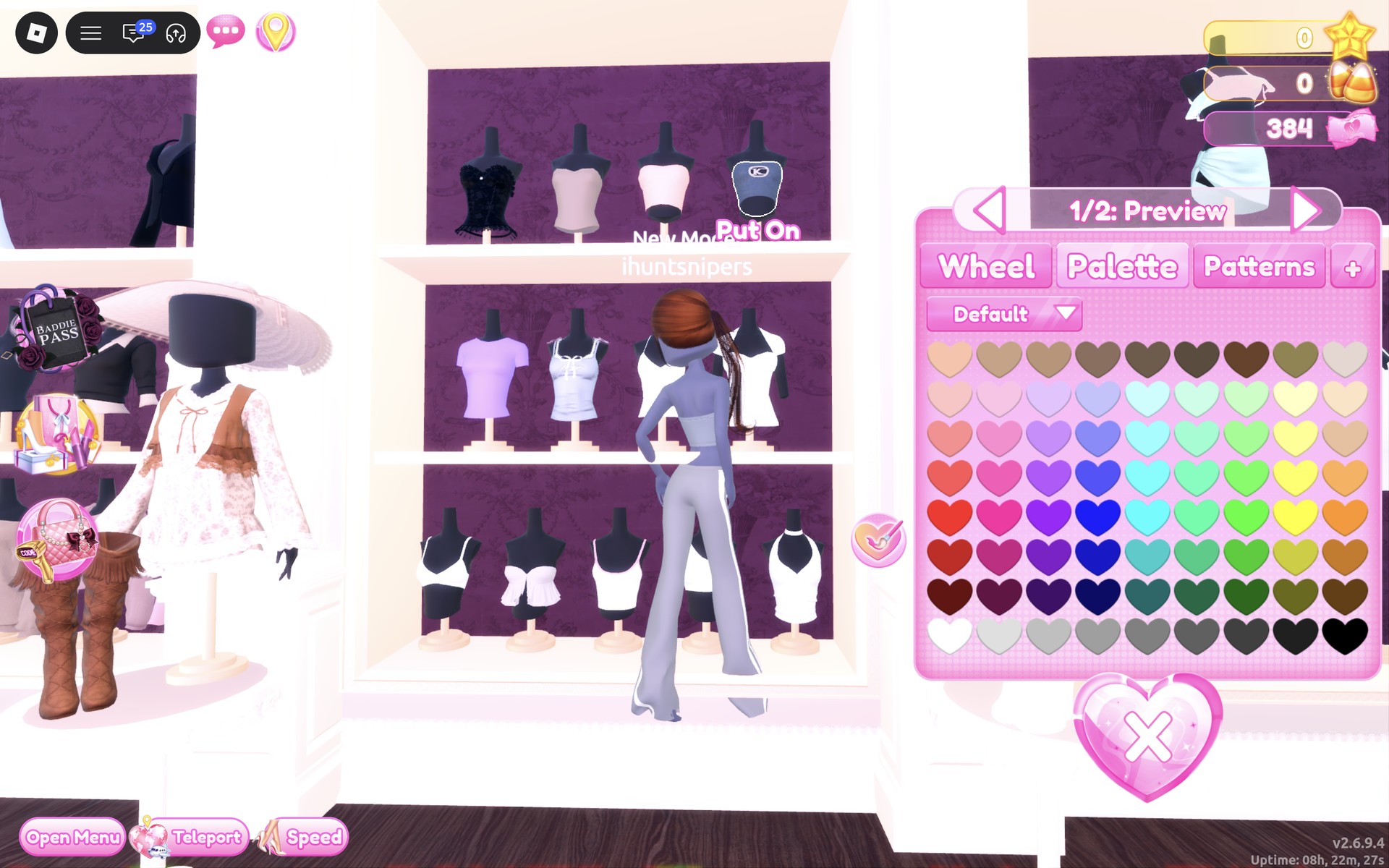
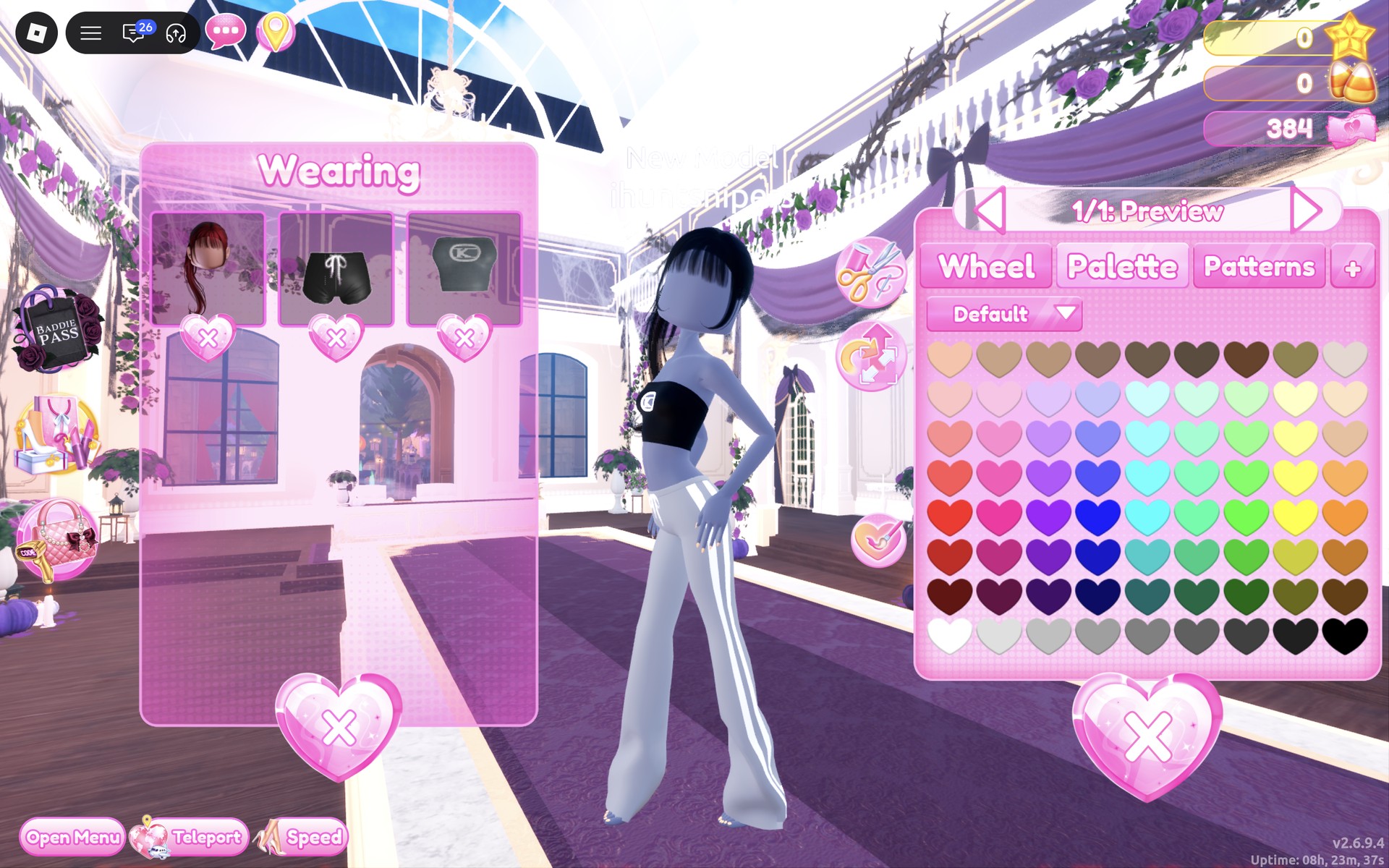
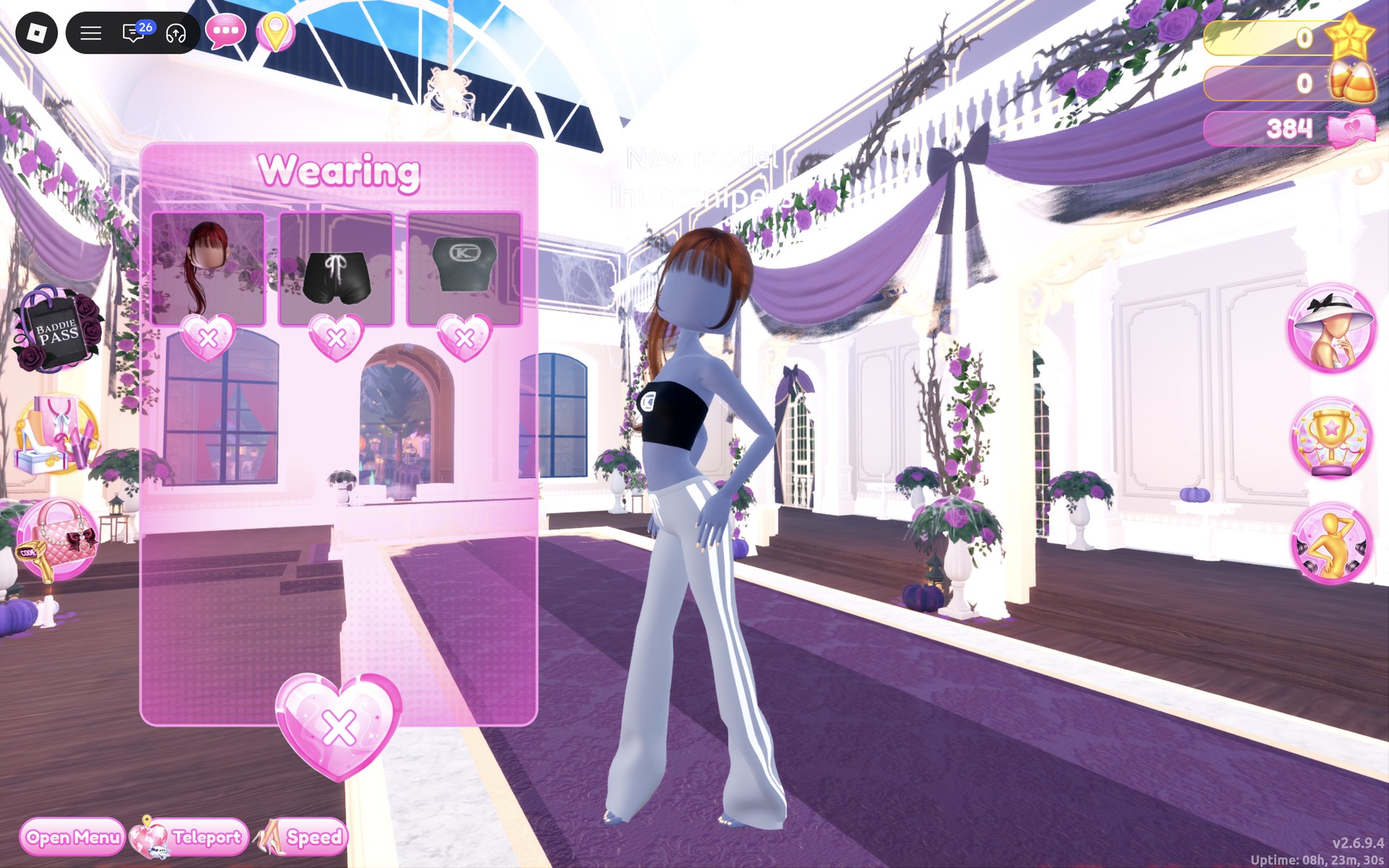
The finished look: black bangs and ponytail, a black cropped tube top with the white “K” badge, and light grey wide track pants with white side stripes and a white drawstring. The wide legs cover most of the bare feet.
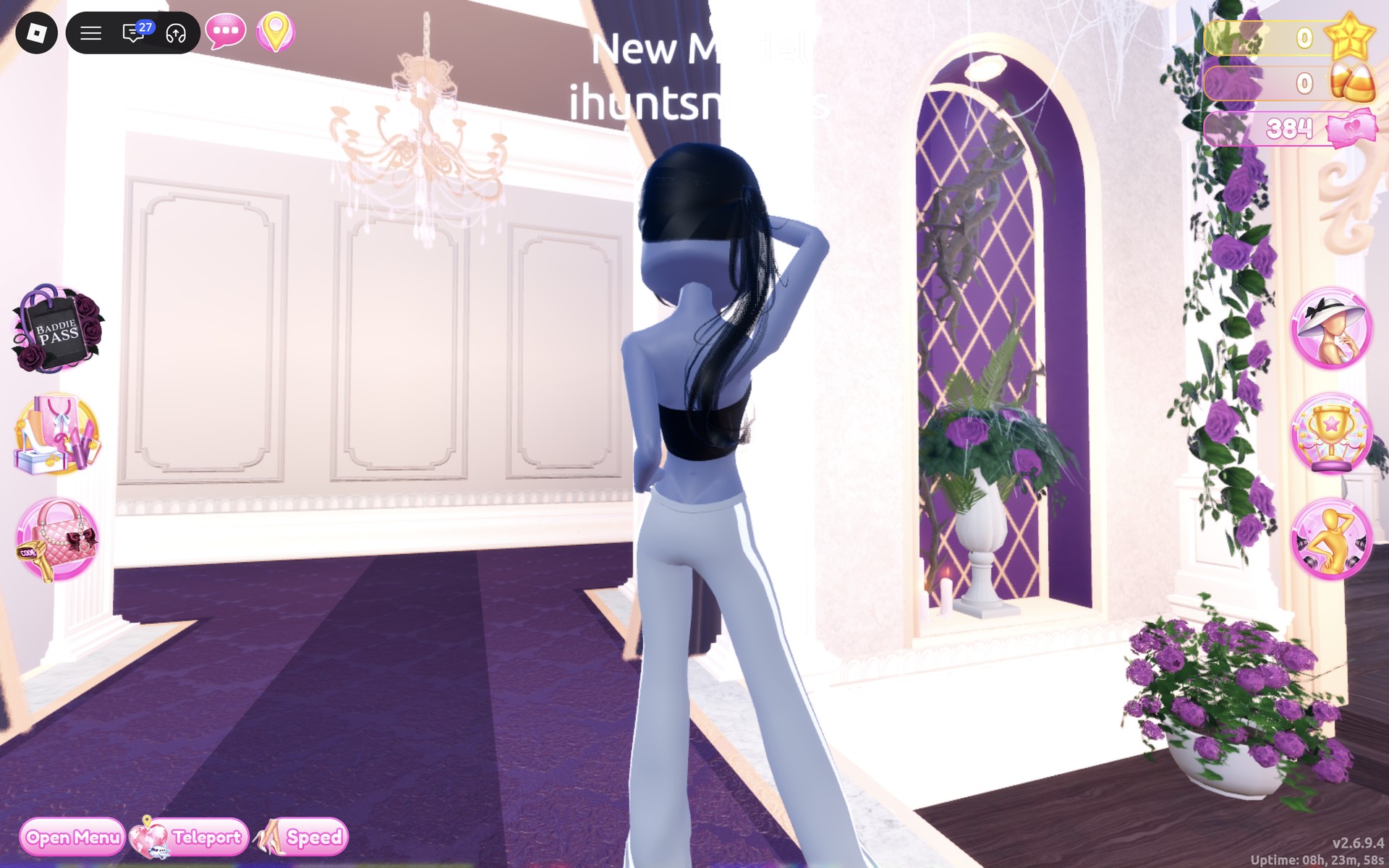
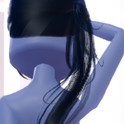
From behind, the black ponytail hangs over the back of the tube top, and the white stripes run down the sides of the pants.
The shorts that turn into track pants
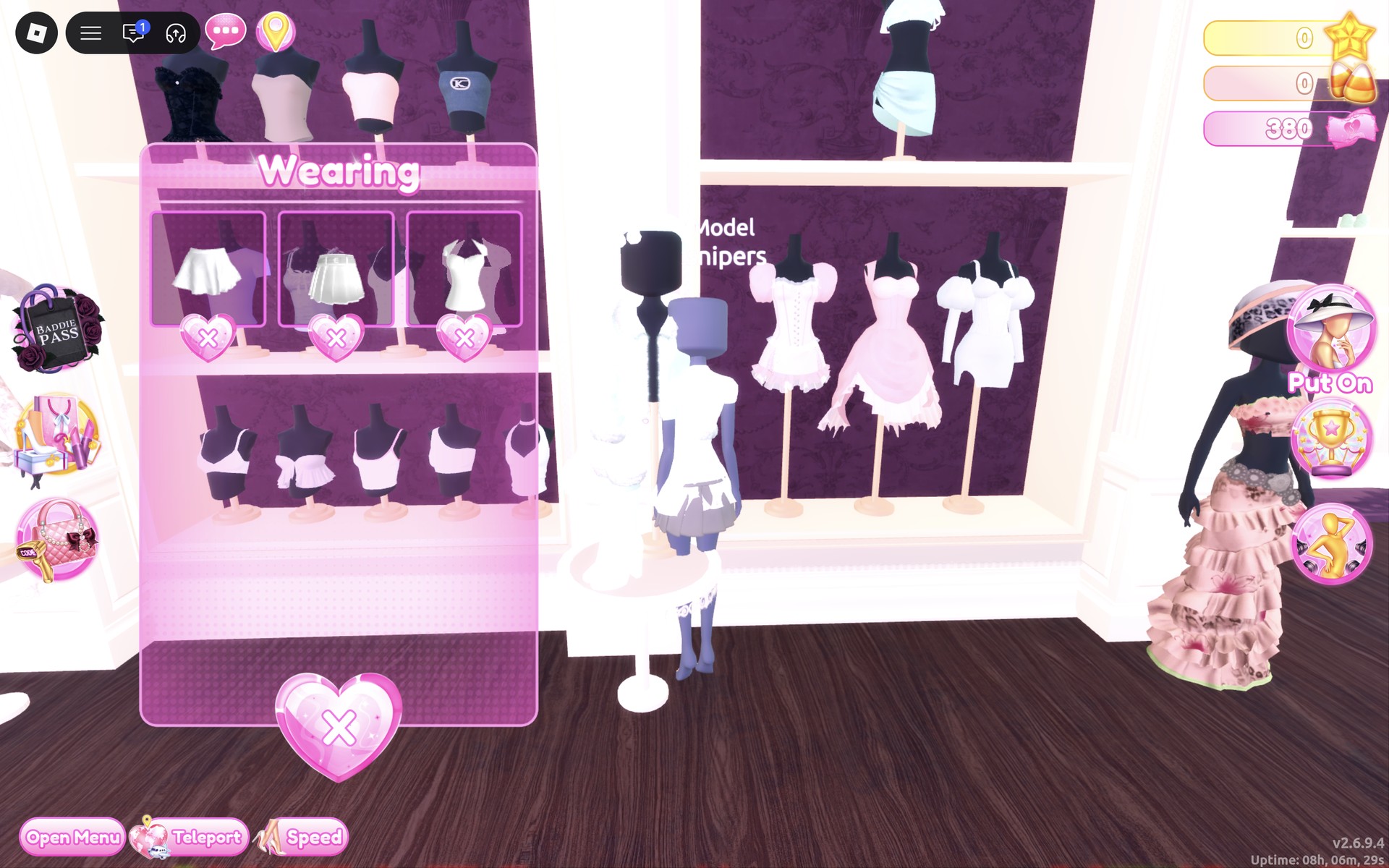
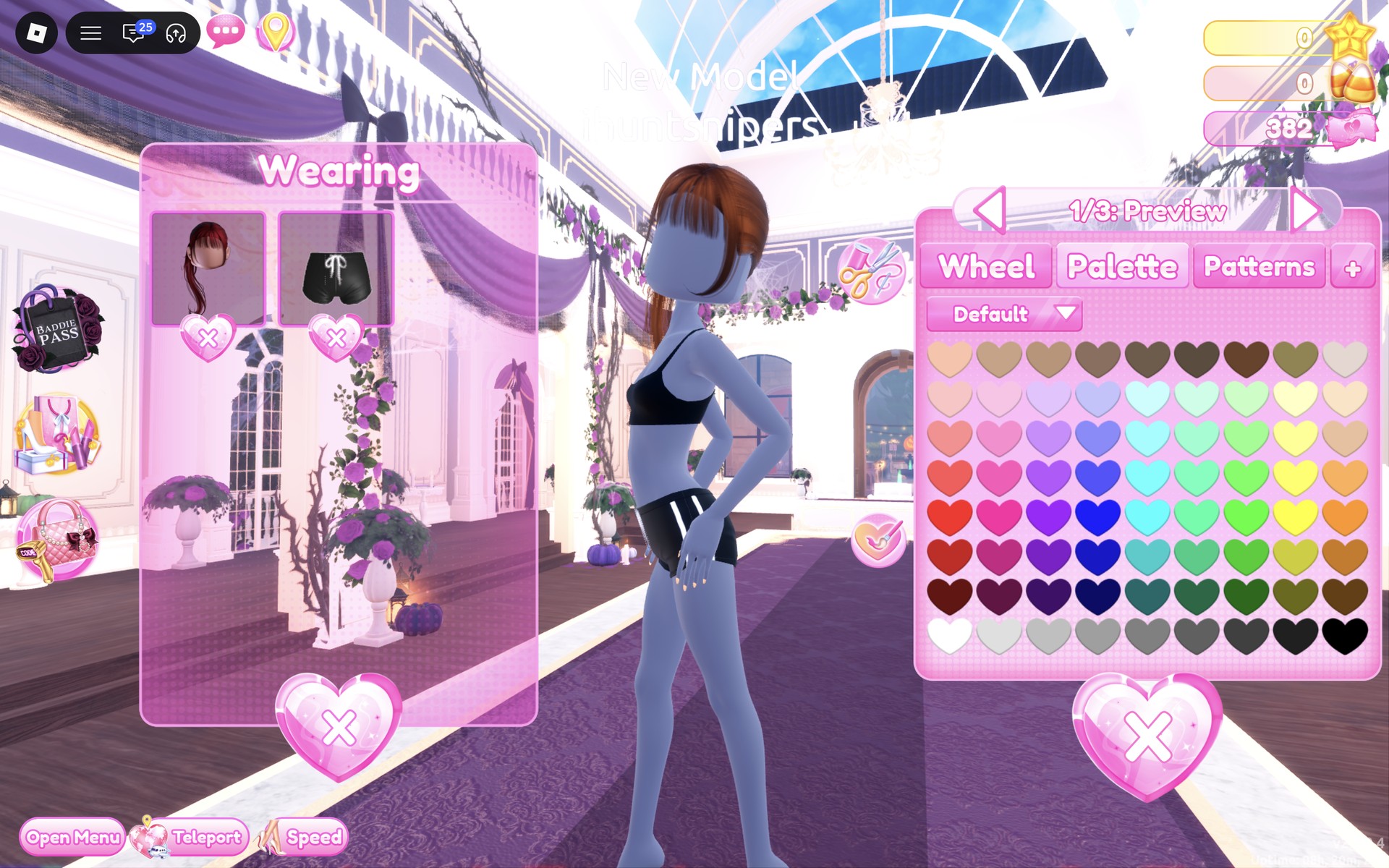
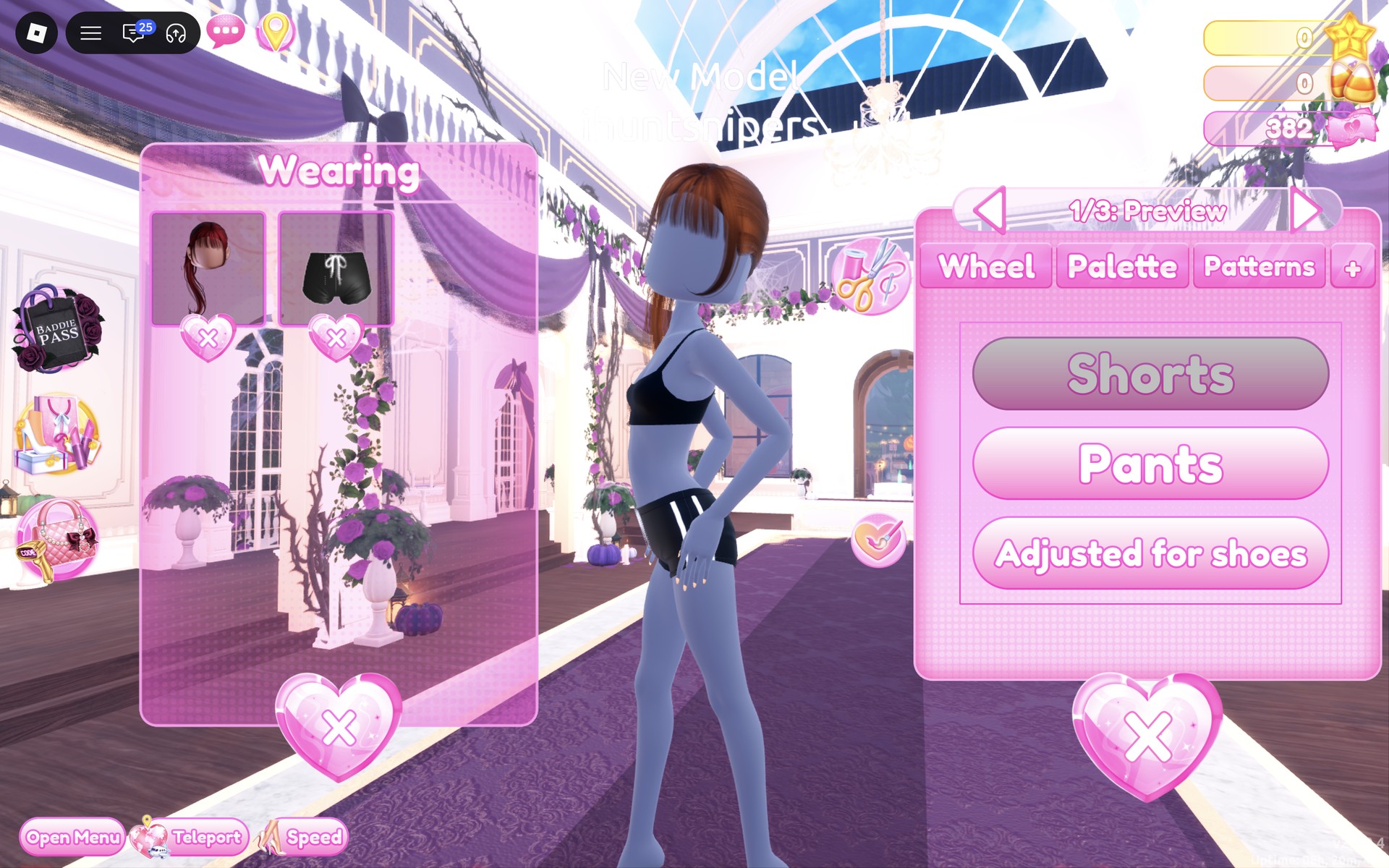
The black side-stripe shorts on the Dressing Room accessories wall are the most useful piece we found for Sport. Their color panel has three buttons: “Shorts”, “Pants” and “Adjusted for shoes”. Shorts gives the football-kit shorts in Look 2; Pants gives the wide track pants in Look 3. You can switch a piece you already wear: click its picture in the Wearing panel, then the scissors button beside the color panel, and the same three buttons come back. We did not try “Adjusted for shoes”, because we wore no shoes.
The same wall also holds white bike shorts (top shelf, left), white and black arm warmers and gloves (top shelf, right), and tan tights and black fishnet tights (lower shelf). We did not try them on for these looks.
Why these looks read as Sport
A sport look is built on clothes people play or train in: tennis whites with a short pleated skirt, a football kit with a colored shirt, shorts and long socks, or track pants with a cropped top. One strong color per kit (all white, red and black, grey and black) makes the sport easy to read on the runway. That is plain styling advice; we have not seen how any of them scores in a real round.
Look 2 uses the same tee as our Seifuku outfit ideas. For more movement-based themes, see our Gymnastics outfit ideas and Dancer outfit ideas; for comfy everyday looks, see our Lazy But Cute outfit ideas and Summer Camp outfit ideas; and for a casual photo-ready look, see our Instagram Model outfit ideas.
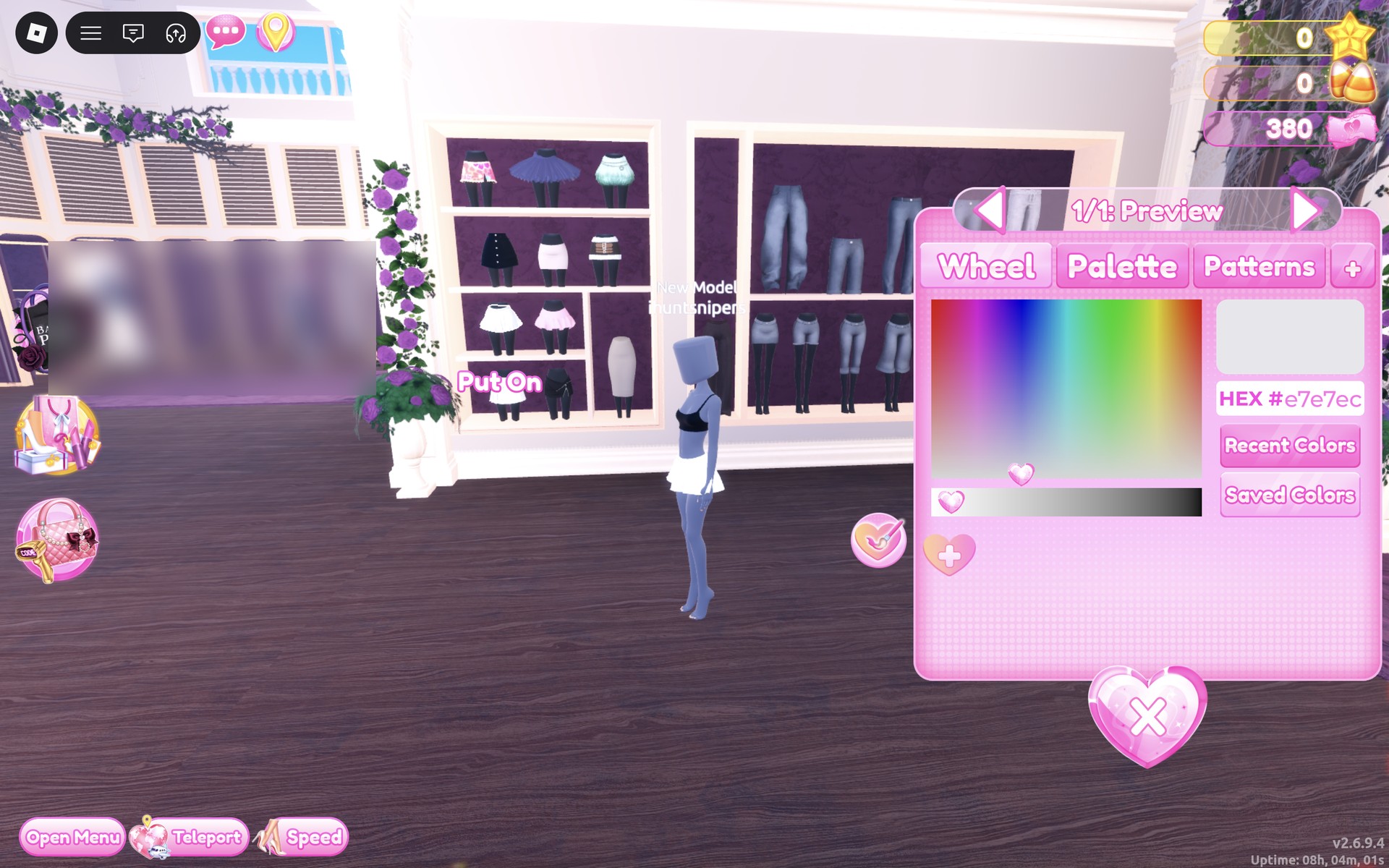
How to recolor a piece
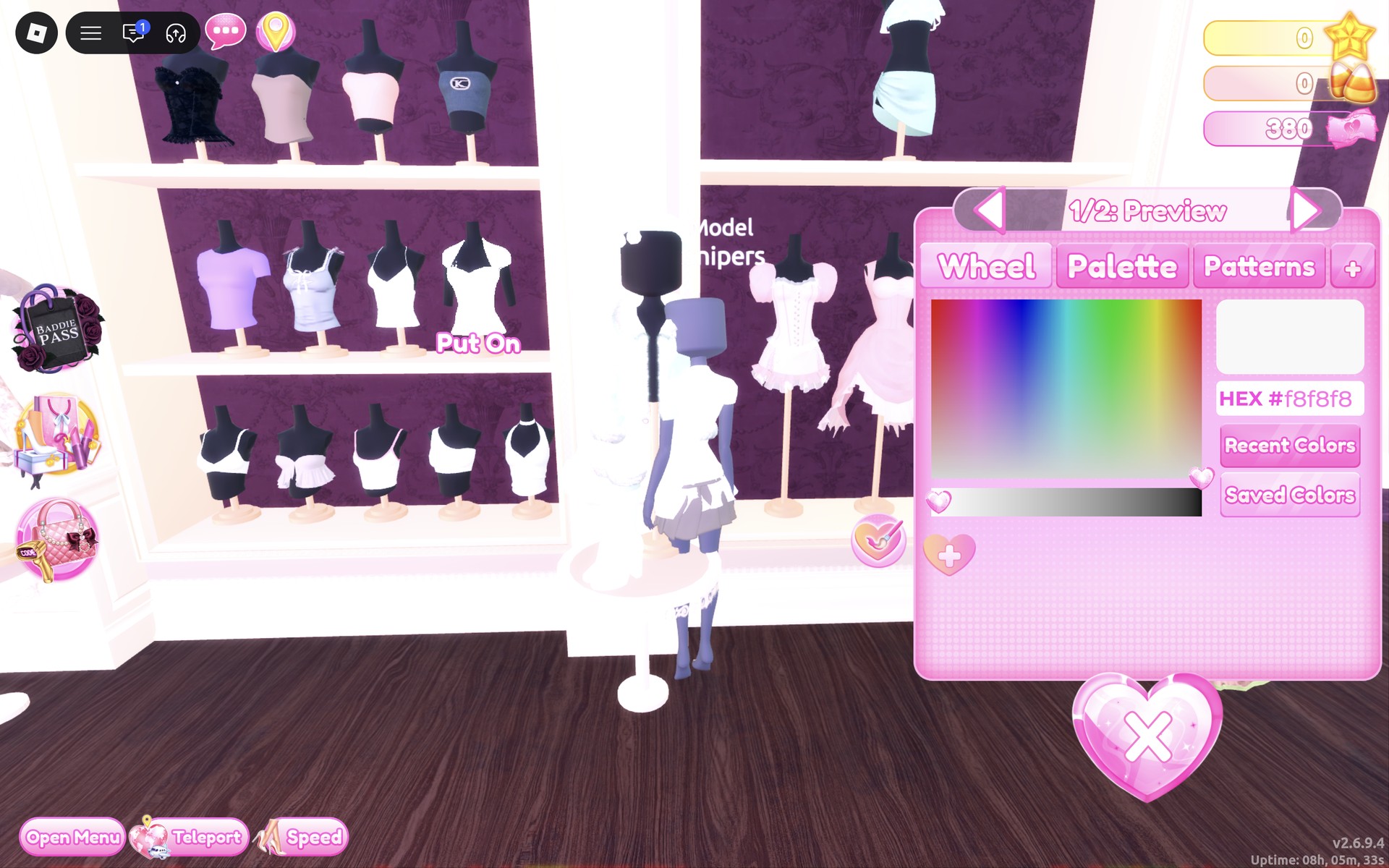
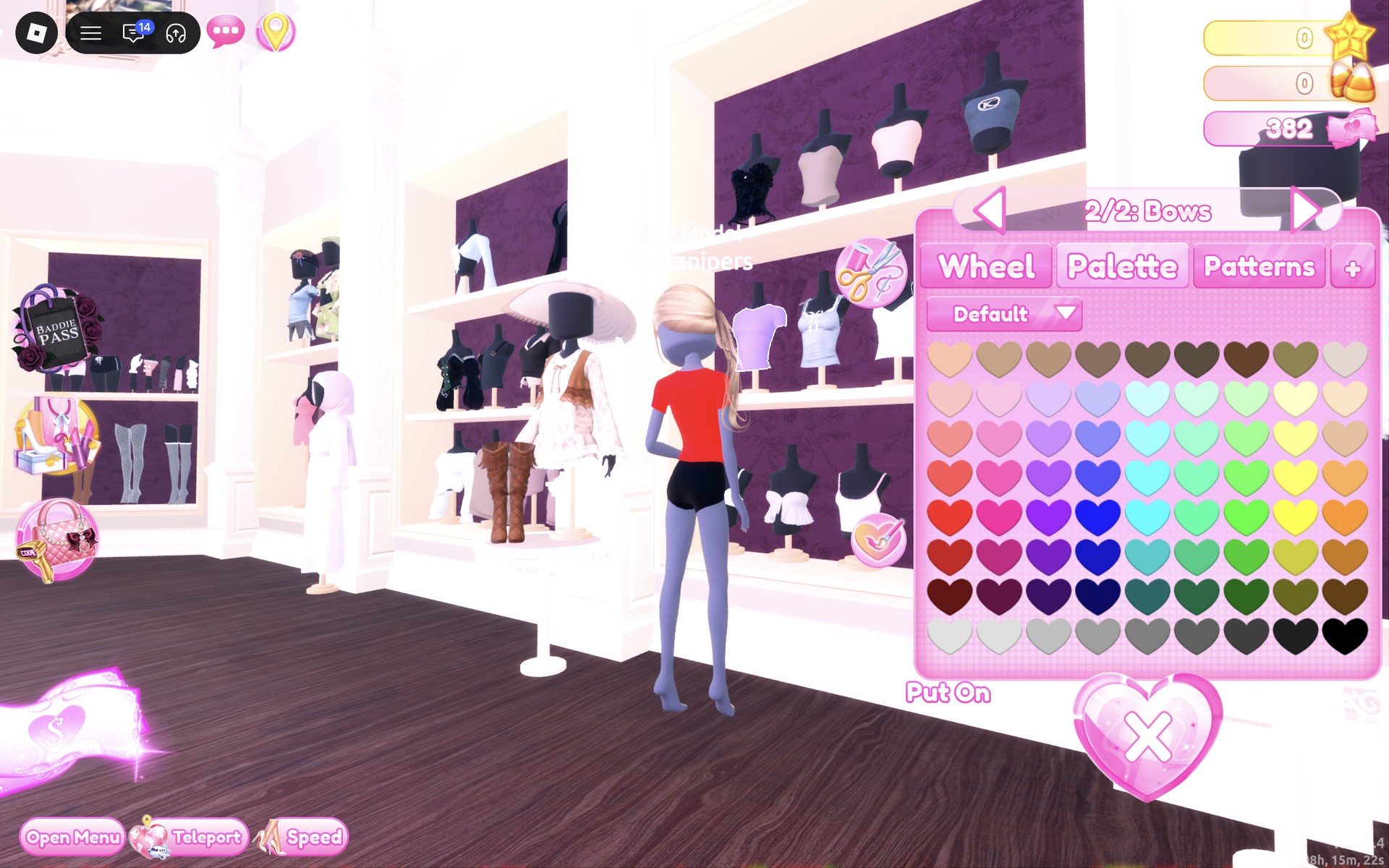
- Click the piece so it shows on you as a preview, and pick the part with the arrows beside the part name (“1/2: Preview” and so on).
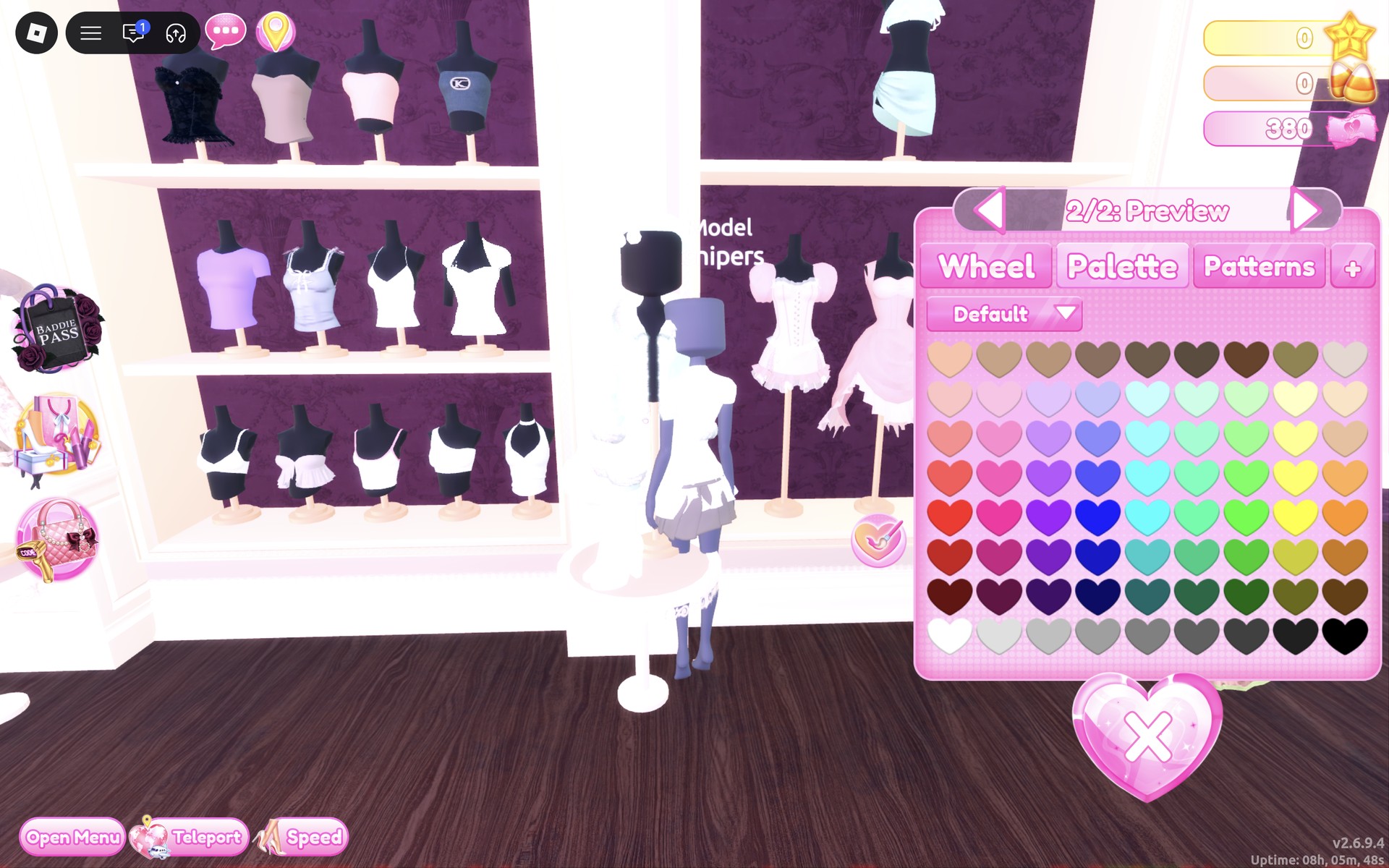
- Click a heart on the Palette for that part. Step to the next part with the right arrow and set it too; inner layers and trims count as parts.
- Press “Put On”. Colors set while previewing stay on the piece you wear.
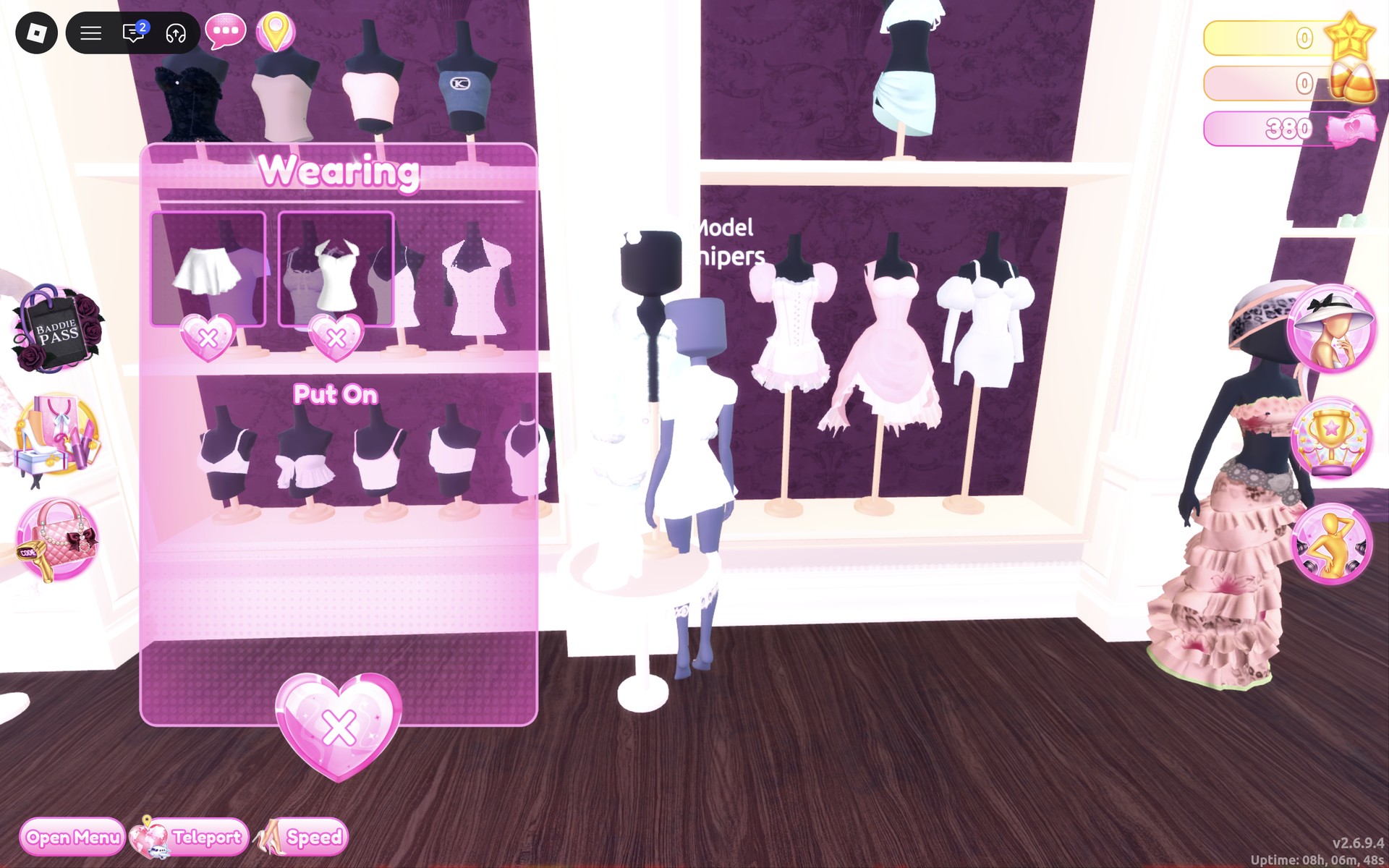
- To change a piece you already wear, including your hair, click its picture in the Wearing panel and set the part again. To take a piece off, click the heart X under its picture.
Sport colors on the Default palette
Rows count from the top of the palette, columns from the left. These are the spots we used for all three looks.
| Color | Column | Row | Used for |
|---|---|---|---|
| White | 1 (far left) | 8 (bottom row) | Look 1 top, both parts; Look 2 tee bows; Look 3 tube top part 2 |
| Honey blonde | 9 | 3 | Look 1 ponytail |
| Red | 1 | 5 | Look 2 tee |
| Brown | 7 | 1 (top row) | Look 2 ponytail |
| Grey (reads light grey) | 5 | 8 (bottom row) | Look 3 track pants |
| Black | 9 (far right) | 8 (bottom row) | Look 3 tube top part 1 and ponytail |
Sport pieces to look for
None of these pieces has a name in the game, so look for them by place and shape. All of them are free and worked on our account with no VIP and 0 stars.
| Piece | Where | Colors we used |
|---|---|---|
 White flared pleated mini skirt (one part) | Freeplay spawn hall, skirts and trousers wall right of spawn, third shelf down, left | Look 1: kept its default white (HEX #e7e7ec) |
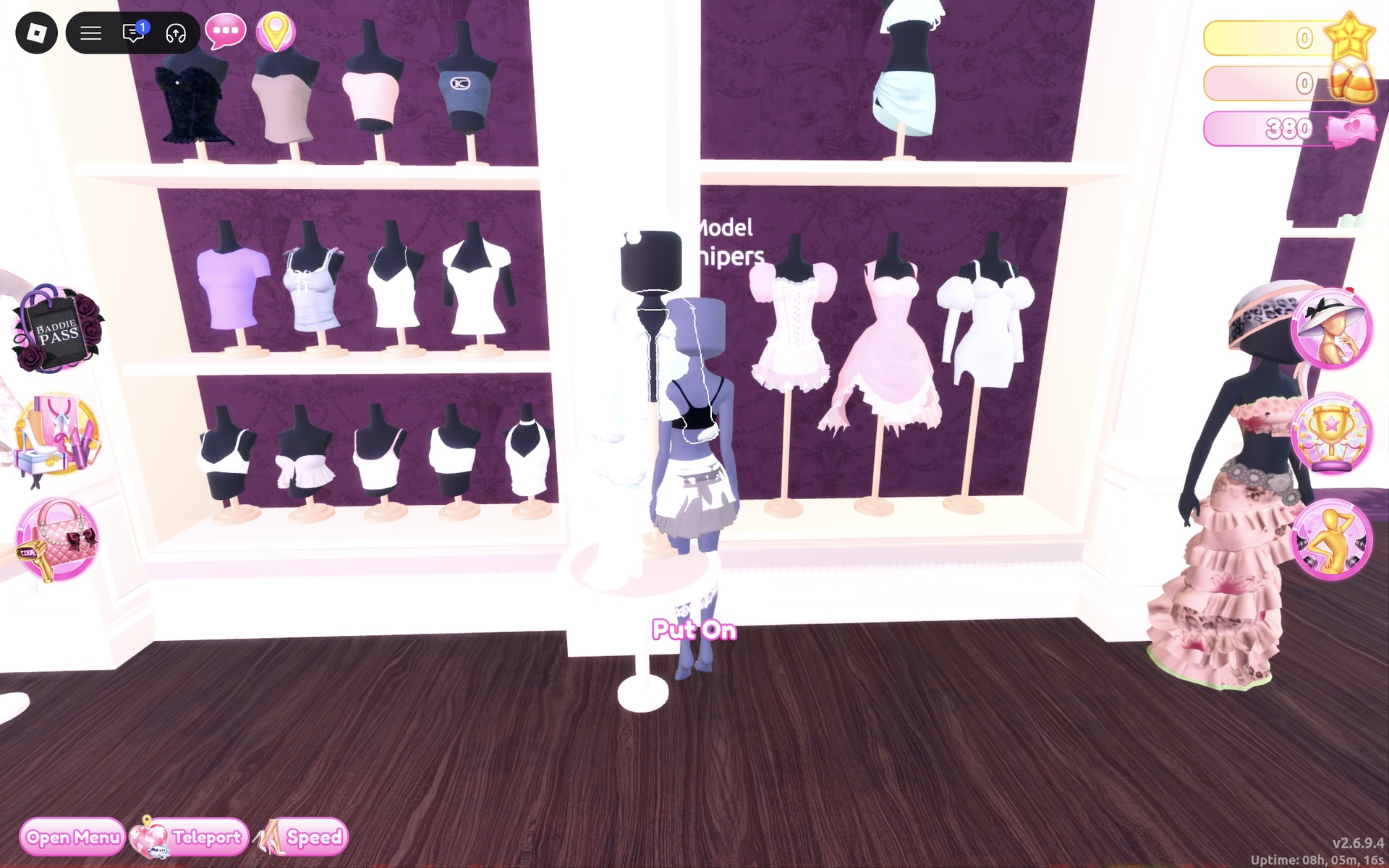
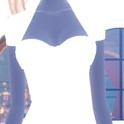 Cap-sleeve top with a sweetheart neckline (two parts: the top and an inner bust layer) | Dressing Room tops wall, middle unit, middle shelf, far right | Look 1: part 1 kept white (HEX #f8f8f8), part 2 white (column 1, row 8) |
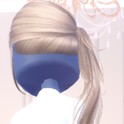 Side ponytail with full bangs | Lana’s Salon hair chairs, Hairstyles, Updo tab, row 3, right card | Look 1: honey blonde (column 9, row 3); red by default |
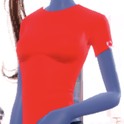 Fitted T-shirt with small bows on the sleeves (two parts), lilac on the shelf | Dressing Room tops wall, middle unit, middle shelf, far left | Look 2: part 1 red (column 1, row 5), part 2 (Bows) white |
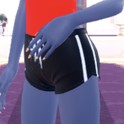 Athletic shorts with a white drawstring and white side stripes (three parts, Shorts / Pants / Adjusted for shoes) | Dressing Room accessories wall left of the tops wall, top shelf, second from left | Look 2: kept black, worn as Shorts |
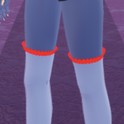 Thigh-high socks with a frilled top band (two parts), grey on the shelf | Same accessories wall, lower shelf, right | Look 2: part 1 white, then black; part 2 (the band) red. Only the red bands stand out on the runway |
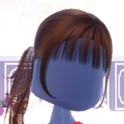 The same side ponytail, recolored | Recolored from the Wearing panel | Look 2: brown (column 7, row 1) |
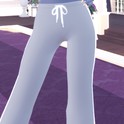 The same athletic shorts switched to Pants: wide full-length track pants with white side stripes and the drawstring | Switched from the Wearing panel with the scissors button | Look 3: grey (column 5, row 8); reads light grey on the runway |
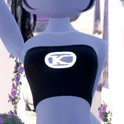 Cropped tube top with a round “K” logo badge on the front (two parts), grey on the shelf | Dressing Room tops wall, middle unit, top shelf, far right | Look 3: part 1 black (column 9, row 8), part 2 white |
 The same side ponytail, recolored | Recolored from the Wearing panel | Look 3: black (column 9, row 8) |
Poses for Sport
Any free pose from the Poses menu works; a hand on the hip or on the head suits a team-photo look. For the full list with a picture of each, see every free pose in Dress To Impress.
Building it in Freeplay Mode first
Freeplay Mode has no timer, so it is the place to find the pieces and set the colors without a round running out. That matters here: the shorts sit on a wall away from the other clothes, a leftover skirt can stay on under a new one, and an inner layer set to the wrong color shows through the top. Once a look works, you know which shelf, which colors and which parts to go to when Sport comes up in a real round. For more themes built the same way, see our Boho, Robot Takeover, Album Cover, Potion Maker, Monochrome Mood, Divine Beings, Drag, Sweet 16, Camouflage, Deserted Island, Summer Cruise, Favorite Show, Fairytale, Cotton Candy Couture, Cyberpunk, Birth Stones, Y2K Popstar, Video Game Character, Top Model, Fast Food Mascot, DJ, Award Show, Drama Queen, Instagram Model, Day of the Dead, Malibu Dream, Stained Glass, Summer Camp, Modern Royalty, Trad Goth, Wonderland, Trip To London, Pop Art Princess, Sugar And Spice, Paranormal Investigator, Cursed Lagoon, Complementary Colors, Galactic Glam, Dancer, Midnight Circus, Jellyfish, Garden Tea Party, Enchanted Curse, Harvest Festival, Thrifted, Lazy But Cute, Possessed, Night At The Orchard, Bioluminescent Depths, Coronation, Your Country, Reality Television, Subway Rush, Candlelit Library, Dystopia, Decora, Vaporwave, Gymnastics, NPC Core, Webbed In Style, Punk and Seifuku outfit ideas.
How a theme round works
We have not had Sport as a round yet; this is from ordinary server rounds on other themes. On the main lobby, the theme shows in a banner at the top with a timer under it. After dressing, each player walks the runway in turn, about 7 seconds each, while the others vote with five stars along the bottom of the screen, with a “Voting complete!” banner between players. A “Results” card then ranks the players, followed by an “Intermission” countdown.
The “Pick Theme” button next to the intermission timer lets you choose the theme, but only with Theme Props. The panel reads “You have: 0 Theme Props” and offers a “Buy More” button priced at 75 Robux. We bought none and saw no free ones, so without Robux you wait for Sport to roll.
What we have not checked
No round we joined rolled Sport, so these looks have not walked a real round: there is no score, star count or vote for them. We found no sneakers, sports shoes, racket, ball to hold, headband, wristband or jersey number, and did not search every shelf for them; we saw what looked like a ball among the props on a shelf in the spawn hall but did not click it. We did not try the “Adjusted for shoes” button, the bike shorts, the arm warmers or the gloves. All three looks are barefoot, and we added no makeup or nail colors. Looks 2 and 3 recolor the same ponytail, and Look 3 reuses Look 2’s shorts as pants. They were built with 0 stars, and nothing was bought.
FAQ
What should I wear for Sport in Dress To Impress?
Pick one sport and dress for it: tennis whites (white pleated mini skirt and a white cap-sleeve top), a football kit (a red tee, black side-stripe shorts and thigh-high socks with red bands) or athleisure (grey track pants and a cropped tube top).
Can I do Sport without VIP?
Yes. All three looks were built on an account with no VIP and 0 stars, and every piece and color used here worked on it, with no lock or price on any of them.
Where are the athletic shorts in Dress To Impress?
On the Dressing Room accessories wall, to the left of the tops wall: top shelf, second from the left, black with a white drawstring and white side stripes. Their panel has Shorts, Pants and Adjusted for shoes buttons.
How do I turn shorts into track pants?
Click the shorts’ picture in the Wearing panel, click the scissors button beside the color panel, and pick “Pants”. The same piece becomes wide full-length track pants with the side stripes.
Are there sneakers in Dress To Impress?
We did not find sneakers or any sports shoes for these looks, so all three are barefoot. We did not search every shoe display.
Is Sport the same as Gymnastics?
No. Gymnastics is about leotards; our Gymnastics outfit ideas use sparkly leotard-style tops. Sport is wider: any athlete’s kit or sporty everyday clothes, like the tennis, football and track looks here.