Album Cover is one of the more open themes in Dress To Impress. A cover is one picture, so the clearest plan is to choose one music style and commit to it. Below are three finished looks for a rock cover, a streetwear cover and a pop-star glam cover. Each one notes where to find the pieces, how to colour them and which pose to pick. You can rehearse all three in Freeplay Mode before you try them in a round.
Quick answer: Pick one music style and dress fully in its colours: a black Leather jacket and boots for rock, an oversized blue Denim hoodie for streetwear, or a hot-pink Glitter gown with a silver Metallic belt and the Dazzle pose for pop.
Dressing Room controls for the Album Cover looks
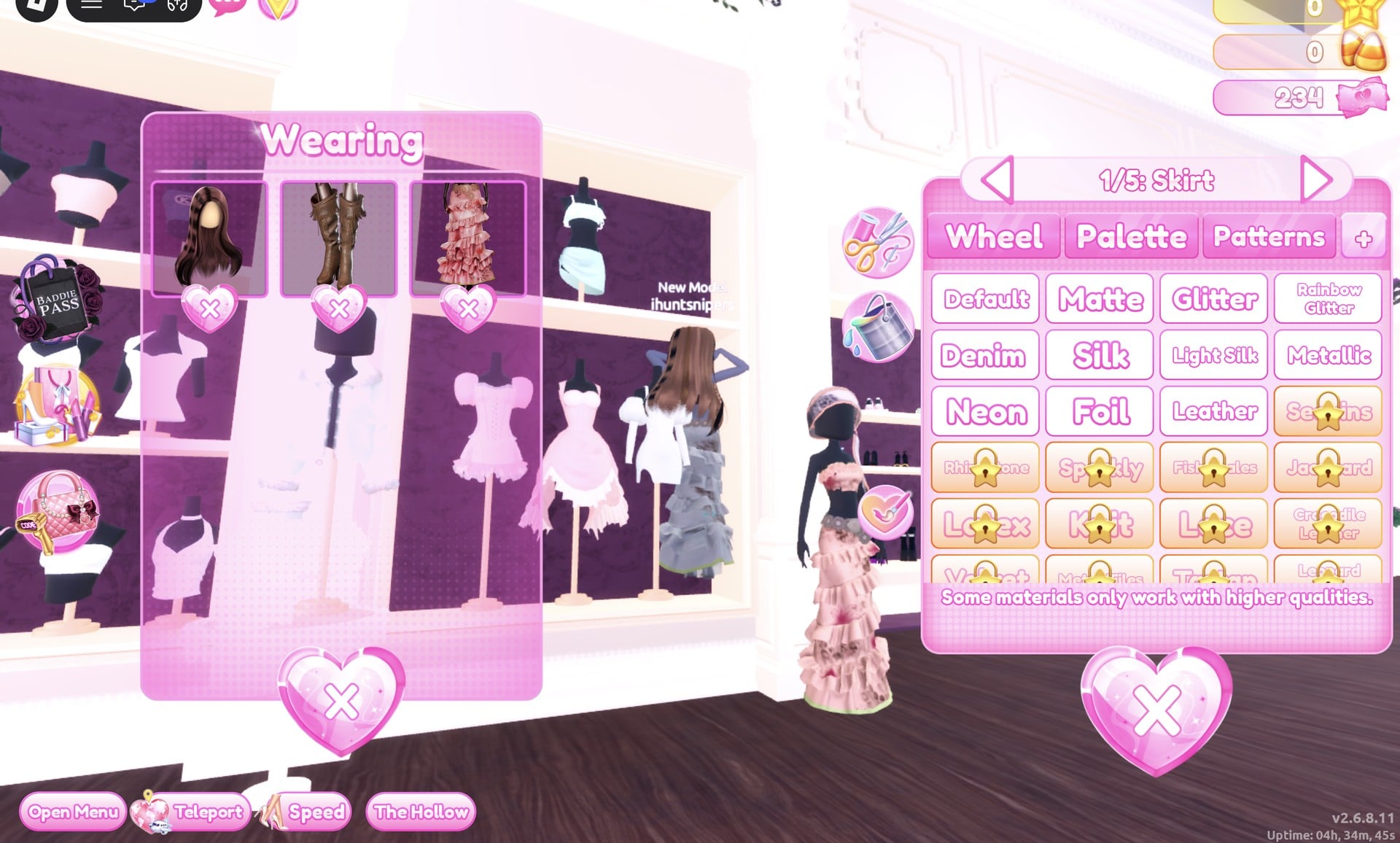
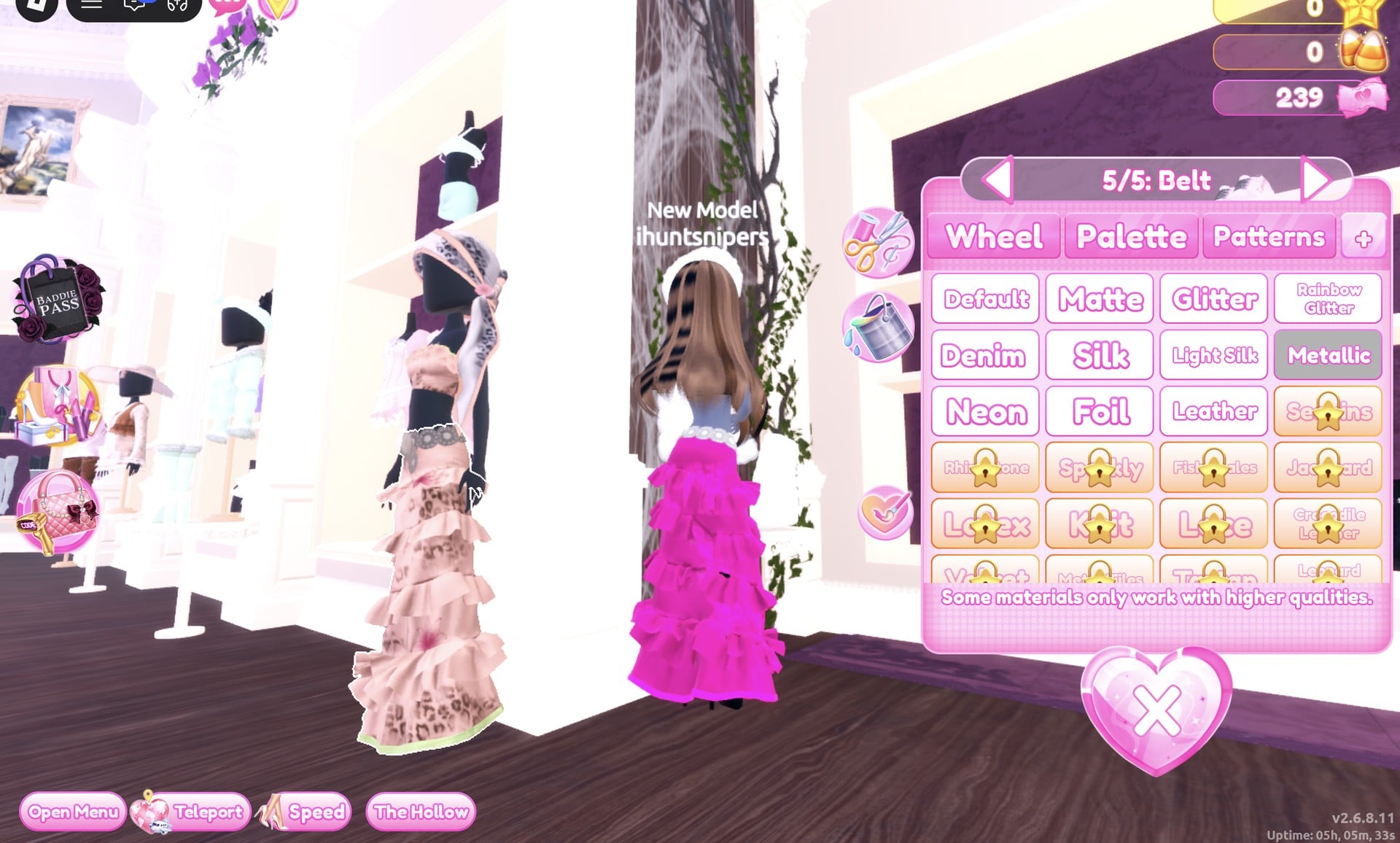
All three outfits use the same Dressing Room workflow. Dress To Impress does not show item names, so every piece below is described by where it sits on the shelves or mannequins. Some pieces do show part labels when you open them, such as “1/5: Skirt”.
- Double click a piece on its bust or mannequin to open it.
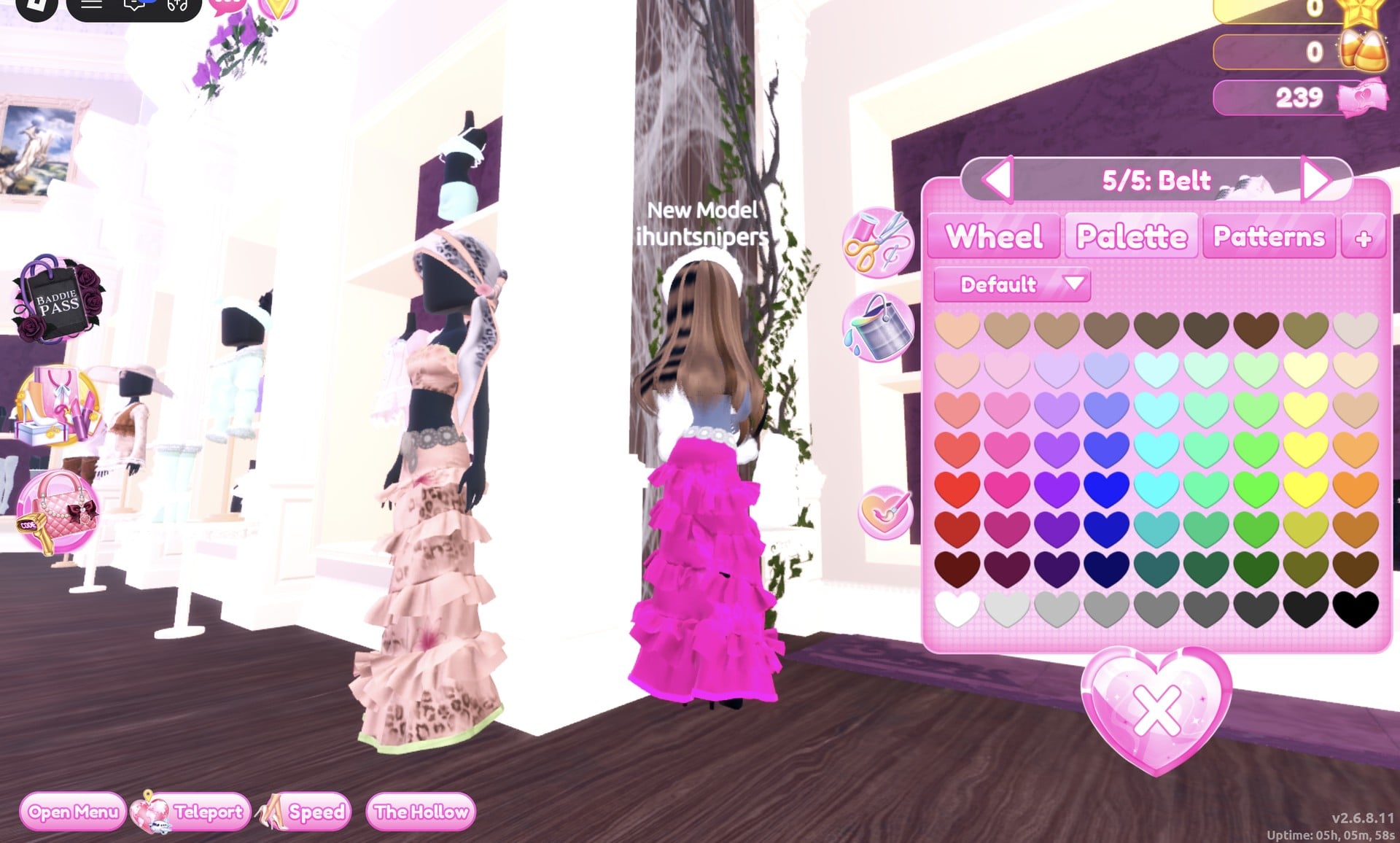
- Colour each part on the Palette tab. Use the arrows to move between parts.
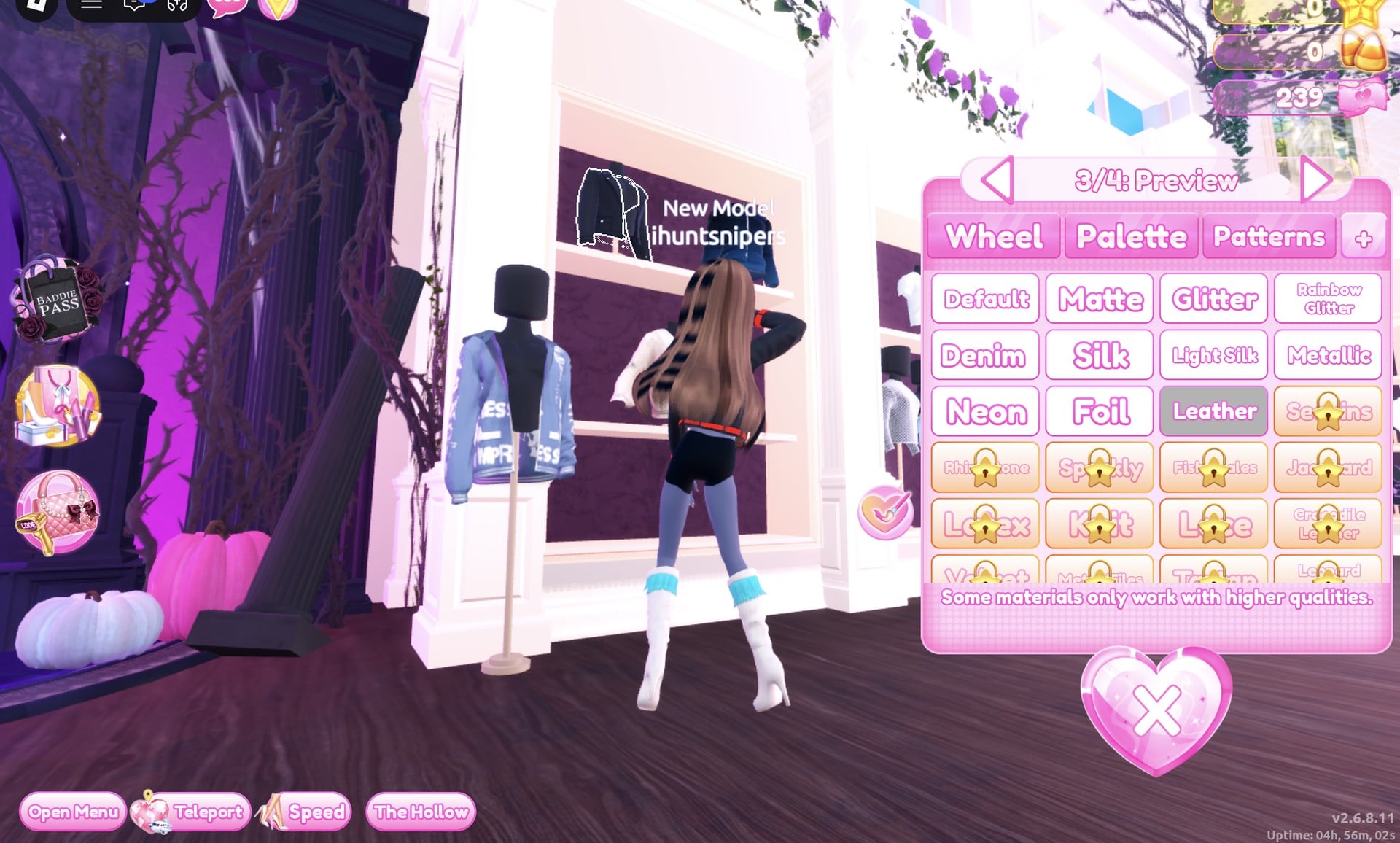
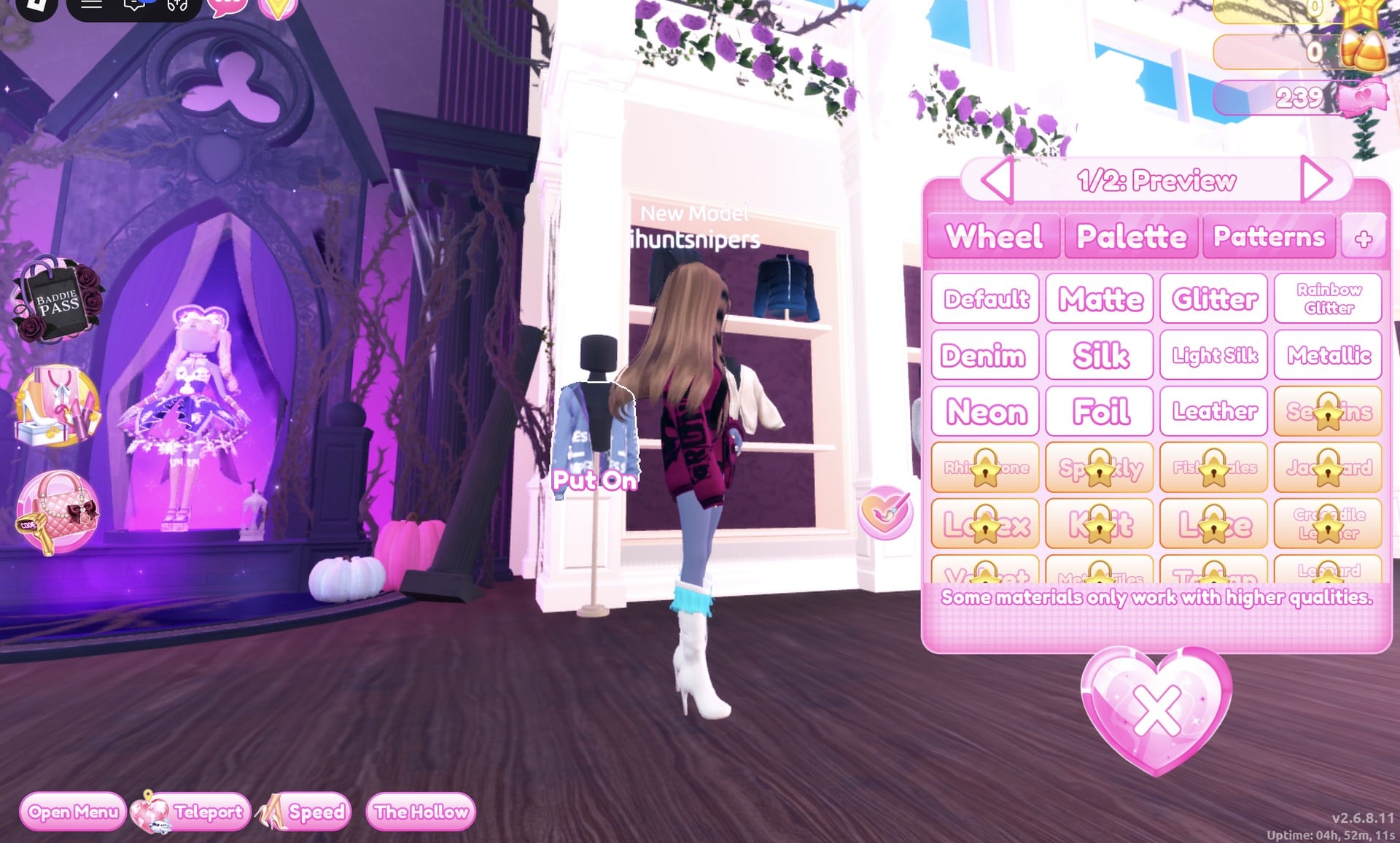
- The fourth tab, marked “+”, holds materials like Leather, Denim and Glitter. Set each part’s colour and material while you are still previewing the piece, then press “Put On”.
- You can recolour a piece you are already wearing. Open the Wearing panel with the round hat button on the right side, then click the piece’s picture.
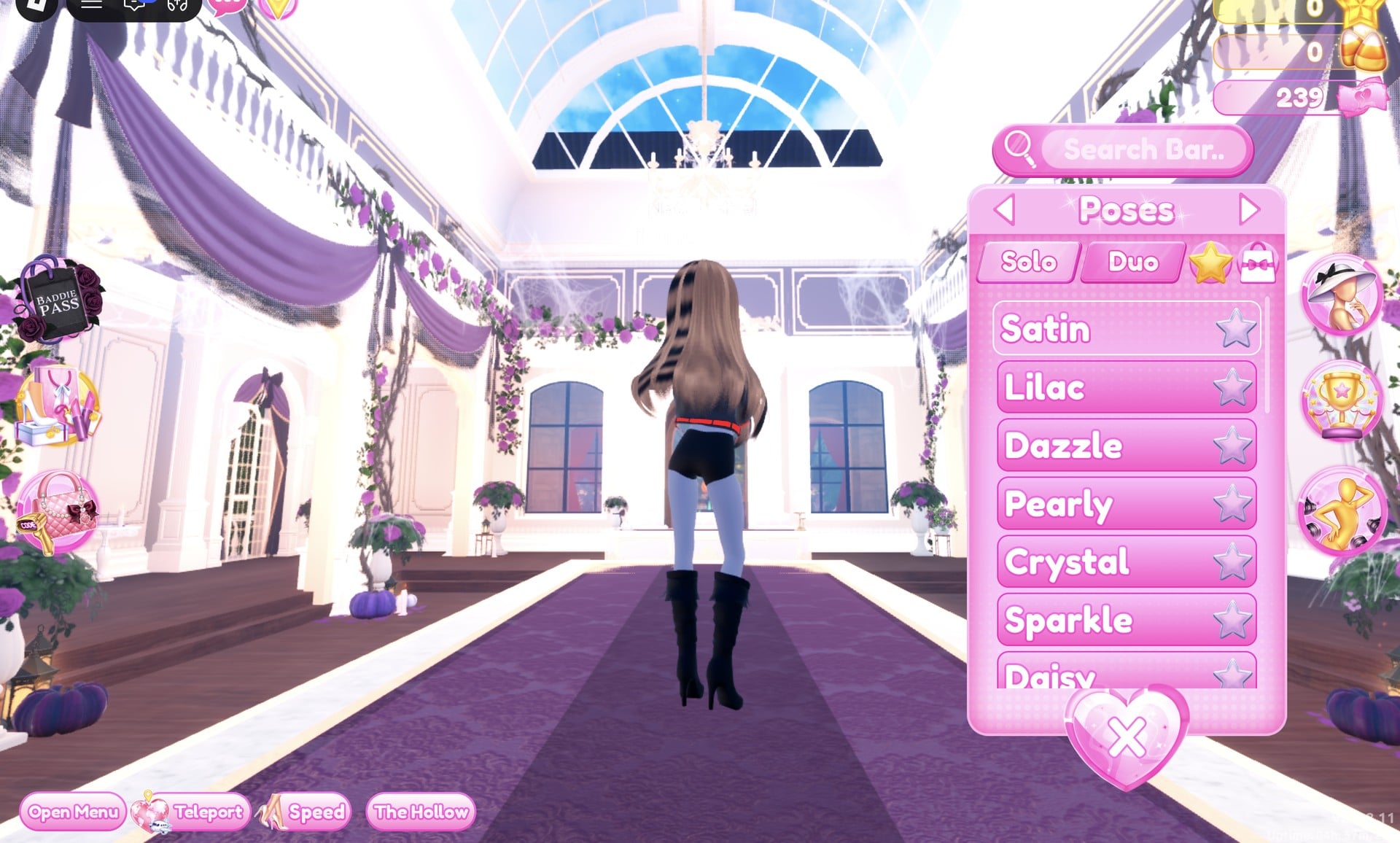
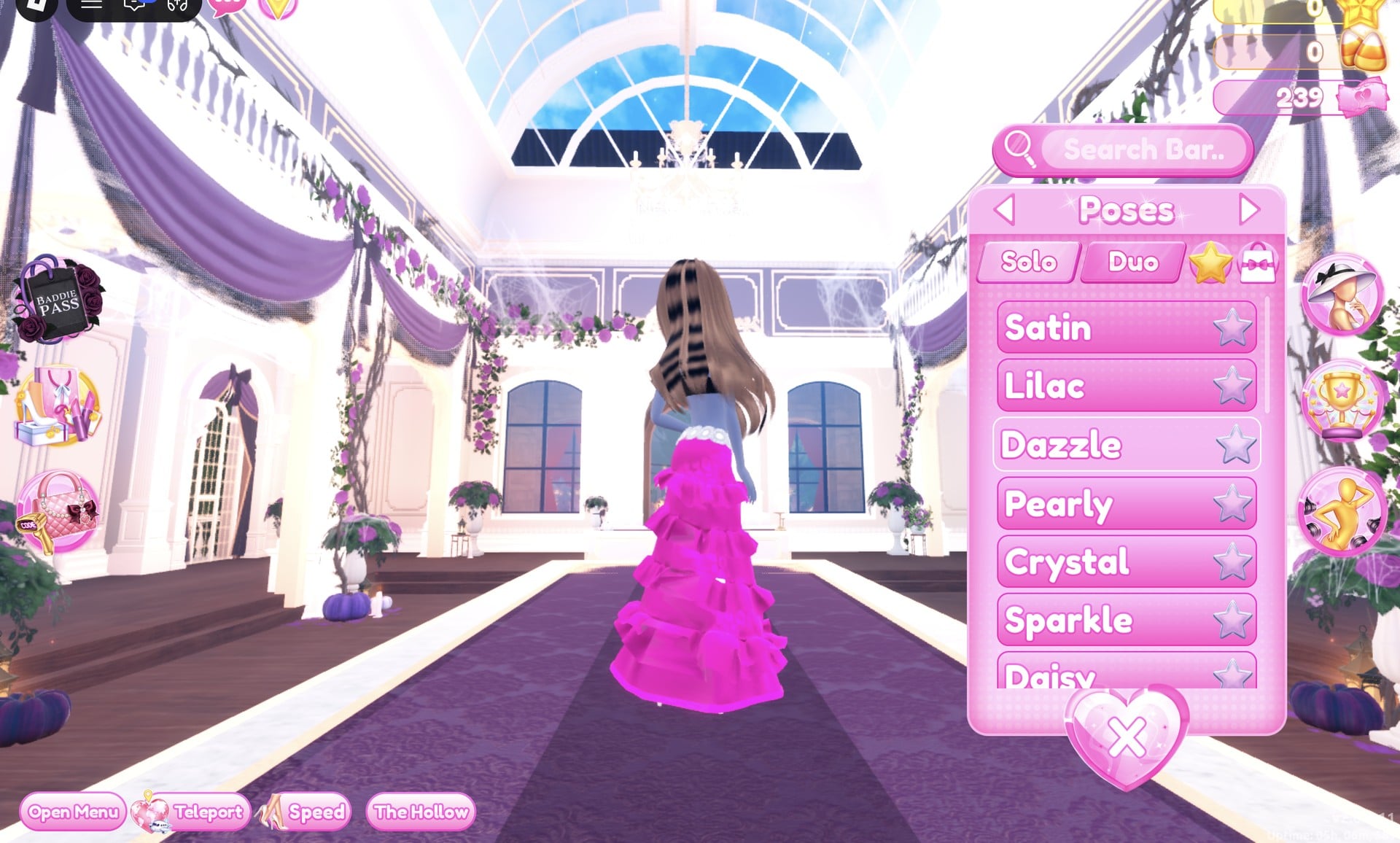
- Open poses with the Poses button, the lowest button on the right side. The Solo tab lists single-player poses, and there is a Search Bar.
On our account with 0 stars, these materials were open: Default, Matte, Glitter, Rainbow Glitter, Denim, Silk, Light Silk, Metallic, Neon, Foil and Leather. Sequins, Rhinestone, Sparkly, Fish Scales, Jacquard, Latex, Knit, Lace, Crocodile Leather, Velvet and more further down carry a gold star lock; we did not try them. A notice in the materials panel reads, “Some materials only work with higher qualities.”
All three looks below use only free materials and were built on an account with no VIP and 0 stars. Nothing was bought.
Look 1: Rock cover (black leather jacket)
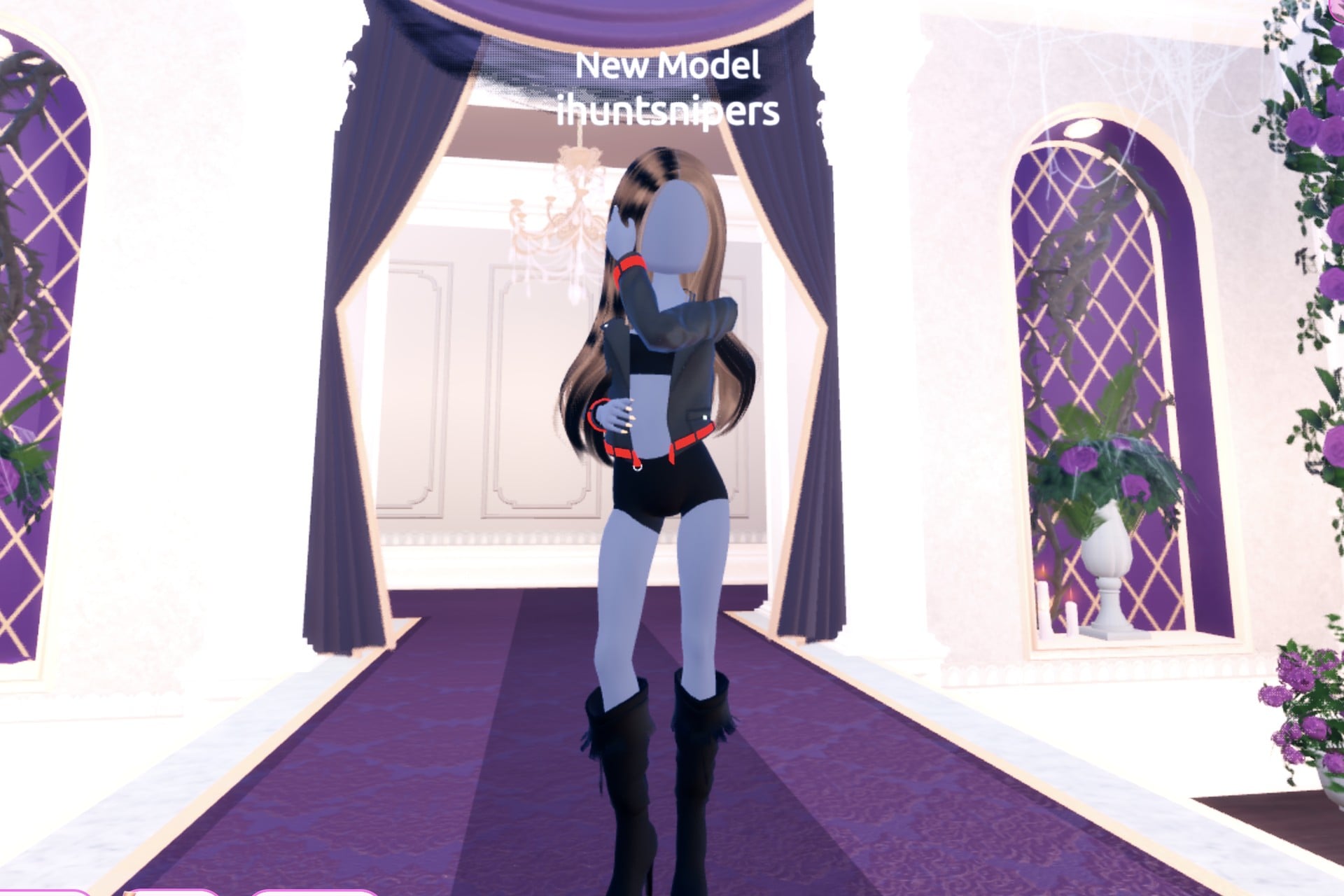
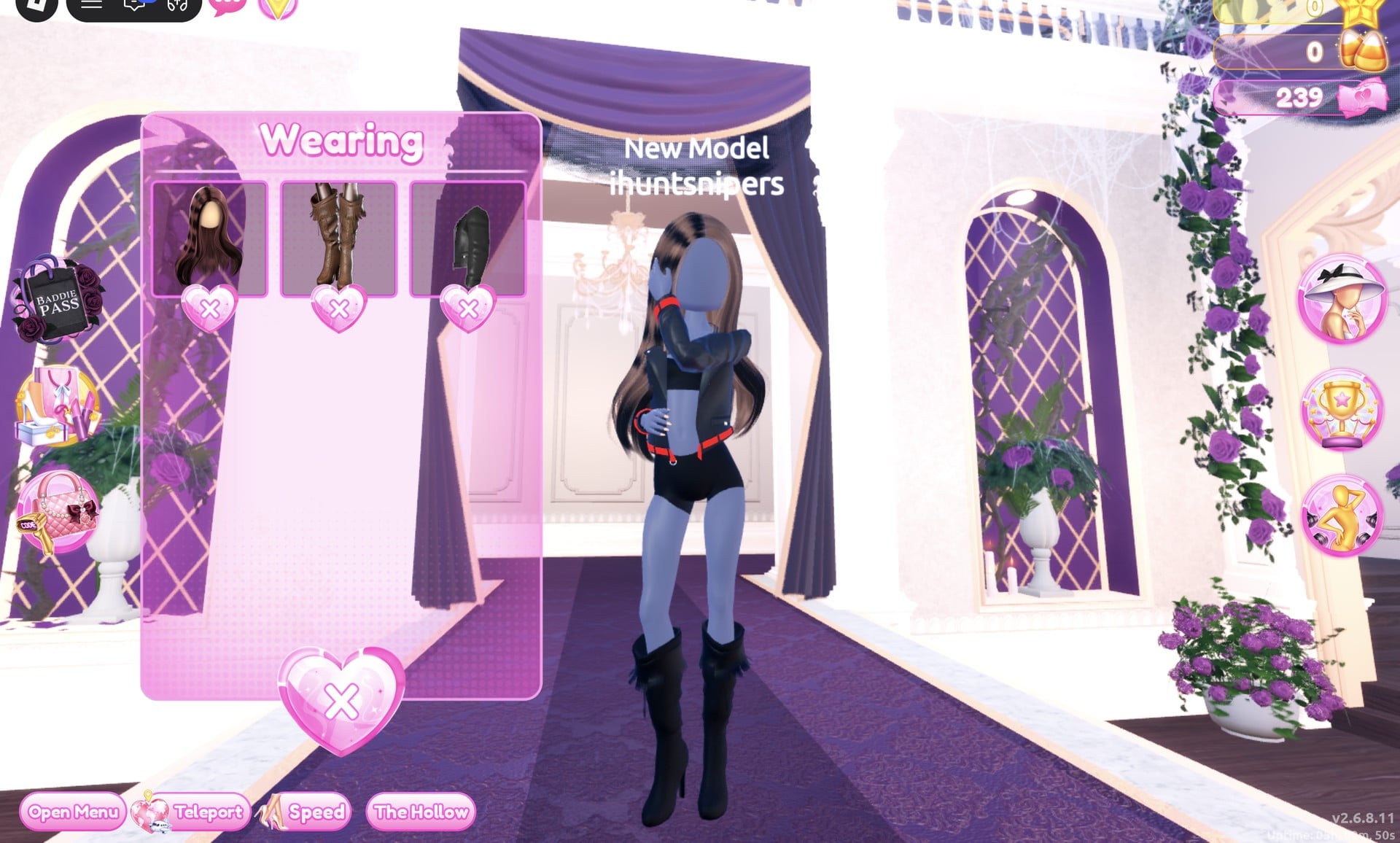
Keep the character’s standard black top and shorts beneath a black leather jacket finished with a red band at the hem. Add black leather knee boots, and leave every other outfit choice unchanged.
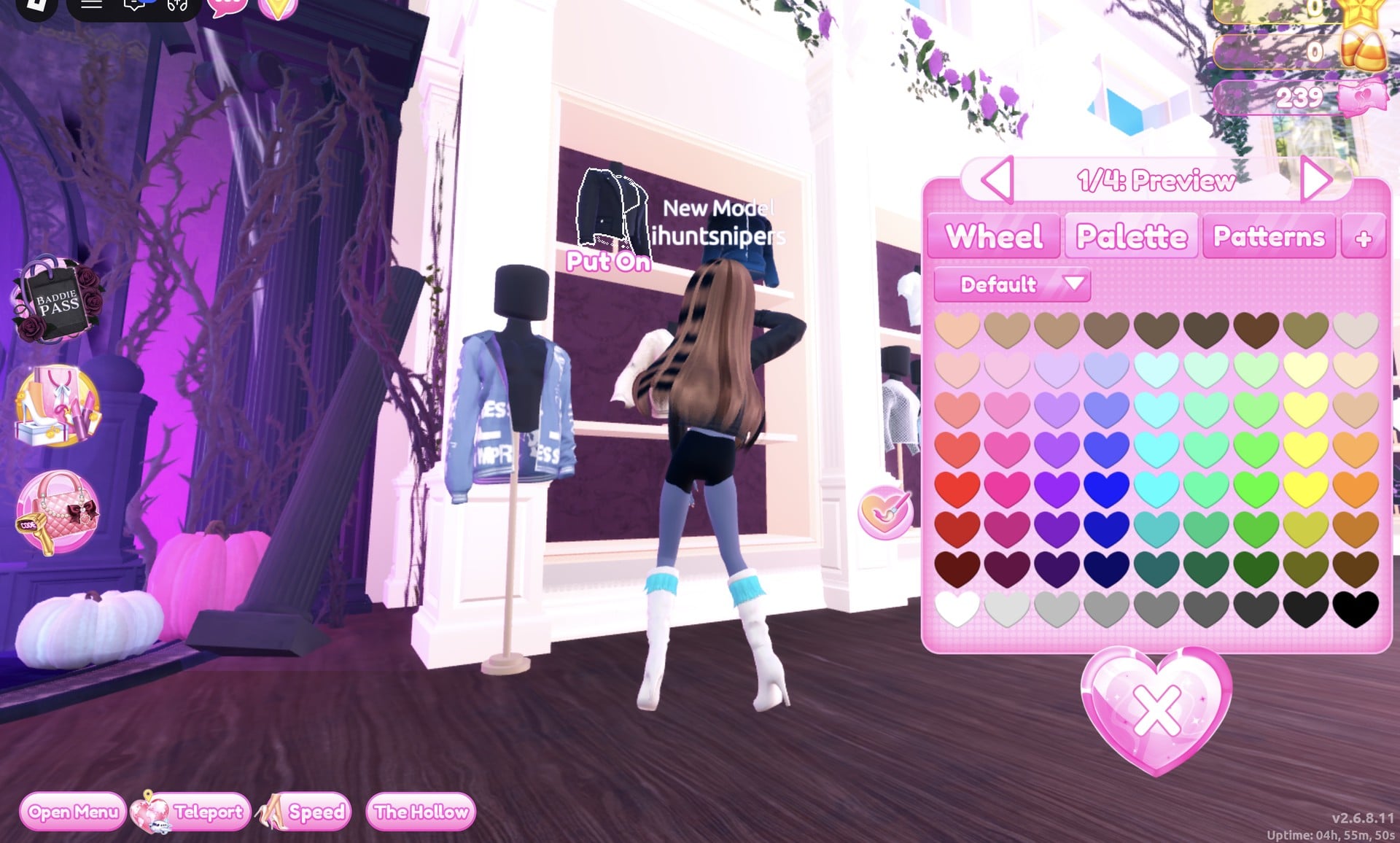
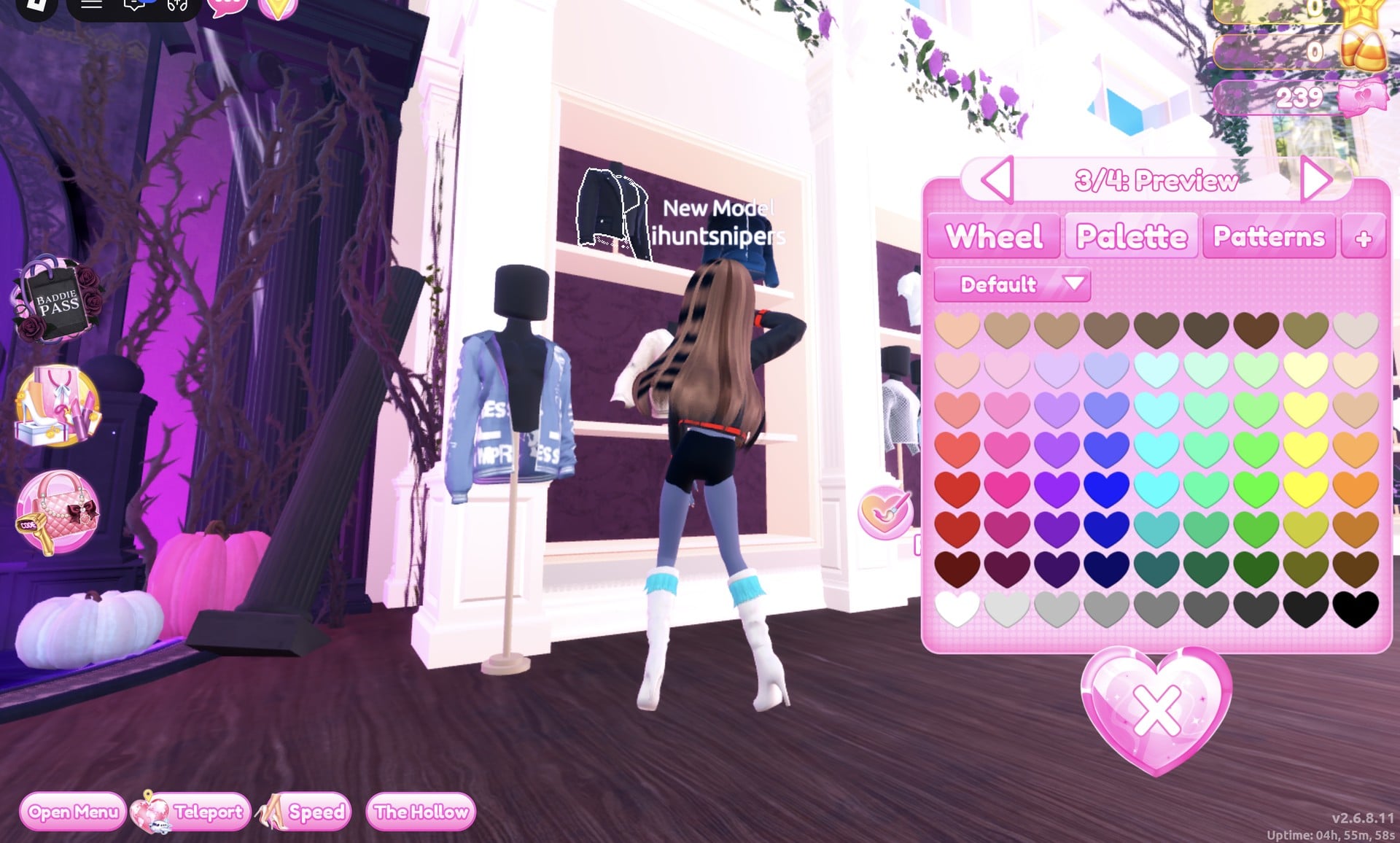
Make that part Leather as well. This part creates the red band at the hem.
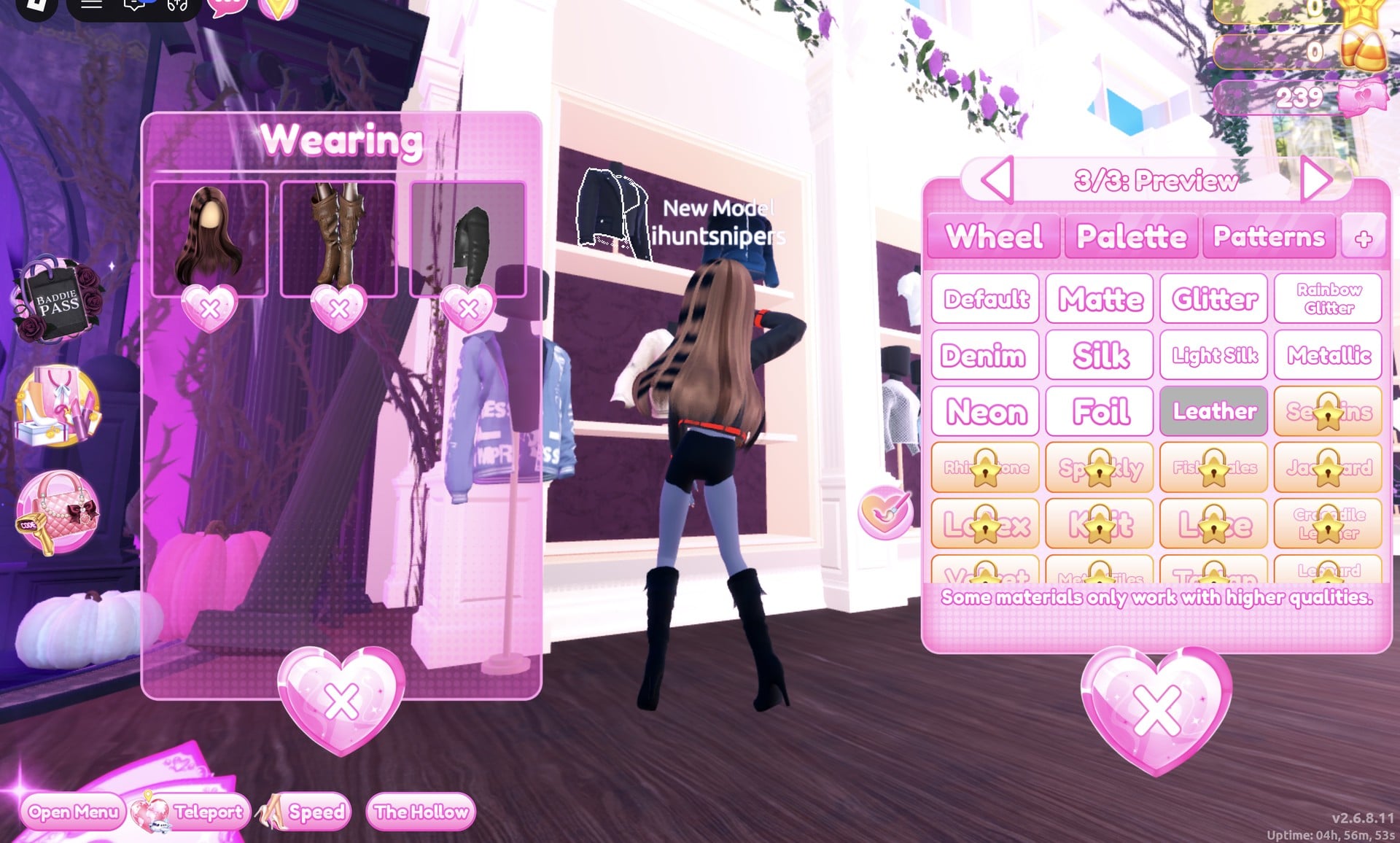
When the look is finished, the Wearing panel lists the hair, the boots and the jacket. Under the jacket is only the character’s plain black top and shorts; we did not add any other clothing.
On the runway, the front view shows the red band and the black leather most clearly.
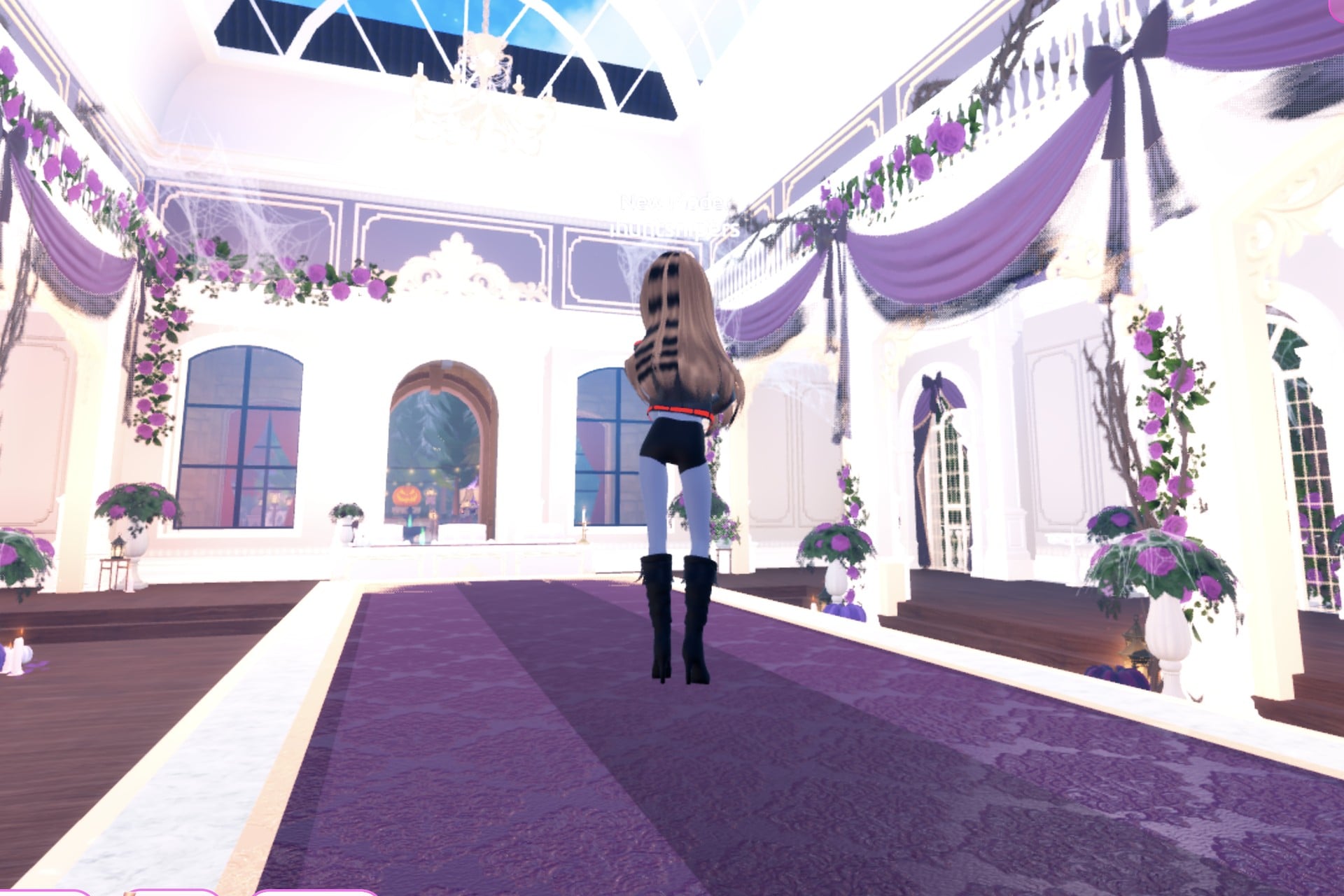
From the back, the long wavy hair covers most of the jacket; the red band and the black knee boots still show.
Look 2: Streetwear / hip-hop cover (oversized denim hoodie)
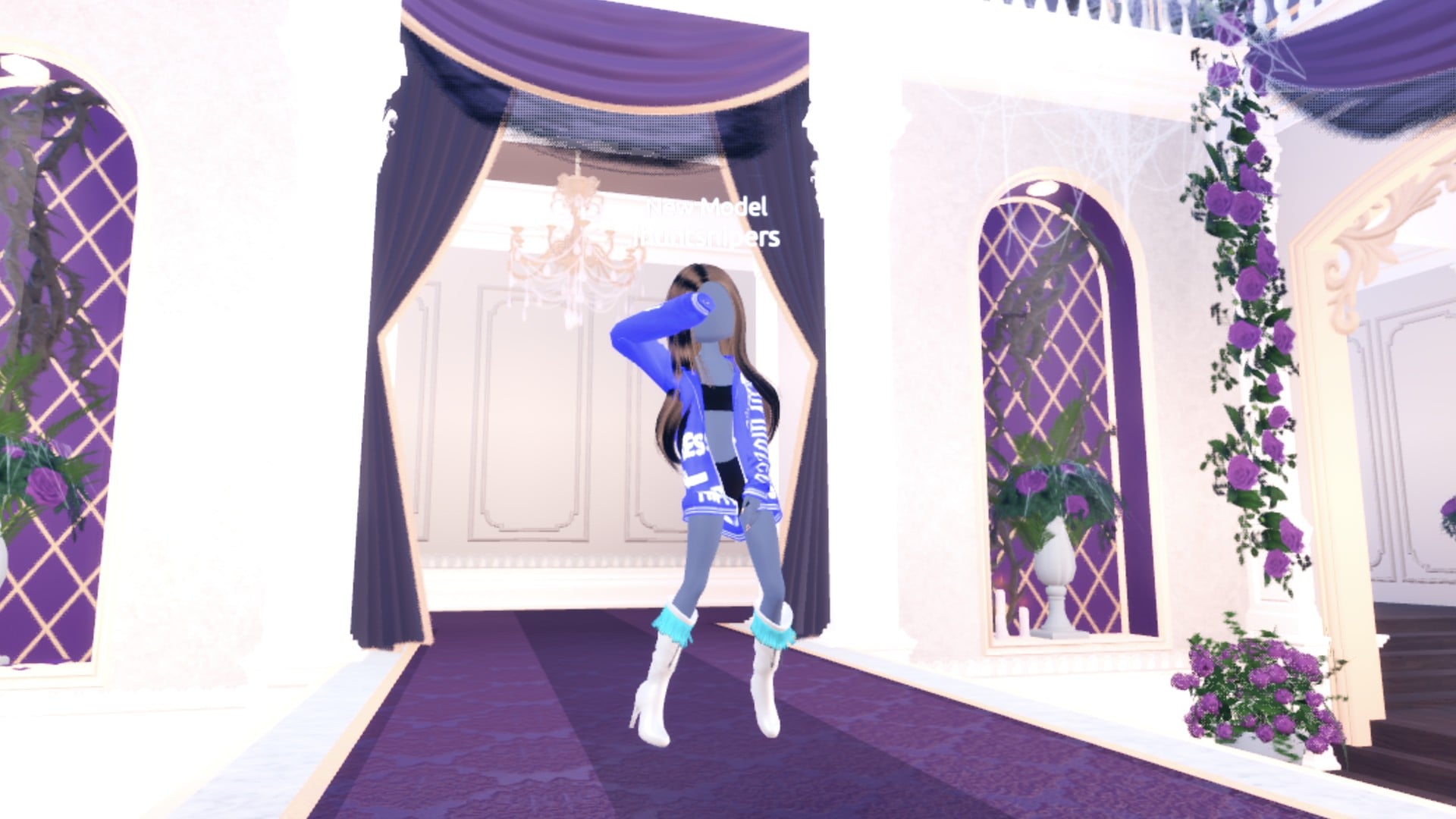
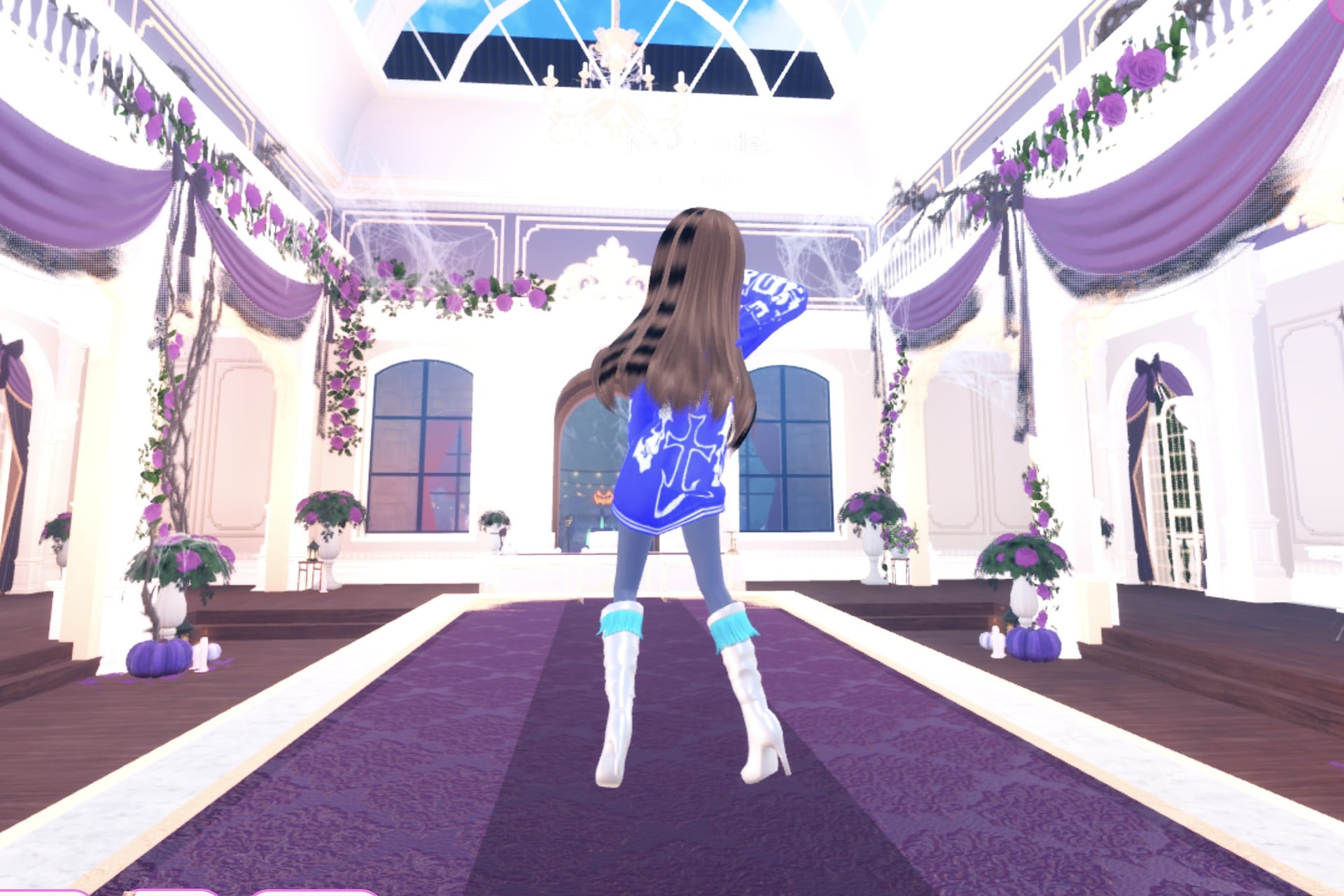
The default black shorts sit beneath an oversized royal-blue hoodie decorated with a white skull and white lettering. Finish the outfit with Metallic knee boots featuring a bright fringe band.
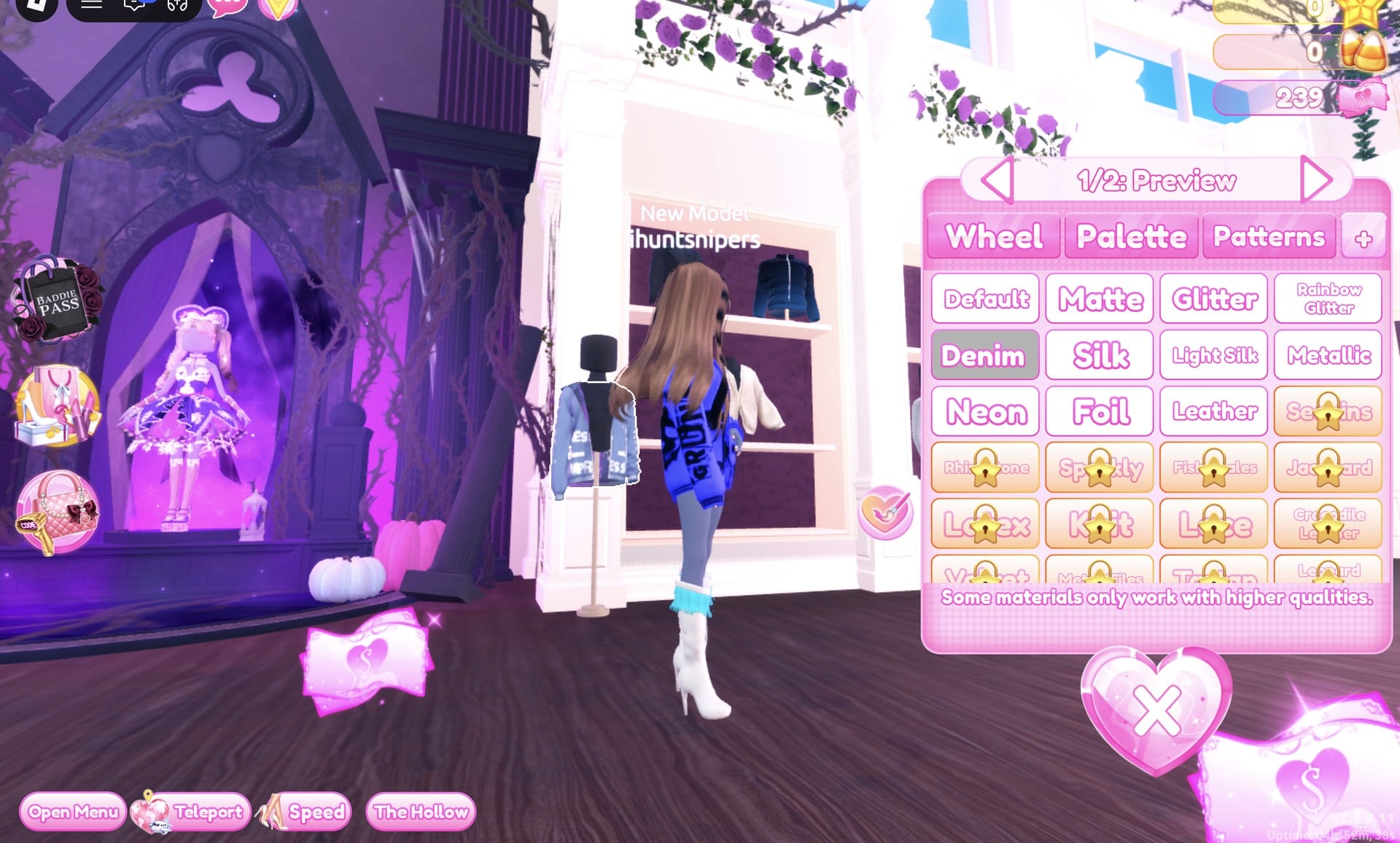
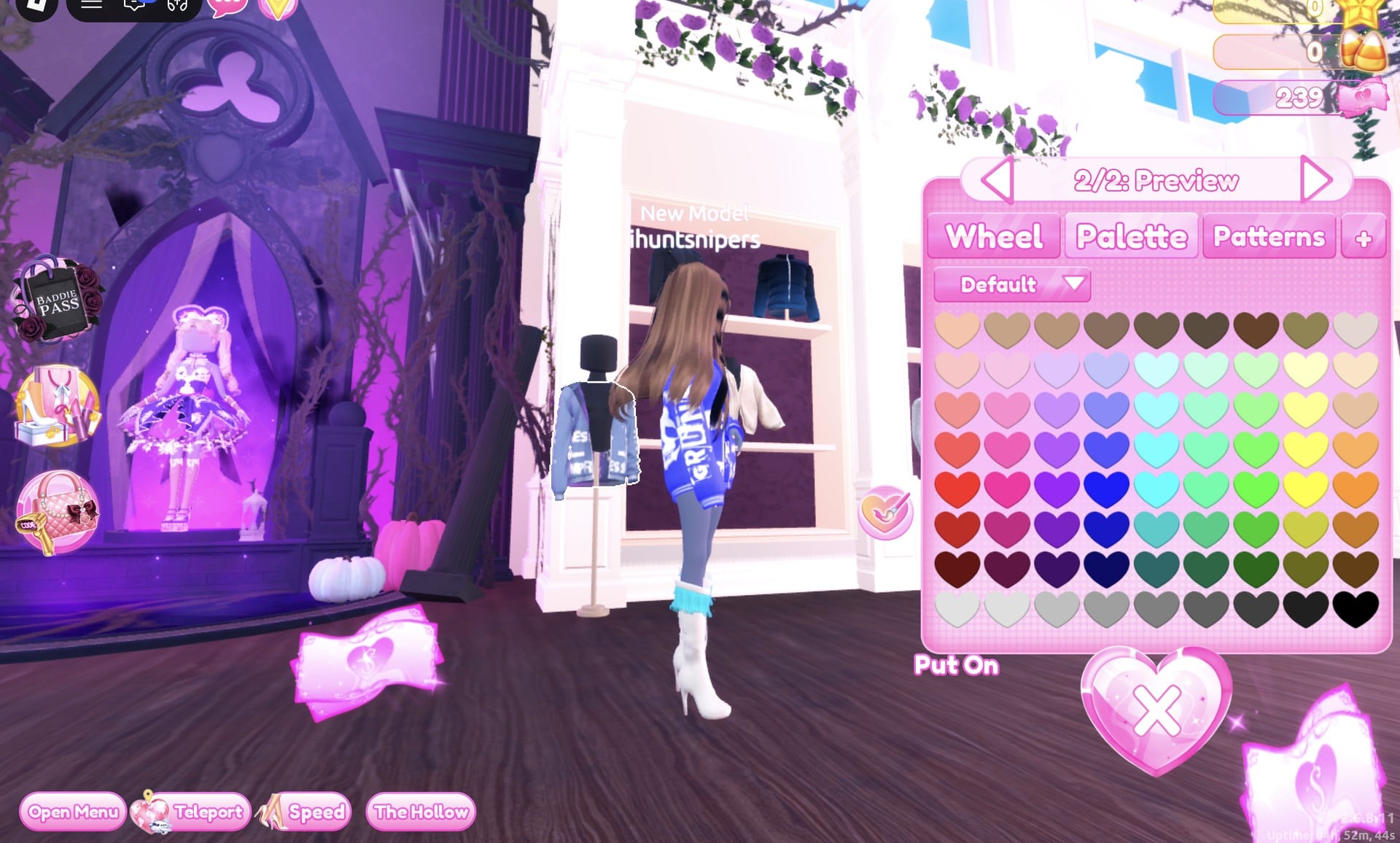
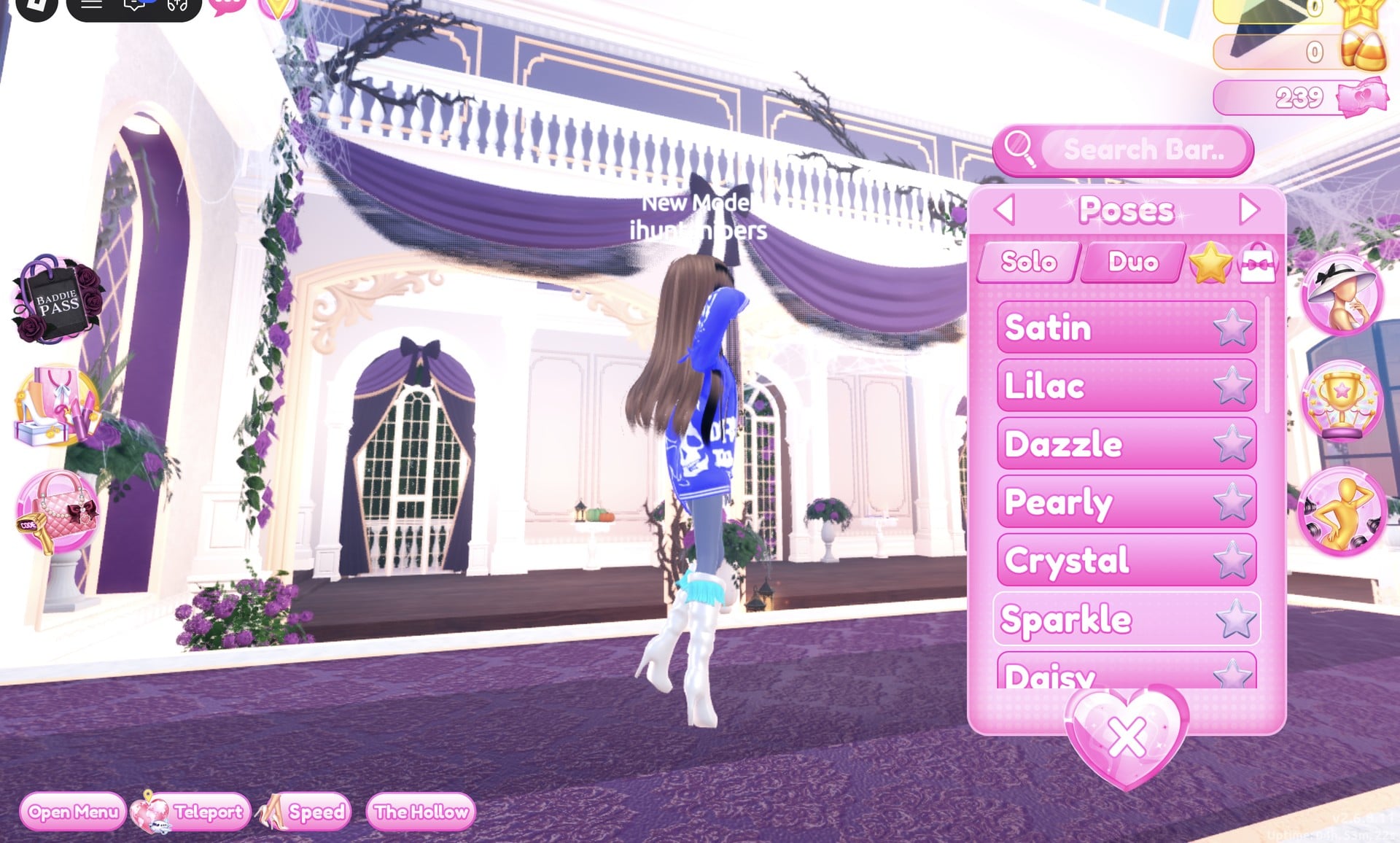
On the runway, the blue hoodie with its white lettering and skull print fills the front of the shot.
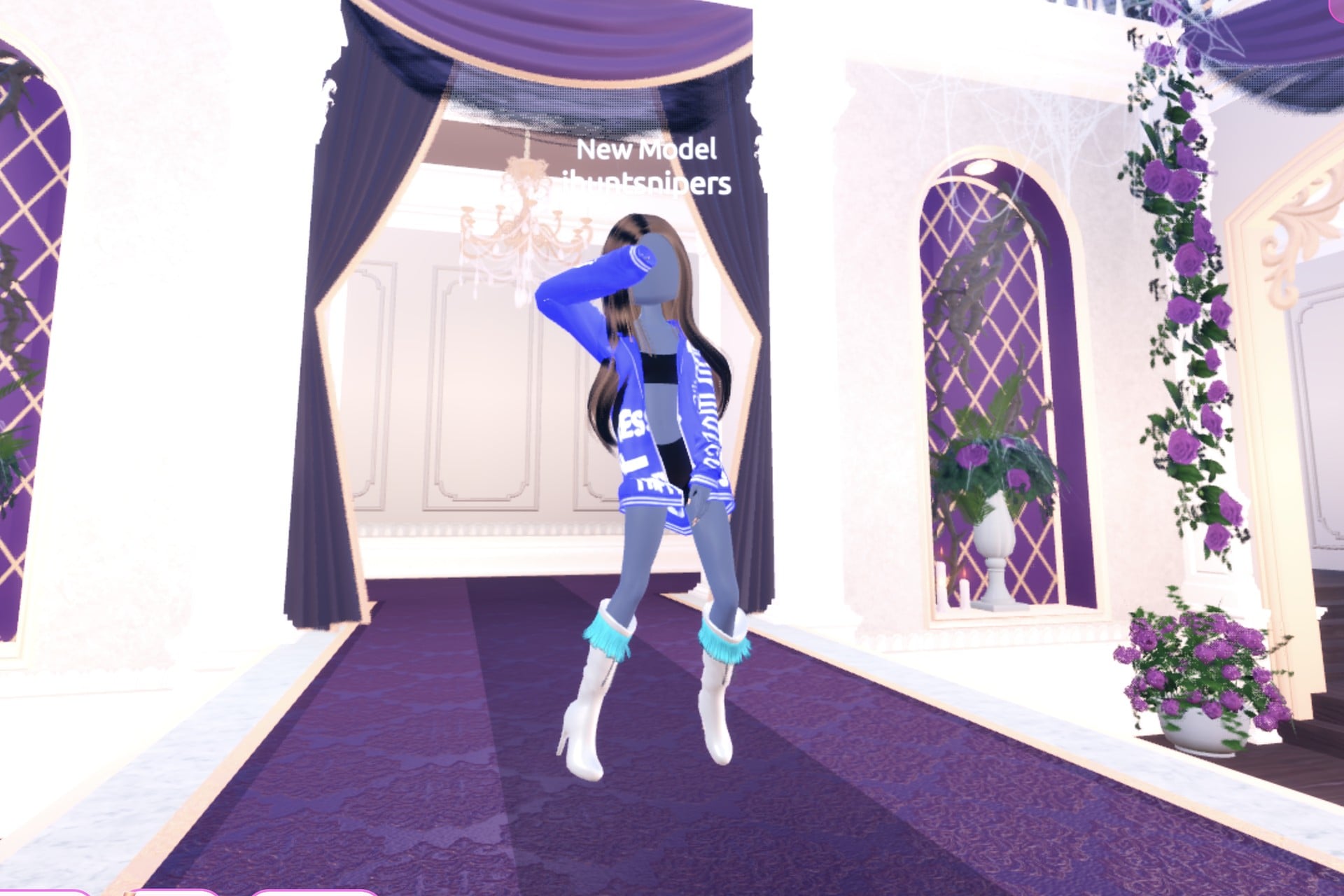
From the back, the long hair falls over the blue hoodie above the silver boots.
Look 3: Pop-star glam cover (hot-pink glitter gown)
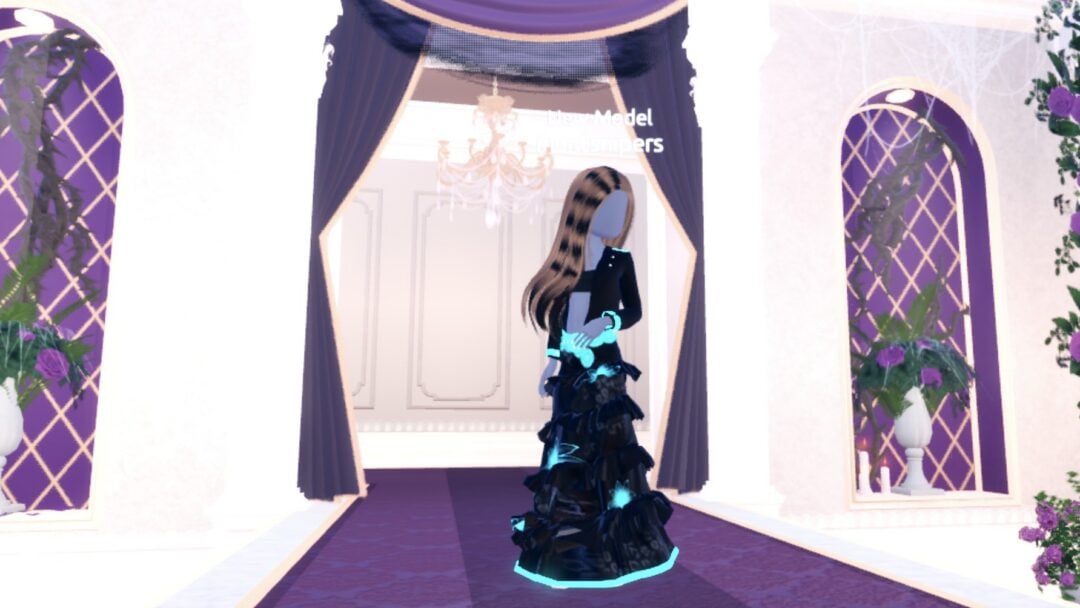
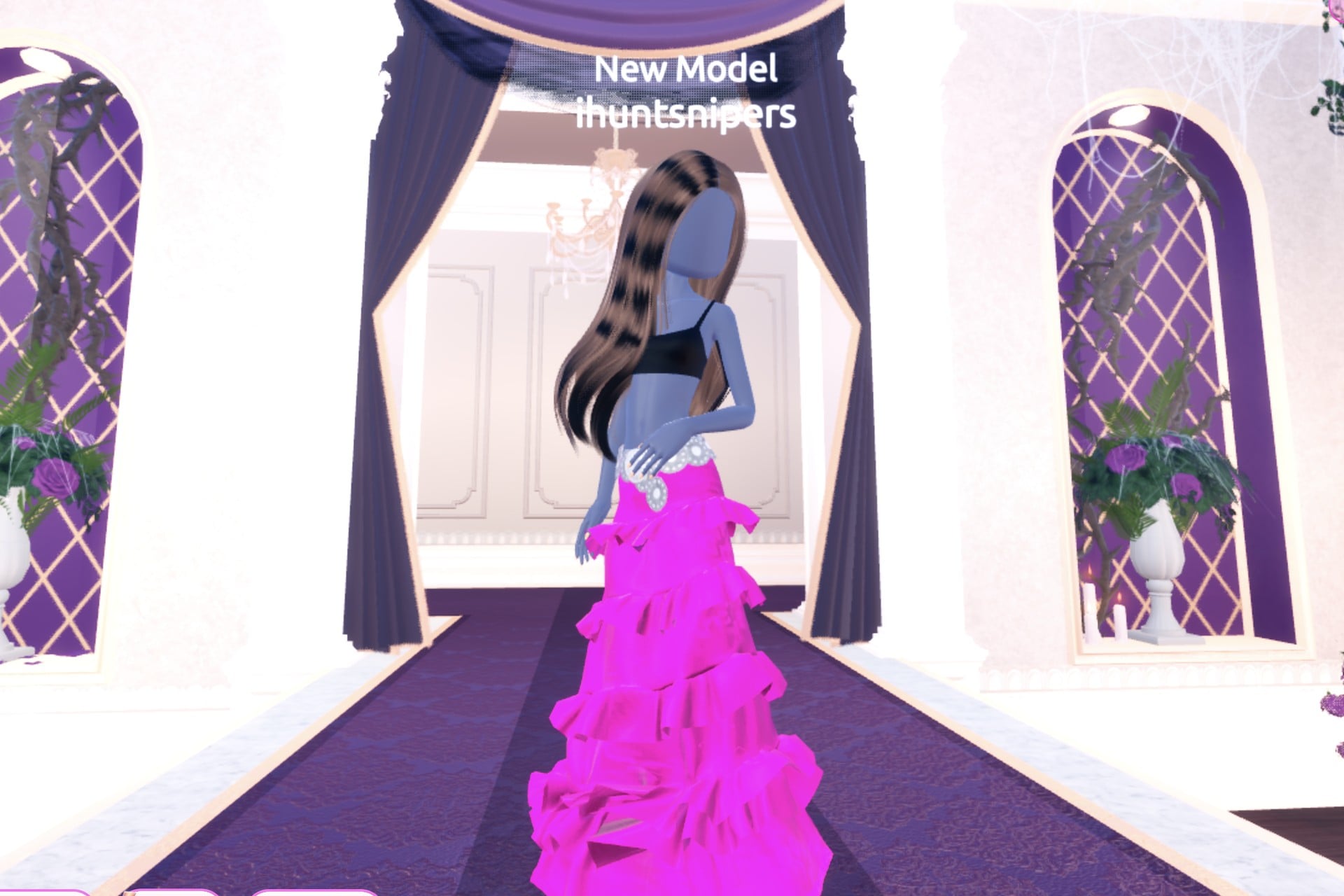
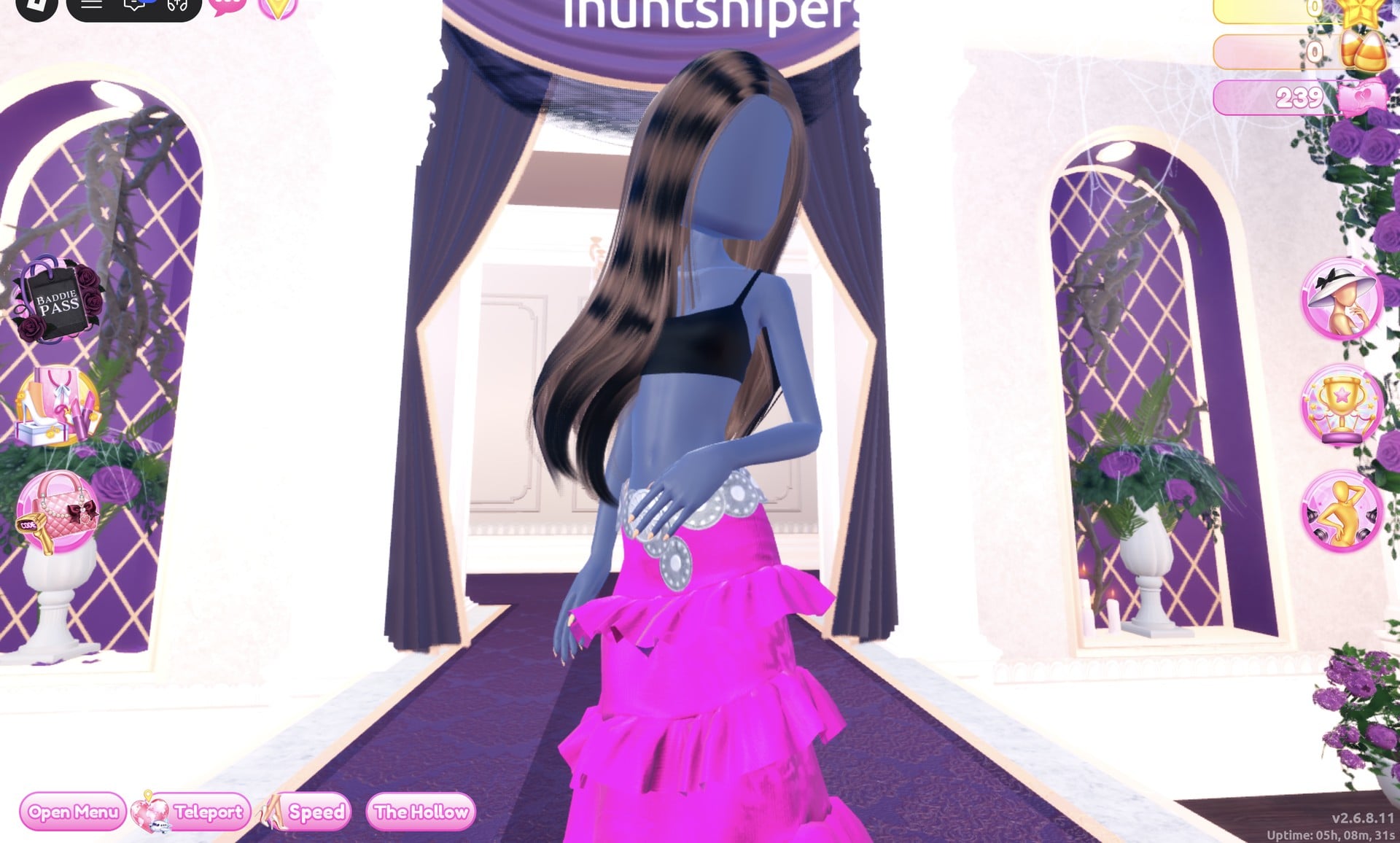
Over the default black top, wear a vivid hot-pink gown with ruffles that reaches the floor and a silver waist belt. Of the three looks, this one is the dressiest and works well in a square, waist-up cover frame.
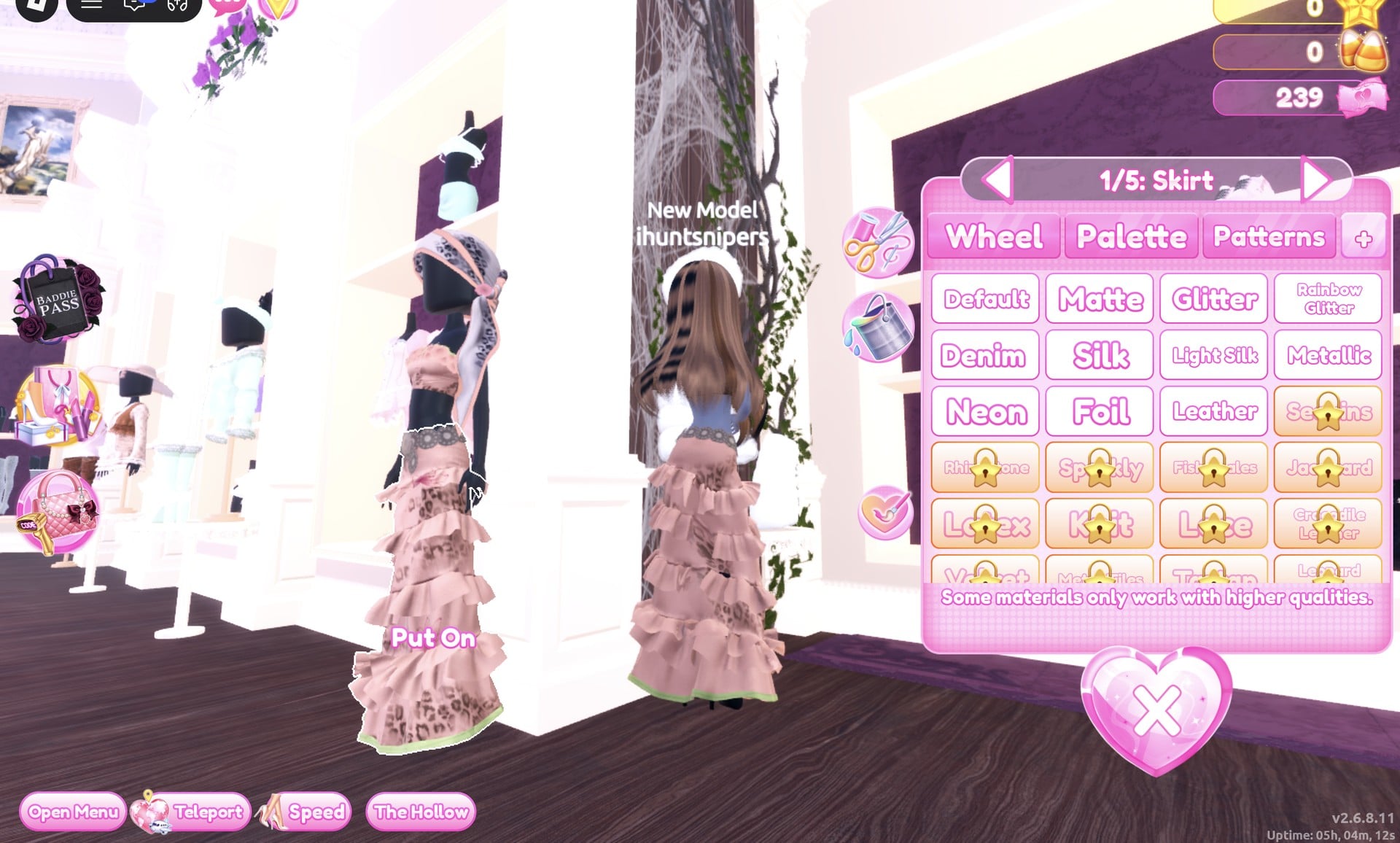
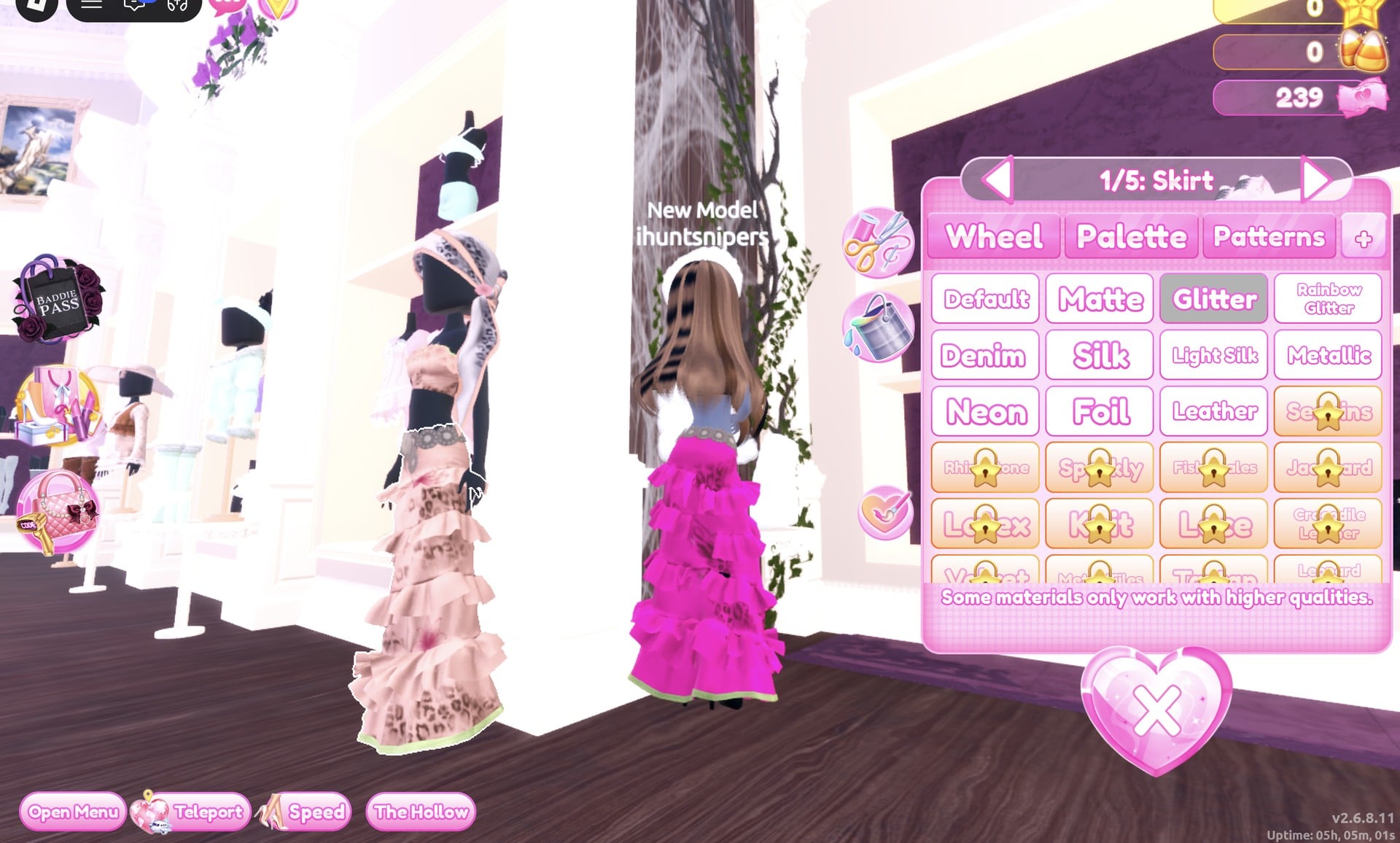
| Part label | Colour | Material |
|---|---|---|
| “1/5: Skirt” | Hot pink (column 2, row 5) | Glitter |
| “2/5: Leopard Print” | Hot pink (column 2, row 5) | Glitter |
| “3/5: Flower Details” | Hot pink (column 2, row 5) | Glitter |
| “4/5: Hemline” | Hot pink (column 2, row 5) | Glitter |
| “5/5: Belt” | Light grey (column 2, row 8) | Metallic |
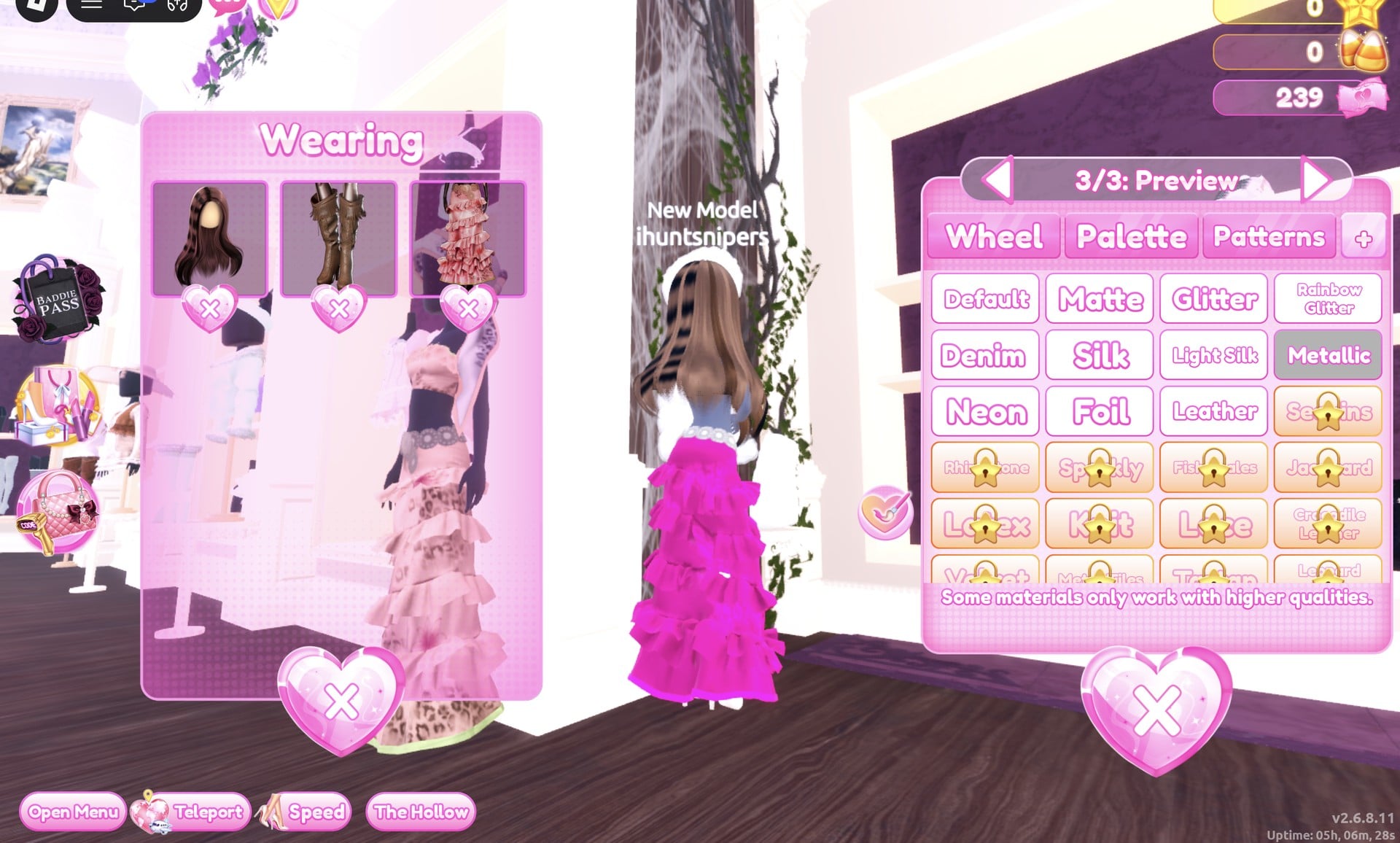
Since the gown reaches the floor, the boots are hidden in runway shots. Check that the Wearing panel shows the hair, the boots and the gown, but no jacket.
Here is the finished pop-star look on the Freeplay Runway in the Dazzle pose.
Zoomed in to the waist up, it frames like a square cover shot.
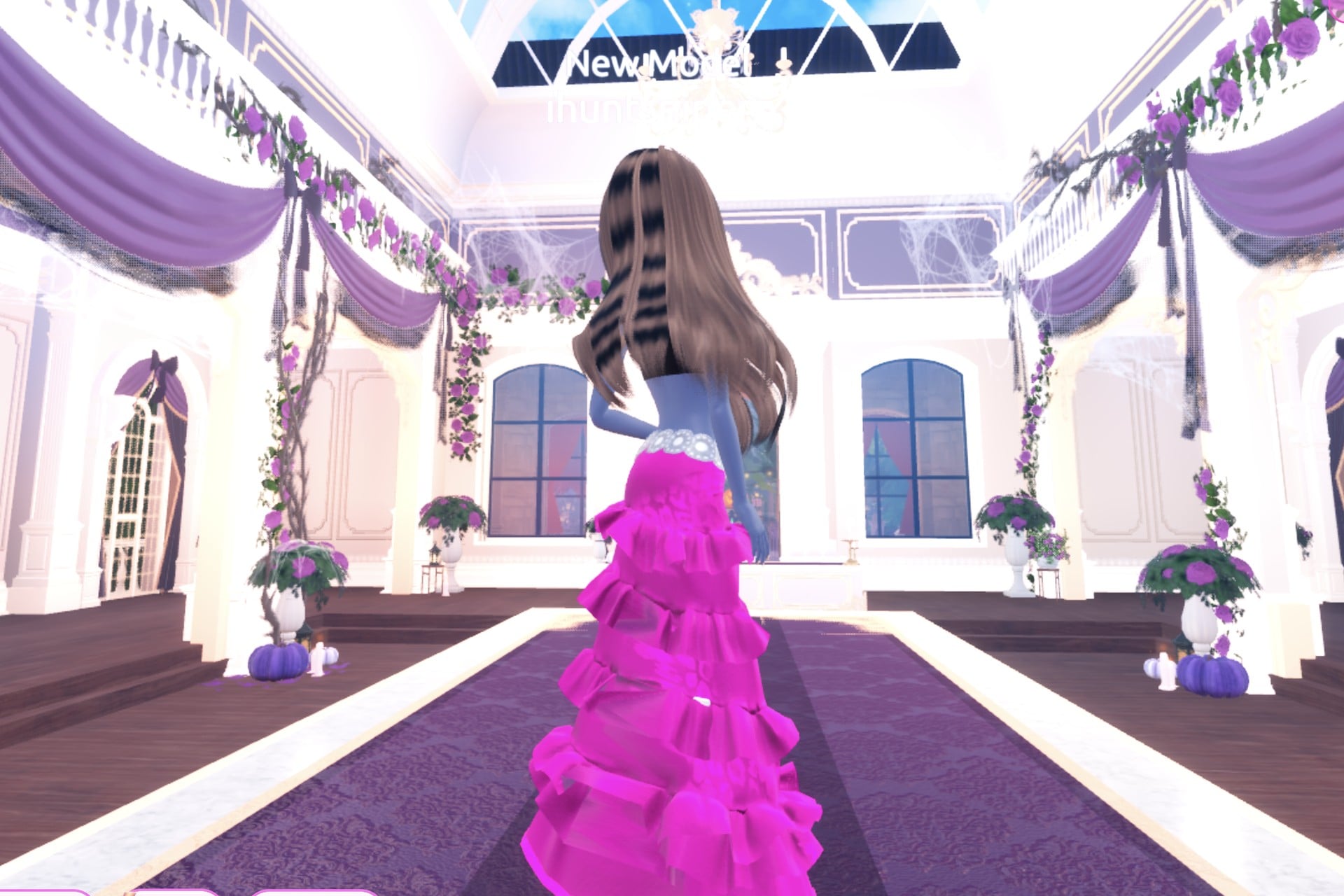
From the back, the pink tiers and the silver belt still show under the hair.
Why each look reads as a cover
An album cover is a single picture, so each look sticks to one music style, two or three colours and a pose that frames the face and upper body. Black and red Leather says rock, a loose blue hoodie with white print says streetwear, and a pink Glitter gown with a silver belt says pop. The pose finishes the shot, so pick it last and check it from the front on the runway.
Album Cover pieces to look for
None of these pieces has a name in the game, so look for them by place and shape. All four are in the Dressing Room in Freeplay Mode, and all four worked on our account with no VIP and 0 stars.
| Piece | Where in the Dressing Room | Colours and materials we used |
|---|---|---|
 Black jacket (four parts, all labelled “Preview”) Black jacket (four parts, all labelled “Preview”) | Left-wall jacket shelves near where you arrive in the Dressing Room: top-left of the shelf | Parts 1 and 2 black + Leather; part 3 red (column 1, row 5) + Leather; part 4 light silver-grey + Metallic |
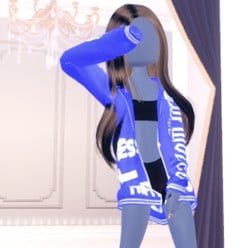 Blue-and-white hooded top with a skull print and lettering (two parts) Blue-and-white hooded top with a skull print and lettering (two parts) | The bust on the same jacket wall, left of the shelf | Part 1 blue (column 4, row 4) + Denim; part 2 white (column 1, row 8), Default material |
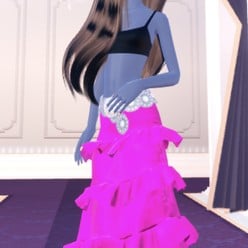 Long tiered ruffled gown (five parts, opens at “1/5: Skirt”) Long tiered ruffled gown (five parts, opens at “1/5: Skirt”) | The mannequin in the long pale pink gown beside the shoe and boot shelf | Skirt, Leopard Print, Flower Details and Hemline hot pink (column 2, row 5) + Glitter; Belt light grey (column 2, row 8) + Metallic |
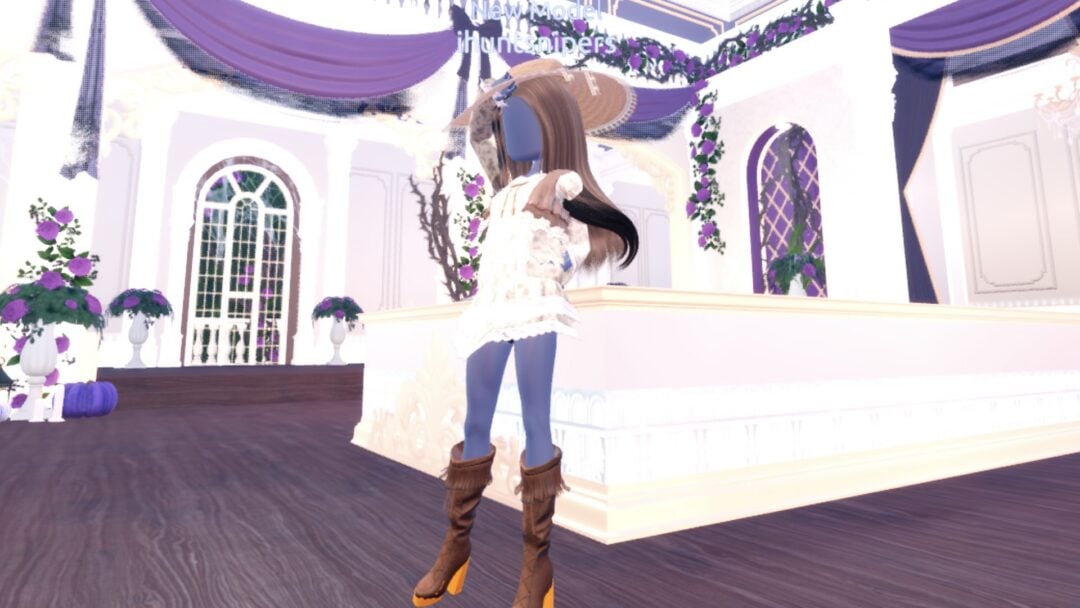
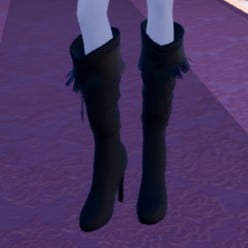 Fringed knee boots (three parts) Fringed knee boots (three parts) | On the mannequin in the white sun hat and lace dress, main hall, right-hand side by the tops shelf | Rock: all three parts black (column 9, row 8) + Leather. Pop glam: all light grey (column 2, row 8) + Metallic. Streetwear: silver-grey Metallic with a cyan Neon fringe |
Poses for an album cover
The Poses button is the lowest button on the right side. It opens the “Poses” panel with Solo and Duo tabs and a Search Bar. The Solo list starts with Satin, Lilac, Dazzle, Pearly, Crystal, Sparkle and Daisy, with more below. We used Satin (one hand at the face, the other on the hip) for rock, Sparkle (one arm raised across the face) for streetwear and Dazzle (one hand at the belt, body turned slightly) for pop glam. None of them showed a price or a lock.
Building it in Freeplay Mode first
Freeplay Mode has no timer, so it is the place to build a look, try colours and materials, and check the pose on the Freeplay Runway before you need it in a round. The Teleport Point button (the pin at the top left of the screen) takes you between the Dressing Room and the Freeplay Runway. Once a look works, you know which shelf and which palette spots to go to when the theme comes up for real. For two more themes built the same way, see our Boho outfit ideas and Robot Takeover outfit ideas.
How a theme round works
We watched two ordinary rounds, Plaid Fashion and Birds of Paradise; Album Cover did not come up. On a standard server, the main lobby’s top banner shows the active theme, and a timer sits beneath it (04:33 and 05:17 in the rounds we saw). Open the theme hint card with the icon at screen top centre. Once dressing time is over, players take turns walking the runway for about seven seconds each. The remaining players cast votes with the five stars along the screen’s bottom edge; a “Voting complete!” banner appears between players.
After every player has walked, a “Results” card ranks everyone and shows the stars and other rewards each player earned. An “Intermission” countdown of about one minute follows, with a “Pick Theme” button next to the timer. We did not press it and did not see what it costs.
What we have not checked
We did not change the hair, makeup or skin tone on any of the three looks: all three wear long wavy brown hair and a blank face. Big curls or a high ponytail would suit the pop-star look, but we did not set them. We did not find hats, chains, sunglasses or sneakers in the parts of the Dressing Room we walked, and we did not try the star-locked materials. Album Cover did not come up in the rounds we watched, so these looks have not been through a real vote and we cannot tell you how many stars they earn.
FAQ
What should I wear for Album Cover in Dress To Impress?
Pick one music style and build the whole look in its colours: black Leather for rock, an oversized blue hoodie for streetwear, or a hot-pink Glitter gown for pop. Then choose a pose that frames the upper body.
Can I do Album Cover without VIP?
Yes. All three looks were built on an account with no VIP and 0 stars, and every piece, colour, material and pose used here worked on it. Nothing was bought.
How do I make clothes leather, denim or glitter?
Click the piece, pick the part with the arrows, choose its colour on “Palette”, then open the “+” tab and click Leather, Denim or Glitter. Do this for each part while you preview it, then press “Put On”.
Which pose works for an album cover?
We used Satin, Sparkle and Dazzle from the Solo tab of the Poses panel. None of them showed a price or a lock.
Can I change a colour after putting a piece on?
Yes. Click the piece again, or click its picture in the “Wearing” panel (the round hat button on the right), and its colour panel opens with your colours still set.