Robot Takeover in Dress To Impress comes down to two things: a grey, black and cyan colour scheme, and the game’s material system, which can turn ordinary pieces into chrome, glowing neon or leather. None of the clothes are named in the game, so each look below is pinned to the mannequin or shelf where you find it and the part labels the colour panel shows.
Quick answer: Wear silver-grey, black and cyan, and use the colour panel’s “+” tab to make parts Metallic, Neon or Leather: for example, a black leather jacket over a black Metallic tiered gown with a glowing cyan Neon hem.
Where to build a Robot Takeover outfit in Dress To Impress
Launch Dress To Impress on Roblox and enter Freeplay Mode, where you can dress without a round timer. The pin on the HUD in the top left opens “Teleport Point”, which offers “Dressing Room” and “Freeplay Runway”. Build in the Dressing Room, then teleport to the runway to see the finished look from the front and back. Recolouring works the same way as in our Boho outfit ideas for Dress To Impress.
Clothes sit on shelves and mannequins as 3D pieces. Clicking one previews it on your character and opens a colour panel with four tabs, “Wheel”, “Palette”, “Patterns” and “+”, plus a “Put On” button beside the item. Outfit sets list their parts with labels such as “1/6: Dress”, and the < > arrows step between them.
How to make clothes metallic or neon in Dress To Impress
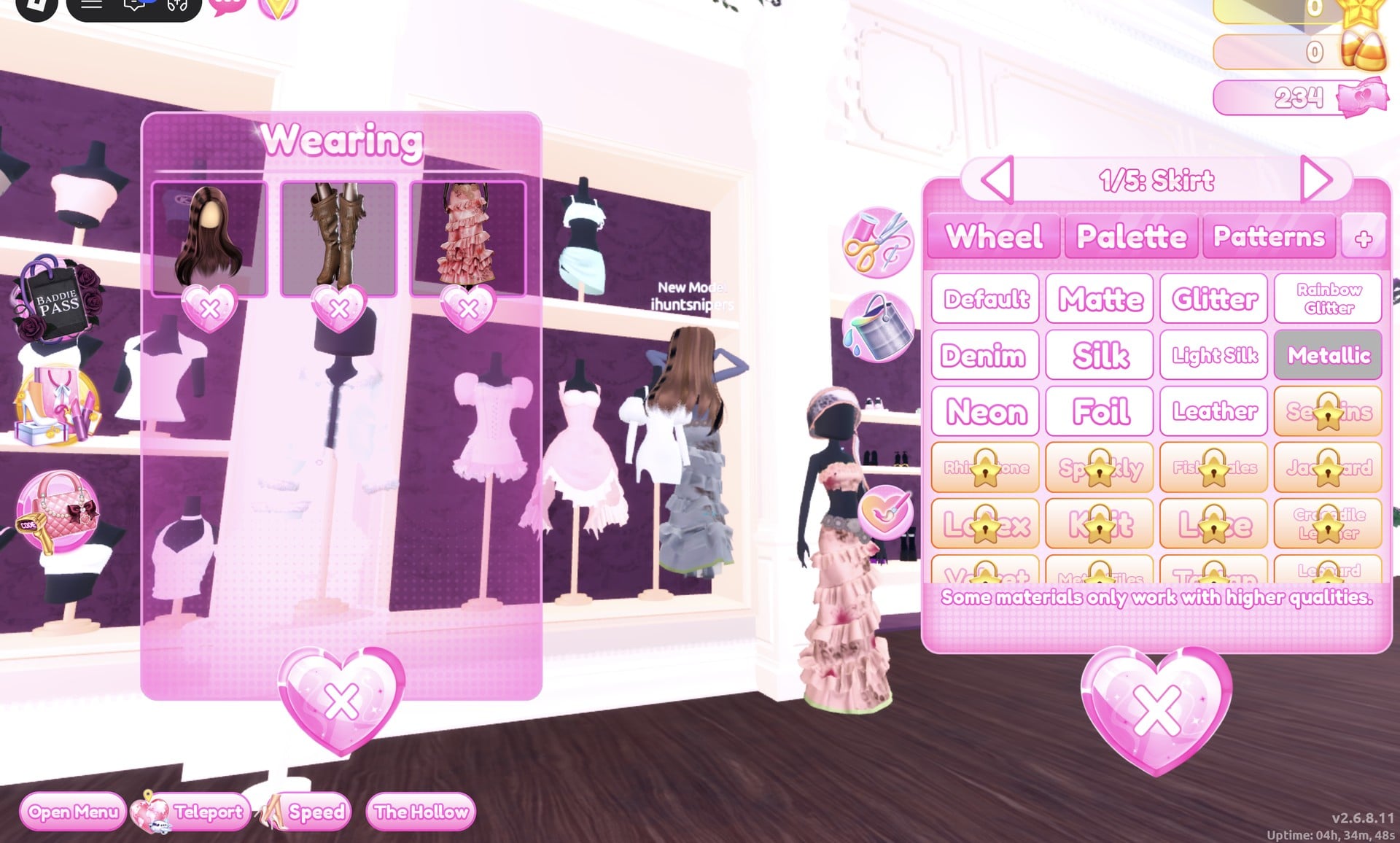
Materials live in the fourth tab of any item’s colour panel, the one marked “+”. It applies to whichever part of the item you are currently on, so a single dress can mix chrome, neon and plain fabric. Set colour and material together, part by part, while the item is still previewing.
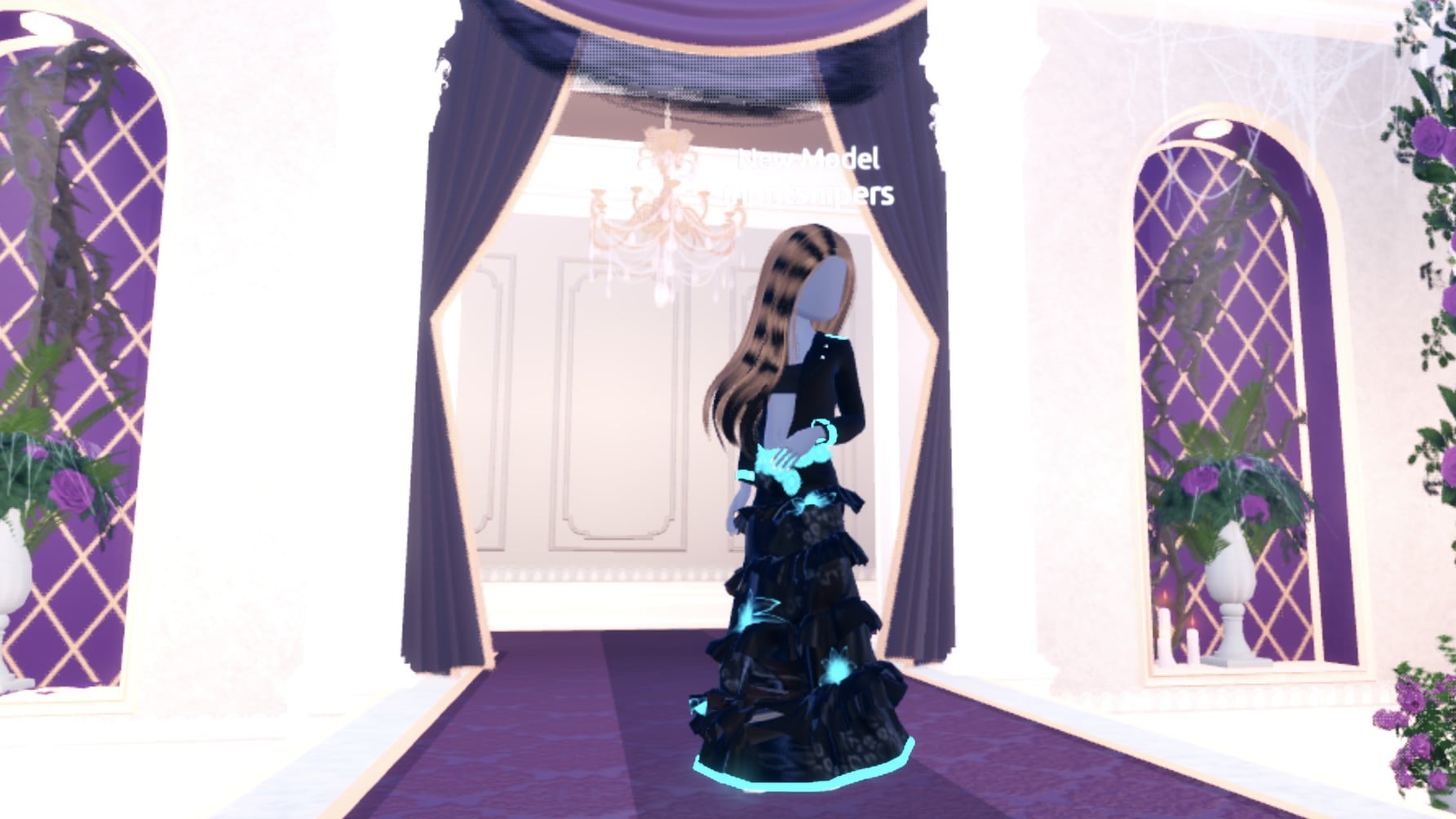
On the runway, Metallic gives grey, black and silver parts a shiny chrome finish, and Neon makes cyan parts glow.
Free and locked materials
These materials show no lock and work on an account with no stars:
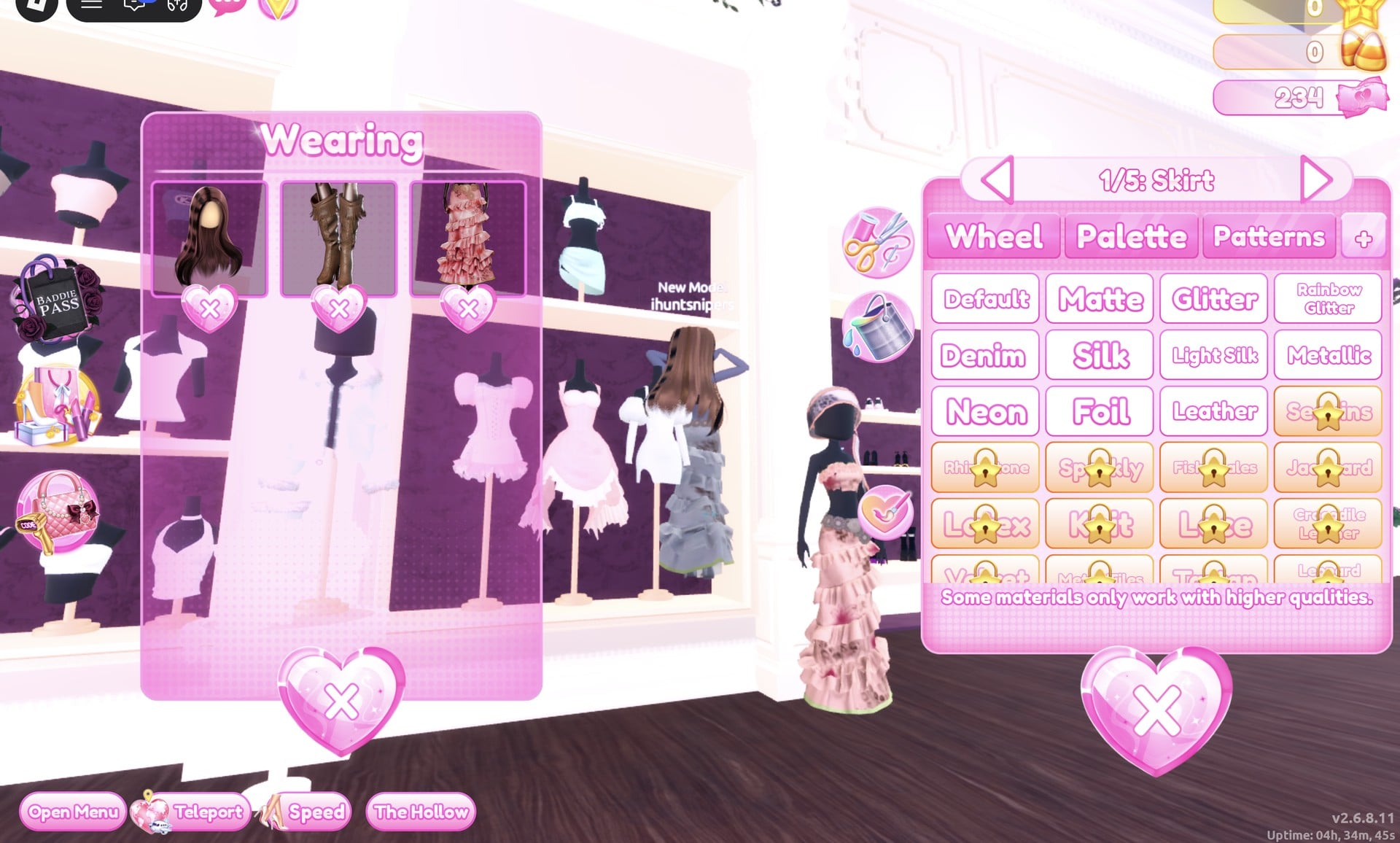
- Default, Matte, Glitter and Rainbow Glitter
- Denim, Silk and Light Silk
- Metallic, Neon and Foil
- Leather
A gold star lock sits on Sequins, Rhinestone, Sparkly, Fish Scales, Jacquard, Latex, Knit, Lace, Crocodile Leather, Velvet and more further down the list, one of them Leopard. They were locked on our 0-star account, and we did not try them. Under the grid the panel reads “Some materials only work with higher qualities.”
Robot Takeover palette colours
The Default palette has 9 columns and 8 rows arranged as a grid. Colour families fill the columns, while each row gets darker than the one above; row 8 at the bottom spans white through black. The three looks use light silver-grey, dark grey, black and bright cyan across their builds.
| Colour | Column | Row |
|---|---|---|
| Light silver-grey | 3 | 8 |
| Dark grey | 6 or 7 | 8 |
| Black | 9 | 8 |
| Bright cyan | 5 | 4 |
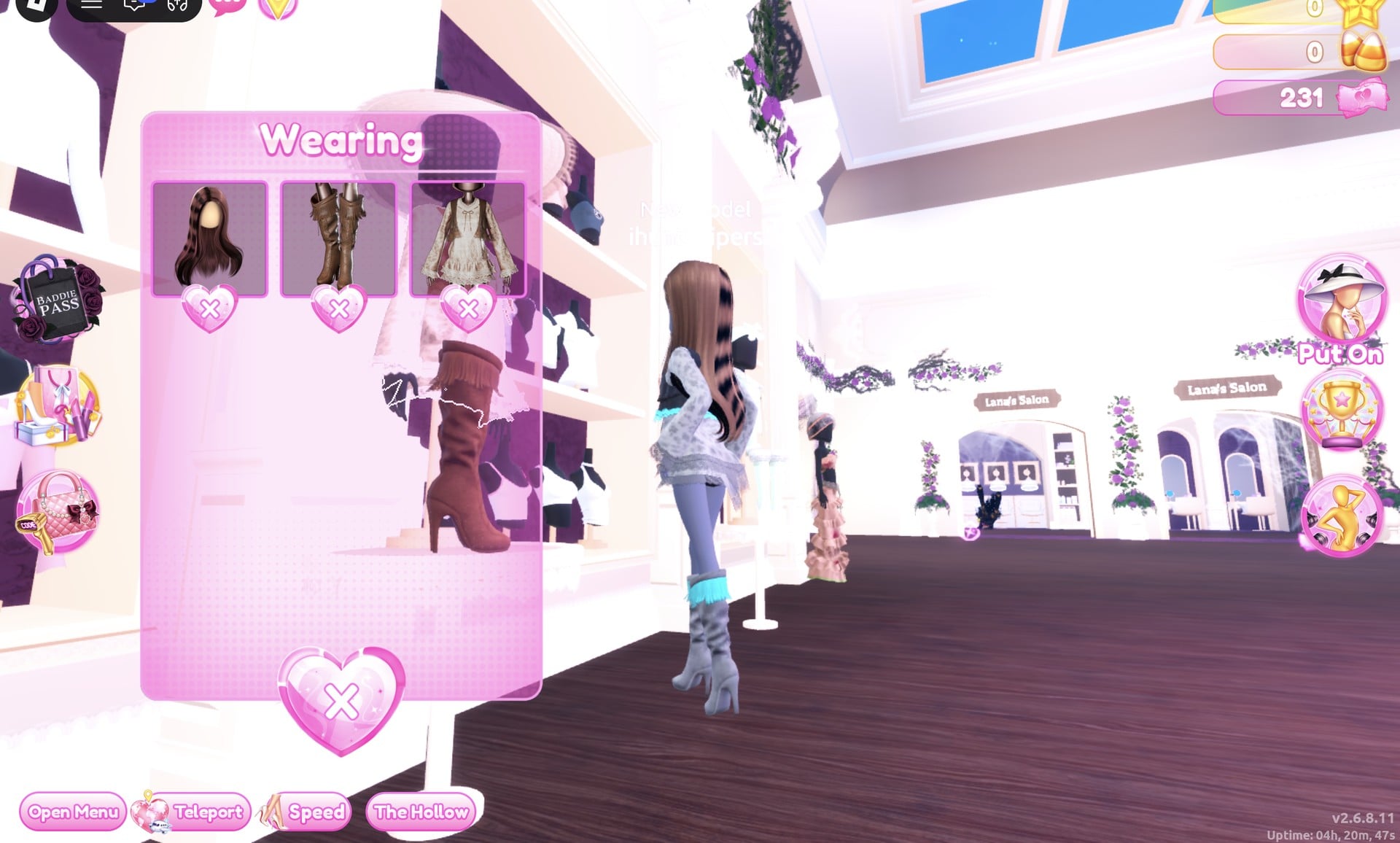
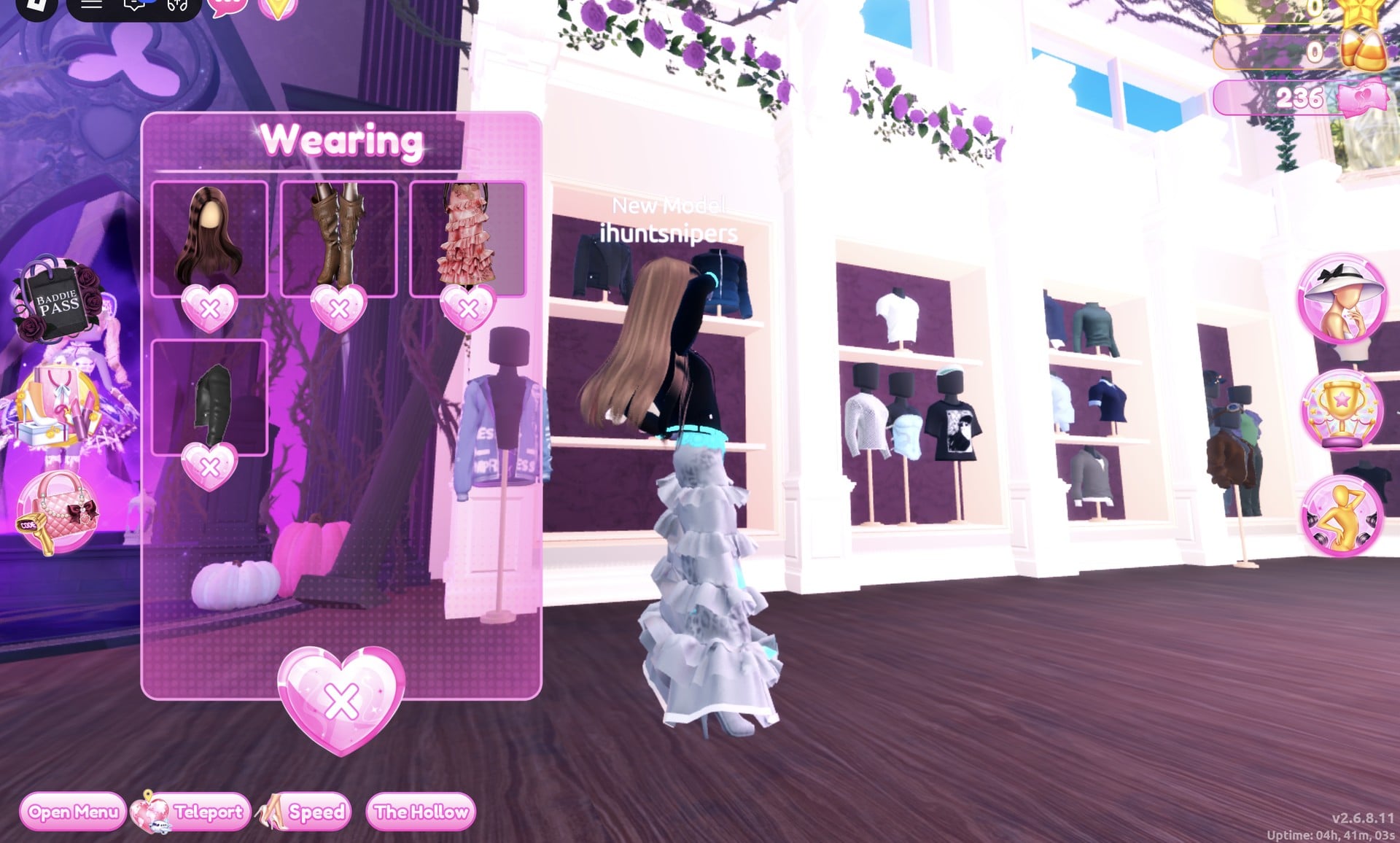
To adjust an item you’re wearing, stay where you are: use the round hat button on the right to open the Wearing panel, then select that item’s picture to bring up its colour panel. Use the heart-X below a picture to remove that piece.
Robot Takeover outfit 1: Silver android
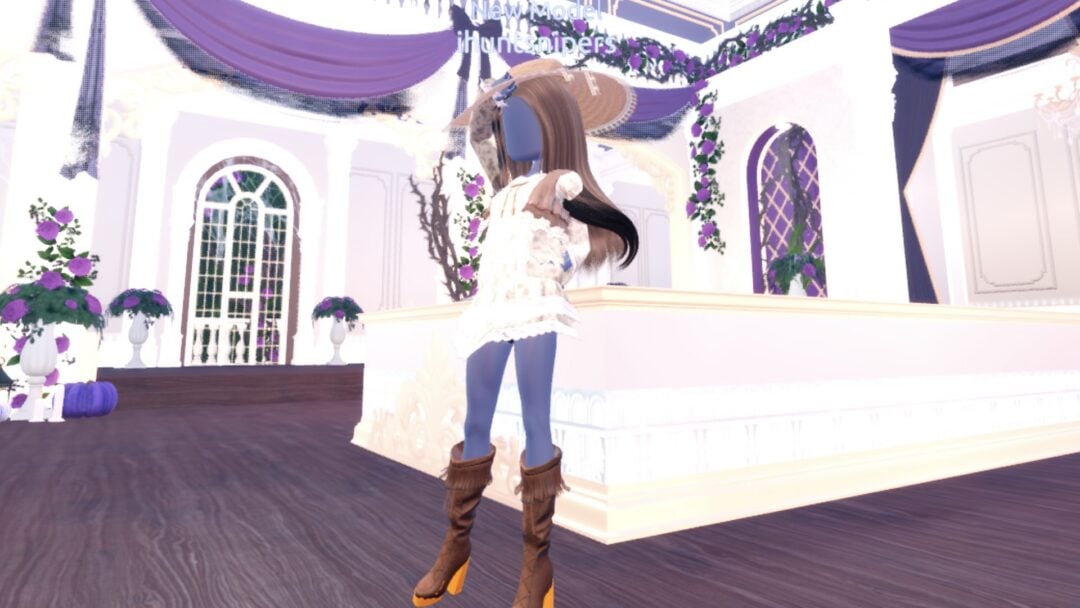
This look gets its robot feel from colour alone, using the Default material throughout. Start at the tops shelf on the right-hand side of the Dressing Room main hall. A mannequin on a small round white table wears a wide white sun hat, a white lace dress with a brown vest, and brown fringed knee boots. Skip the hat and recolour the boots and dress.
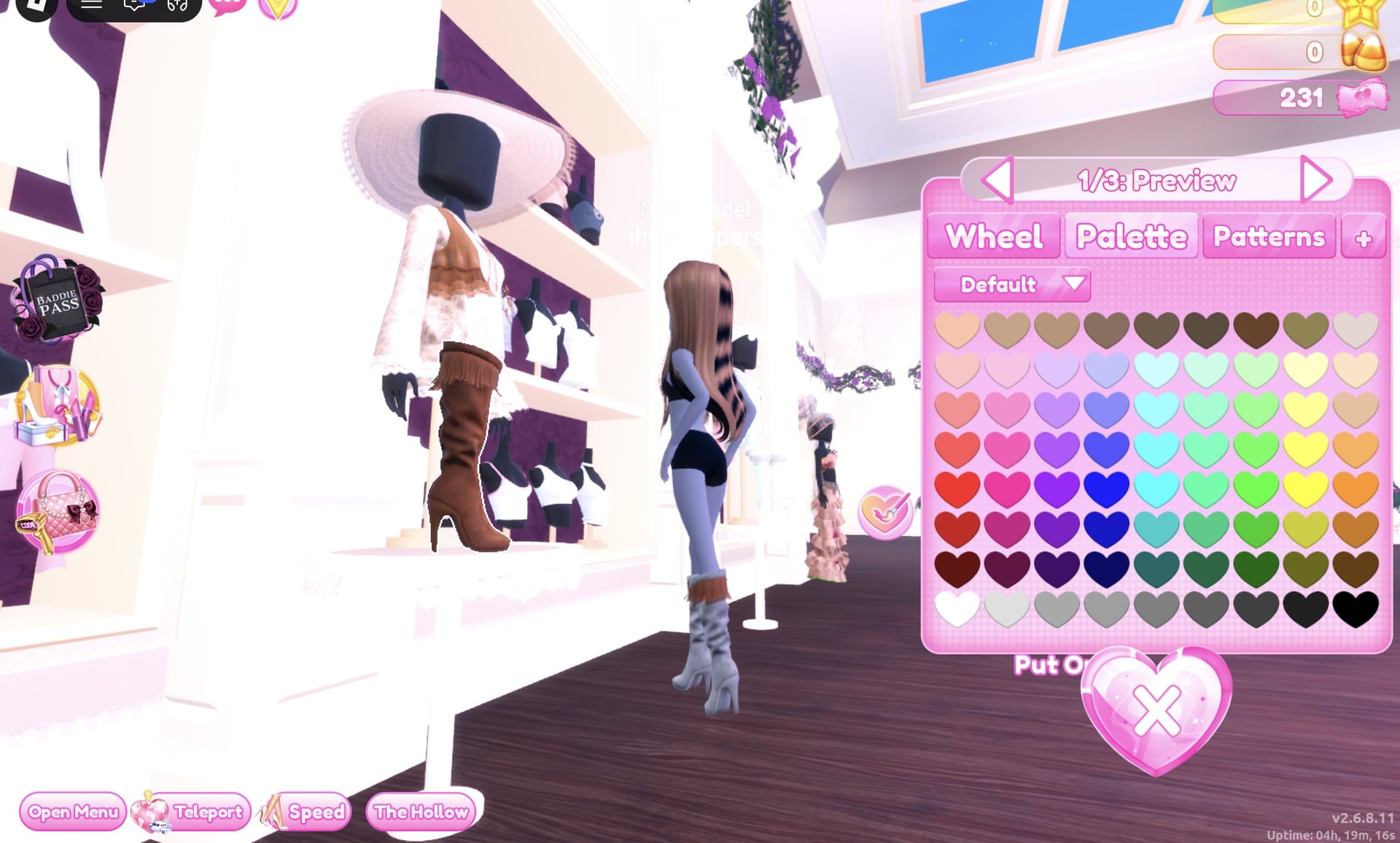
Start by selecting the knee boots. Each of their three parts displays “Preview”.
| Boot part | Colour | Palette spot |
|---|---|---|
| “1/3: Preview” | Light silver-grey | Column 3, row 8 |
| “2/3: Preview” | Dark grey | Column 6, row 8 |
| “3/3: Preview” | Cyan | Column 5, row 4 |
You end up with grey boots topped by a cyan fringe band. After that, select the dress to open its six-part set.
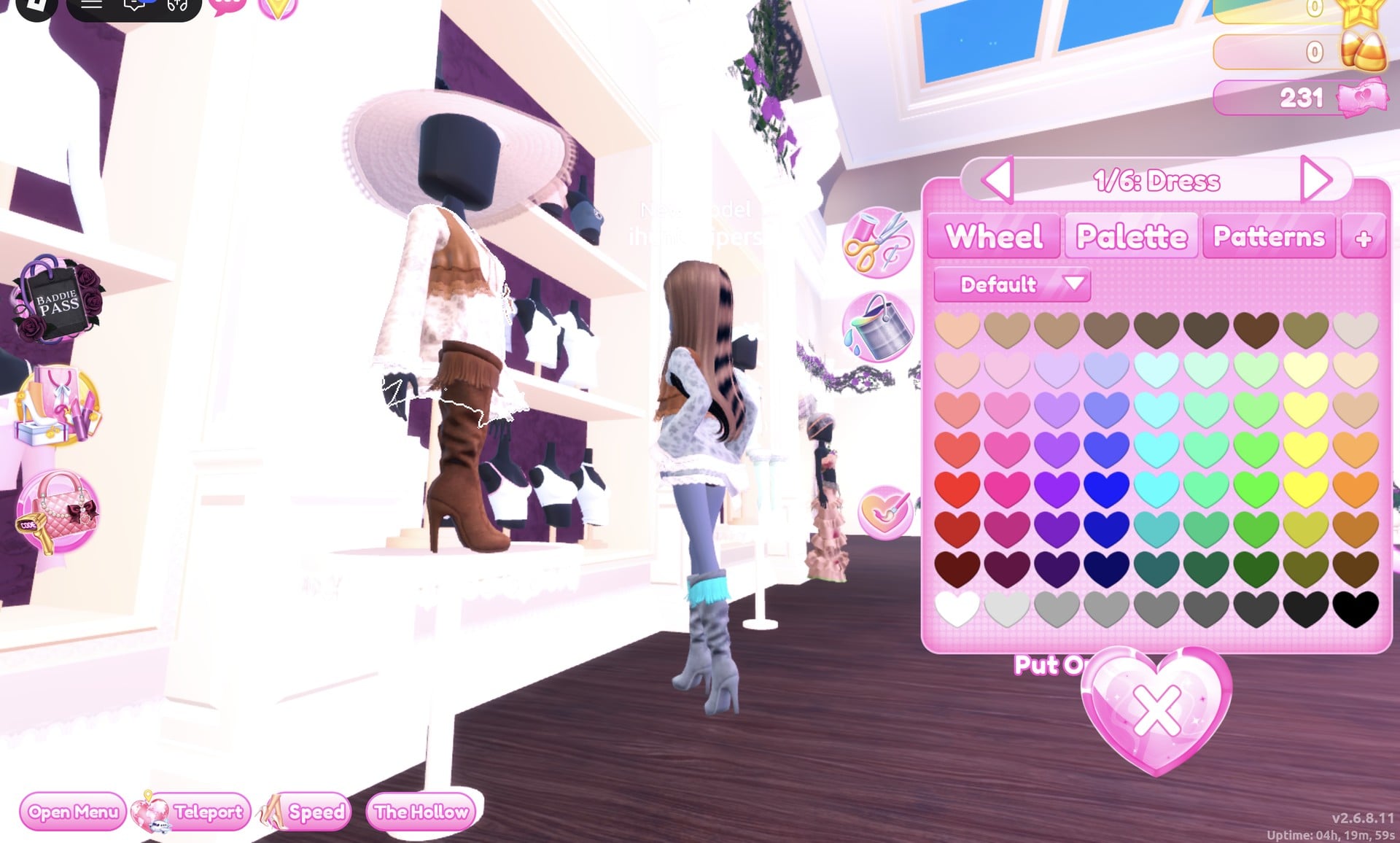
| Dress part | Colour | Palette spot |
|---|---|---|
| “1/6: Dress” | Light silver-grey | Column 3, row 8 |
| “2/6: Dress Stitching” | Cyan | Column 5, row 4 |
| “3/6: Ribbon” | Cyan | Column 5, row 4 |
| “4/6: Dress Lace” | Dark grey | Column 6, row 8 |
| “5/6: Vest” | Dark grey | Column 7, row 8 |
| “6/6: Vest Lace” | Cyan | Column 5, row 4 |
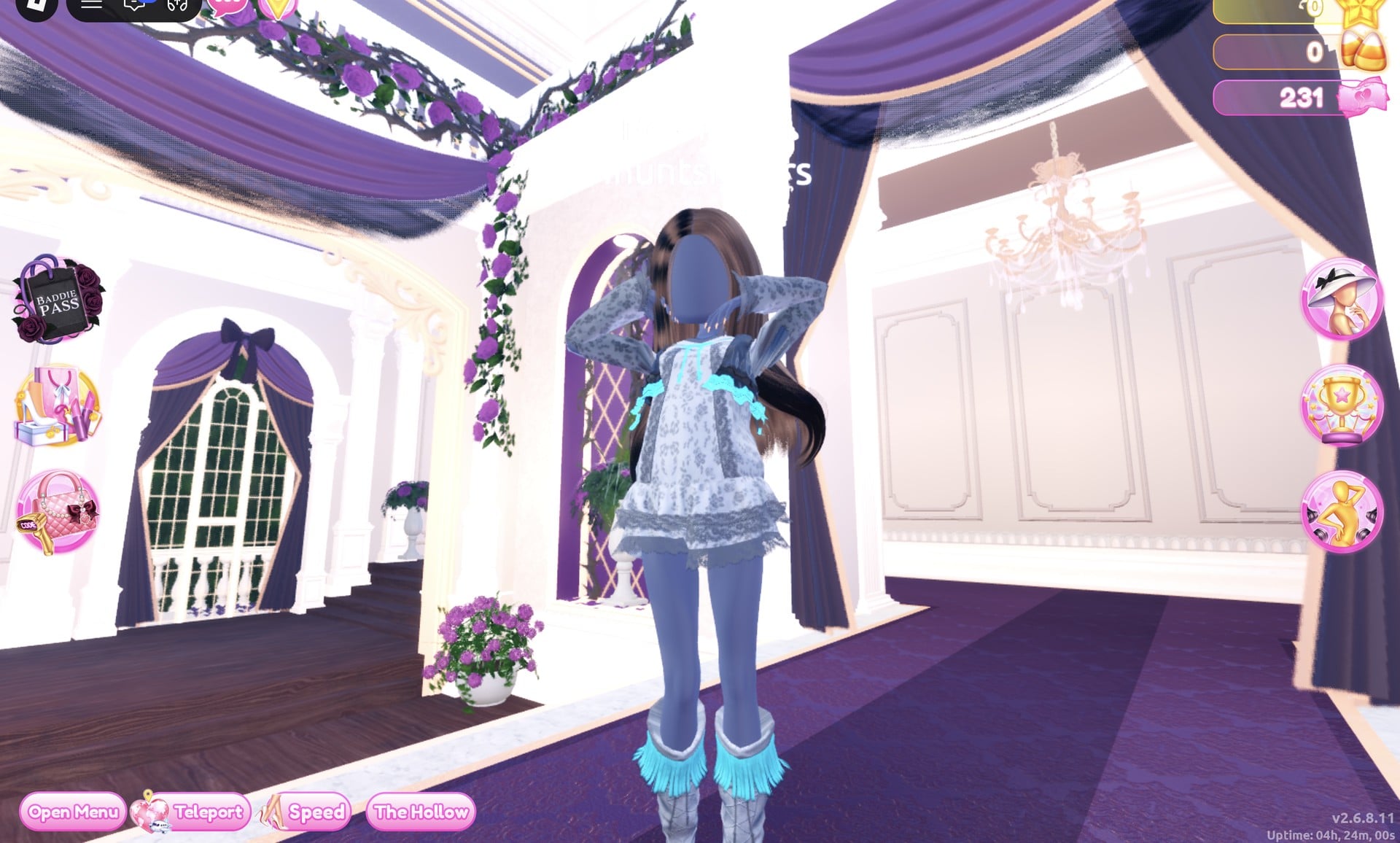
The dress has a pale blue-grey tone, while the white floral lace print remains visible and a cyan ruffle trims the neckline.
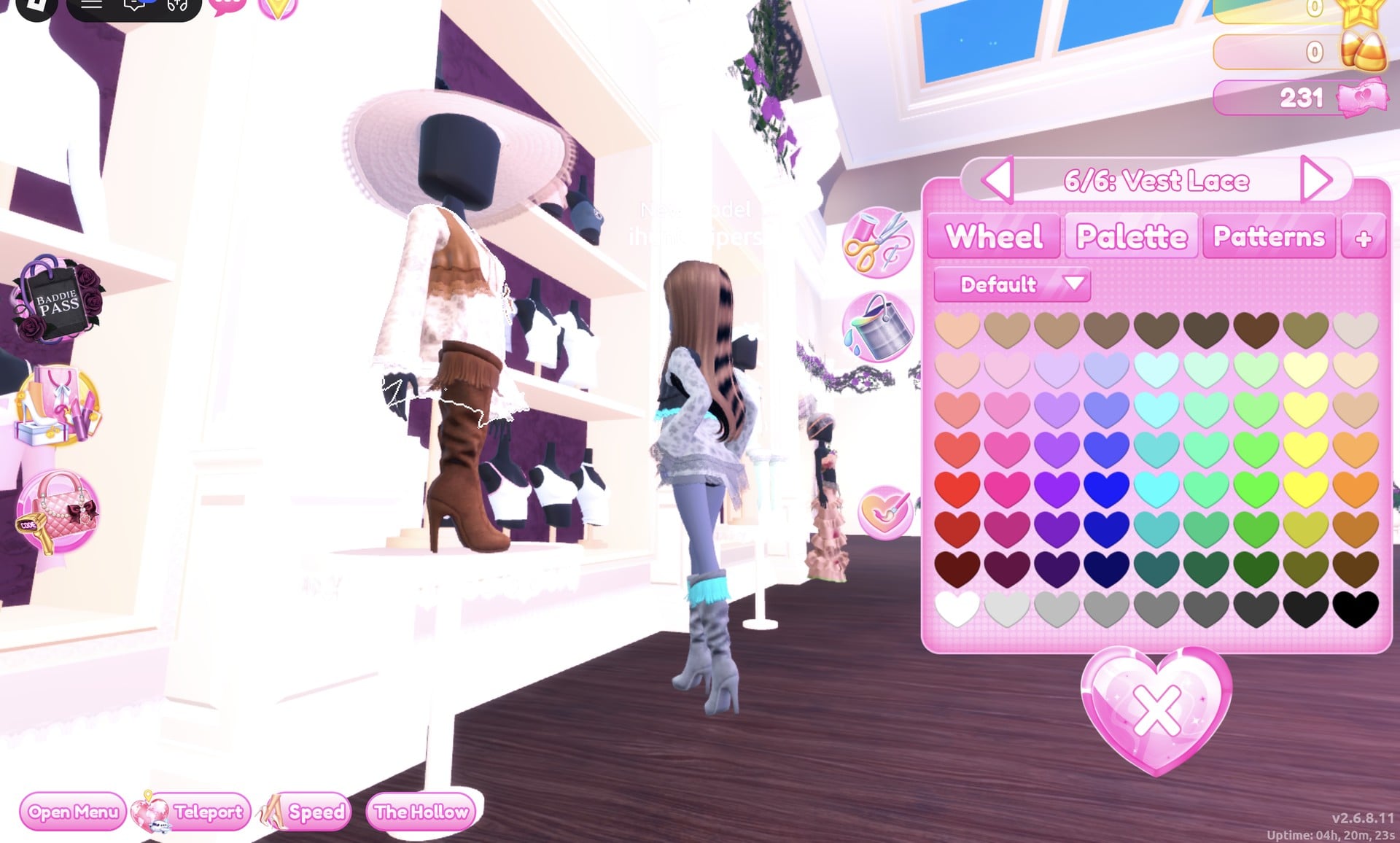
The look is complete with only the hair, boots and dress set. We kept the long wavy brown hair from an earlier build.
For the runway, choose the “Crystal” pose, 5th in the Solo tab of the Poses panel; it raises both hands behind the head.
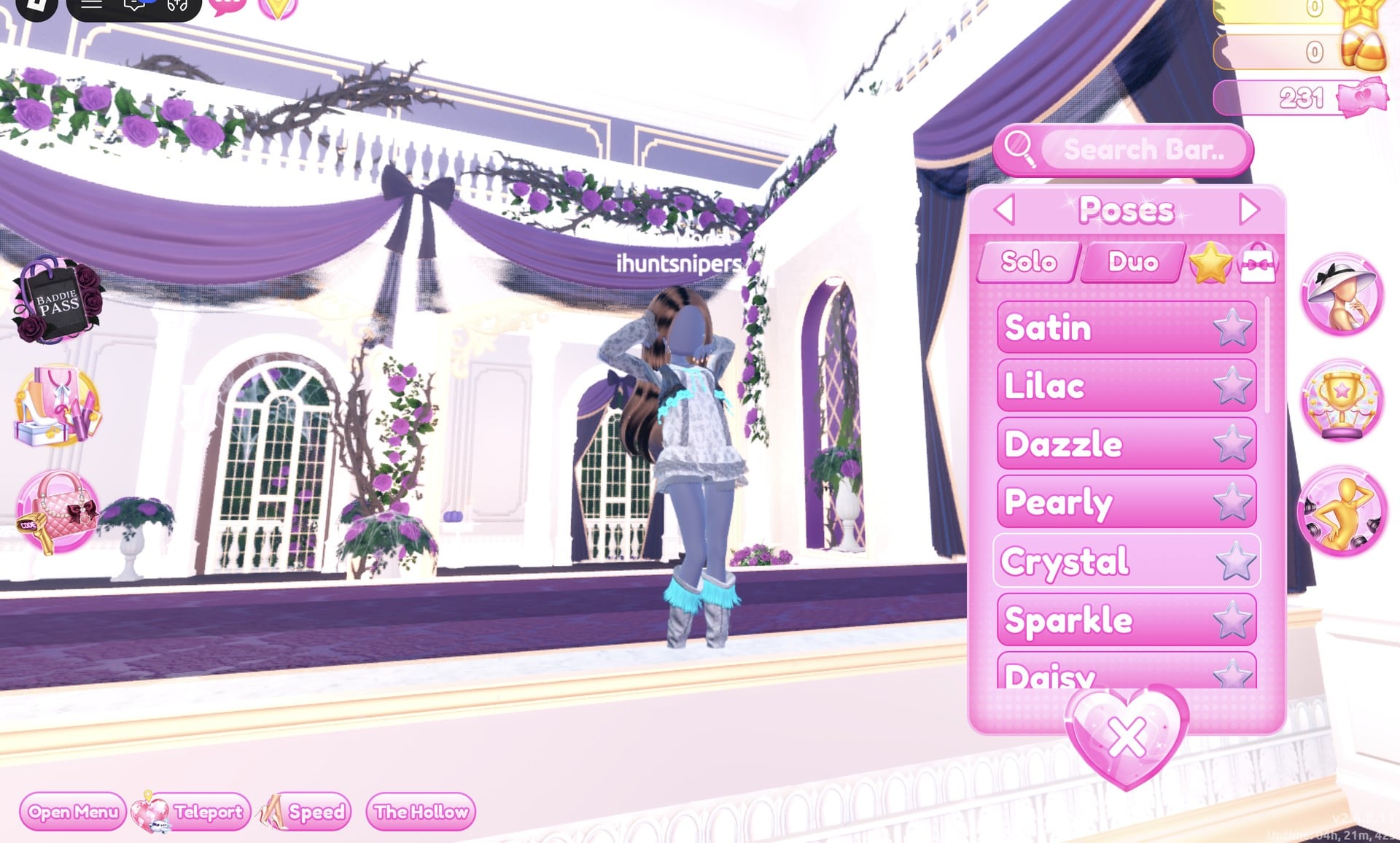
Here is the finished silver android on the Freeplay Runway in the Crystal pose. It is colour only, on the Default material; add Metallic to the grey parts and Neon to the cyan ones in the “+” tab if you want it to shine like the other two looks.
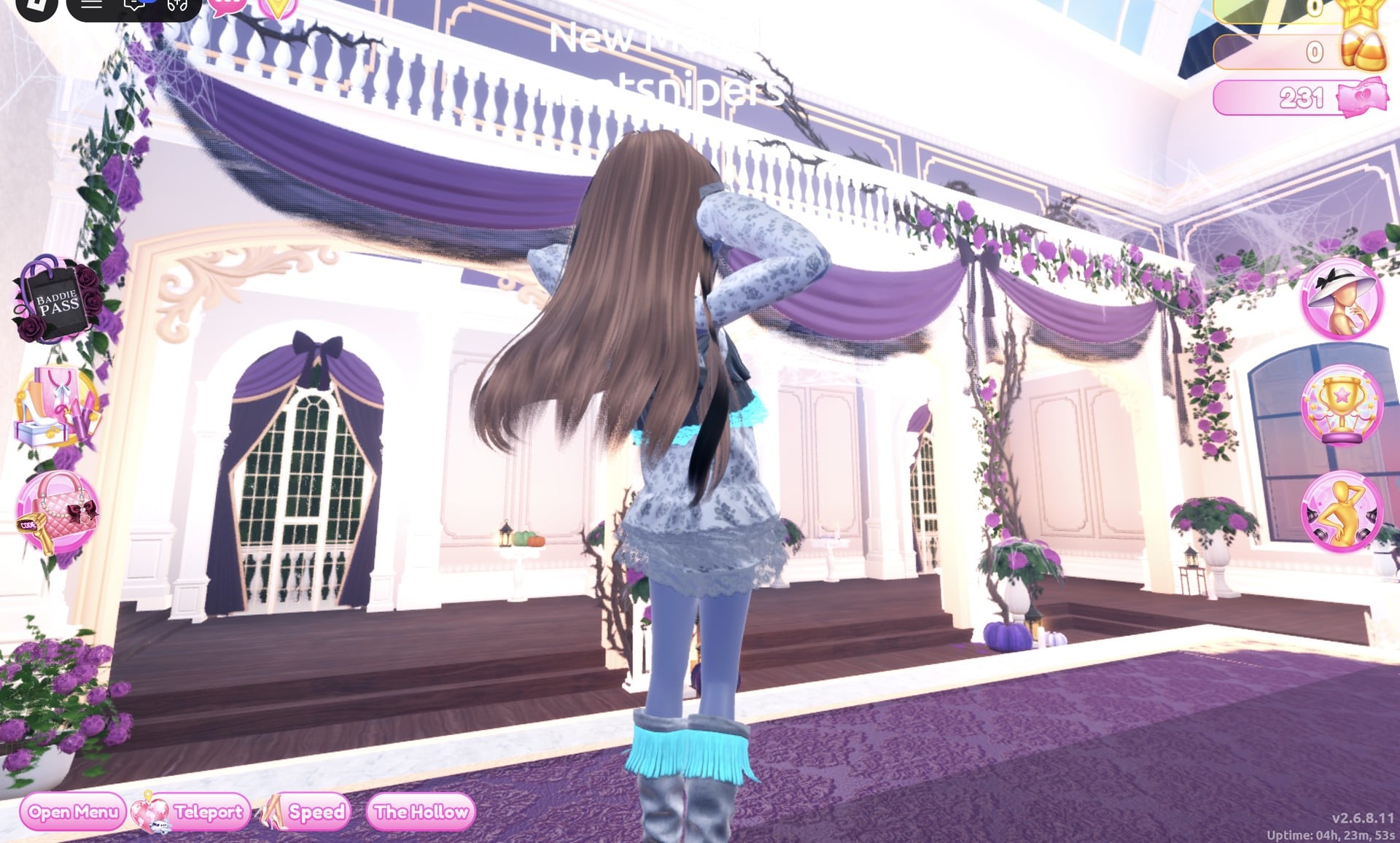
From the back, the cyan fringe on the boots and the cyan trim at the waist still show under the long hair.
Robot Takeover outfit 2: Metallic silver gown
Here every part gets the Metallic material. If you are coming from the first look, remove its dress set in the Wearing panel with the heart-X. Then find the mannequin in the long pale pink ruffled tiered gown, beside the dress shelf near the “Skin Tones” sign. Click it twice, a moment apart, and the panel opens at “1/5: Skirt”.
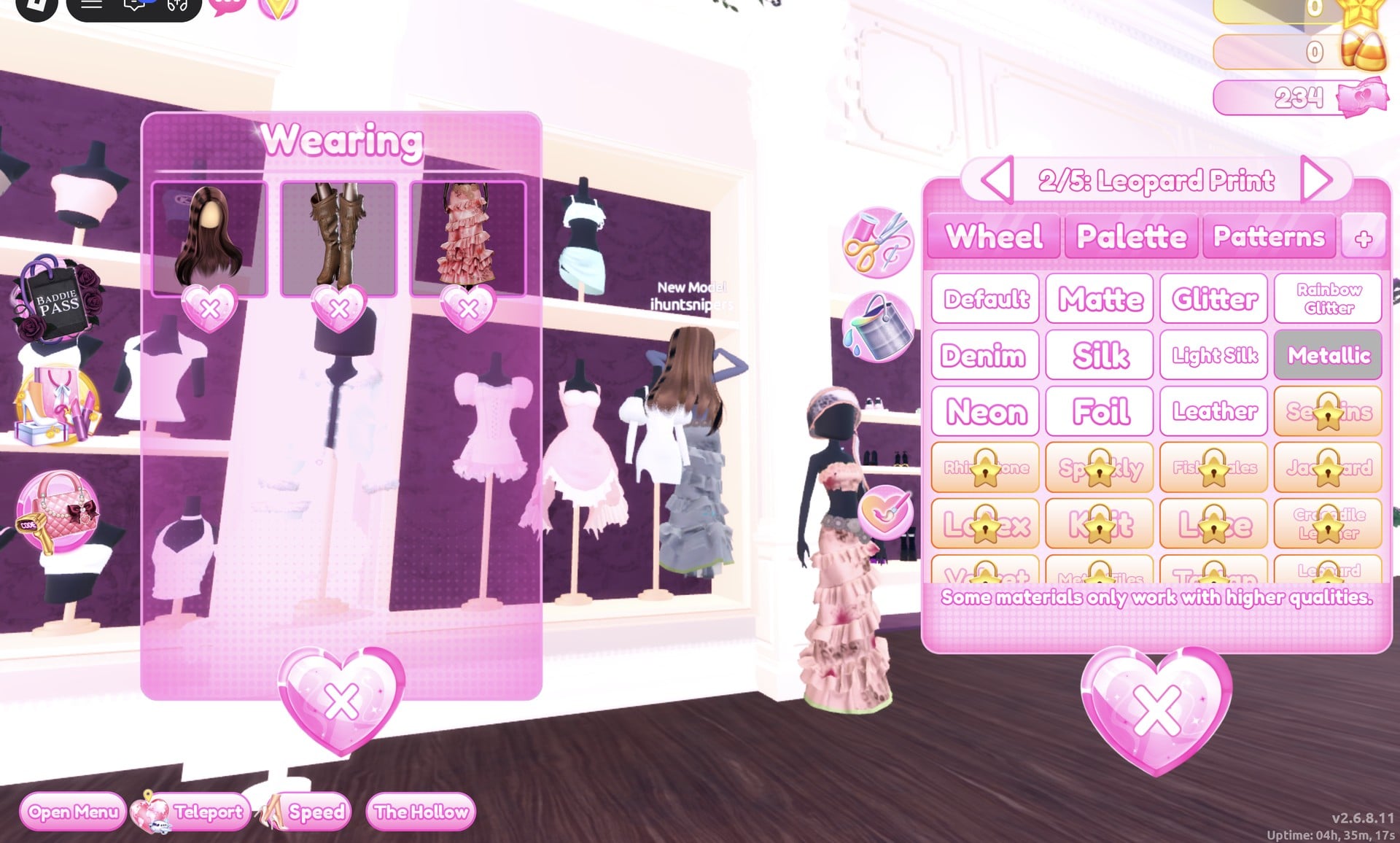
| Gown part | Colour | Palette spot | Material |
|---|---|---|---|
| “1/5: Skirt” | Light silver-grey | Column 3, row 8 | Metallic |
| “2/5: Leopard Print” | Dark grey | Column 7, row 8 | Metallic |
| “3/5: Flower Details” | Cyan | Column 5, row 4 | Metallic |
| “4/5: Hemline” | Light silver-grey | Column 3, row 8 | Metallic |
| “5/5: Belt” | Cyan | Column 5, row 4 | Metallic |
Press “Put On” and keep the grey and cyan boots and the long wavy brown hair from the first look.
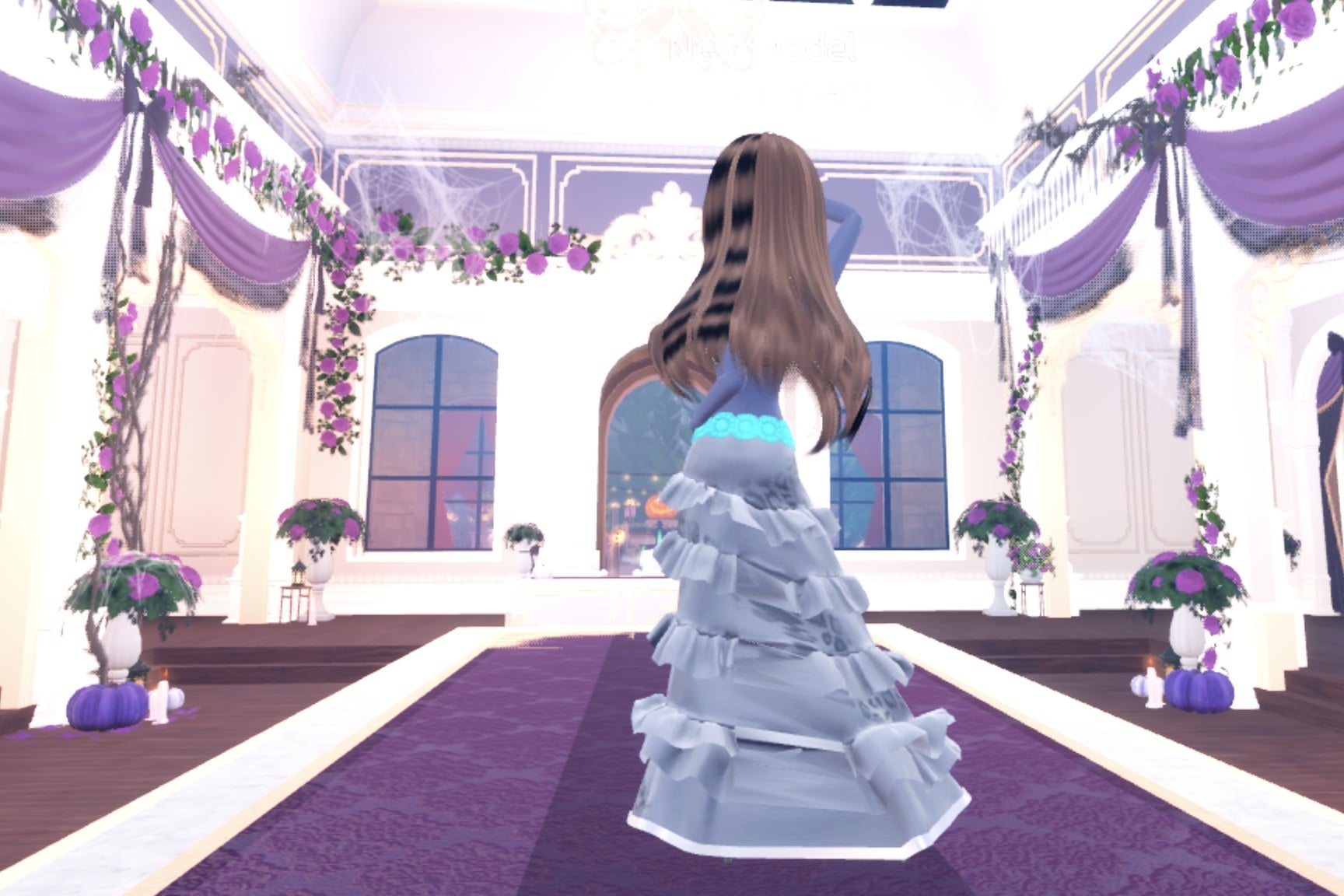
The gown turns shiny silver-white, with a grey leopard print and cyan flower details at the waist. A plain black top showed above it in our pictures; it was not a piece we picked.
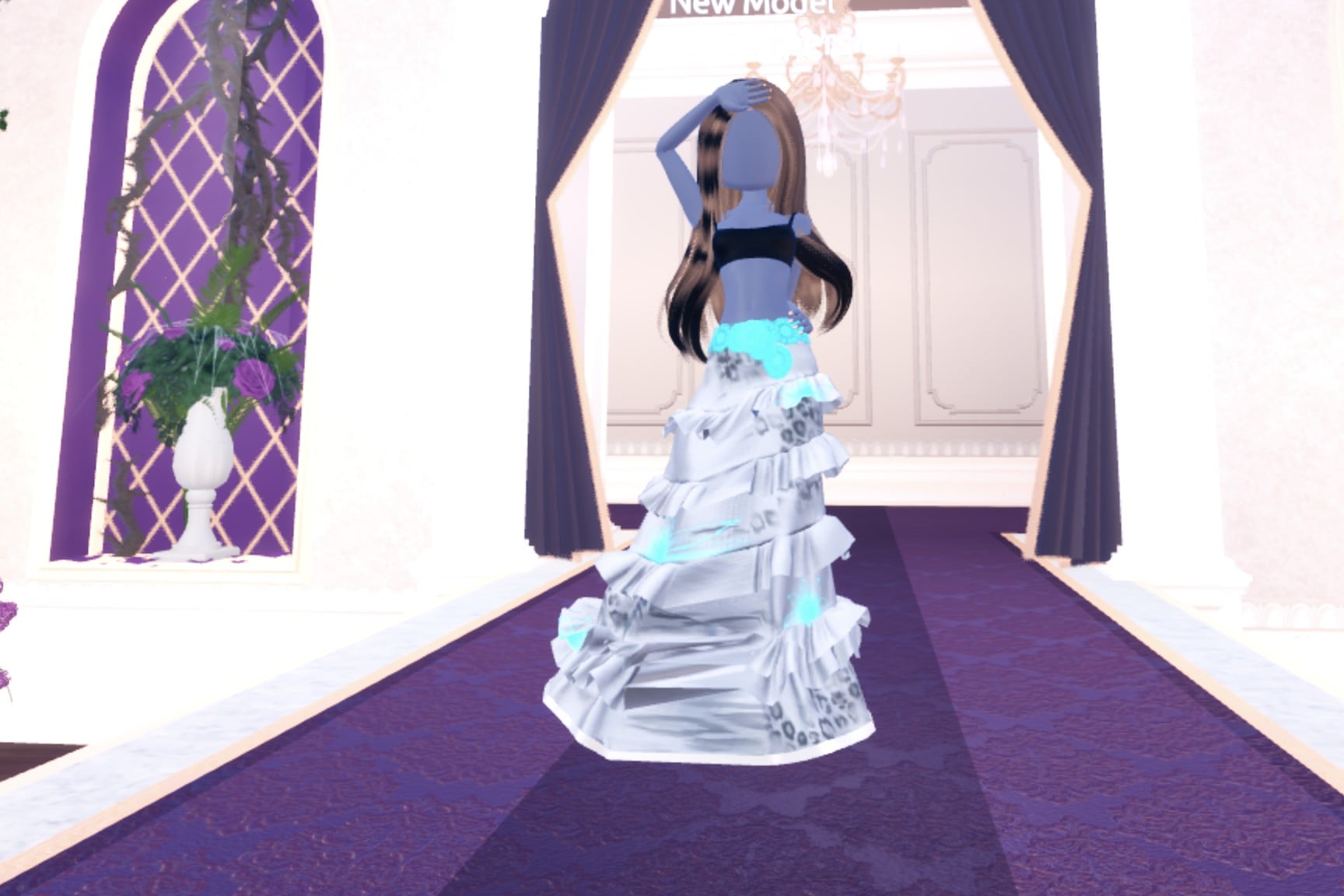
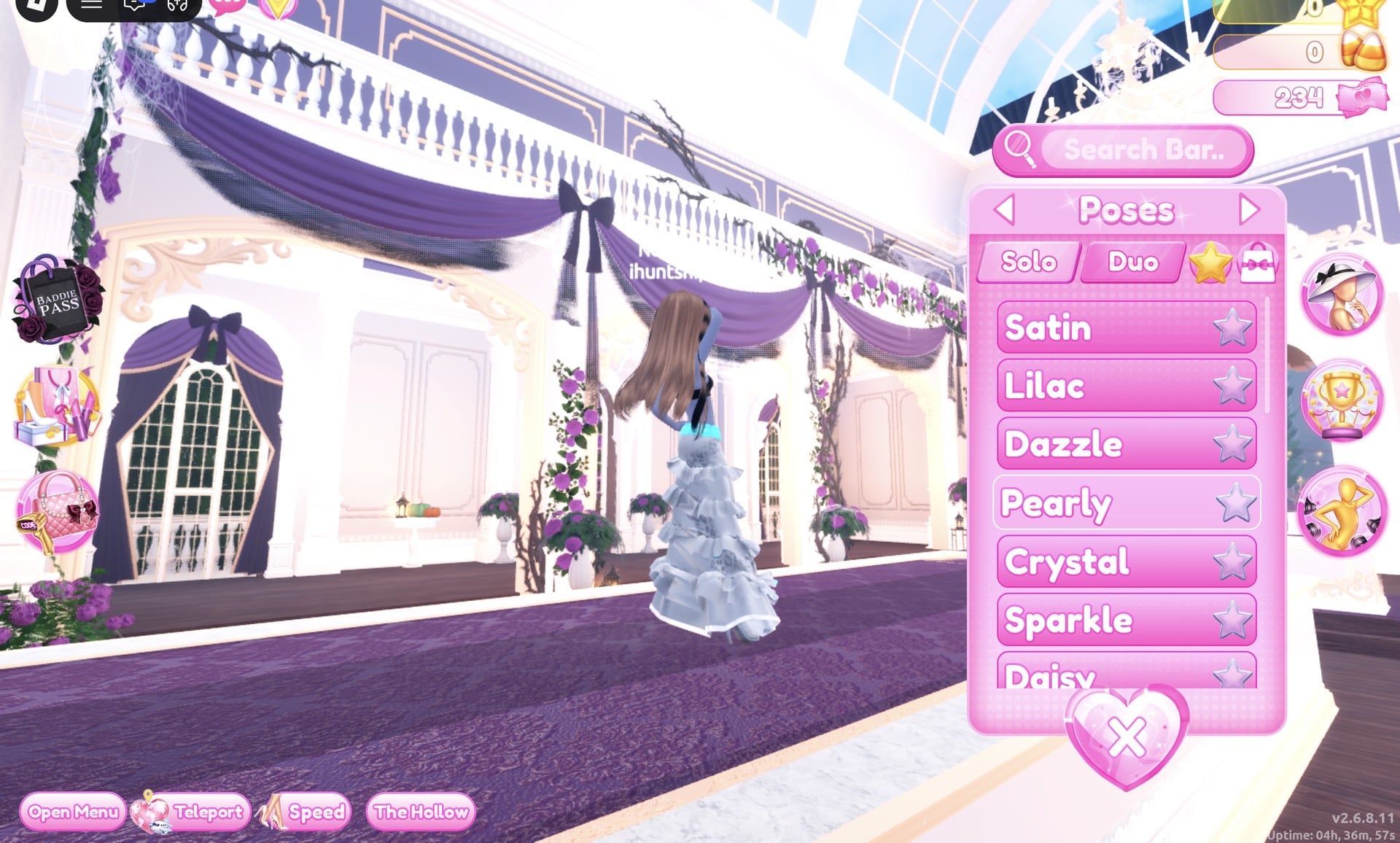
Pose with “Pearly”, 4th in the Solo tab, which rests one hand on the head.
From the back, the long wavy hair falls over the silver tiers, with the cyan belt at the waist.
Robot Takeover outfit 3: Black chrome cyborg
The darkest look mixes all three robot materials, Leather, Metallic and Neon, and reuses the gown and boots from the earlier builds through the Wearing panel.
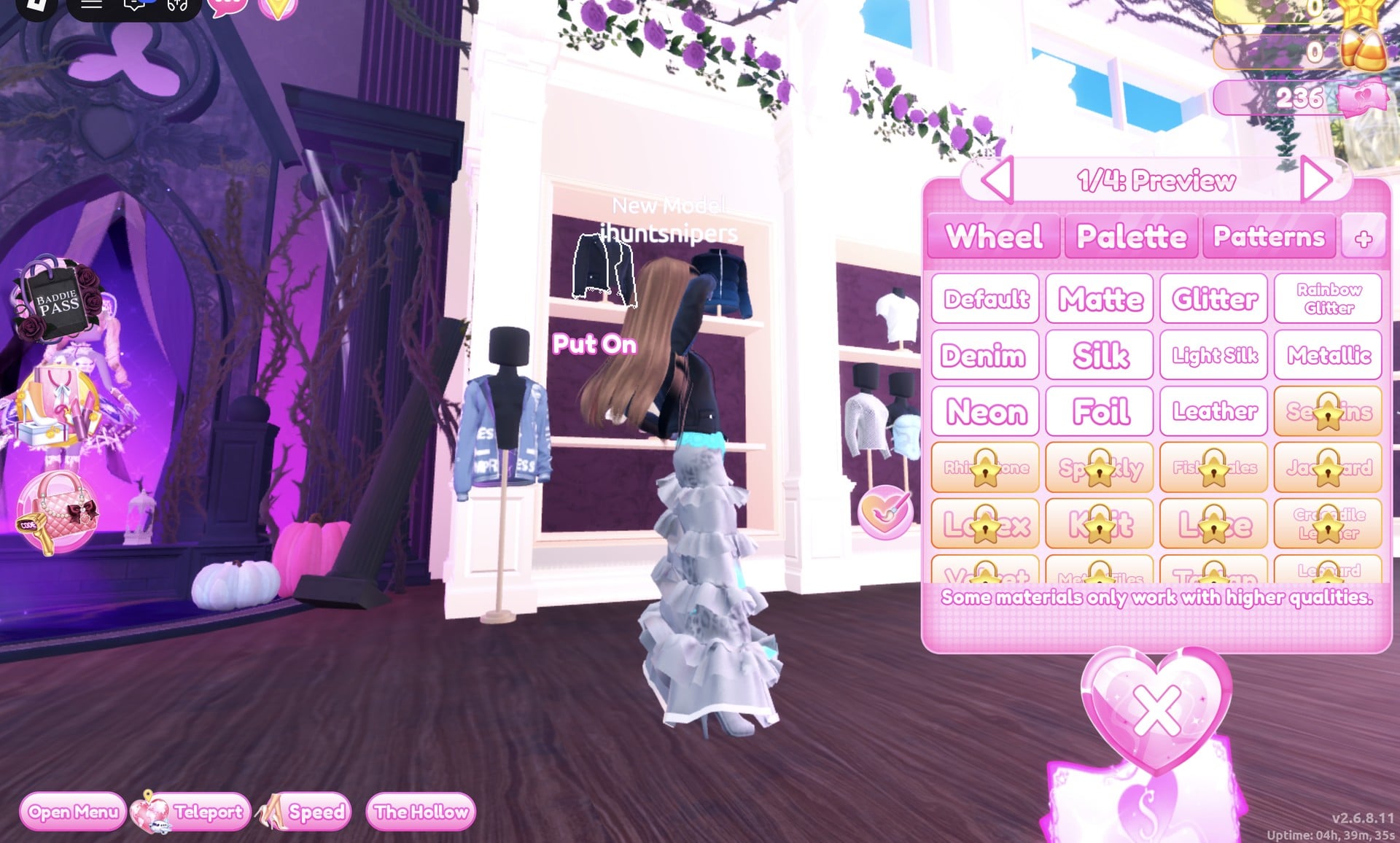
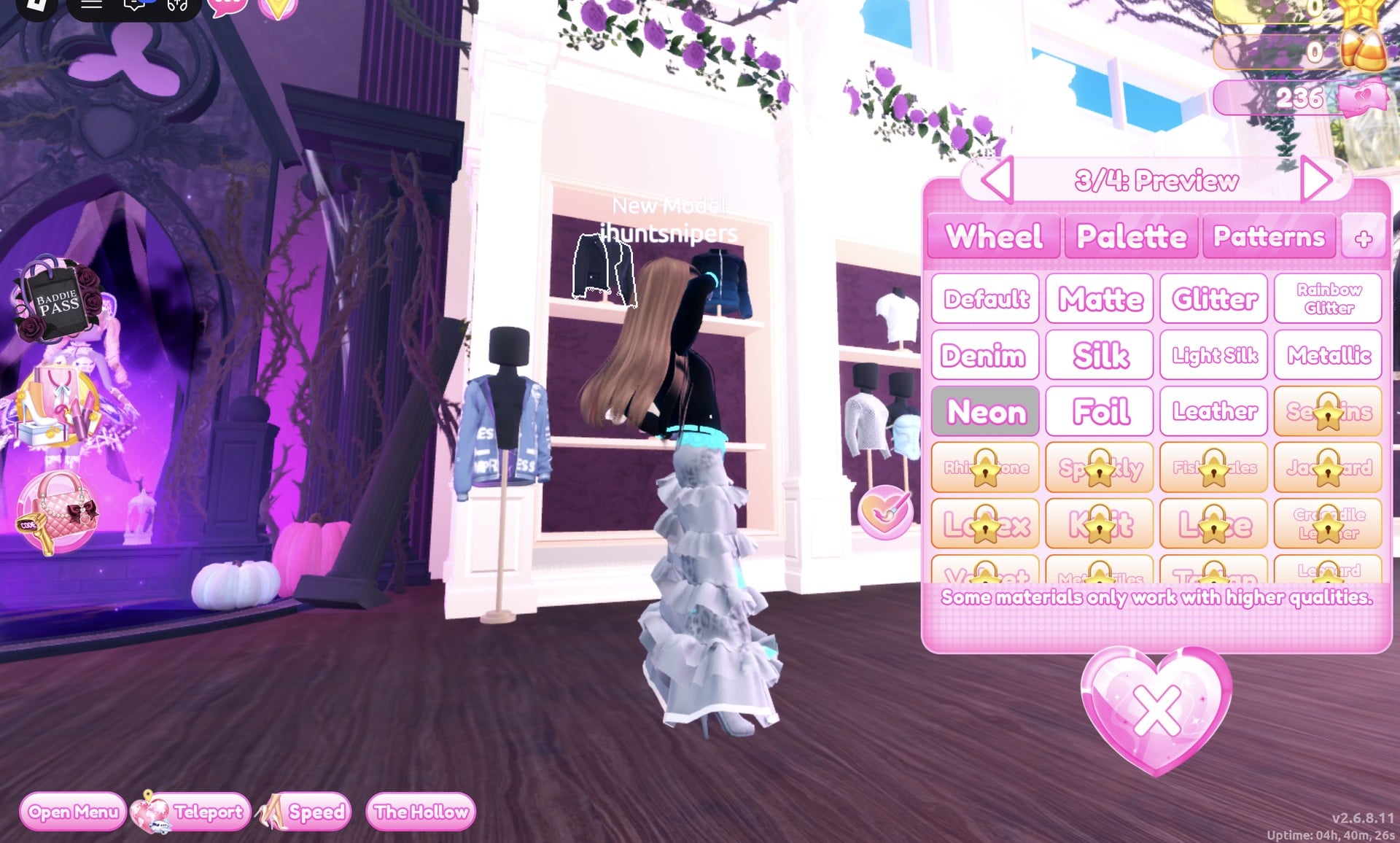
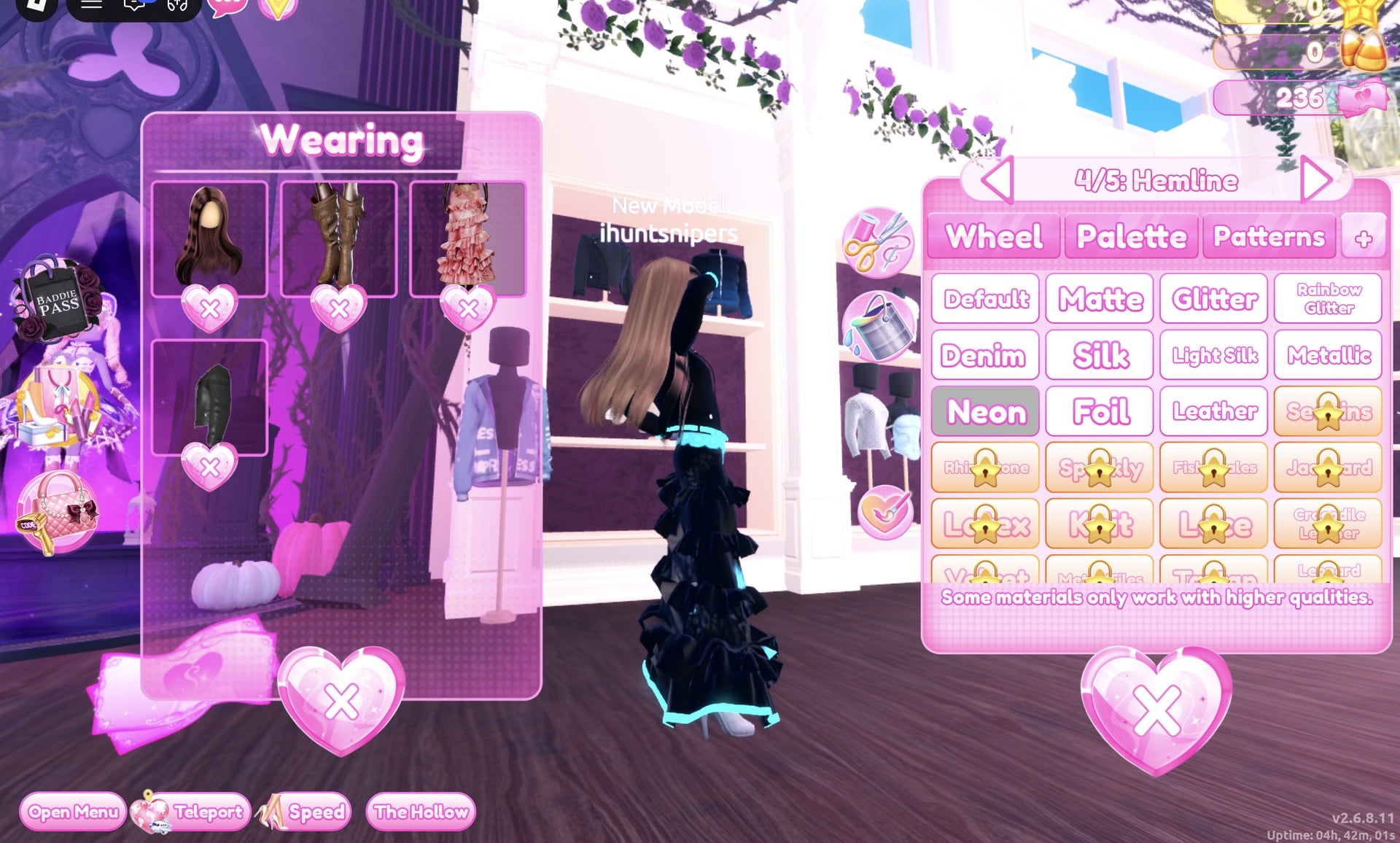
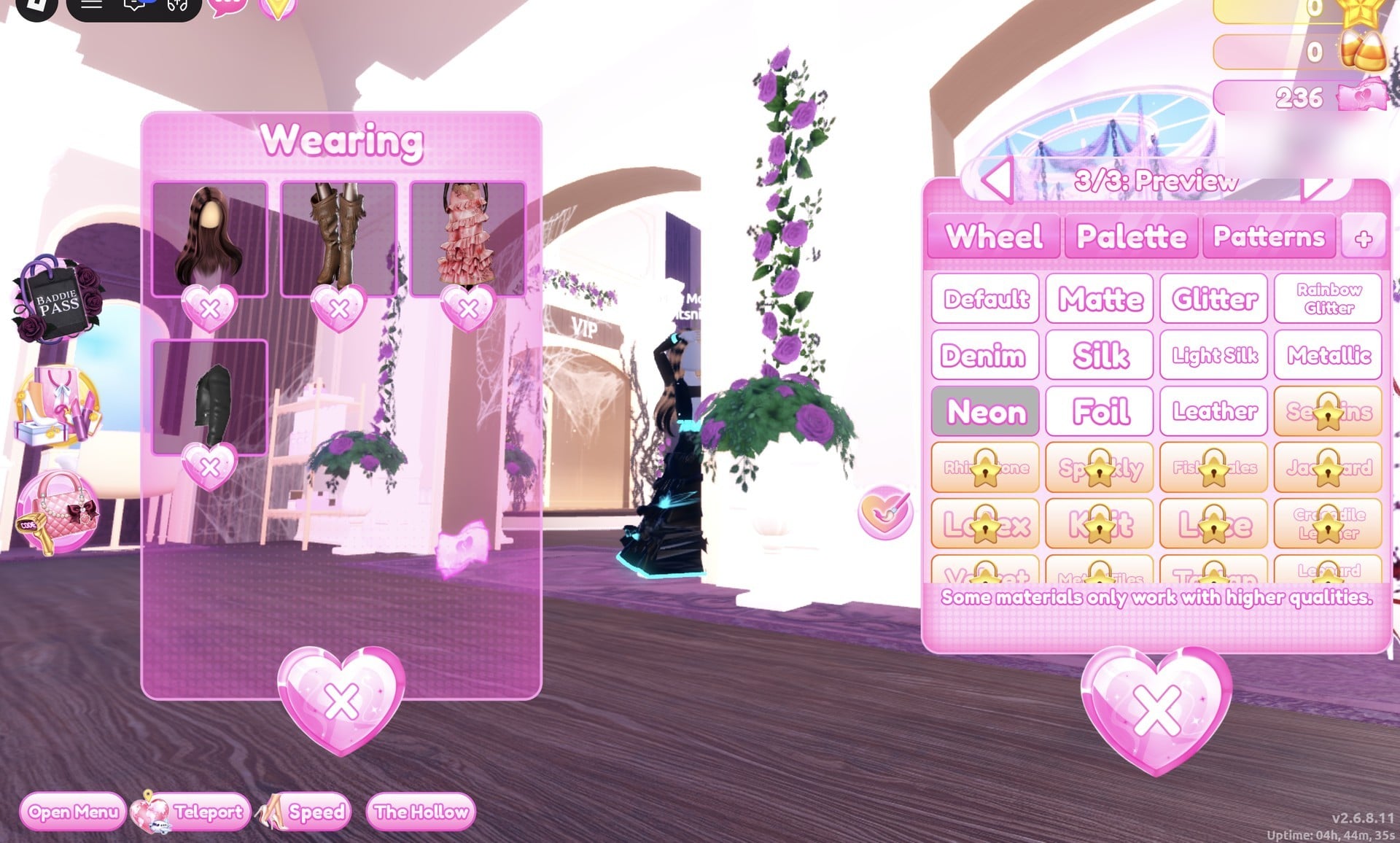
The Wearing panel should list the hair, boots, gown and jacket.
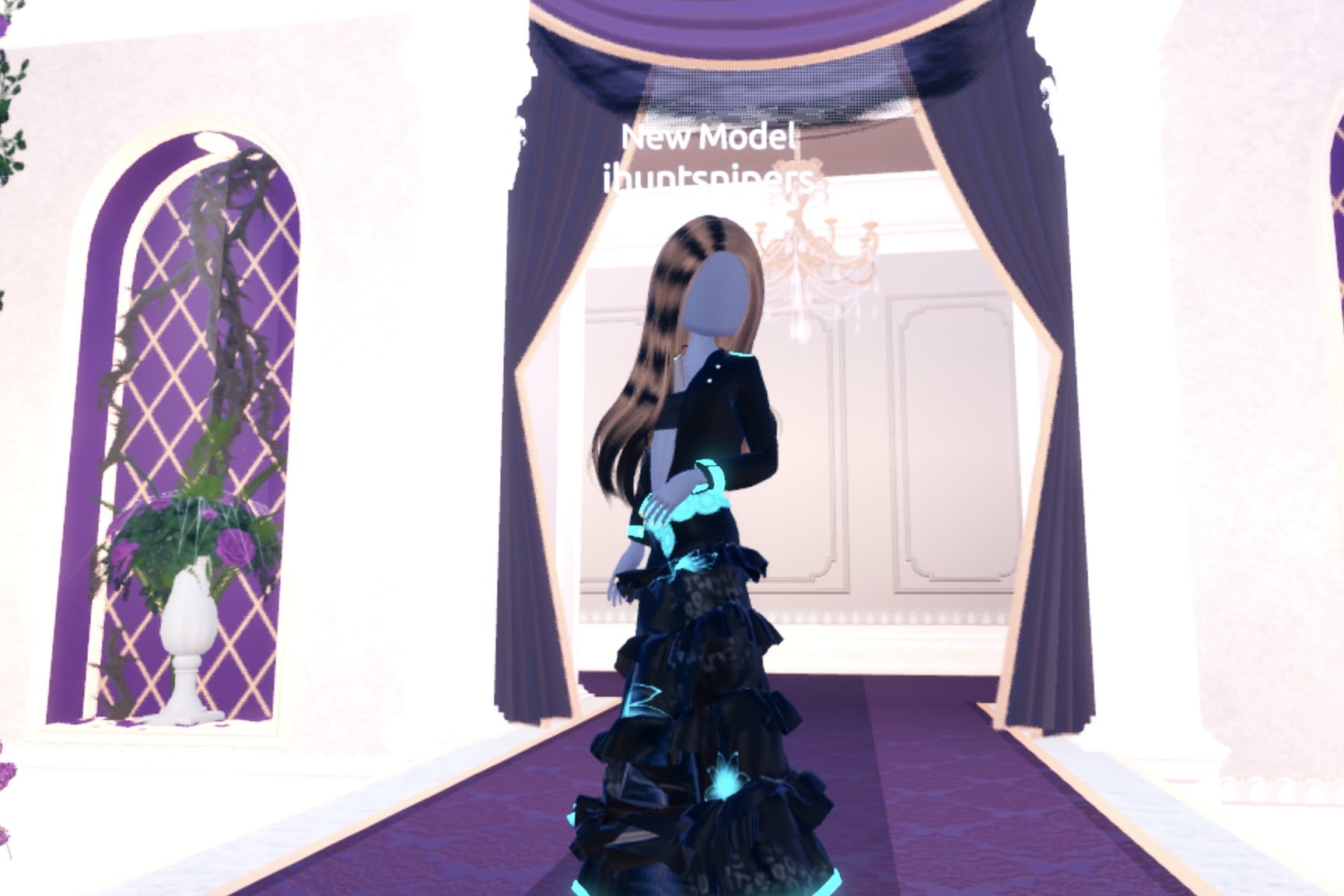
On the runway, the outfit pairs a black leather jacket with a black tiered gown; cyan flowers sit at the waist and a cyan neon hem glows below.
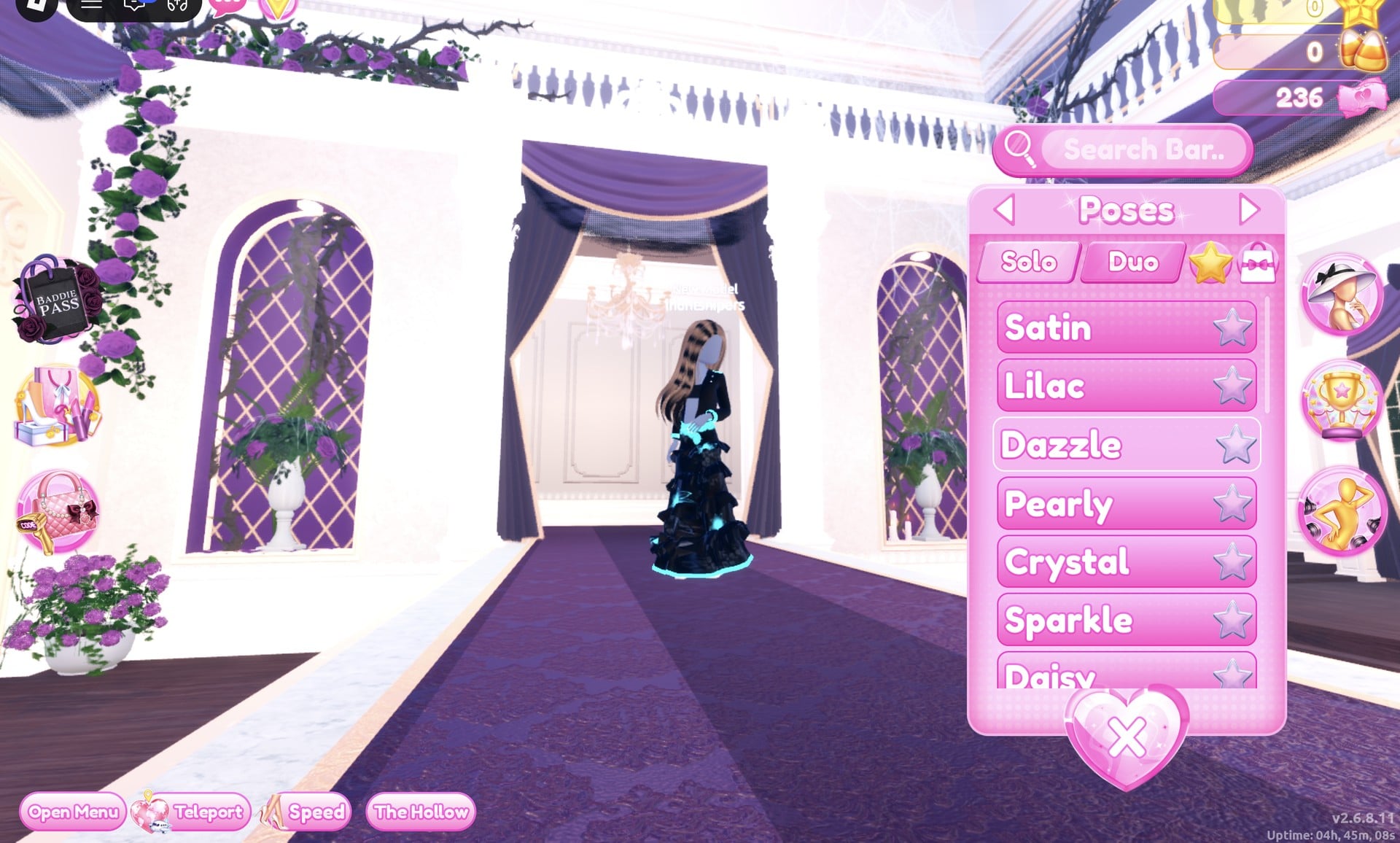
Choose “Dazzle”, the 3rd pose in the Solo tab.
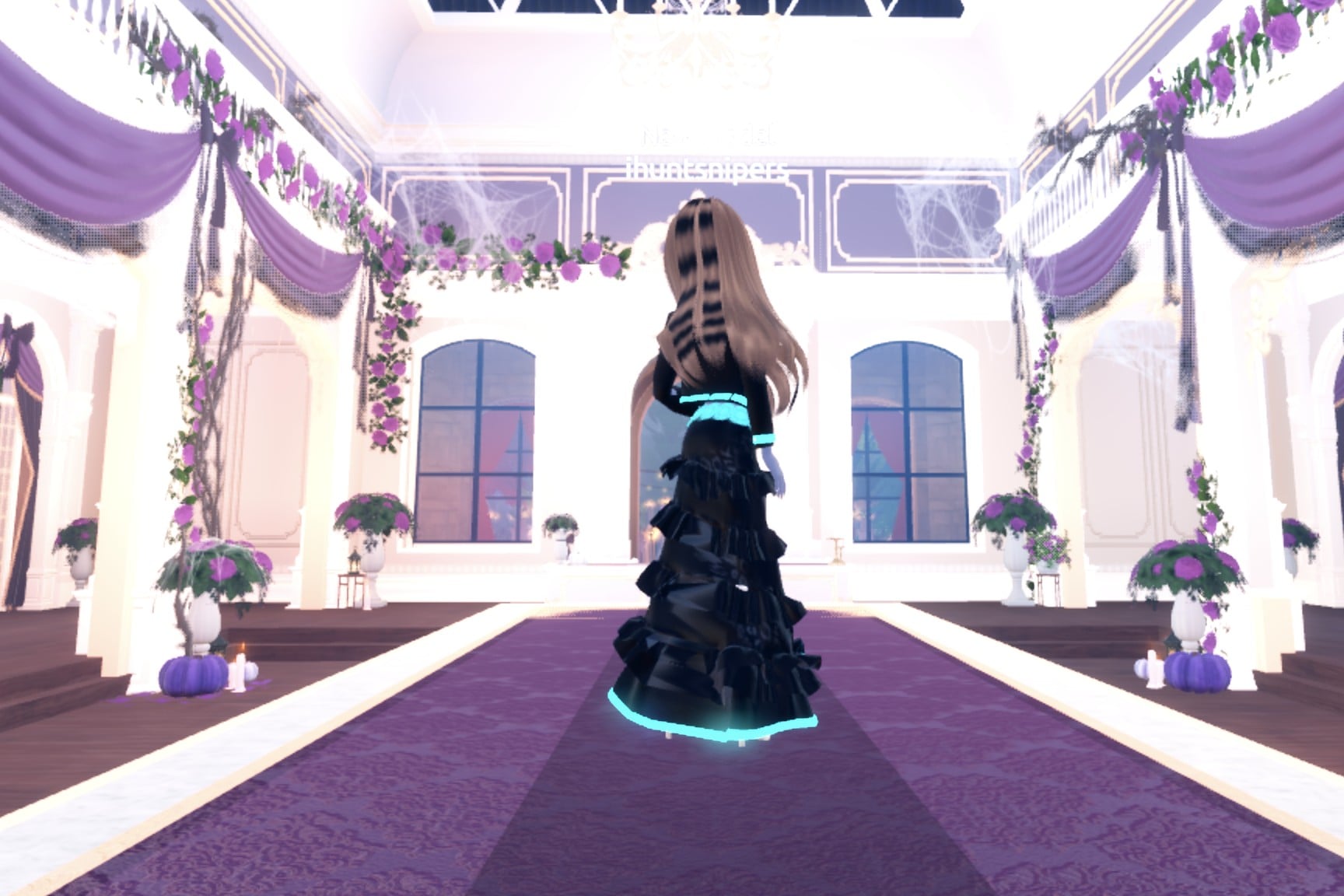
From the back, the Neon hem and the cyan belt glow against the black gown.
Robot Takeover pieces to look for
None of these pieces has a name in the game, so look for them by place and shape. All four are in the Dressing Room in Freeplay Mode, and all four worked on our account with no VIP and 0 stars. We did not find a bodysuit, visor or glasses piece in the parts of the Dressing Room we walked, so the robot effect here comes from colour and materials.
| Piece | Where in the Dressing Room | Colours and materials we used |
|---|---|---|
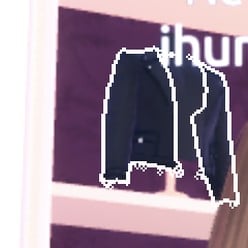 Black jacket (four parts, all labelled “Preview”) Black jacket (four parts, all labelled “Preview”) | Left-wall jacket shelves near where you arrive: top-left of the first shelf, beside a dark navy puffer | Parts 1 and 2 black (column 9, row 8) + Leather; part 3 cyan (5, 4) + Neon; part 4 light silver-grey (3, 8) + Metallic |
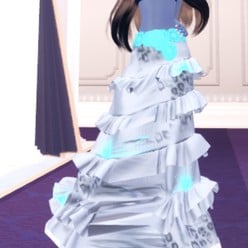 Long tiered ruffled gown (five parts, opens at “1/5: Skirt”) Long tiered ruffled gown (five parts, opens at “1/5: Skirt”) | The mannequin in the long pale pink gown beside the dress shelf, near the “Skin Tones” sign | Silver: Skirt and Hemline light silver-grey (3, 8), Leopard Print dark grey (7, 8), Flower Details and Belt cyan (5, 4), all Metallic. Black: Skirt black + Metallic, Flower Details and Hemline cyan + Neon |
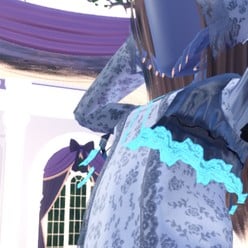 White lace dress set with a vest (six parts) White lace dress set with a vest (six parts) | Main hall, right-hand side: the mannequin on a small round white table by the tops shelf | Dress light silver-grey (3, 8); Dress Stitching, Ribbon and Vest Lace cyan (5, 4); Dress Lace dark grey (6, 8); Vest dark grey (7, 8) |
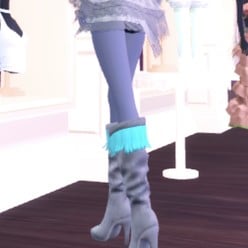 Fringed knee boots (three parts) Fringed knee boots (three parts) | On the same mannequin as the lace dress | Part 1 light silver-grey (3, 8), part 2 dark grey (6, 8), part 3 cyan (5, 4); Metallic, Metallic and Neon for the cyborg look |
How a theme round works
We watched two ordinary rounds, Plaid Fashion and Birds of Paradise; Robot Takeover did not come up. In a regular server, the current theme appears in a banner at the top of the main lobby with a timer under it, and the icon at the top centre opens a hint card for that theme. Once dressing ends, players walk the runway one at a time, about 7 seconds each, while everyone else votes using five stars along the bottom of the screen. A “Voting complete!” banner appears between players.
A “Results” card then ranks the players and shows the stars and other rewards each one earned. An “Intermission” countdown of about one minute follows, with a “Pick Theme” button next to the timer. We did not press it and did not see what it costs. Freeplay Mode has no timer, so build and try each look there first; a round gives you only the minutes on its timer (04:33 and 05:17 in the rounds we saw).
What we have not checked
All three looks keep the long wavy brown hair from an earlier build; a sleek or short style would suit the theme, but we did not set one. We also did not change the skin tone (the blue-grey skin in the pictures is our account’s) or set any makeup, and we did not try the star-locked materials. Robot Takeover did not come up in the rounds we watched, so these looks have not been through a real vote and we cannot tell you how many stars they earn.
FAQ
Can I do Robot Takeover without VIP?
Yes. All three looks were built on an account with no VIP and 0 stars, and every piece, colour, material and pose used here worked on it. Nothing was bought.
How do I make clothes metallic or neon in Dress To Impress?
Click the piece, pick the part with the arrows, choose its colour on “Palette”, then open the “+” tab and click Metallic or Neon. Do this for each part, then press “Put On”.
Why can’t I pick Sequins, Latex or Velvet?
Those materials carry a gold star lock in the “+” tab. On our 0-star account only Default, Matte, Glitter, Rainbow Glitter, Denim, Silk, Light Silk, Metallic, Neon, Foil and Leather were open.
Can I change colours or materials after putting a piece on?
Yes. Click the piece again, or click its picture in the “Wearing” panel (the round hat button on the right), and its colour panel opens with your colours still set.
Which pose suits a robot look?
We used Crystal (both hands behind the head), Pearly (one hand on the head) and Dazzle, all from the Solo tab of the Poses panel. None showed a price or a lock.