Boho in Dress To Impress comes down to two things: earthy colours and soft, layered shapes. The Dressing Room has two mannequins near the arrival point that already carry the right silhouettes. One wears a lace dress with a vest and sun hat, and the other wears a ruffled tiered gown. Recolour them with earthy colours from the palette, add long wavy hair, and both looks are ready for the runway.
Quick answer: In the Dressing Room, click a mannequin’s outfit, recolour each part in cream, tan, brown, rust or olive while previewing, press “Put On”, then add long wavy brown hair from Lana’s Salon.
How recolouring works in the Dressing Room
Both outfits are built in Freeplay Mode in Dress To Impress on Roblox. Click the pin on the HUD at the top left to open “Teleport Point”, then choose “Dressing Room”. The same menu also holds “Freeplay Runway”, which is where you go to see the finished look.
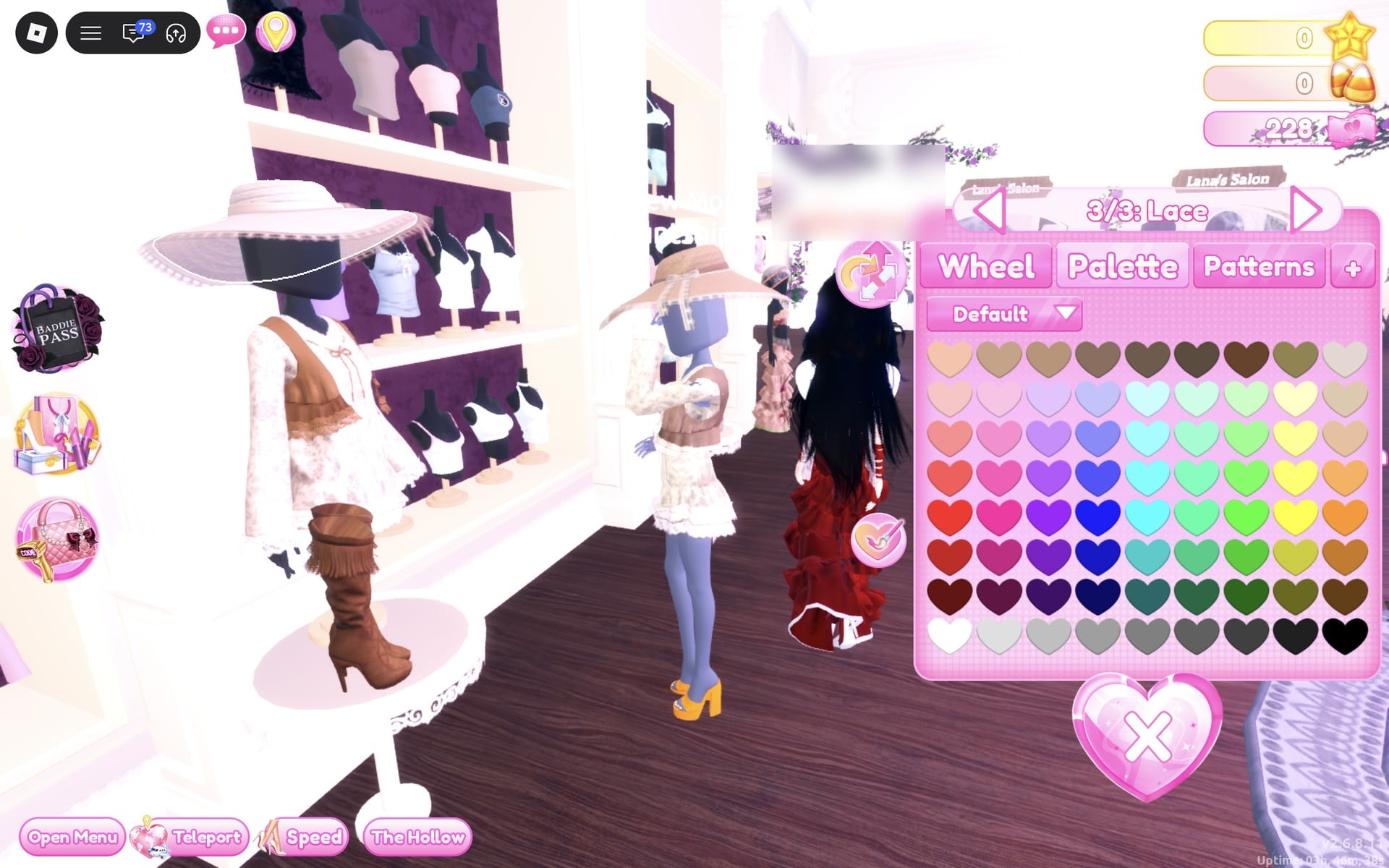
Clothes are 3D pieces sitting on shelves and mannequins. The game shows no item names, so every piece below is described by where it stands. Clicking a piece previews it on your character and opens a colour panel with a “Put On” button beside it. Outfit sets split into labelled parts, like “1/6: Dress”, and you move between them with the < and > arrows.
The order matters. Pick a colour for each part while you are still previewing, then press “Put On”. The colours stay on the item after you close the panel. If you click the same piece again later, it reopens with your colours intact instead of resetting, so you can keep adjusting.
To take something off, open the “Wearing” panel with the hat button on the right side of the screen. Each worn piece appears as a picture with a small heart-X under it. Click the heart-X to remove that piece.
Boho colours in the Default palette
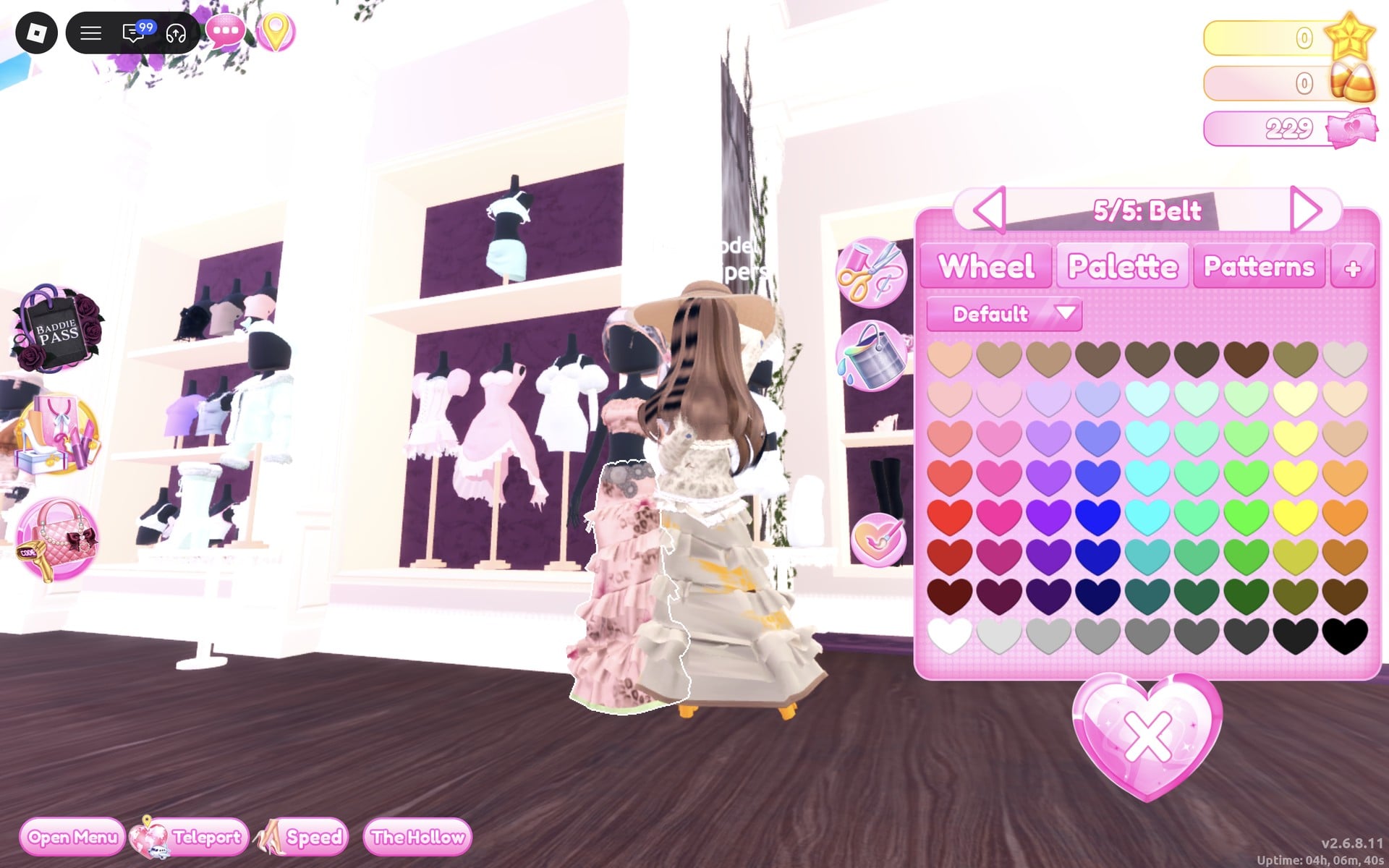
Open the “Palette” tab and keep the palette set to “Default”. It is a grid of 9 columns by 8 rows. Each column is a colour family. From left to right they run red, pink, purple, blue, cyan, mint, green, yellow and orange. Rows go from light at the top to dark at the bottom, with one exception: the top row is the earthy row, holding peach, tans, browns, olive-brown and grey-cream. The bottom row runs from white to black. Both looks use cream, tan and brown; the gown also uses rust and olive.
| Colour | Column | Row |
|---|---|---|
| Light cream | 9 | 2 |
| Tan | 3 | 1 |
| Brown | 4 | 1 |
| Rust | 9 | 6 |
| Olive | 8 | 7 |
Long wavy hair from Lana’s Salon
Both looks use the same hairstyle. In the Dressing Room there are two “Lana’s Salon” arches, and the left one is the hair salon. You’ll see a row of hair-dryer chairs below five framed hair silhouettes.
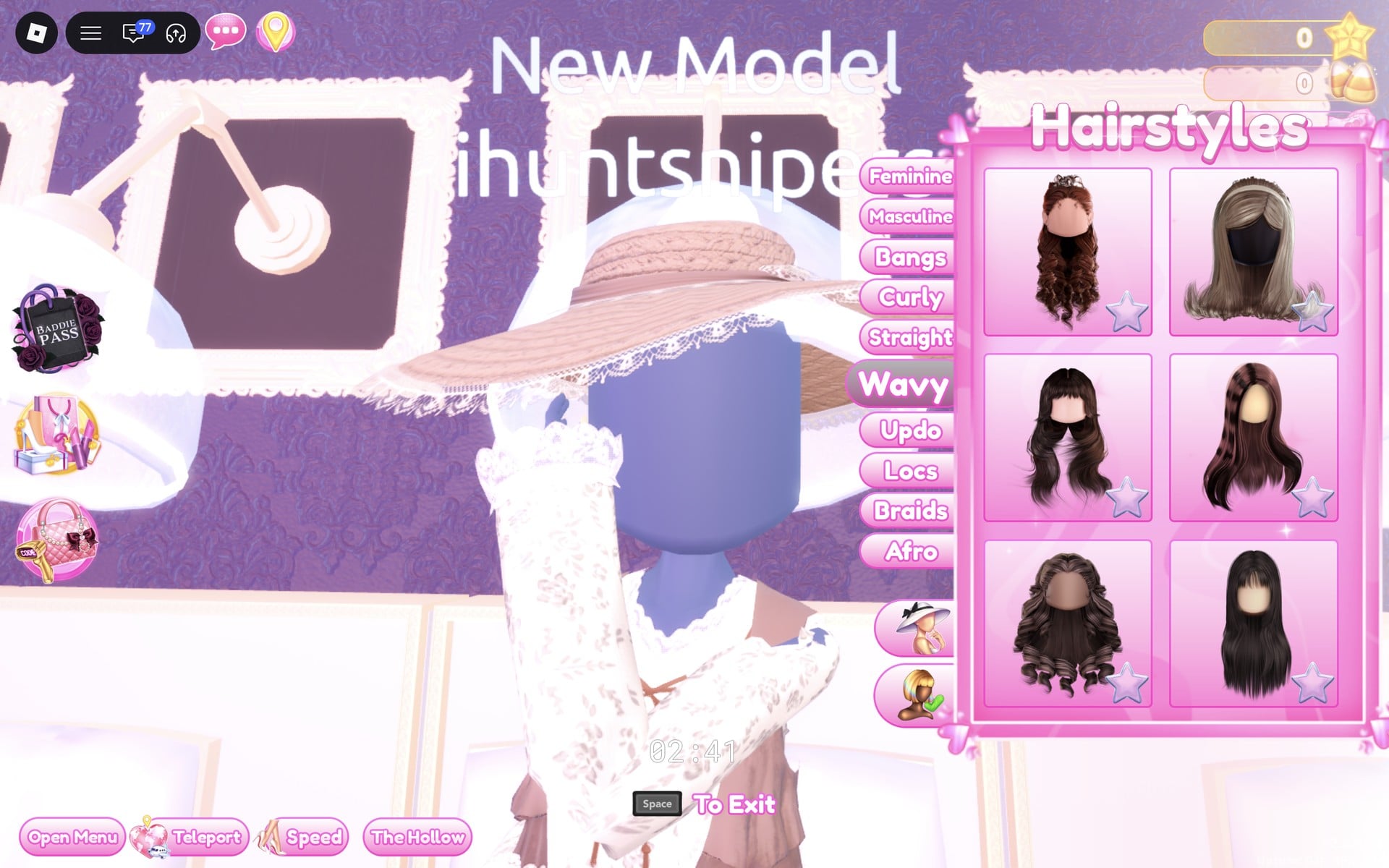
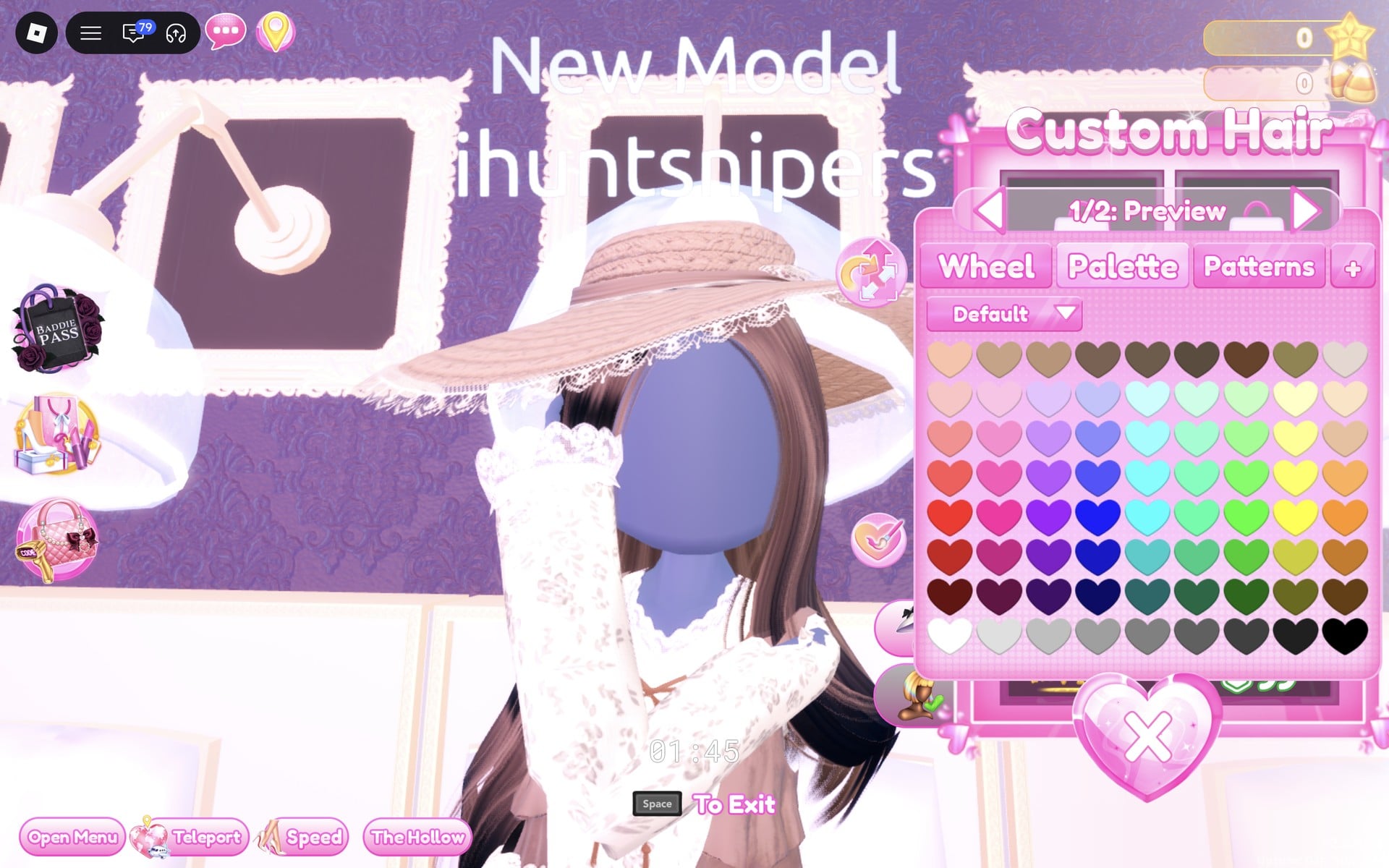
You don’t need custom hair for either look. The “Custom Hair” panel opens from the lower icon beside the tabs. It has two slots marked “Free!”, and its locked slots cost 2,500 pink cash, 3,000 stars, “VIP” and 99 Robux.
Boho look 1: Lace prairie dress, vest and sun hat
On the right-hand side of the Dressing Room’s main hall, a few steps in from where you arrive, look for a mannequin on a small round white table, right beside a white shelf of tops displayed on purple-backed busts. It wears a wide white sun hat, a white lace long-sleeve dress with a brown vest, and brown fringed knee boots.
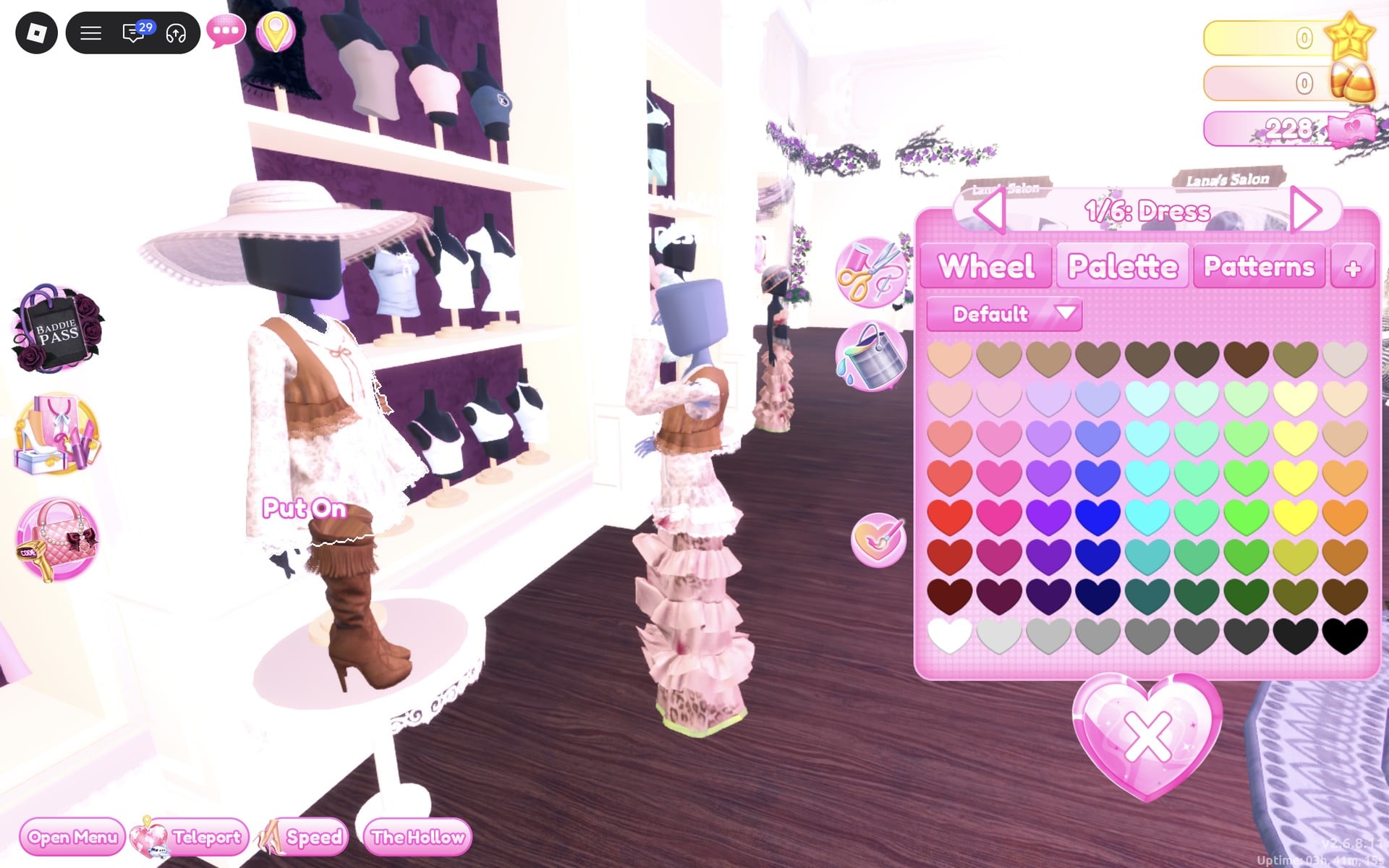
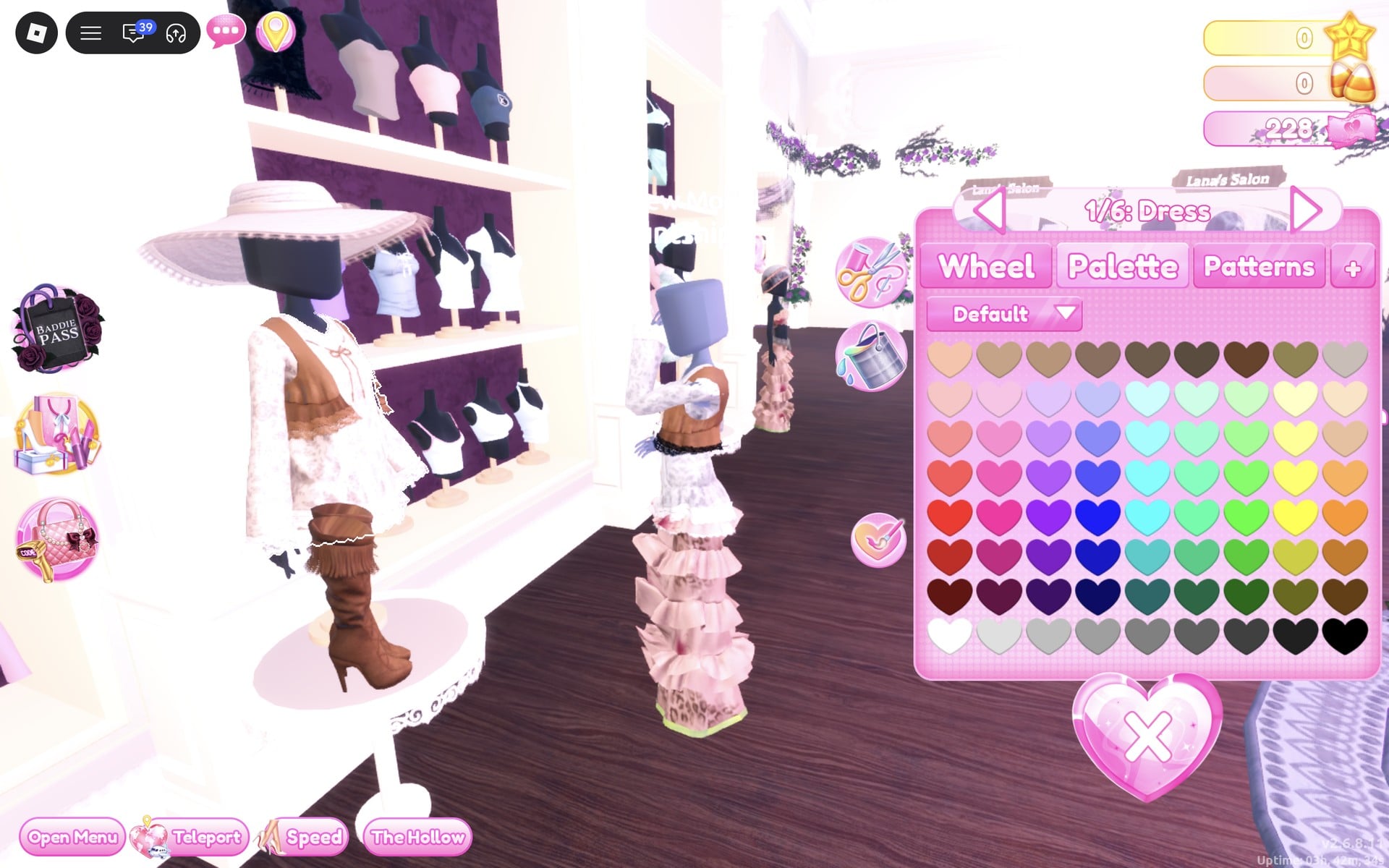
| Part | Colour | Palette square |
|---|---|---|
| “1/6: Dress” | Light cream | Column 9, row 2 |
| “2/6: Dress Stitching” | Leave as is | None |
| “3/6: Ribbon” | Leave as is | None |
| “4/6: Dress Lace” | Leave as is | None |
| “5/6: Vest” | Brown | Column 4, row 1 |
| “6/6: Vest Lace” | Light cream | Column 9, row 2 |
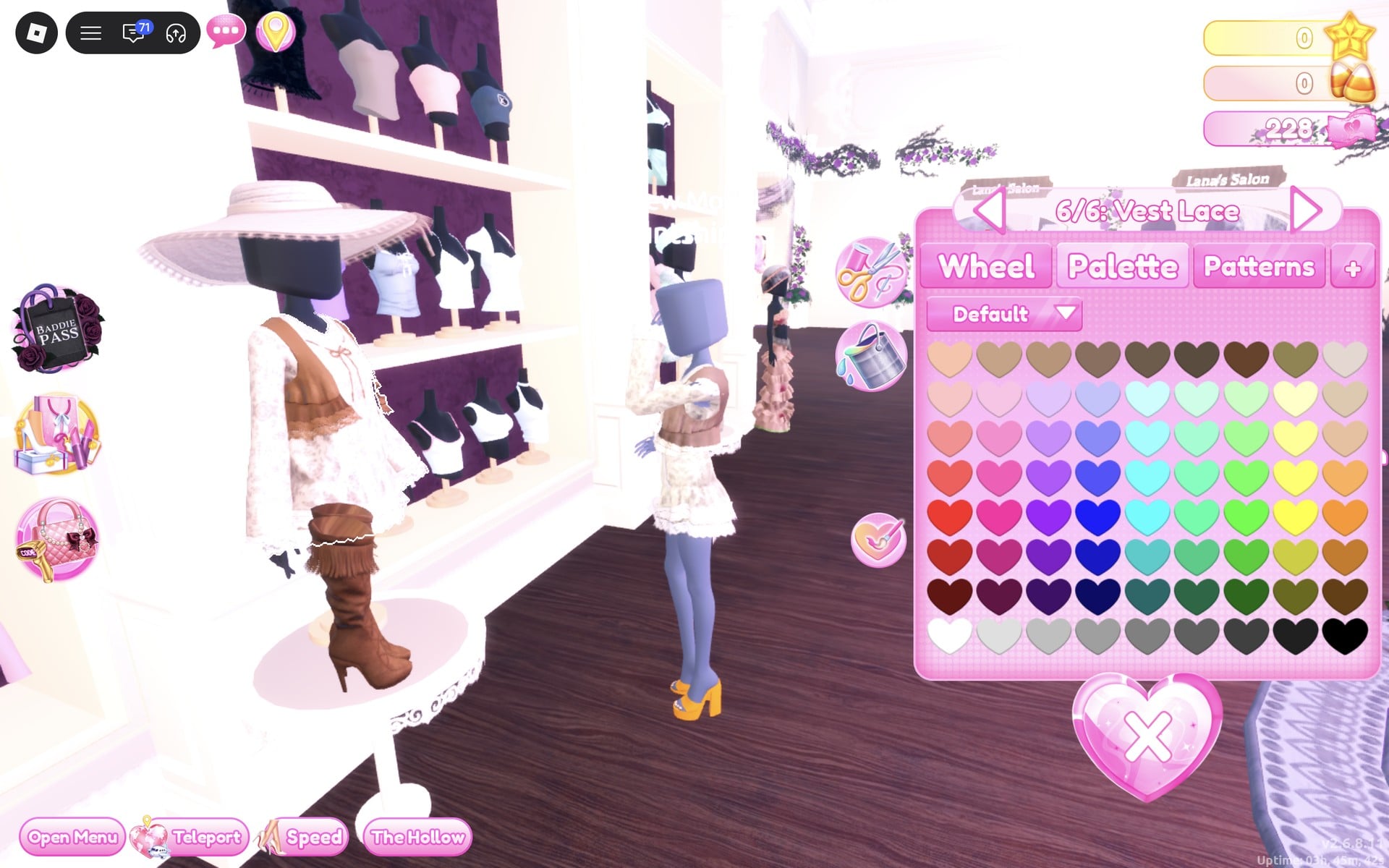
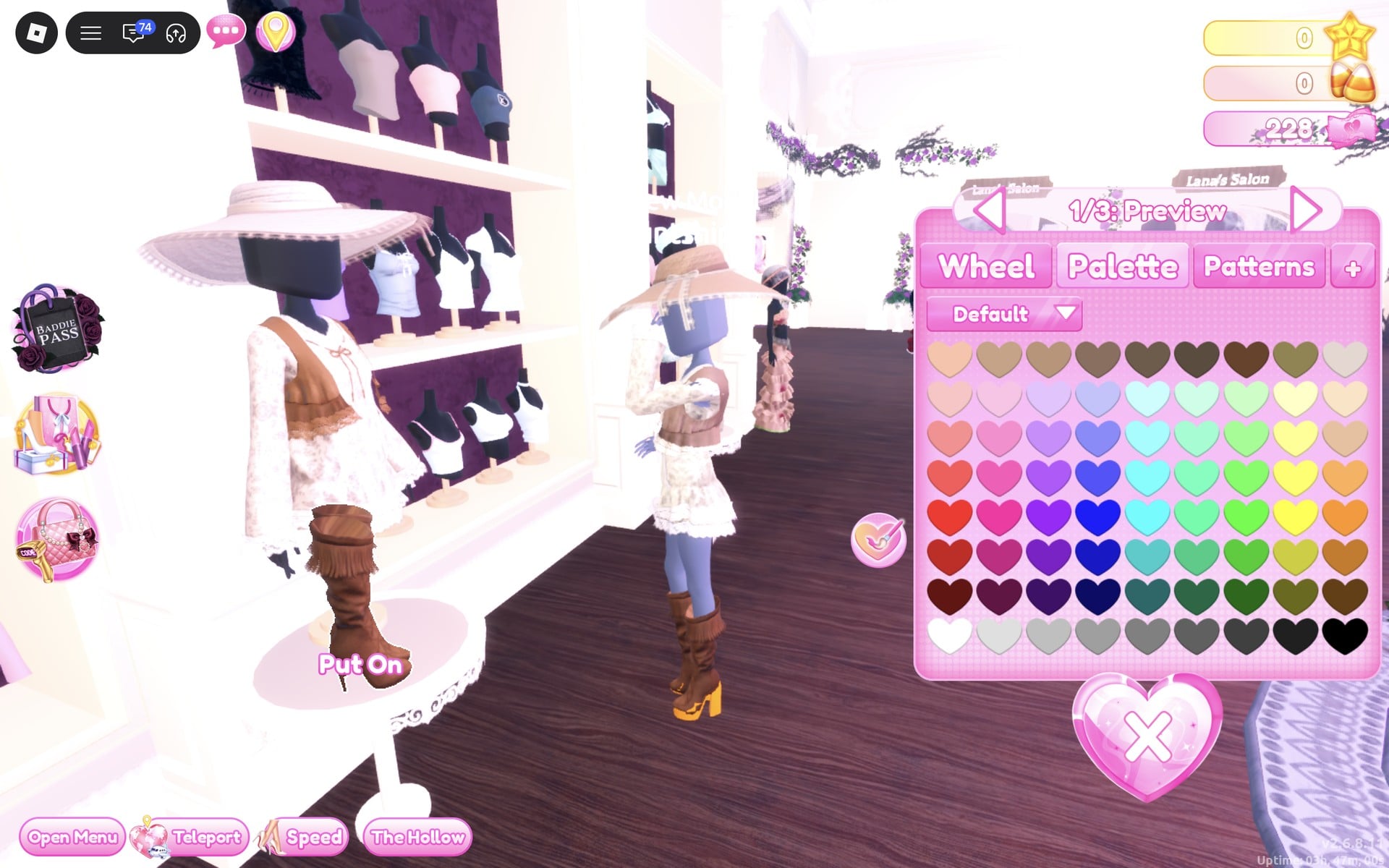
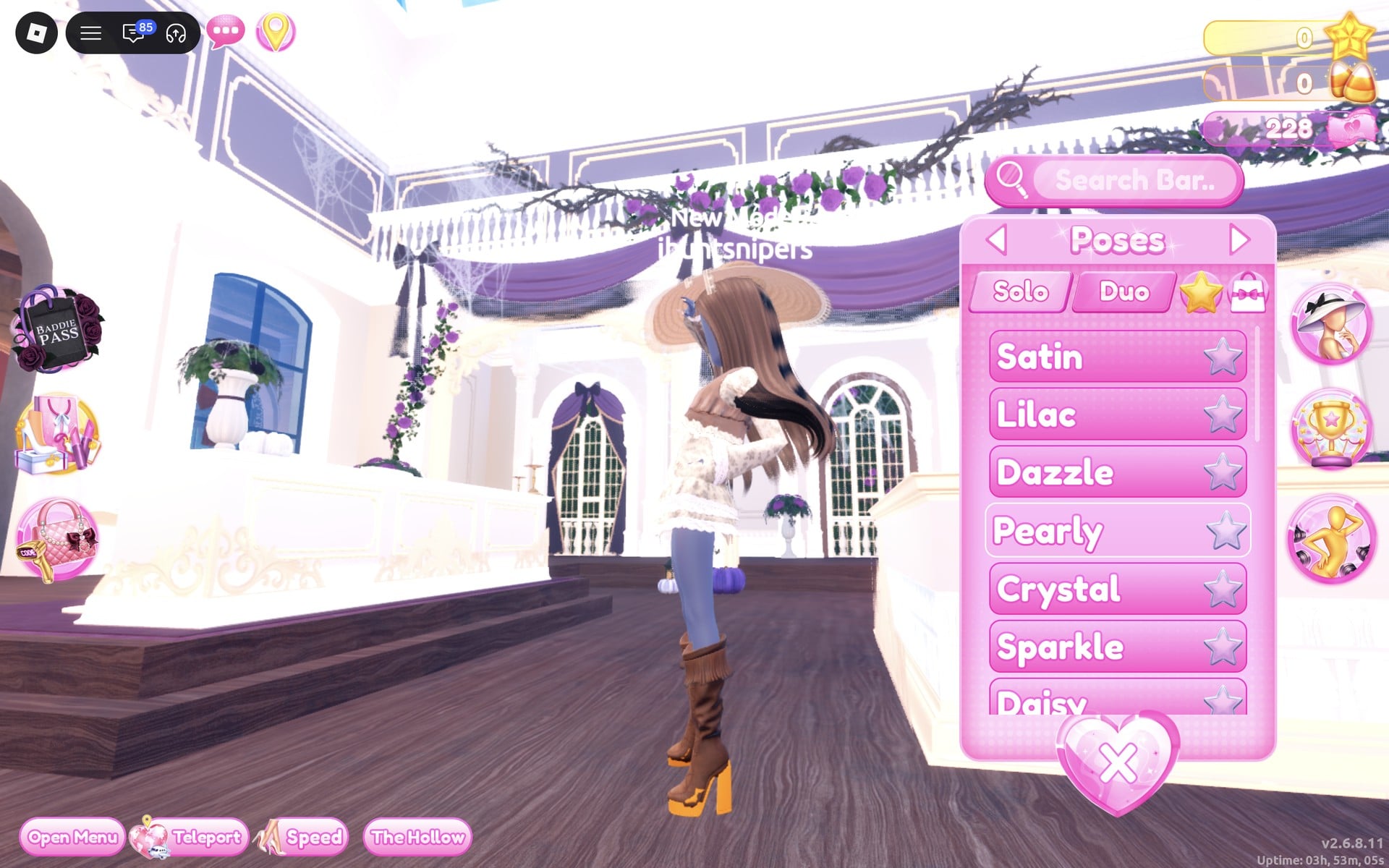
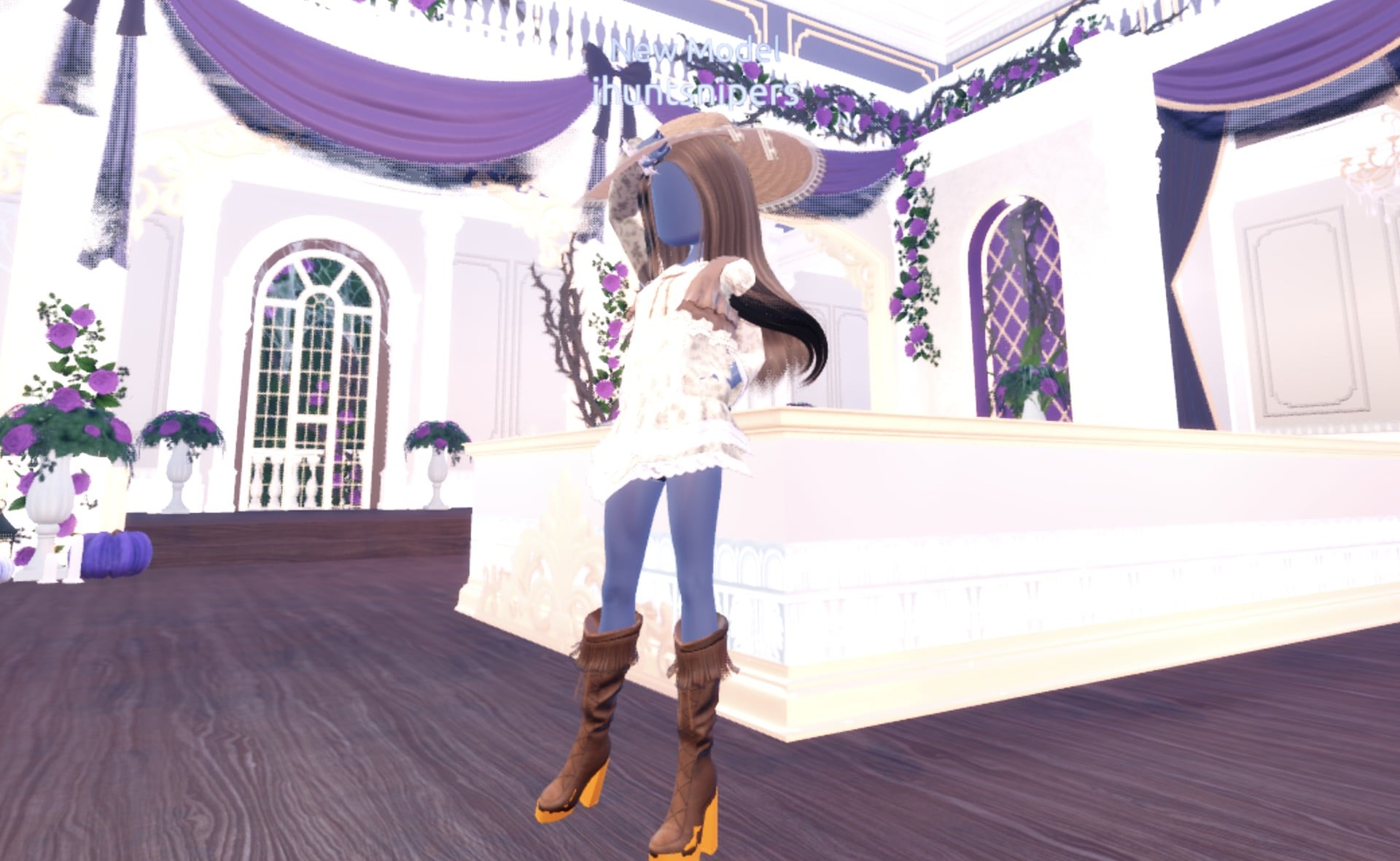
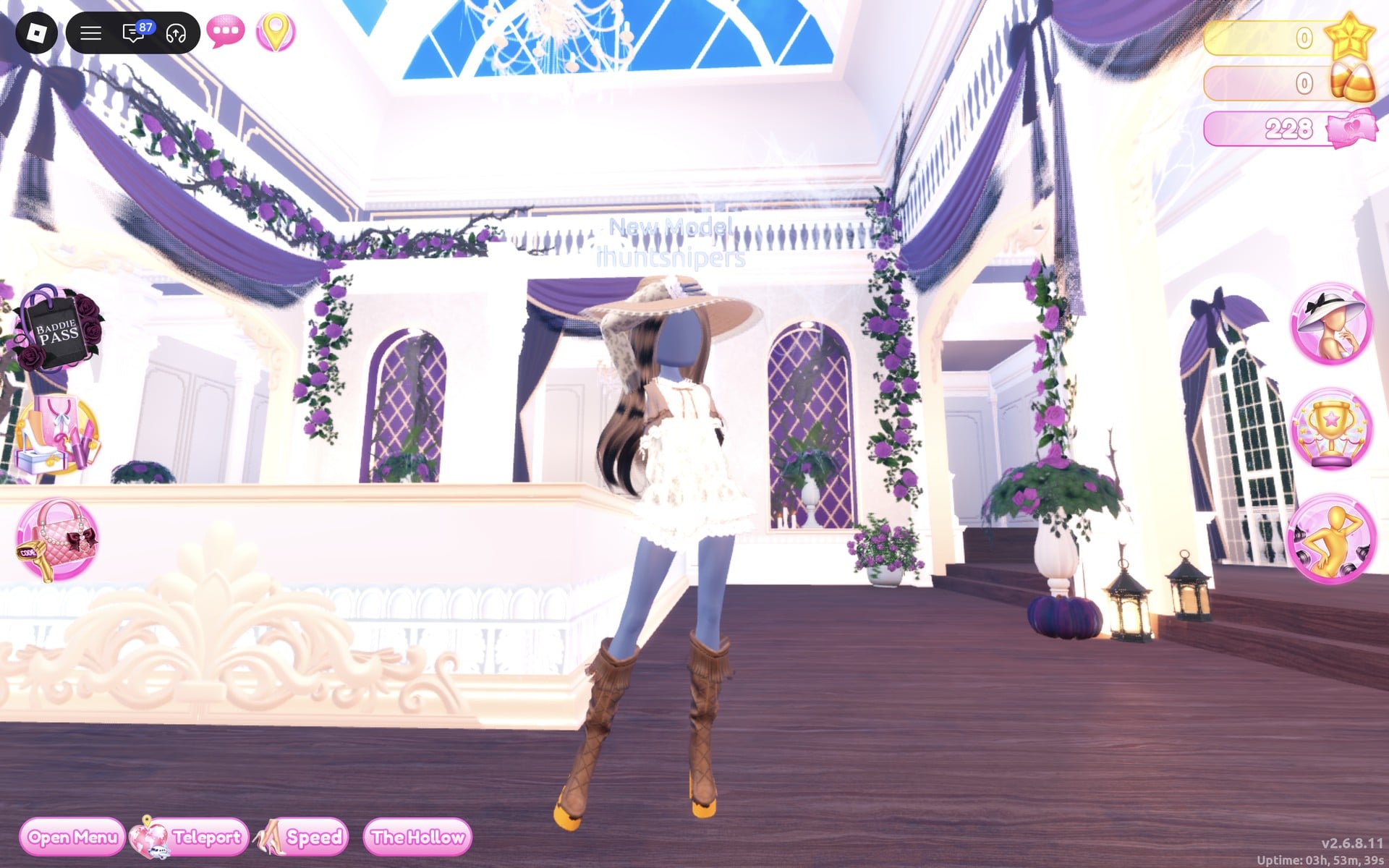
The finished outfit is a cream lace dress with a brown vest, a tan hat with a brown ribbon, fringed brown boots and loose brown waves.
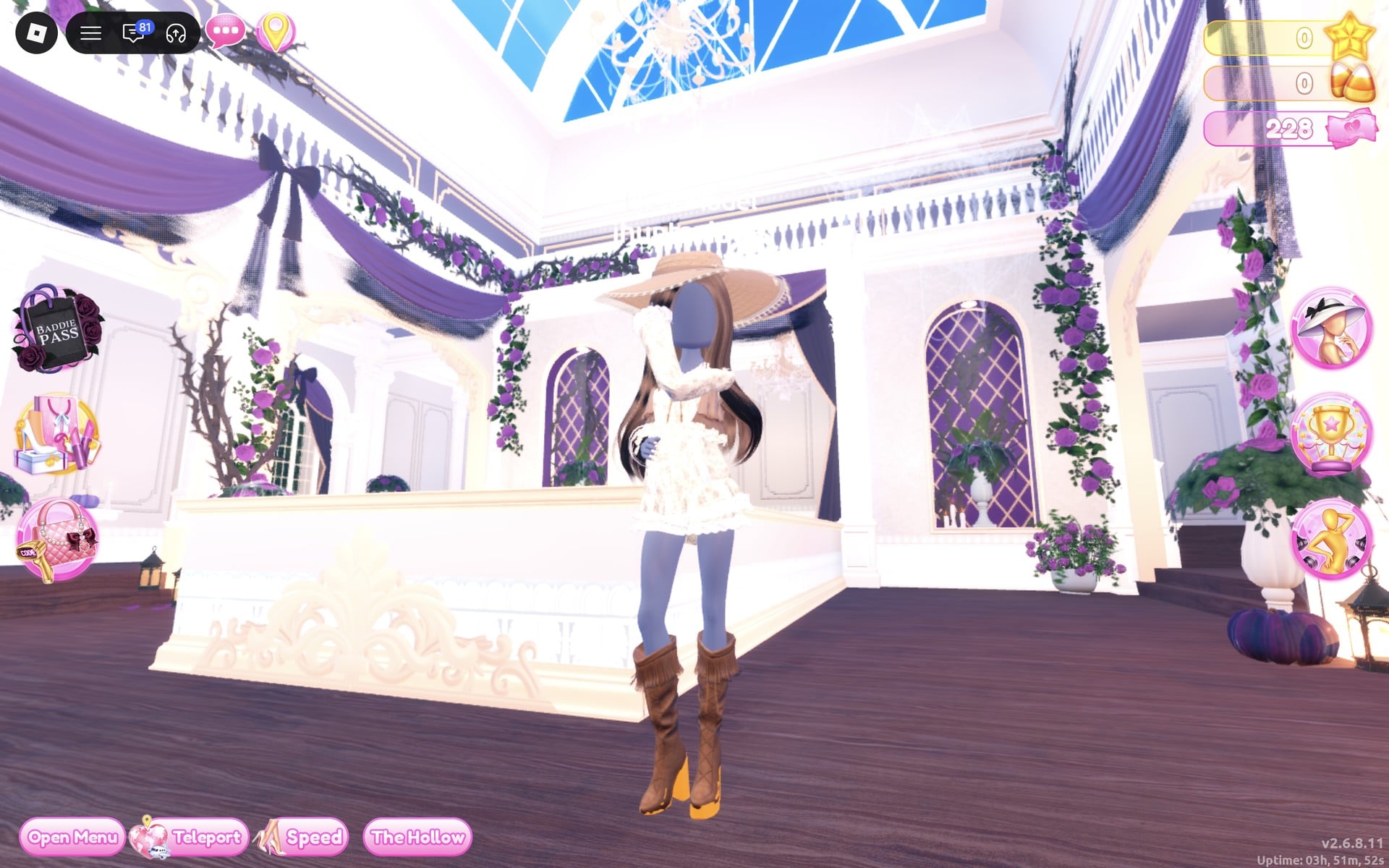
Teleport to “Freeplay Runway” to check it from the front, back and side.
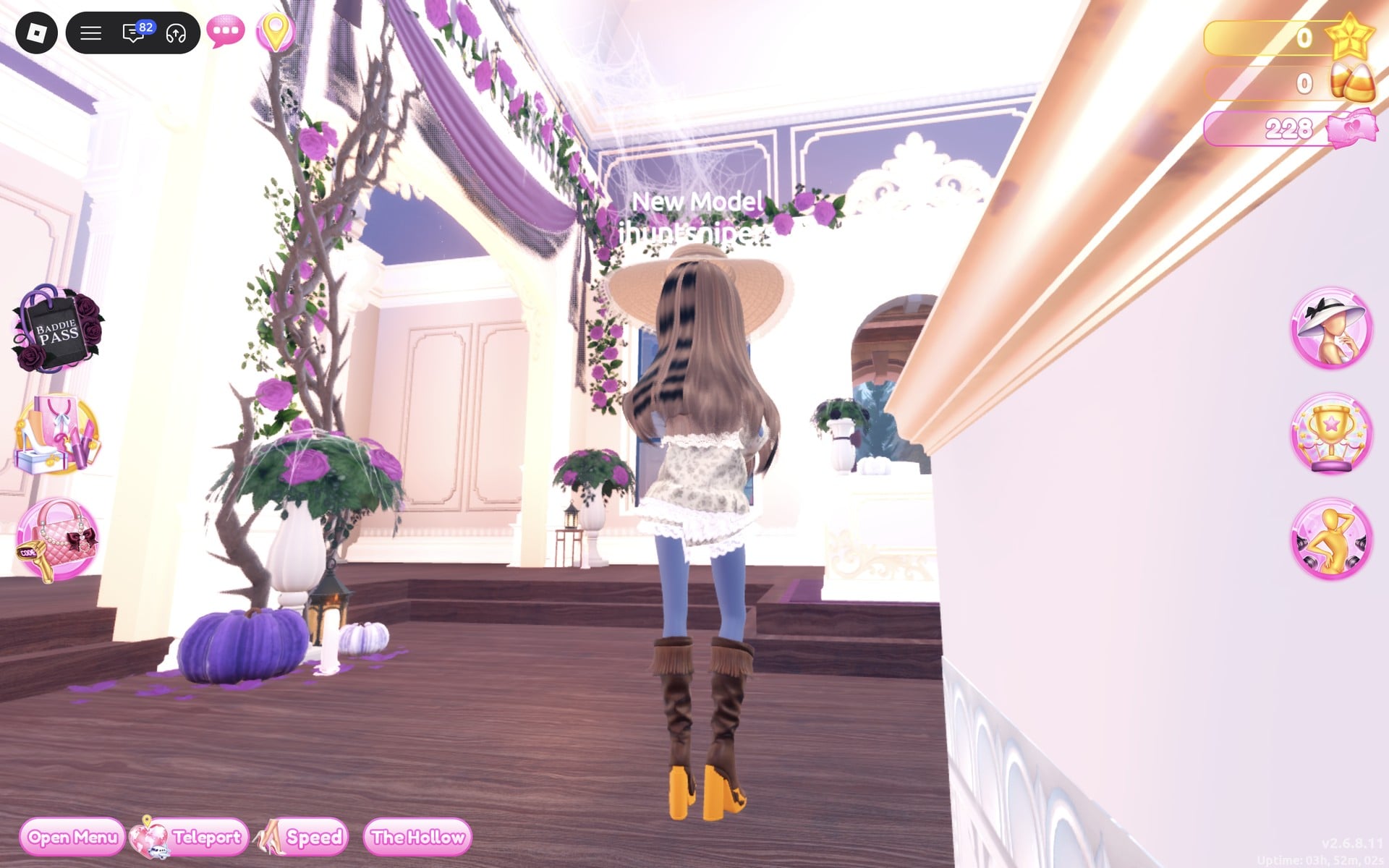
The yellow-orange soles under the boots in our pictures are from heels we had left on, so take any heels off in the “Wearing” panel before you put the boots on.
Boho look 2: Ruffled earth-tone gown
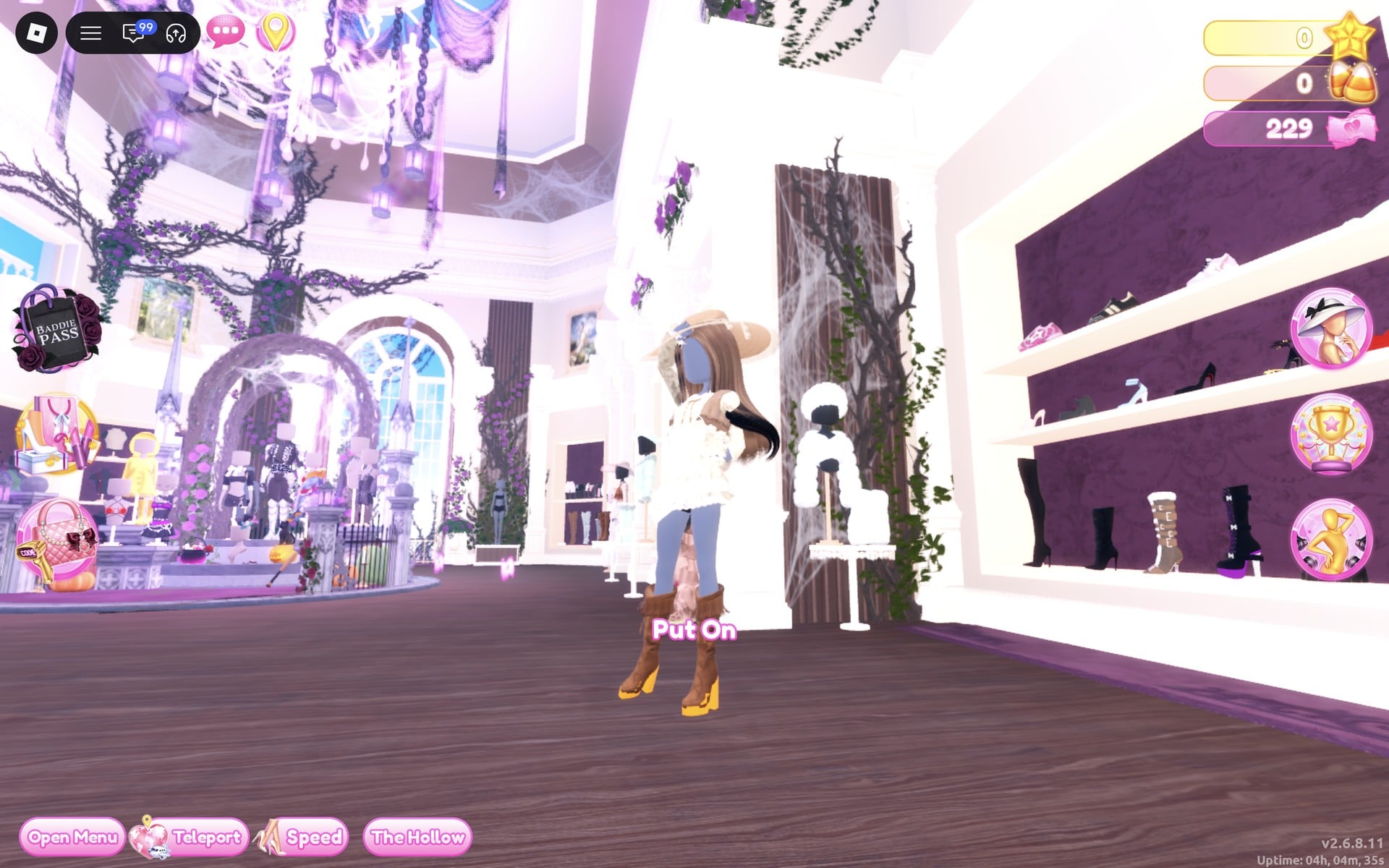
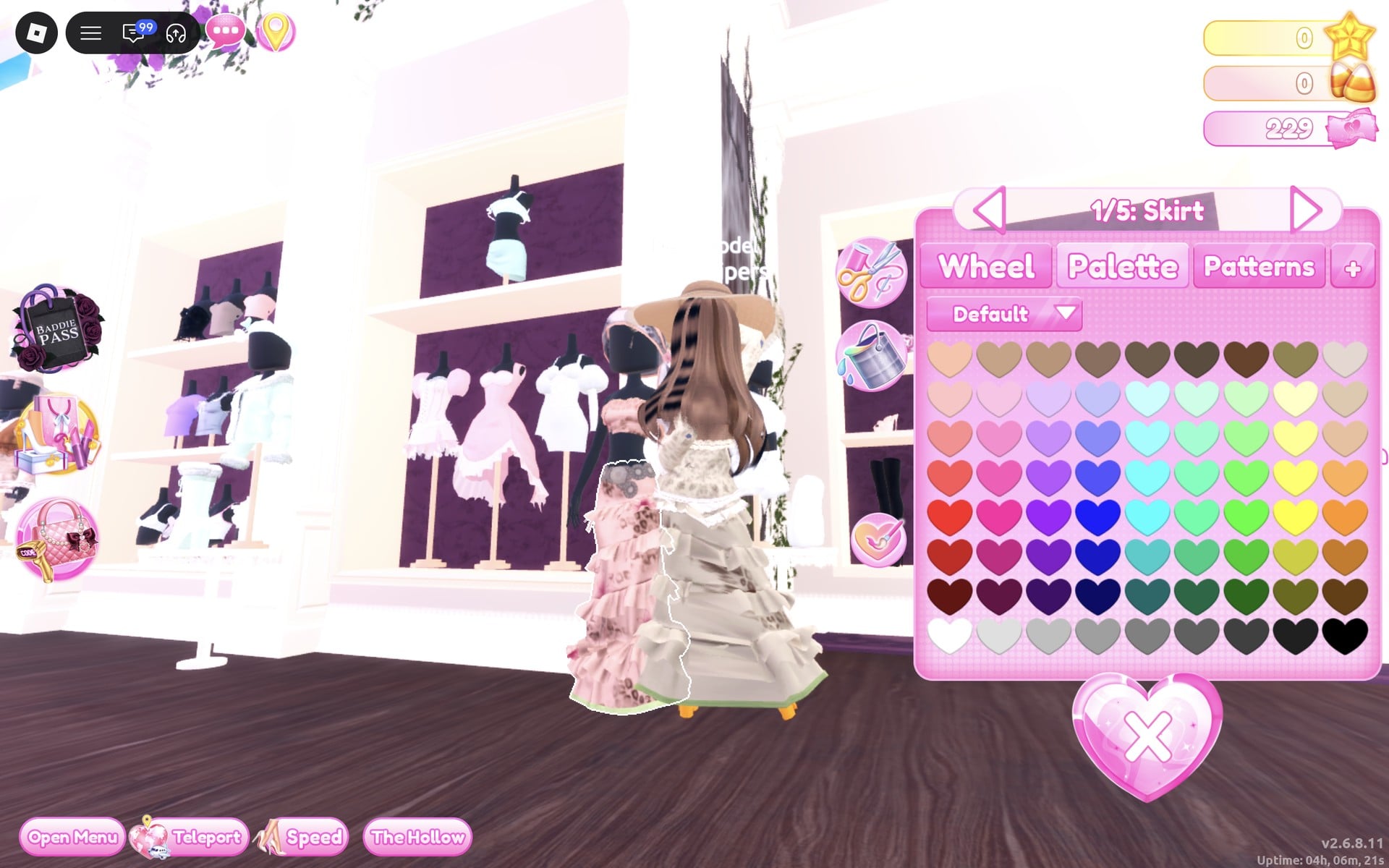
For the second look, start by reusing look 1’s tan sun hat and wavy brown hair. Find the gown on a mannequin on the main hall’s right-hand side, near the arrival point. The mannequin wears a long, tiered peach/pink ruffled gown and stands just to the left of the shoe and boot shelf, in front of a shelf holding short pink and white dresses.
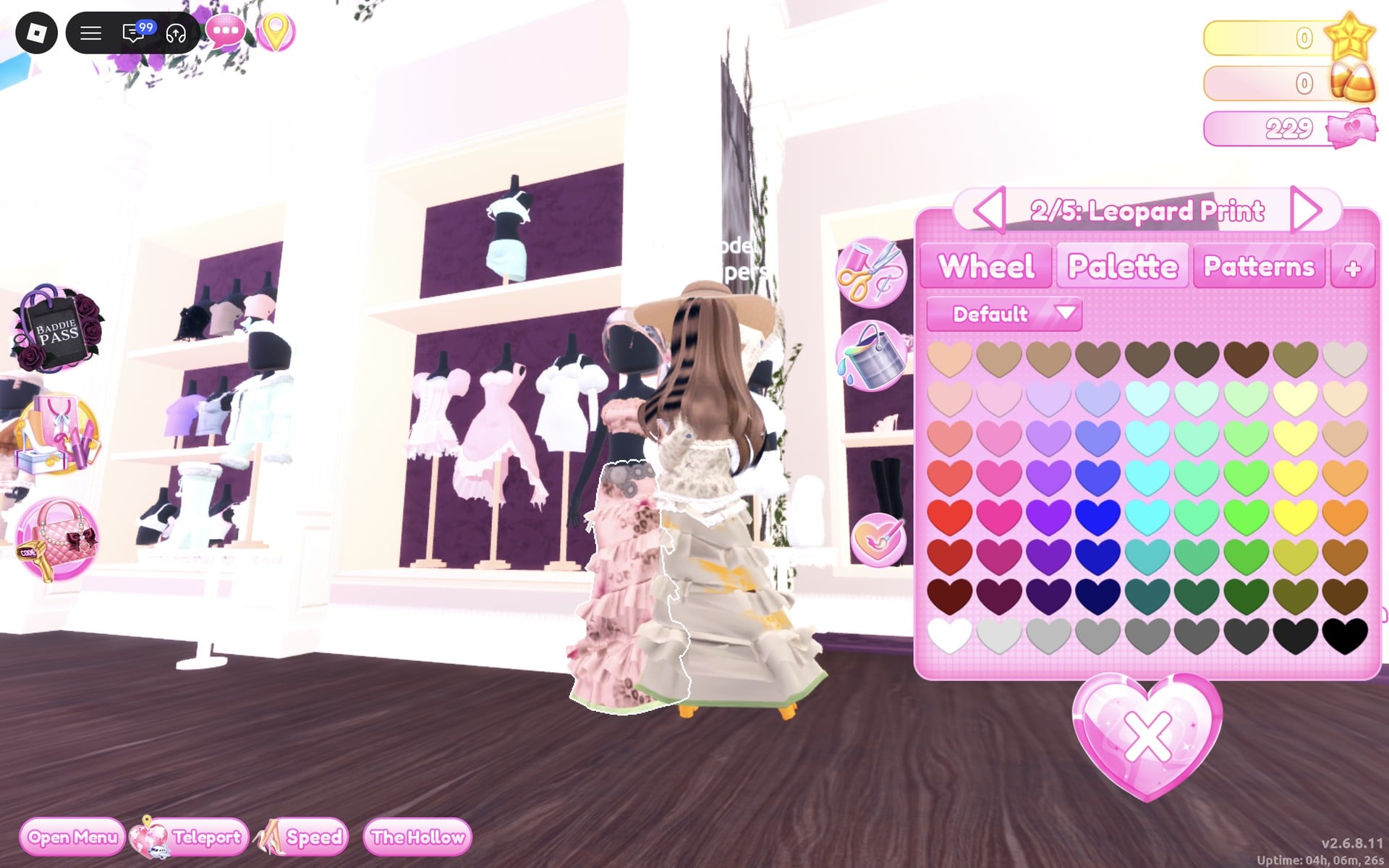
| Part | Colour | Palette square |
|---|---|---|
| “1/5: Skirt” | Light cream | Column 9, row 2 |
| “2/5: Leopard Print” | Rust | Column 9, row 6 |
| “3/5: Flower Details” | Olive | Column 8, row 7 |
| “4/5: Hemline” | Tan | Column 3, row 1 |
| “5/5: Belt” | Brown | Column 4, row 1 |
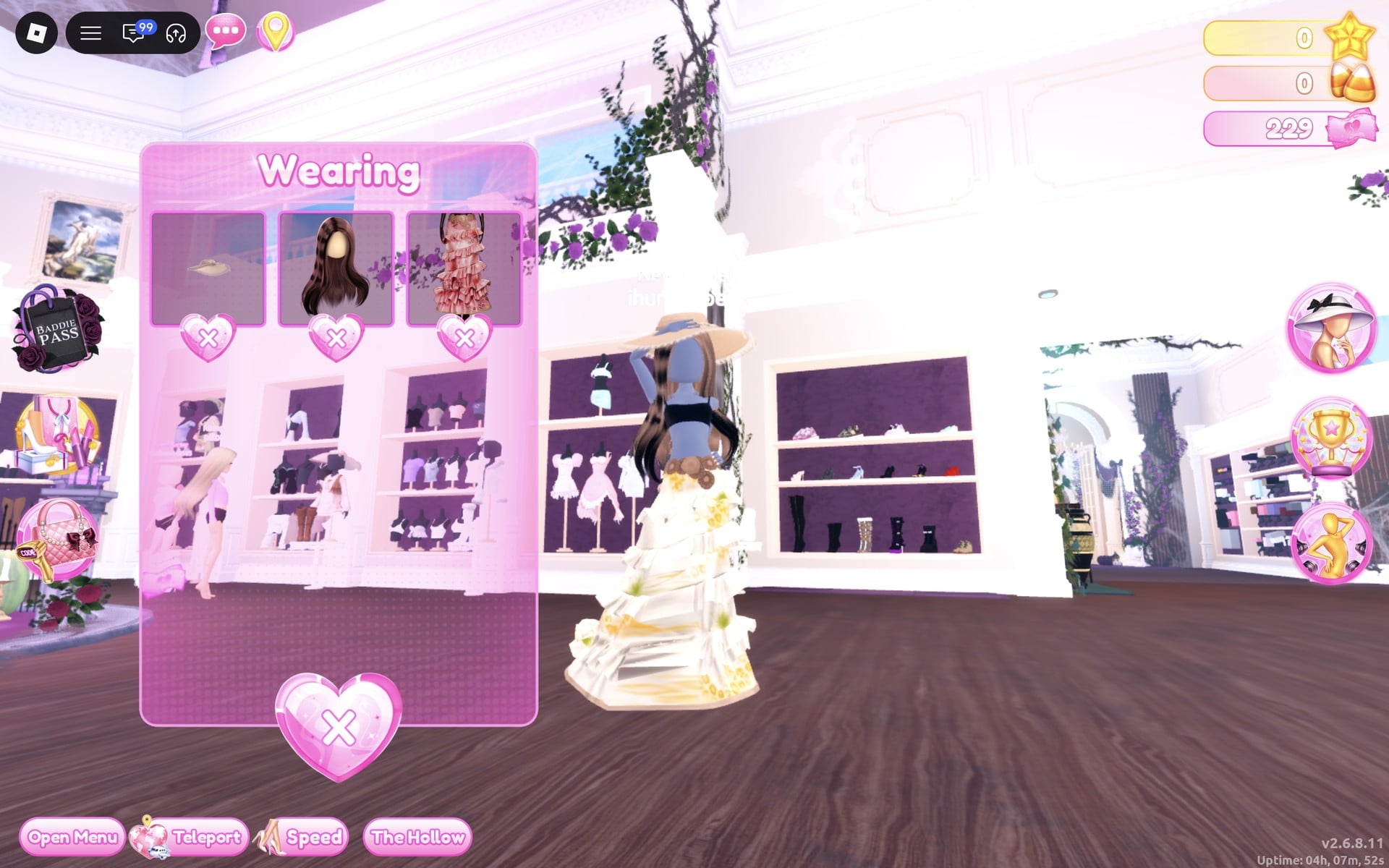
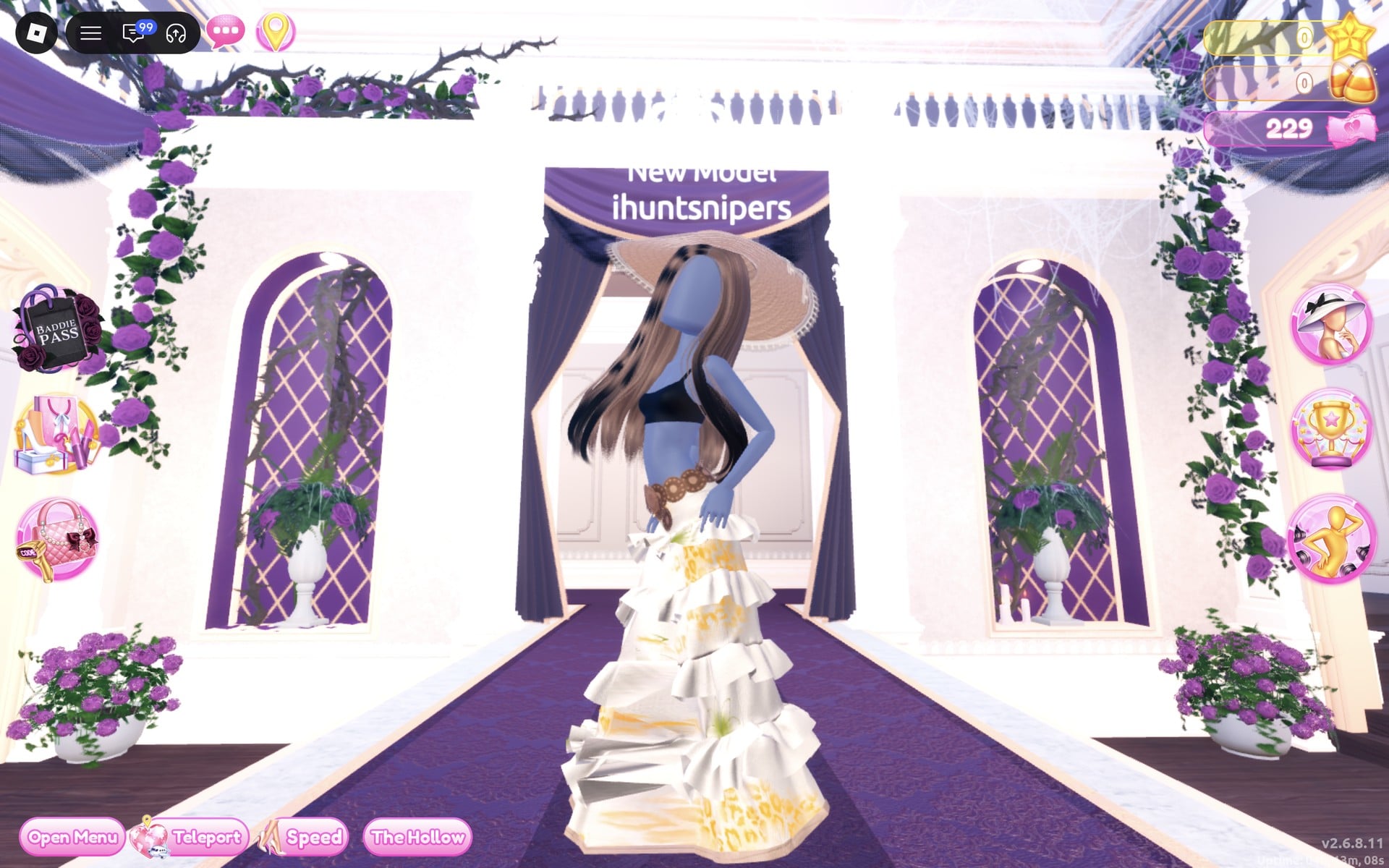
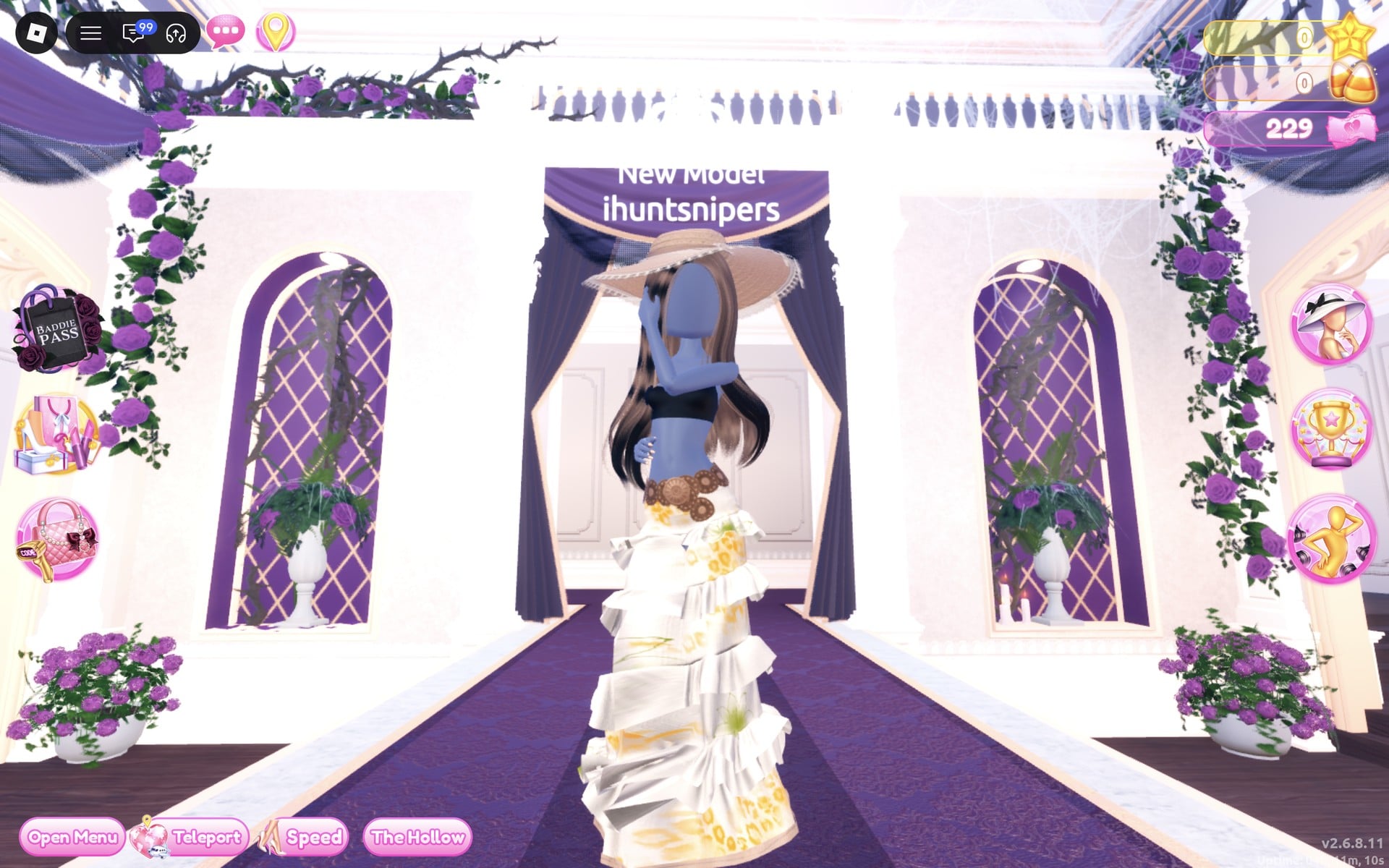
On “Freeplay Runway”, the gown reads cream and gold from the front.
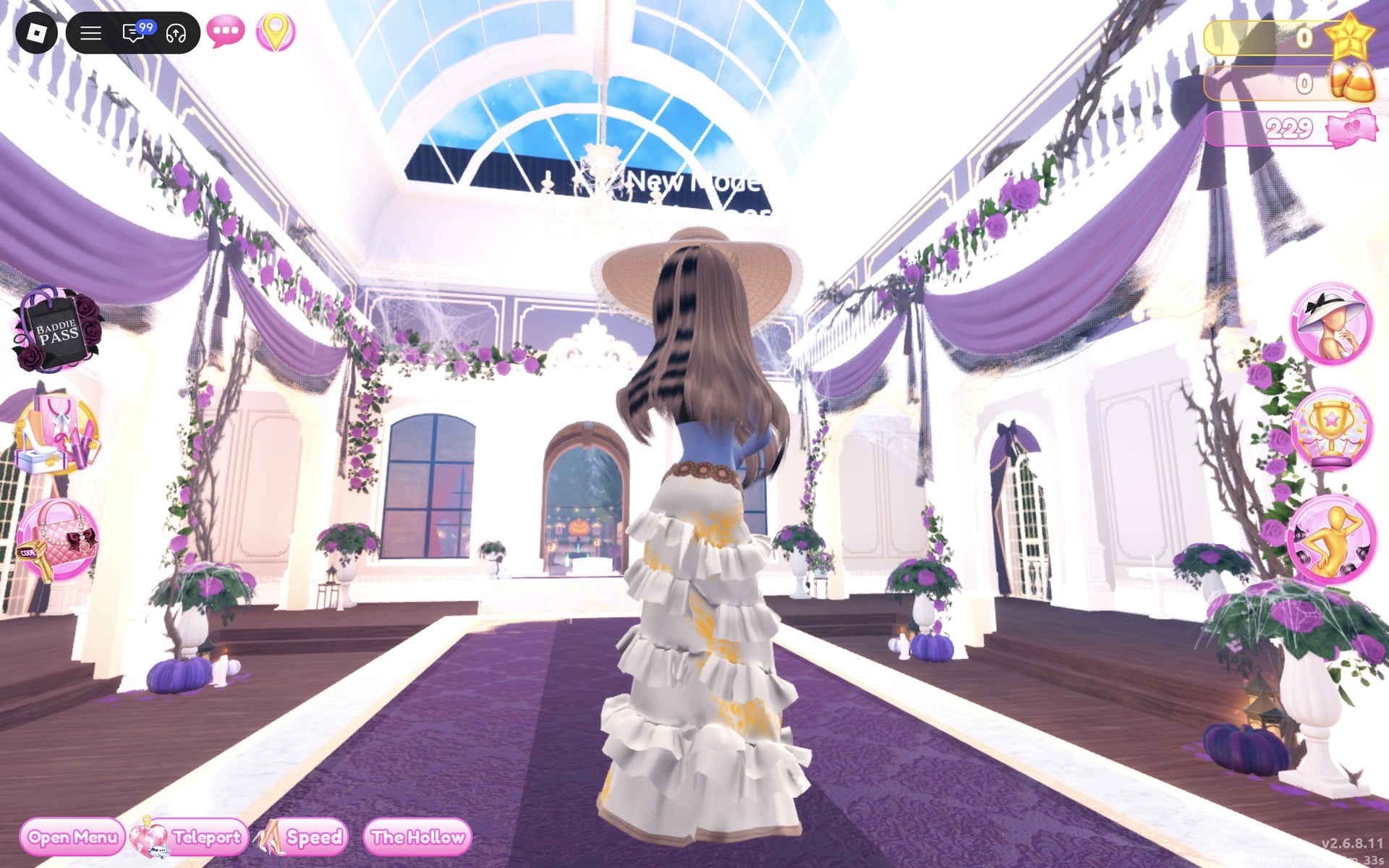
From the back, the long brown waves fall over the tiers.
Boho pieces to look for
None of these pieces has a name in the game, so look for them by place and shape. All five are in the Dressing Room in Freeplay Mode, and none of them showed a price or a lock when we used them.
| Piece | Where in the Dressing Room | Colours we used |
|---|---|---|
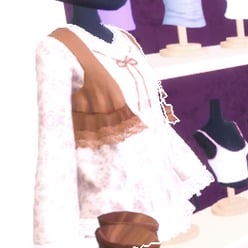 White lace long-sleeve dress with a vest (six-part set) White lace long-sleeve dress with a vest (six-part set) | Main hall, right-hand side a few steps in: the mannequin on a small round white table beside the white shelf of tops on purple-backed busts | Dress light cream (column 9, row 2); Vest brown (column 4, row 1); Vest Lace light cream (column 9, row 2) |
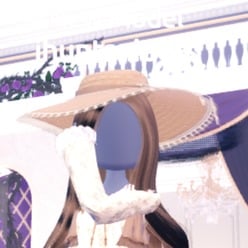 Wide-brim sun hat Wide-brim sun hat | On the same mannequin | Hat tan (column 3, row 1); Ribbon brown (column 4, row 1); Lace light cream (column 9, row 2) |
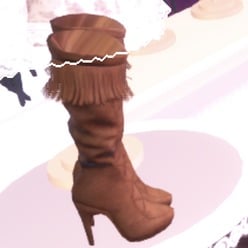 Brown fringed knee boots Brown fringed knee boots | On the same mannequin | Left in their own brown |
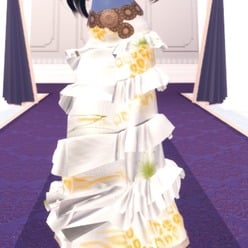 Ruffled tiered gown (five parts, opens at “1/5: Skirt”) Ruffled tiered gown (five parts, opens at “1/5: Skirt”) | Main hall, right-hand side near the arrival point: the mannequin just left of the shoe and boot shelf, in front of the short pink and white dresses | Skirt light cream (9, 2); Leopard Print rust (9, 6); Flower Details olive (8, 7); Hemline tan (3, 1); Belt brown (4, 1) |
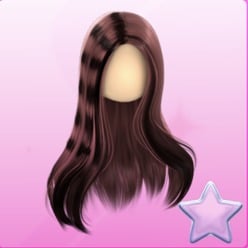 Long wavy hair with a middle parting Long wavy hair with a middle parting | Lana’s Salon (left arch) hair chair, “Wavy” tab, second row, right-hand card | Brown (column 4, row 1) |
Wearing a Boho look in a theme round
During a regular server round, the theme is displayed in a banner at the top of the main lobby, with a timer below. Use the icon at the top centre to see the theme’s hint card. When dressing time runs out, players take turns walking the runway for about 7 seconds each. The other players award ratings using the five stars at the screen’s bottom, after which a “Results” card ranks everyone. You can assemble either build in Freeplay Mode beforehand, letting you know which mannequin to use and which palette squares to select when Boho appears.
Between rounds an “Intermission” countdown of about a minute runs, with a “Pick Theme” button beside the timer. We did not press it and did not see what it costs. The rounds we watched were Plaid Fashion and Birds of Paradise, not Boho.
What we have not checked
Makeup is not part of either look: the vanity cards are numbered, and we did not set any, so the face in our pictures is blank. We also did not open the Patterns tab for florals or paisley, and the blue-grey skin tone in the pictures is simply our account’s. The Boho theme did not come up in the rounds we watched, so these looks have not been through a real vote, and we cannot tell you how many stars they earn.
FAQ
Can I change a piece’s colours after putting it on?
Yes. Click the same piece again and it reopens with the colours you set, so you can change any part and press “Put On” again. Setting the colours while you preview, before “Put On”, is the way that worked every time for us.
Where is the hair salon in the Dressing Room?
It is the left of the two “Lana’s Salon” arches, with a row of hair-dryer chairs under five framed hair silhouettes. Stand at a chair and press E at the heart prompt to open “Hairstyles”.
Do the boho pieces cost anything?
No price or lock showed on any piece in these two looks, or on the Dazzle and Lilac poses. Custom Hair is different: two slots are marked “Free!”, and the others cost 2,500 pink cash, 3,000 stars, VIP or 99 Robux. Neither look needs it.
Why are there yellow soles under the boots in the pictures?
Those are heels we had put on earlier and did not take off before the boots. Remove any heels in the “Wearing” panel first and the boots show on their own.
How do I take a piece off?
Open the “Wearing” panel with the hat button on the right side of the screen and click the small heart-X under the piece’s picture.